
When you’re working on a MacBook Air M5 for design or editing, the trackpad is great—but at some point, you’ll want more control, better precision, and less strain on your hand.
That’s where a good mouse makes a huge difference.
Whether you’re editing videos, designing in Photoshop, or working on timelines, the right mouse can speed up your workflow, improve accuracy, and make long sessions way more comfortable.
But here’s the thing—not every mouse works well for Mac or creative work.
Some are great for portability, some for gestures, and some are built specifically for precision tasks like editing and design.
In this guide, I’ll help you find the best mouse for MacBook Air M5 for designers and editors, based on what actually matters:
- Smooth and precise tracking (for detailed work)
- Comfortable design (for long hours)
- Custom buttons & gestures (for faster workflow)
- Seamless macOS compatibility
Because honestly, once you switch to the right mouse—you’ll never want to go back to just the trackpad.
Before that, also read this :
Logitech MX Master 3S (Bluetooth Edition)
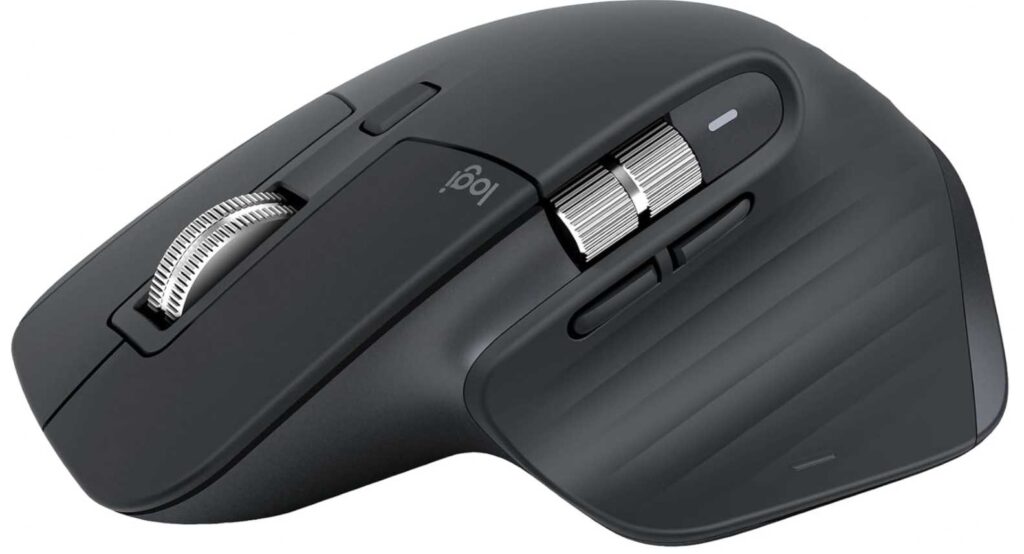
The Logitech MX Master 3S Bluetooth Edition Wireless Mouse is honestly the one I’d tell you to get without overthinking it if you’re doing design or editing on a MacBook Air M5.
(Best for: Designers + video editors + heavy daily use)
This isn’t just a mouse—it’s more like a workflow upgrade.
You get 8K DPI precision, which means super accurate control when you’re working on detailed edits—whether that’s Photoshop, Figma, or video timelines.
The MagSpeed scroll wheel is another big deal. Once you use it, you’ll notice how smooth and fast it is, especially when scrolling through long timelines or documents.
(Real talk: This is where most cheaper mice start to feel slow)
It’s also built for long sessions. The ergonomic shape fits your hand naturally, so you don’t get that wrist fatigue after hours of editing.
And the biggest advantage for creatives—customizable buttons. You can assign shortcuts for different apps, which speeds up your workflow a lot.
Pros
- Extremely precise (perfect for design & editing work)
- Smooth, fast scrolling for timelines and large files
- Comfortable for long hours
- Custom buttons improve workflow
- Works perfectly with macOS (Bluetooth, no dongle)
Cons
- Expensive compared to basic mice
Final thoughts
If you’re serious about design, video editing, or creative work on MacBook Air M5, this is easily one of the best choices.
Yeah, it costs more—but it actually saves time and effort every single day.
Once you start using it, you’ll understand why so many designers stick with it.
Logitech Lift Vertical Ergonomic Mouse
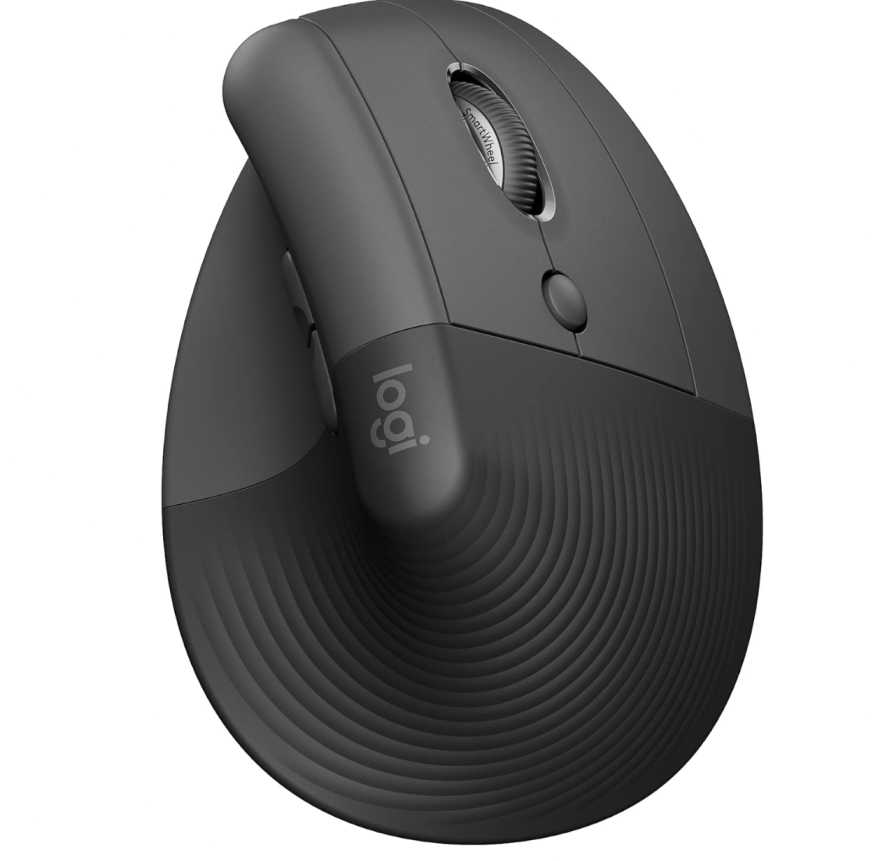
The Logitech Lift Vertical Ergonomic Mouse is the one I’d recommend if you’re doing design or editing on your MacBook Air M5 for long hours and want to stay comfortable.
(Best for: Long editing sessions + comfort + wrist support)
If you’ve ever felt wrist pain or fatigue after working for hours, this mouse is a game changer. The vertical design (57° angle) keeps your hand in a more natural position, which reduces strain a lot.
At first, it might feel a bit different—but give it a day or two, and it starts to feel way more comfortable than a regular mouse.
(Real talk: This is more about comfort than raw performance)
You still get useful features like quiet clicks, smooth scrolling, and customizable buttons, so it works well for editing and design—but it’s not as precision-focused as something like the MX Master 3S.
It connects easily via Bluetooth, so it works perfectly with your MacBook Air M5 without any extra setup.
Pros
- Excellent comfort for long design/editing sessions
- Reduces wrist strain and fatigue
- Quiet clicks and smooth scrolling
- Customizable buttons for workflow
Cons
- Takes time to get used to (vertical design)
Final thoughts
If you spend hours designing or editing every day, this is one of the smartest upgrades you can make.
It’s not about speed—it’s about working longer without discomfort.
Pair this with a good setup, and your workflow will feel much more relaxed.
LEKVEY Vertical Wireless Ergonomic Mouse
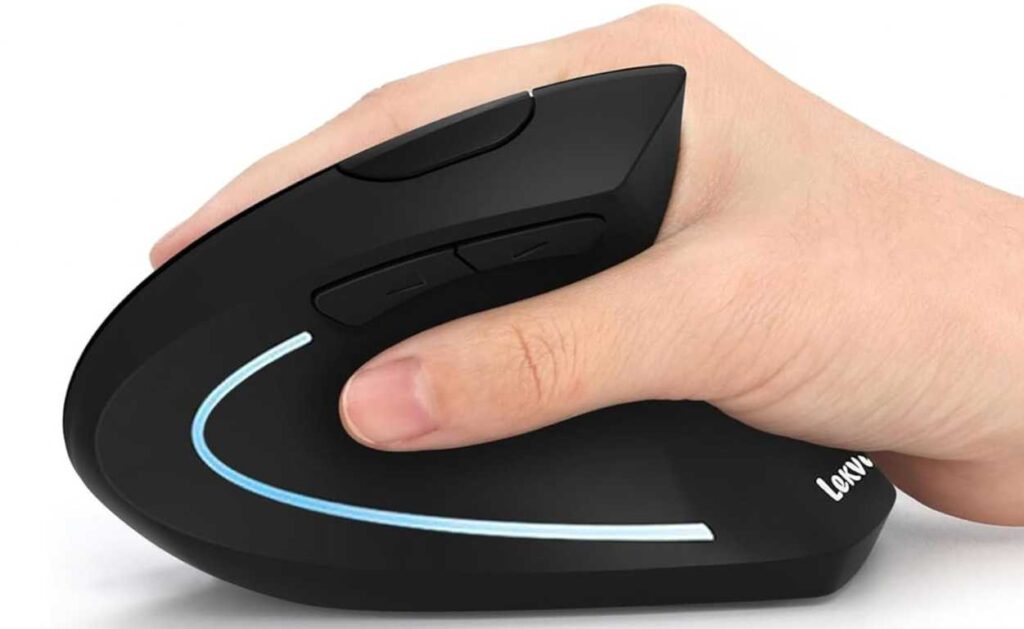
The LEKVEY Vertical Wireless Ergonomic Mouse is one of those options I’d suggest if you want better comfort for long design or editing sessions on MacBook Air M5—without spending too much.
(Best for: Budget ergonomic setup + long working hours)
If you’re editing, designing, or just working for hours, wrist strain becomes a real issue. That’s where this vertical mouse helps. The handshake-style design keeps your wrist in a more natural position, which can reduce fatigue over time.
Now, it’s not as premium as Logitech’s ergonomic mice—but for the price, it does a pretty decent job.
(Real talk: This is a budget comfort upgrade, not a pro-level precision mouse)
You also get adjustable DPI (800/1200/1600) and extra buttons for basic shortcuts, which can help a bit with workflow—especially for browsing or simple editing tasks.
It’s rechargeable too, so you don’t have to keep buying batteries.
Pros
- Ergonomic design helps reduce wrist strain
- Good budget option for long hours
- Rechargeable battery (no replacements needed)
- Extra buttons for basic productivity
Cons
- Not ideal for precision-heavy design or editing work
Final thoughts
If you’re starting out or working on a budget, this is a nice ergonomic upgrade for MacBook Air M5.
But if your work involves serious design, video editing, or detailed precision, you’ll eventually want to move to something more advanced with better tracking and customization.
Philips Vertical Ergonomic Mouse
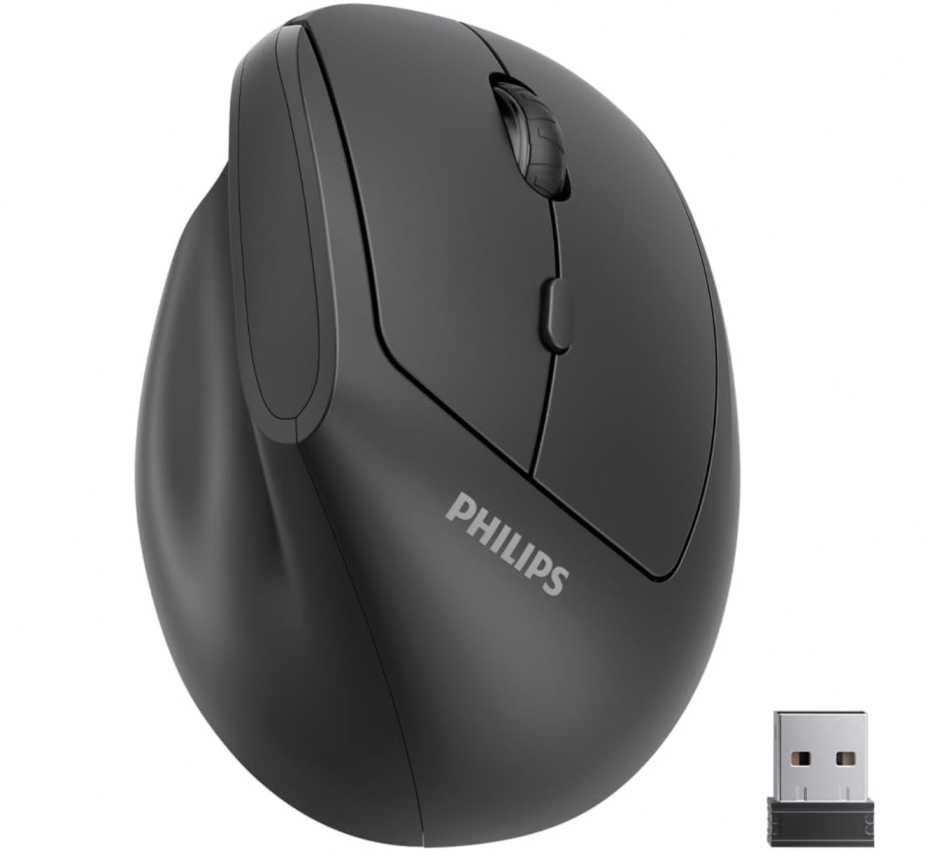
The Philips Ergonomic Vertical Wireless Mouse is another budget-friendly ergonomic option I’d suggest if you’re using your MacBook Air M5 for long hours and want to reduce wrist strain.
(Best for: Entry-level ergonomic setup + light design/editing work)
If your main issue is discomfort or wrist pain, this mouse actually helps. The vertical (57°) design keeps your hand in a more natural position, which can make long sessions feel easier.
It’s also lightweight and simple, so you can carry it around easily if you switch between workspaces.
(Real talk: Good for comfort—but built for small-level design work)
You do get adjustable DPI (800/1200/1600) and silent buttons, which are fine for general use, light editing, and daily tasks—but nothing too advanced.
Also, it uses a 2.4GHz USB receiver (not Bluetooth), so you’ll need a USB-C adapter if your MacBook Air M5 doesn’t have a standard USB-A port.
Pros
- Ergonomic design helps reduce wrist fatigue
- Quiet clicks for distraction-free work
- Lightweight and portable
- Affordable option
Cons
- Requires USB receiver (not as clean as Bluetooth)
Final thoughts
If you want a cheap ergonomic mouse for MacBook Air M5, this is a decent starting point—especially for comfort.
But for serious design or editing work, you’ll probably outgrow it quickly and want something with better precision and more advanced controls.
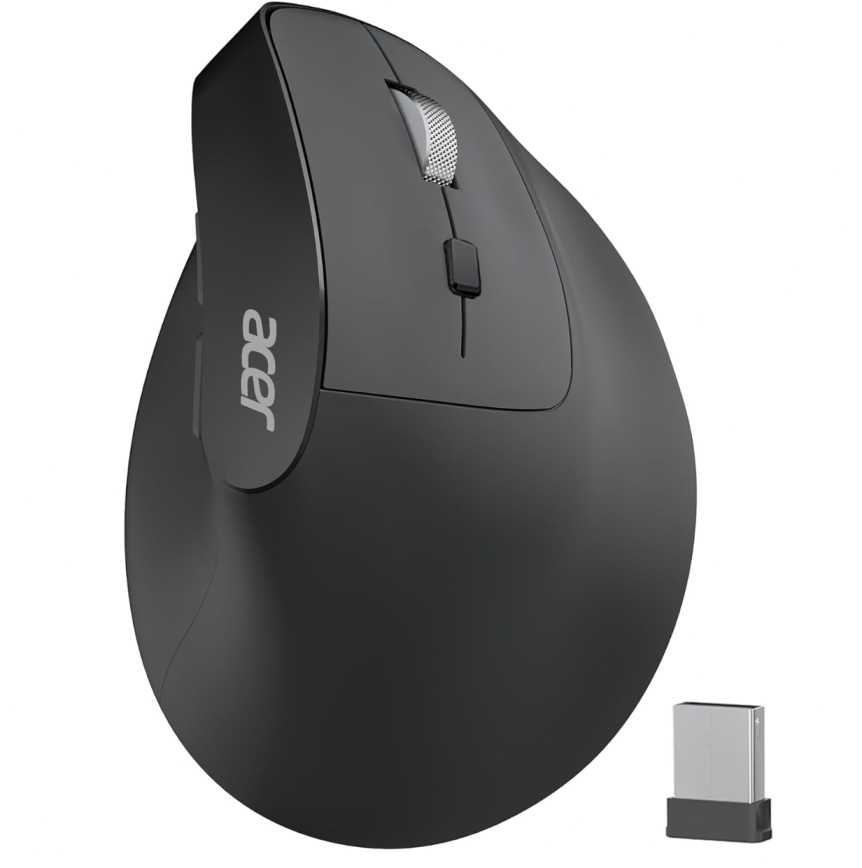
Acer Ergonomic Vertical Wireless Mouse
The Acer Ergonomic Vertical Wireless Mouse is one of those budget ergonomic picks I’d suggest if you’re starting to feel wrist strain while using your MacBook Air M5.
(Best for: Comfort + long working hours + budget setup)
If you spend hours coding, editing, or just working daily, the 57° vertical design actually makes a noticeable difference. It keeps your wrist in a more natural position, which helps reduce fatigue over time.
That said, there is a small adjustment period—usually a few days to a week—before it starts feeling natural.
(Real talk: Great for comfort, but made for small precision-heavy design work)
You get adjustable DPI (1000/1200/1600) and extra buttons for navigation, which are useful for everyday productivity. But if you’re doing detailed design or video editing, the precision and customization are still limited compared to premium mice.
Also important: it uses a 2.4GHz USB receiver (no Bluetooth), so you’ll likely need a USB-C adapter for your MacBook Air M5.
Pros
- Ergonomic vertical design reduces wrist strain
- Rechargeable (no need for batteries)
- Lightweight and comfortable for long sessions
- Affordable entry-level ergonomic mouse
Cons
- Not ideal for designers/editors (limited precision & controls)
- No Bluetooth (requires USB receiver + adapter)
- Side buttons may not fully work on macOS
Final thoughts
If your priority is comfort on a budget, this is a solid choice for your MacBook Air M5 setup.
But if you’re doing serious design, editing, or creative work, I’d honestly suggest investing in a higher-end mouse with better precision and customization—it’ll make a big difference in your workflow.
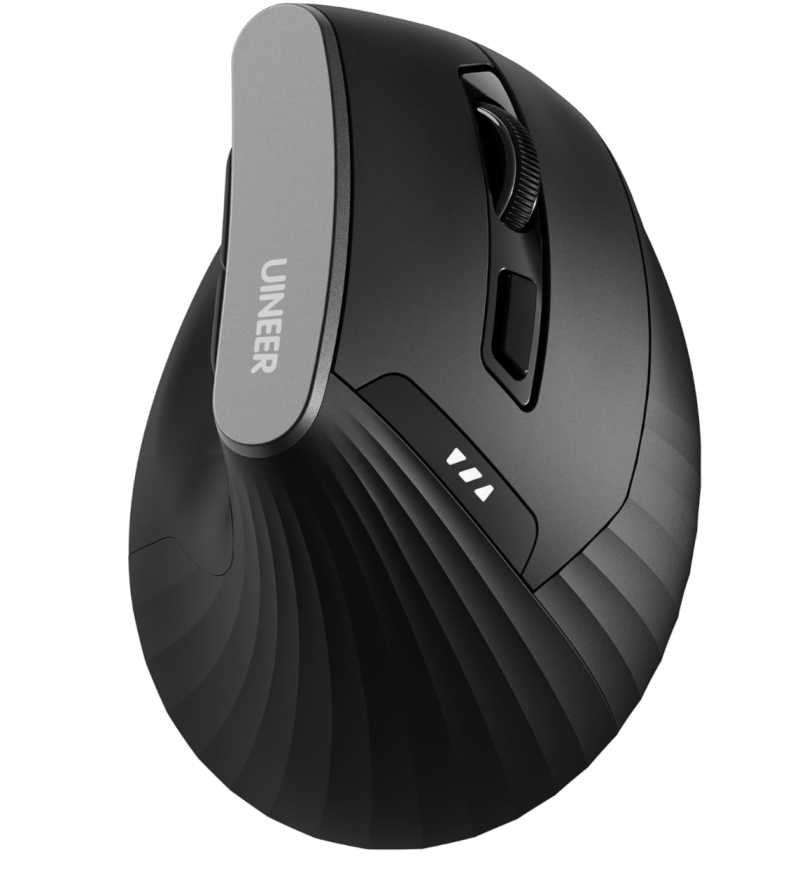
Uineer Wireless Ergonomic Mouse
The Uineer Wireless Ergonomic Bluetooth Vertical Mouse is one of those options I’d actually recommend over basic budget ergonomic mice—especially if you want flexibility with your MacBook Air M5.
(Best for: Multi-device setup + comfort + budget productivity)
What makes this stand out is the tri-mode connectivity—you get Bluetooth (4.0/5.0) and a 2.4GHz receiver. So you can use it cleanly with your MacBook Air M5 via Bluetooth, while also connecting to another device (like an iPad or PC) at the same time.
That’s honestly super useful if you’re switching between devices a lot.
(Real talk: This is a solid middle-ground—not pro-level, but better than basic mice)
The vertical ergonomic design helps reduce wrist strain, and you also get 4 DPI levels (up to 2400), which is slightly better than most budget options.
One nice bonus: it has a side scroll wheel, which can actually help when you’re working on timelines, spreadsheets, or wide design canvases.
Pros
- Bluetooth + USB receiver (flexible connectivity)
- Can connect to multiple devices (great for workflow)
- Ergonomic design reduces wrist fatigue
- Side scroll wheel (useful for productivity tasks)
- Rechargeable with battery indicator
Cons
- Still not ideal for high-end design/editing precision
- Takes time to get used to vertical grip
Final thoughts
If you want a comfortable, flexible mouse for MacBook Air M5, this is a really smart pick—especially compared to basic budget options.
But if you’re doing serious design, photo editing, or video work, you’ll still benefit more from a premium mouse with higher precision and deeper customization.
Final Thoughts
At the end of the day, choosing the best mouse for your MacBook Air M5 (especially for designers and editors) really comes down to how you actually work.
If you’re just doing basic tasks, browsing, or light editing, budget-friendly options like the Logitech M240 Silent Bluetooth Mouse or Macally USB-C Wired Mouse will get the job done without overcomplicating things.
But if you’re spending hours in Photoshop, Final Cut Pro, Figma, or Premiere Pro, you’ll quickly notice the difference with something like the Logitech MX Master 3S Wireless Mouse. The precision, customization, and workflow control are on a completely different level.
And if comfort is your priority (especially for long sessions), ergonomic options like the Logitech Lift Vertical Ergonomic Mouse or Uineer Wireless Ergonomic Bluetooth Vertical Mouse are worth considering.
👉 Simple way to decide:
- Casual use → go budget
- Design/editing work → go premium (MX Master 3S type)
- Long hours / wrist pain → go ergonomic
If I had to give you one honest recommendation as a friend:
👉 Don’t cheap out if your work depends on it.
A good mouse isn’t just an accessory—it directly impacts your speed, comfort, and overall workflow on your MacBook Air M5.