
Best monitor for coding under $300 (Complete Guide)
If you spend hours writing code, having the right monitor can make a bigger difference than you might think. A sharp display, enough screen space, and comfortable viewing angles can help reduce eye strain and make programming much more enjoyable. The good news is that you don’t have to spend a fortune to get a great coding monitor.
In this guide, we’ve rounded up the best monitor for coding under $300 to help you find the perfect balance between performance and price. Whether you’re a software developer, web designer, computer science student, or simply learning to code, these monitors offer excellent display quality, ergonomic features, and reliable performance without breaking your budget.
We compared screen size, resolution, color accuracy, connectivity, and overall value to bring you the best monitors for coding under $300. Read on to find the right monitor that fits your workspace and helps you stay productive every day.
Samsung Odyssey G55C 32″ Curved Monitor – Immersive QHD Display for Coding and Gaming
32″ | QHD (2560×1440) | 1000R Curved VA Panel | 165Hz | HDR10 | AMD FreeSync
When you’re looking for the best monitor for coding under $300, you don’t have to settle for a basic office display. The Samsung Odyssey G55C offers something different—a large 32-inch QHD curved screen that gives you plenty of room for multiple code windows, terminals, browsers, and documentation all at once. If you enjoy gaming after work, it’s even more appealing because it easily handles both productivity and entertainment.
The 2560×1440 QHD resolution delivers much sharper text than a standard Full HD monitor, which makes reading and writing code more comfortable during long programming sessions. On a 32-inch display, the extra screen space is especially useful for developers who constantly switch between applications or work with split-screen layouts.
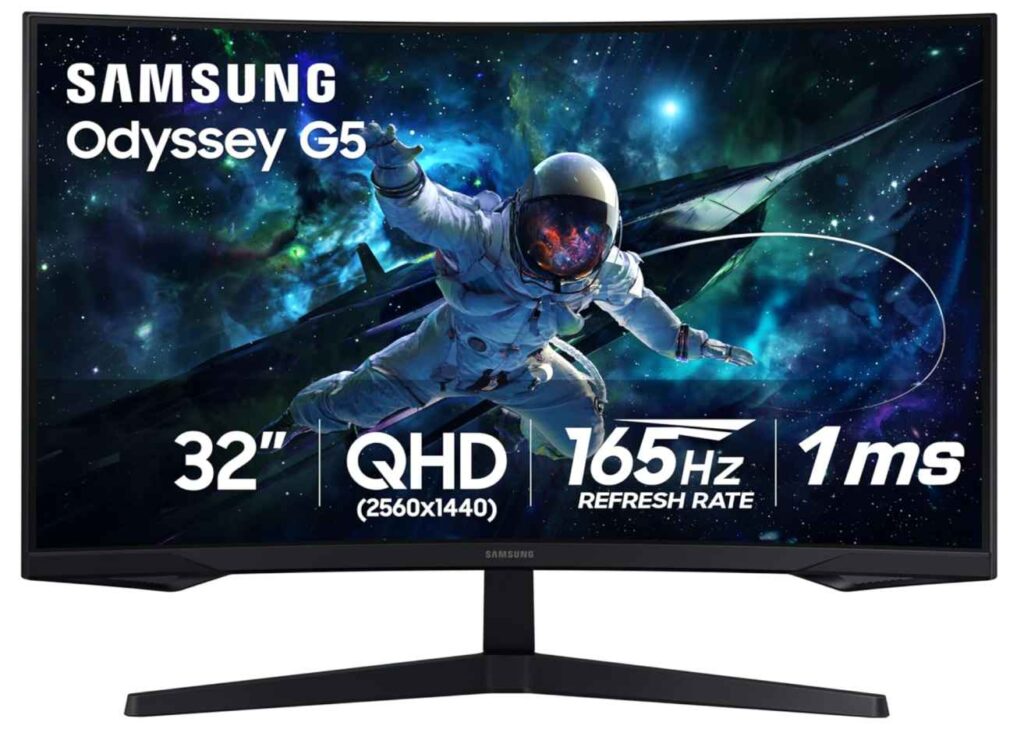
What I really like about this monitor is the 1000R curved display. Unlike flat monitors, the curve wraps around your field of view, making the large screen feel more natural to use. Whether you’re coding, browsing documentation, or reviewing long files, it helps reduce the need to constantly move your head across the display.
You also get a 165Hz refresh rate with a 1ms response time, which isn’t just for gamers. Everyday scrolling, window animations, and navigating through large projects feel noticeably smoother than on a traditional 60Hz monitor. Add AMD FreeSync and HDR10, and you’ve got a monitor that’s just as enjoyable for gaming and watching content after work.
Compared to many other coding monitors under $300, the Odyssey G55C focuses on delivering a bigger workspace and sharper QHD resolution instead of simply offering a higher refresh rate. If you want one monitor for programming, multitasking, and gaming, it’s one of the strongest options in this price range.
Who this is for
- Programmers who want a large 32-inch QHD monitor for multitasking
- Developers looking for the best monitor for coding under $300
- Students and professionals who work with multiple windows throughout the day
- Anyone who wants one monitor for both coding and gaming
Who should skip it
- Users with a small desk that can’t comfortably fit a 32-inch monitor
- Anyone who prefers a flat display over a curved screen
- Creative professionals who need IPS-level color accuracy for photo or video editing
My Take
The Samsung Odyssey G55C is one of those monitors that gives you much more than you’d expect for the price. The combination of a 32-inch QHD display, 165Hz refresh rate, and 1000R curved screen creates a workspace that’s comfortable for long coding sessions while still delivering an excellent gaming experience. If you’re searching for the best monitor for coding under $300 and also enjoy gaming during your free time, this is an easy recommendation because it offers outstanding value without feeling like a compromise.
LG 27UP650K-W 27″ 4K Monitor – Crystal Clear Display for Coding and Creative Work
27″ | 4K UHD (3840×2160) | IPS Panel | 60Hz | DisplayHDR 400 | Height, Tilt & Pivot Adjustable Stand
If your top priority is sharp text and incredible screen clarity, the LG 27UP650K-W is one of the best monitors for coding under $300. Instead of focusing on high refresh rates like gaming monitors, this display is built around a stunning 4K IPS panel, making it an excellent choice for developers, programmers, and anyone who spends hours reading and writing code.
The biggest advantage here is the 3840×2160 4K resolution. Text looks exceptionally crisp, which can make a real difference during long coding sessions. Whether you’re working in Visual Studio Code, IntelliJ, or multiple browser tabs, everything appears clean and easy to read. On a 27-inch display, the pixel density is high enough that code, icons, and UI elements look incredibly detailed without appearing blurry.
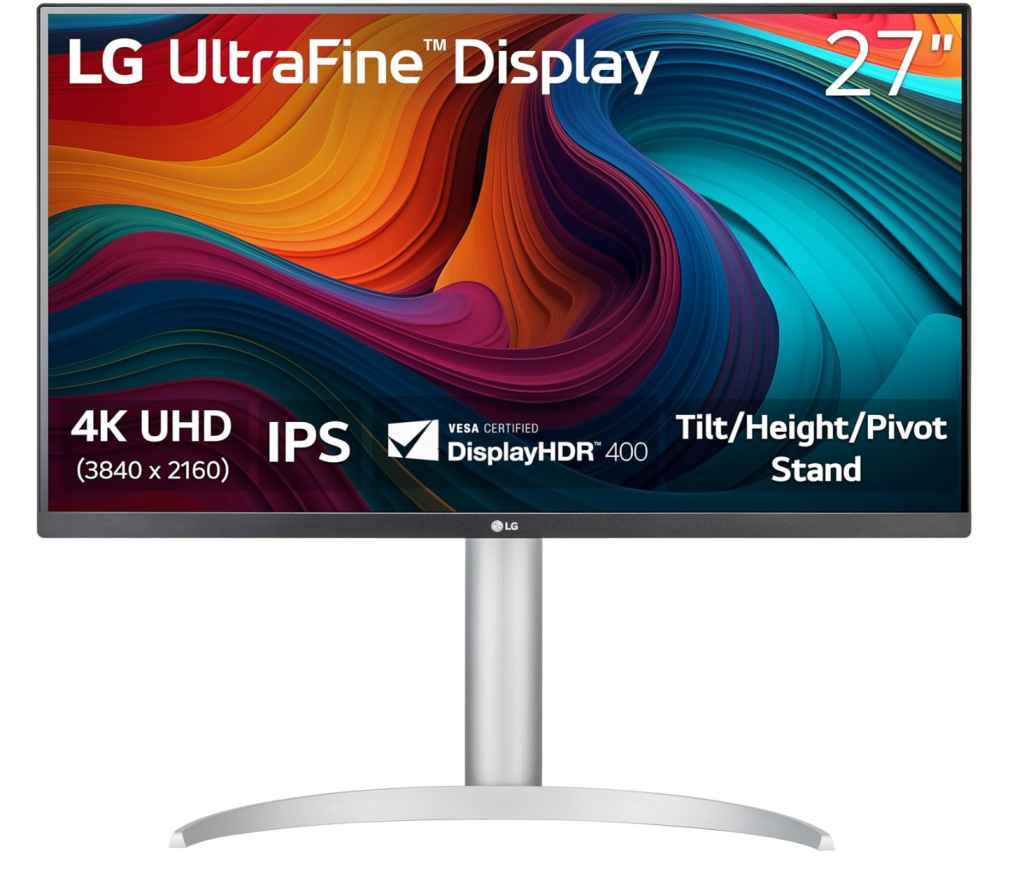
What I really like about this monitor is the IPS panel with 95% DCI-P3 color coverage. While programmers will appreciate the sharp display, it’s also a great option for designers, content creators, and anyone who occasionally edits photos or videos. The addition of VESA DisplayHDR 400 brings brighter highlights and richer colors when watching HDR content, making it a versatile monitor for both work and entertainment.
Another feature that stands out is the fully ergonomic stand. You can adjust the height, tilt, and pivot to create a comfortable setup for long workdays. LG also includes Reader Mode and Flicker Safe technology, which help reduce eye fatigue if you’re coding or studying for several hours at a time.
Compared to gaming-focused monitors in this price range, the LG 27UP650K-W trades a high refresh rate for outstanding image quality and ultra-sharp 4K resolution. If your daily work revolves around programming, multitasking, document editing, or creative projects, that trade-off is well worth it.
Who this is for
- Developers looking for one of the best 4K monitors for coding under $300
- Programmers who value sharp text and extra screen detail
- Designers, photographers, and video editors who need accurate colors
- Professionals who want an ergonomic monitor for long work sessions
Who should skip it
- Competitive gamers who want 120Hz, 144Hz, or 165Hz gameplay
- Users specifically looking for an ultrawide monitor
- Anyone who doesn’t have hardware capable of driving a 4K display
My Take
If your goal is to maximize clarity, productivity, and comfort, the LG 27UP650K-W is one of the strongest choices in this price range. The 4K IPS display makes coding noticeably more enjoyable, while the ergonomic stand and eye-care features are perfect for long hours at your desk. For developers, students, and professionals searching for the best monitor for coding under $300, this monitor delivers excellent value with very few compromises.
Samsung S3 32″ Curved Monitor – Budget-Friendly Large Screen for Coding
32″ | Full HD (1920×1080) | Curved VA Panel | 100Hz | Built-in Speakers | AMD FreeSync
If you’re searching for the best monitor for coding under $300 but don’t necessarily need a 4K or QHD display, the Samsung S3 32-inch Curved Monitor is a solid budget-friendly option. It combines a large 32-inch curved screen, 100Hz refresh rate, and built-in speakers, making it a practical monitor for programming, office work, and everyday entertainment.
The first thing you’ll notice is the 32-inch curved display. The extra screen space gives you more room for multiple coding windows, browser tabs, terminals, and documentation without feeling cramped. While the Full HD (1920×1080) resolution isn’t as sharp as QHD or 4K on a screen this size, it’s still perfectly usable for general programming, web development, and everyday productivity—especially if you’re sitting a comfortable distance from the monitor.
What I really like about this monitor is how simple and convenient it is. The built-in speakers help keep your desk clean by eliminating the need for external speakers, while the 100Hz refresh rate makes scrolling through code, switching between windows, and everyday navigation feel smoother than a traditional 60Hz display. It’s a small upgrade, but one you’ll notice during daily use.
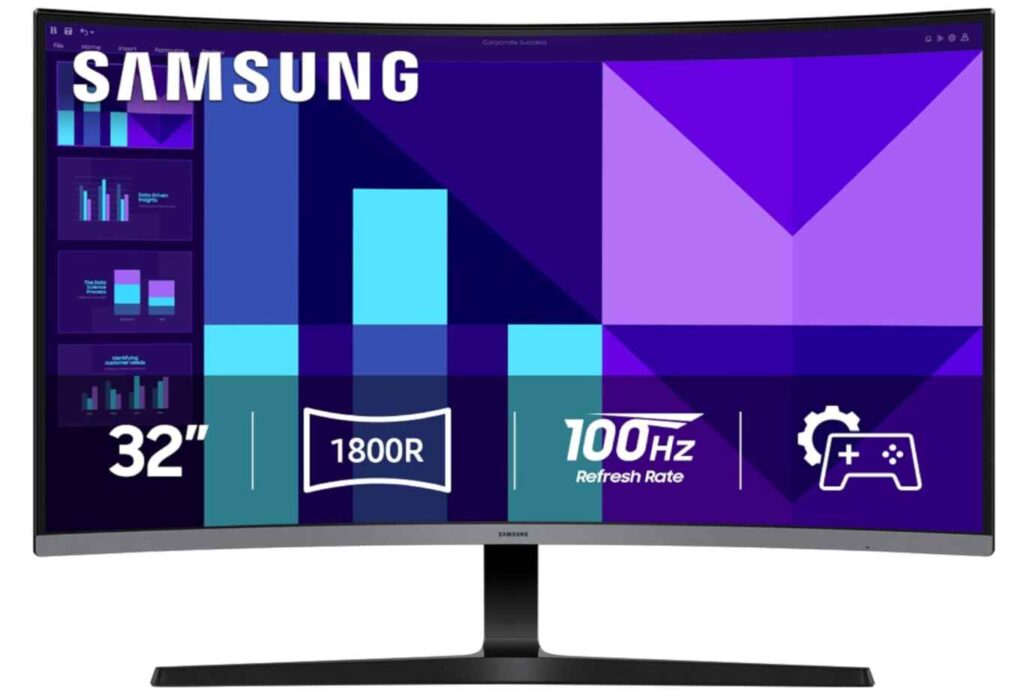
Samsung also includes Eye Saver Mode, Flicker-Free technology, and TÜV-certified eye comfort features, which help reduce eye fatigue during long coding sessions. Combined with AMD FreeSync, the monitor is also capable of handling casual gaming and media consumption once your workday is over.
Compared to higher-resolution monitors in this price range, the Samsung S3 focuses on providing a larger screen and better everyday comfort rather than maximum pixel density. If you mainly want a spacious display for coding, studying, browsing, and light gaming, it offers excellent value without stretching your budget.
Who this is for
- Developers who want a large 32-inch monitor for coding and multitasking
- Students looking for the best budget monitor for coding under $300
- Users who appreciate built-in speakers and a clutter-free desk
- Anyone who wants a monitor for work, streaming, and casual gaming
Who should skip it
- Programmers who prefer QHD or 4K for sharper text
- Professional designers or video editors who need higher color accuracy
- Users who sit very close to their monitor and want maximum pixel density
My Take
The Samsung S3 32-inch Curved Monitor is a great choice if you value screen size, comfort, and affordability over ultra-high resolution. The 100Hz refresh rate, built-in speakers, and eye-care features make it enjoyable for everyday coding and productivity, while the curved display adds a more immersive feel. If you’re looking for one of the best monitors for coding under $300 on a tighter budget, this monitor delivers a lot of practical features for the price.
ASUS ProArt Display PA278QV 27″ Monitor – Professional Color Accuracy for Coding and Creative Work
27″ | WQHD (2560×1440) | IPS Panel | 75Hz Adaptive Sync | 100% sRGB & Rec.709 | Fully Adjustable Ergonomic Stand
If you’re looking for the best monitor for coding under $300 and also do creative work like photo editing, UI/UX design, or content creation, the ASUS ProArt Display PA278QV is one of the best all-around choices available. Unlike gaming monitors that prioritize refresh rates, this monitor focuses on sharp visuals, outstanding color accuracy, and long-term comfort, making it an excellent investment for developers and creative professionals alike.
The 27-inch WQHD (2560×1440) IPS display hits a sweet spot for programming. It offers noticeably sharper text than Full HD without requiring as much graphics power as a 4K monitor. The extra screen space makes it easier to keep multiple coding windows, terminals, documentation, and browser tabs open at the same time, helping you stay productive throughout the day.
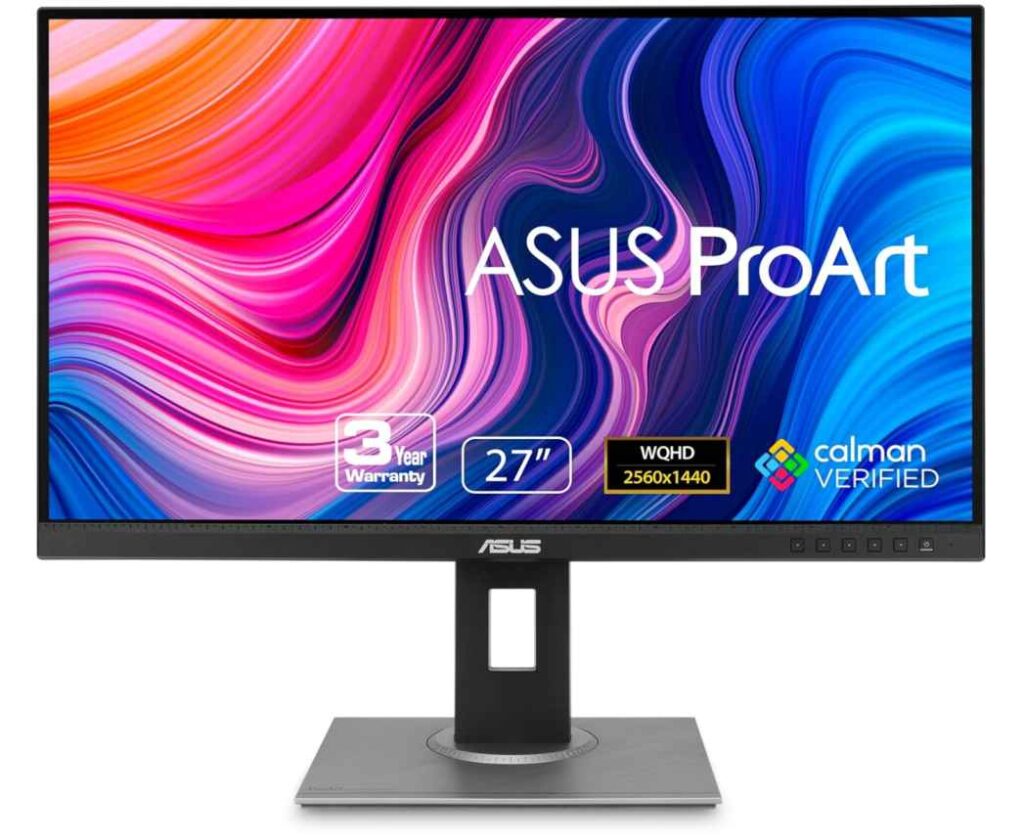
What I really like about the ASUS ProArt PA278QV is its factory-calibrated color accuracy. With 100% sRGB, 100% Rec.709, Calman Verification, and a Delta E below 2, you get colors that are incredibly accurate right out of the box. Even if you’re primarily a programmer, this becomes a huge advantage if you occasionally work on web design, graphic design, or edit photos and videos without needing a separate professional display.
Another standout feature is the excellent ergonomic stand. You can easily adjust the height, tilt, swivel, and pivot, allowing you to create a comfortable workspace or even rotate the monitor into portrait mode, which many programmers love for reading long code files or documentation. The built-in USB hub is another practical addition, giving you extra ports for accessories without reaching behind your computer.
Compared to many monitors in this price range, the ASUS ProArt PA278QV prioritizes image quality, color precision, and productivity instead of gaming performance. While it supports 75Hz Adaptive Sync for smoother everyday use, its biggest strengths are the sharp 1440p IPS display, professional-grade colors, and outstanding ergonomics.
Who this is for
- Software developers looking for one of the best monitors for coding under $300
- UI/UX designers, photographers, and content creators
- Professionals who want accurate colors and a sharp 1440p display
- Anyone who values an ergonomic stand and a built-in USB hub
Who should skip it
- Competitive gamers looking for 144Hz or 165Hz performance
- Users who specifically want a 4K display
- Anyone who prefers a large 32-inch screen for multitasking
My Take
The ASUS ProArt Display PA278QV is one of the easiest monitors to recommend if your work goes beyond just coding. The combination of a 27-inch WQHD IPS display, professional-grade color accuracy, fully adjustable stand, and excellent connectivity makes it a monitor you’ll appreciate every single day. If you’re searching for the best monitor for coding under $300 and want a display that also excels at creative work, this is easily one of the strongest options in its class.
Samsung ViewFinity S50GC 34″ Ultrawide Monitor – Great for Coding with Lots of Screen Space
34″ | Ultra-WQHD (3440×1440) | 21:9 Ultrawide | 100Hz | HDR10 | PBP & PIP
If you usually have your code editor, browser, terminal, and documentation open at the same time, you’ll probably enjoy this monitor. The Samsung ViewFinity S50GC gives you a 34-inch ultrawide display, so instead of constantly switching between windows, you can keep everything visible on one screen.
The 3440×1440 resolution is sharp enough that text looks clean, which is something you’ll appreciate if you’re coding for hours every day. The extra width is honestly the biggest reason to buy this monitor. It almost feels like having two monitors without the gap in the middle.
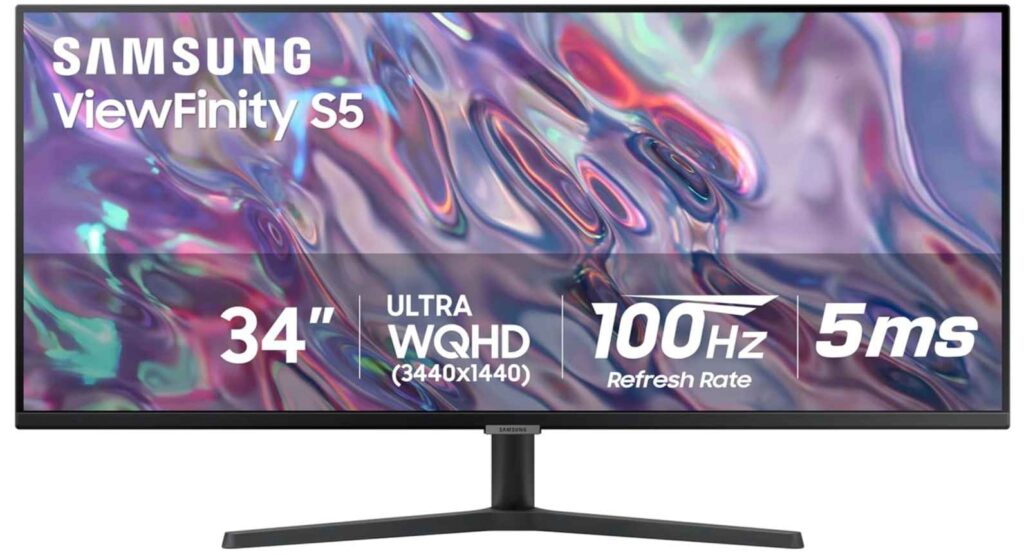
I also like that Samsung didn’t forget about comfort. You get Eye Saver Mode and Flicker-Free technology, which help during long work sessions. The 100Hz refresh rate is another nice bonus. It’s not essential for coding, but scrolling through long files and moving around your desktop feels smoother than a regular 60Hz monitor.
Another feature that’s actually useful is Picture-by-Picture (PBP). If you use both a laptop and a desktop, you can display them on the same screen at once instead of swapping cables all day.
This isn’t a monitor I’d recommend because of HDR or gaming features. I’d recommend it because it gives you a huge amount of workspace, and that’s something programmers notice every single day.
Who this is for
- Developers who work with multiple windows all day
- Anyone looking for the best monitor for coding under $300 with an ultrawide display
- People who want to replace a dual-monitor setup with one large screen
Who should skip it
- If your desk doesn’t have room for a 34-inch monitor
- If you mainly want a monitor for competitive gaming
- If you prefer a standard 27-inch display
My Take
If I spent most of my day coding, this is the kind of monitor I’d seriously consider. The extra screen space makes a real difference, and that’s what you’re paying for—not flashy gaming features you’ll rarely use while working. If your budget is around $300, it’s one of the easiest ultrawide monitors to recommend for productivity.
Acer KB272 27″ Monitor – An Affordable Choice for Everyday Coding
27″ | Full HD (1920×1080) | IPS Panel | 120Hz | 99% sRGB | Adaptive-Sync
If you’re trying to find the best monitor for coding under $300 without spending more than you need, the Acer KB272 is worth a look. It doesn’t come with premium extras like 4K resolution or USB-C, but for everyday programming, it covers the basics really well at a budget-friendly price.
The 27-inch IPS display gives you plenty of room to work, and the IPS panel means text stays clear even if you’re not sitting perfectly centered. If your day is mostly spent in VS Code, Chrome, terminals, and documentation, this monitor handles that kind of workload without any issues.
One thing I like is the 120Hz refresh rate. It’s not something you need for coding, but once you use it, it’s hard to go back. Scrolling through long files, switching between windows, and even simple desktop navigation feels smoother than on a standard 60Hz monitor.
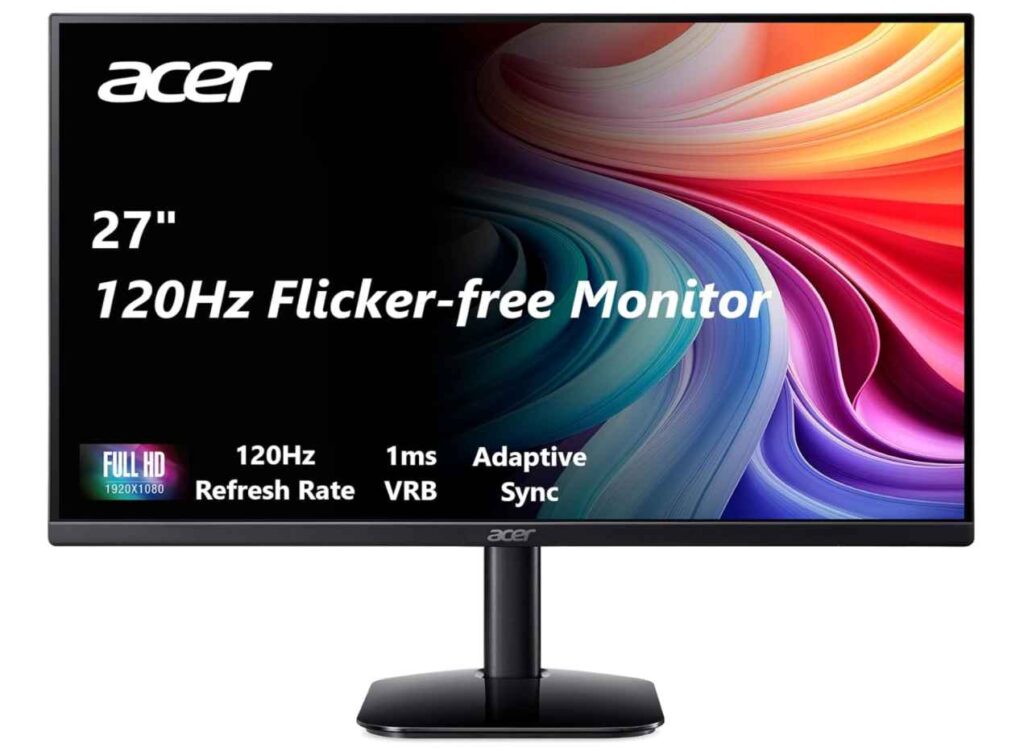
That said, the Full HD resolution is something to keep in mind. On a 27-inch screen, text isn’t as sharp as it would be on a 1440p or 4K monitor. If you’re very particular about text clarity or spend 10+ hours coding every day, you might prefer a higher-resolution display. But if you’re upgrading from an older 1080p monitor or you’re on a tighter budget, it’s still a solid experience.
The monitor also covers 99% sRGB, so colors look natural, and Adaptive-Sync is a nice bonus if you like to play games after work.
Who this is for
- Students and beginner developers
- Anyone looking for an affordable monitor for coding under $300
- People who want a 27-inch IPS monitor without spending a lot
- Users who also enjoy casual gaming after work
Who should skip it
- Developers who want the sharpest text possible
- Anyone specifically looking for a 1440p or 4K monitor
- Users who need an ergonomic stand with height adjustment
My Take
I think the Acer KB272 makes the most sense for someone who wants a reliable monitor without stretching their budget. It gives you a large IPS display, a smooth 120Hz refresh rate, and good color quality at a price that’s hard to complain about. If you’re searching for the best monitor for coding under $300 and simply want something dependable for everyday programming, this is an easy monitor to put on your shortlist.
Philips 32E1N1100L 32″ Monitor – A Big Screen on a Budget for Coding
32″ | Full HD (1920×1080) | VA Panel | 100Hz | Adaptive-Sync | 4-Year Warranty
If your main goal is getting as much screen space as possible without spending a lot, the Philips 32E1N1100L is worth considering. It’s one of the more affordable 32-inch monitors for coding under $300, and the larger display makes it easier to keep multiple windows open while you work.
The biggest reason to choose this monitor is the 32-inch screen. If you often split your screen between your code editor, browser, and documentation, the extra space is genuinely useful. You don’t have to switch between windows as often, which can make your workflow feel a little more relaxed.
The 100Hz refresh rate is another nice touch. It won’t make you a better programmer, but scrolling through code and moving around your desktop feels smoother than a regular 60Hz monitor. It’s one of those upgrades that’s easy to appreciate once you’ve used it.
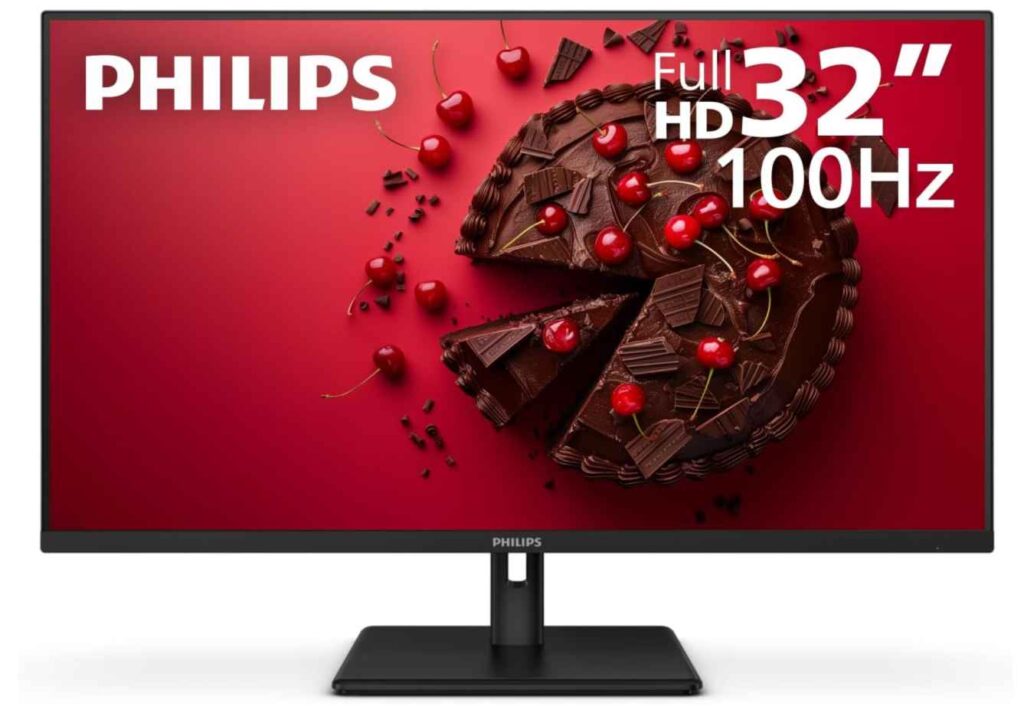
That said, there’s one thing I’d keep in mind. This is a Full HD monitor, and on a 32-inch display, text won’t look as sharp as it does on a 1440p or 4K monitor. If crystal-clear text is your top priority, I’d lean toward a higher-resolution display instead. But if you simply want a large monitor for coding at a budget-friendly price, this is still a practical option.
I also like that Philips includes a 4-year advance replacement warranty, which is better than what many monitors in this price range offer. It’s one of those things you hope you never need, but it’s nice to have.
Who this is for
- Anyone who wants a large 32-inch monitor without spending much
- Developers looking for a budget monitor for coding under $300
- Users who like working with multiple windows side by side
- People who value a longer warranty for extra peace of mind
Who should skip it
- Developers who want the sharpest text for long coding sessions
- Anyone looking for a 1440p or 4K monitor
- Users who need a height-adjustable ergonomic stand
My Take
I wouldn’t recommend the Philips 32E1N1100L because of its specs alone. I’d recommend it to someone who simply wants a big screen at a reasonable price. Yes, the 1080p resolution has its limits on a 32-inch display, but if your priority is having more room for coding, browsing, and multitasking without stretching your budget, it’s still a solid option and one of the better value picks in this price range.
Wrapping Up
Finding the best monitor for coding under $300 really comes down to how you work. Some people prefer a sharp 4K display for crisp text, while others would rather have a larger or ultrawide screen to keep multiple windows open. There’s no single monitor that’s perfect for everyone, and that’s actually a good thing because you can choose one that fits your workflow instead of paying for features you won’t use.
If I had to give one piece of advice, I’d say don’t focus only on screen size or refresh rate. For coding, things like text clarity, comfortable viewing, and enough workspace will make a much bigger difference over time. A monitor is something you’ll probably use every day, so it’s worth choosing one that helps you stay productive and comfortable.
Every monitor on this list offers good value for the price, whether you’re a student learning to code, a software developer working full-time, or someone building a home office on a budget. Hopefully, this guide helped you narrow down the best monitor for coding under $300 and find the one that feels right for your setup.
How to Choose the Best Monitor for Coding Under $300
Buying a coding monitor isn’t the same as buying a gaming monitor. When you’re writing code for hours every day, the features that matter most are text clarity, screen space, and comfort. Here’s what I’d pay attention to before making a decision.
Choose the Right Resolution
If your budget allows, 1440p (QHD) is the sweet spot for coding. Text looks much sharper than Full HD, which makes reading code easier on your eyes during long sessions.
A 4K monitor is even sharper, but it usually comes with a smaller screen or fewer features at this price. 1080p is still a good option if you’re on a tighter budget, though I’d recommend pairing it with a 24-inch or 27-inch display for the best balance.
Think About Screen Size
A bigger monitor doesn’t always mean a better experience.
- 24–27 inches is ideal for most programmers.
- 32 inches gives you more room for multitasking, but I’d recommend 1440p or 4K if possible because text looks noticeably sharper.
- 34-inch ultrawide monitors are great if you like having your code editor, browser, and documentation open side by side.
An IPS Panel Is Usually the Better Choice
For coding, I’d generally recommend an IPS panel because it offers better viewing angles and clearer-looking text.
A VA panel is still a solid choice if you want deeper contrast or a curved display, but IPS tends to feel a little more comfortable for everyday productivity.
Look for an Ergonomic Stand
This is one feature people often overlook.
Being able to adjust the height, tilt, or even rotate the monitor makes it much easier to find a comfortable position. If you spend eight or more hours at your desk, good ergonomics are just as important as screen quality.
Eye Care Features Are Worth Having
Long coding sessions can be tiring, so features like Low Blue Light, Flicker-Free technology, and Reader Mode are worth looking for. They won’t completely eliminate eye strain, but they can make working for long periods feel more comfortable.
Don’t Worry Too Much About Refresh Rate
For coding, 60Hz is perfectly fine.
That said, if you can get a 100Hz or 120Hz monitor without spending much more, it’s a nice upgrade. Scrolling through code, moving between windows, and general desktop use feel smoother, even if you’re not gaming.
Buy for Your Workflow, Not Just the Specs
The best monitor for coding under $300 is the one that matches how you actually work.
- If you care most about sharp text, choose a 1440p or 4K monitor.
- If you constantly multitask, an ultrawide display can be a game changer.
- If you’re on a budget, a 27-inch IPS monitor still offers an excellent coding experience without costing a fortune.
At the end of the day, you’ll spend far more time looking at your monitor than thinking about its specifications. Choose the one that makes coding feel comfortable, and you’ll appreciate it every single day.