
If you’ve picked up the Apple Mac mini M2, you already know it’s a compact powerhouse—but to actually enjoy it, you need the right monitor setup. Unlike a MacBook, the Mac mini relies completely on an external display, so your choice here directly affects everything from text clarity and colors to productivity and comfort.
That’s why finding the best monitor for Mac Mini M2 isn’t just about picking the cheapest or most expensive option—it’s about choosing a display that works with macOS, not against it. Many users end up with screens that look fine on paper but struggle with scaling issues, dull colors, or poor sharpness, especially on lower-resolution panels.
Ideally, you want something that complements the Mac mini’s strengths—think 4K monitors for Mac Mini M2, IPS panels for consistent colors, and clean connectivity like USB-C or HDMI. These small details make a big difference whether you’re working, editing, coding, or just browsing.
In this guide, we’ll walk through the best monitors for Mac Mini M2 across different budgets and use cases—from affordable everyday displays to more premium options—so you can build a setup that feels smooth, sharp, and actually worth it.
Read also: 9 Best Monitor Risers for Better Posture (2026)
1. ARZOPA 16″ 2.5K Portable Monitor – Sharp, Compact Display for Mac Mini Setup
16″ | 2.5K (2560×1600) | IPS | 16:10 | USB-C | Built-in Stand
Let’s start with something a bit different. If you’re using the Apple Mac mini M2 and don’t want a bulky desk setup—or you just need a secondary display—the ARZOPA 16-inch 2.5K Portable Monitor Z1RC is a really interesting option.
This isn’t your typical large desktop monitor. Instead, it’s more like a compact, high-resolution companion screen—perfect if you want flexibility without sacrificing too much sharpness.
The biggest highlight here is the 2.5K resolution on a 16-inch panel. That combination works surprisingly well with macOS. Text looks clean and crisp, and thanks to the 16:10 aspect ratio, you get a bit more vertical space—which is great for coding, documents, or spreadsheets.
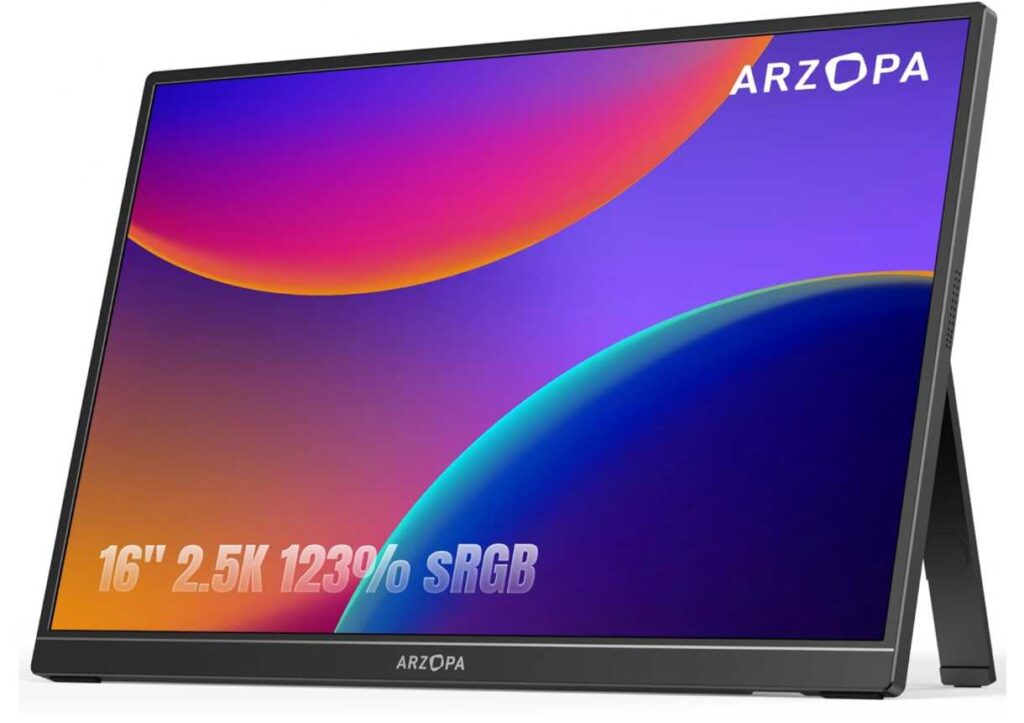
Compared to standard 1080p portable monitors, this feels like a noticeable upgrade in clarity. It’s closer to that “Mac-like” sharpness people expect, even if it’s not full 4K.
Setup is simple:
- USB-C plug-and-play with your Mac mini
- Works as a primary or secondary display
- Easy to move around or reposition
Of course, this isn’t meant to replace a full-sized monitor. Compared to a proper 4K monitor for Mac Mini M2, you’re trading screen size for portability. But if you want something compact, sharp, and flexible, it fits nicely into that gap.
Why it stands out
- 2.5K resolution → sharper than typical portable displays
- 16:10 aspect ratio → more usable workspace
- Lightweight and easy to move
- Simple USB-C connectivity
Things to keep in mind
- Smaller screen size than traditional monitors
- Not ideal as your only display for heavy multitasking
My take
Think of this as a “smart secondary monitor” for your Mac mini.
If you want a clean, sharp display without committing to a big desk setup, this is a great starting point—and easily one of the more practical picks in the best monitors for Mac Mini M2 category when portability matters.
2. INNOCN 27″ 4K USB-C Monitor – Best Budget 4K for Mac Mini M2
27″ | 4K (3840×2160) | IPS | USB-C | HDR400 | Ergonomic Stand
Now if you’re setting up your Apple Mac mini M2 as a proper desktop, this is where things start to feel “right.” The INNOCN 27-inch 4K USB-C Monitor is easily one of the most practical picks if you want true 4K clarity without overspending.
Here’s the thing—macOS just looks better on higher resolution displays. And with a 27-inch 4K panel, you get that sharp, Retina-like experience where text is crisp, UI scaling feels natural, and everything looks clean. This is exactly why people specifically look for 4K monitors for Mac Mini M2.
What makes this one stand out is that it doesn’t just stop at resolution. You’re also getting:
- IPS panel → consistent colors and wide viewing angles
- ΔE < 2 color accuracy → surprisingly good for creative work
- HDR400 support → better contrast and highlights
- USB-C connectivity → cleaner, modern setup
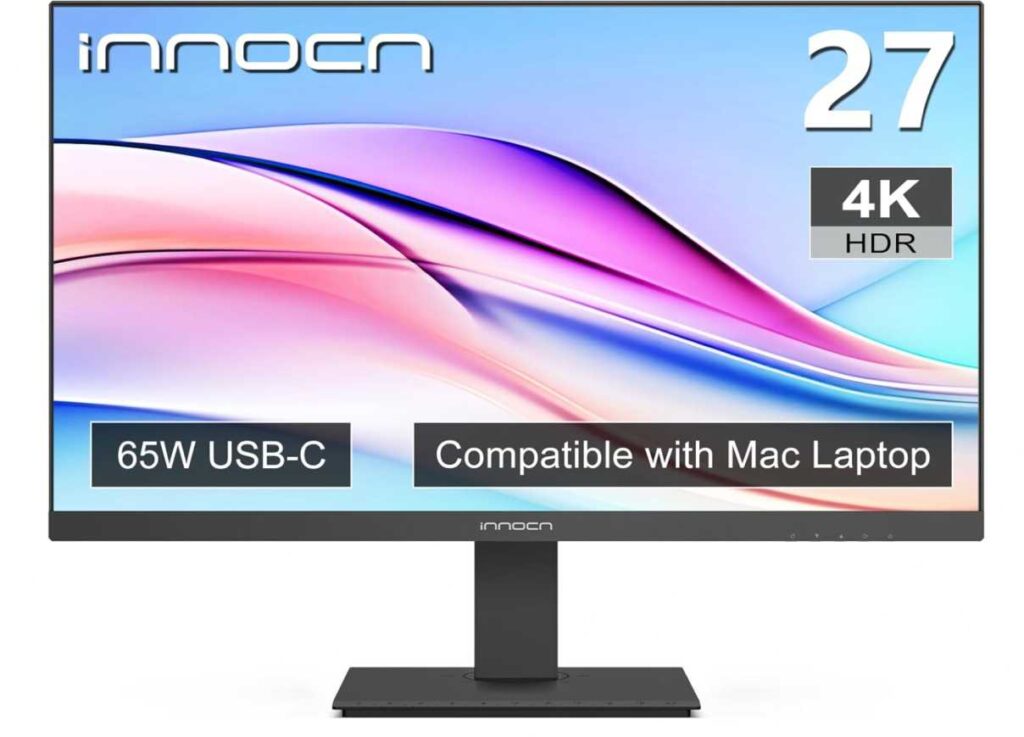
And honestly, for the price, that combination is hard to beat.
Compared to cheaper 1080p or even QHD monitors, this feels like a massive upgrade in clarity and overall experience. And compared to more premium 4K displays, it keeps things budget-friendly while still delivering what matters.
The fully adjustable stand (height, swivel, pivot) is another big win—especially if you’re spending long hours working. It helps you dial in a comfortable setup instead of just “making do.”
Why it’s a strong pick
- 4K resolution → sharp, macOS-friendly scaling
- Great color accuracy for the price
- USB-C + multiple ports → flexible connectivity
- Fully adjustable ergonomic stand
- Excellent value in the 4K category
Things to keep in mind
- 60Hz refresh rate (fine for work, not gaming-focused)
- HDR is decent, not true high-end HDR
My take
If you’re building a setup around the Mac mini and want something that just works well without overthinking, this is it.
It delivers the right resolution, good colors, and solid ergonomics—all at a price that makes sense. Easily one of the safest choices when looking for the best monitor for Mac Mini M2.
3. Cocopar 16″ 2.5K Portable Monitor – Premium Portable Option for Mac Mini M2
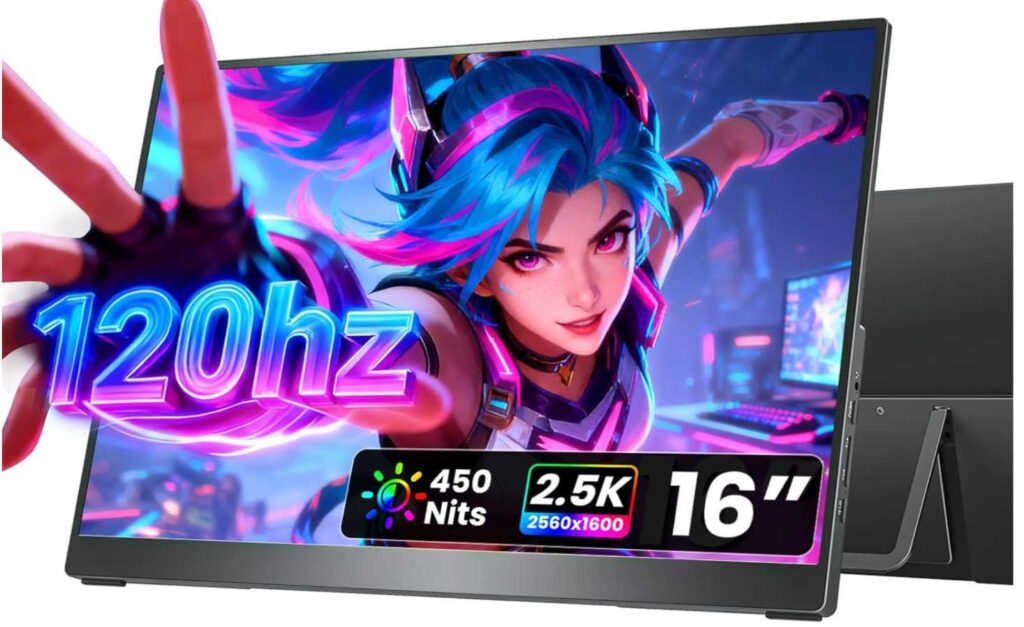
16″ | 2.5K (2560×1600) | IPS | 120Hz | USB-C | 16:10 | Metal Stand
Alright, now this is where portable monitors start to feel a bit more premium and serious. The Cocopar 16-inch 2.5K Portable Monitor 120Hz USB-C is not just a “secondary screen”—it’s more like a high-quality compact display you can confidently pair with your Apple Mac mini M2.
First thing you’ll notice is the 2.5K resolution + 16-inch size combo. This is a sweet spot for macOS. Text looks sharp, UI scaling feels natural, and the 16:10 aspect ratio gives you extra vertical space—which is honestly great for productivity tasks like coding, writing, or spreadsheets.
But what really separates this from basic portable monitors is everything else around it:
- 120Hz refresh rate → smoother scrolling and overall feel
- 110% sRGB + HDR → better colors and more vibrant visuals
- Metal body + built-in stand → feels much more solid and stable
This doesn’t feel like a cheap travel accessory—it feels like a compact premium display.
Compared to the ARZOPA 16-inch 2.5K Portable Monitor Z1RC, this one adds better build quality and smoother performance (120Hz). And compared to typical 1080p portable monitors, it’s on a completely different level in terms of sharpness and overall experience.
Why it stands out
- 2.5K resolution → sharp, Mac-friendly clarity
- 120Hz → smoother everyday usage
- 16:10 aspect ratio → more usable workspace
- Premium metal build with adjustable stand
- Strong color performance for creative tasks
Things to keep in mind
- More expensive than basic portable monitors
- Still smaller than a full desktop display
My take
If you want a portable monitor that actually feels premium and worth using daily, this is it.
It hits that perfect balance of sharpness, smoothness, and build quality, making it one of the strongest picks in the best monitors for Mac Mini M2 list—especially if you want something compact but powerful.
4. ASUS ProArt Display 27″ PA278CV – Best for Creative Work on Mac Mini M2
27″ | QHD (2560×1440) | IPS | USB-C | ΔE < 2 | 100% sRGB | Ergonomic Stand
Now this one is a completely different type of monitor—and honestly, it’s built for a different kind of user.
If you’re using the Apple Mac mini M2 for photo editing, design work, or content creation, the ASUS ProArt Display PA278CV 27-inch QHD is easily one of the most reliable choices out there.
Instead of focusing on flashy specs like high refresh rates or gaming features, this monitor is all about accuracy and consistency.
You’re getting:
- 100% sRGB + Rec.709 coverage → accurate, true-to-life colors
- ΔE < 2 (factory calibrated) → colors are precise out of the box
- Calman Verified → trusted for professional workflows
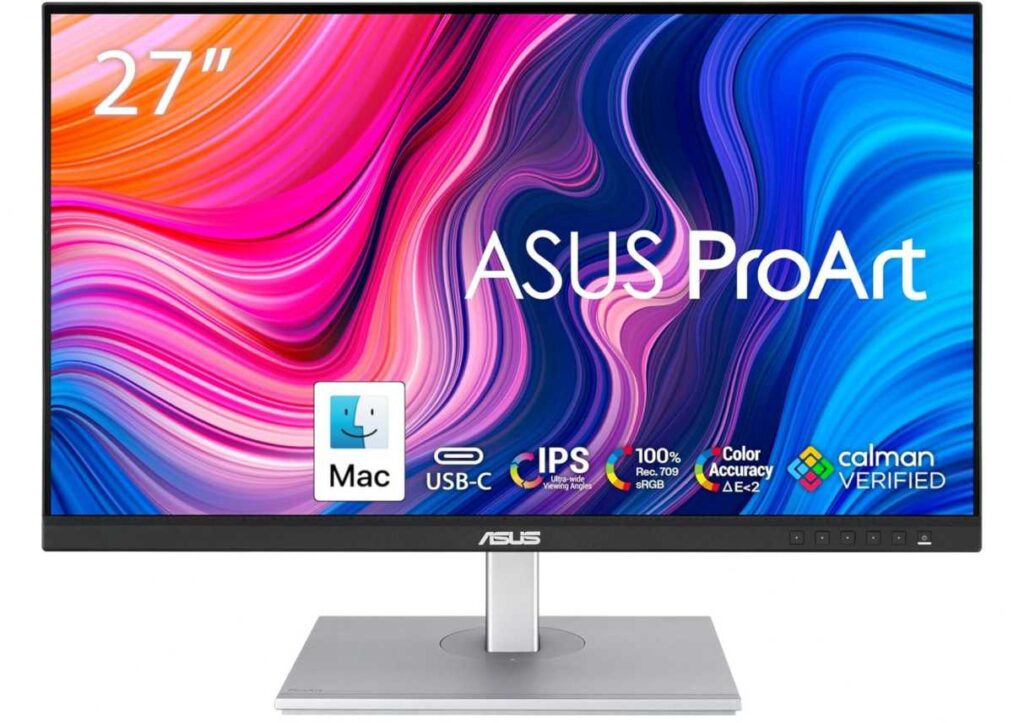
So if your work depends on color accuracy, this is a big deal. What you see on screen is much closer to what you’ll get in final output—whether it’s photos, videos, or design work.
Now, this is a QHD (1440p) display, not 4K. And yes, for Mac Mini M2 users, 4K is usually preferred for sharpness. But here’s the trade-off:
👉 You’re choosing better color accuracy over maximum pixel density
For many creatives, that’s actually the smarter choice.
On top of that, the monitor is very practical:
- USB-C with 65W power delivery → clean setup
- USB hub + multiple ports → useful for peripherals
- Fully adjustable stand (height, pivot, swivel) → great ergonomics
- Daisy-chaining support → easy multi-monitor setup
Compared to the INNOCN 27-inch 4K USB-C Monitor, this one trades some sharpness for better color reliability and pro features.
Why it’s a strong pick
- Excellent color accuracy (ΔE < 2, Calman Verified)
- Designed for creative professionals
- USB-C + hub → clean, functional setup
- Fully ergonomic and flexible
- Reliable brand for long-term use
Things to keep in mind
- QHD (not as sharp as 4K on macOS)
- 75Hz → not meant for gaming
My take
This is the “serious work” monitor in the list.
If your focus is editing, designing, or any color-sensitive work, this is one of the best monitors for Mac Mini M2 you can pick—even if it’s not 4K.
But if your priority is maximum sharpness and everyday clarity, you might still prefer a good 4K display.
5. Acer KB272 27″ Monitor – Budget Pick for Basic Mac Mini M2 Setup
27″ | Full HD (1920×1080) | IPS | 120Hz | 99% sRGB
Alright, let’s be honest—sometimes you just want something simple, affordable, and usable with your Apple Mac mini M2.
That’s exactly where the Acer KB272 27-inch FHD IPS Monitor fits in. It’s one of those monitors you pick when your priority is budget first, not perfect visuals.
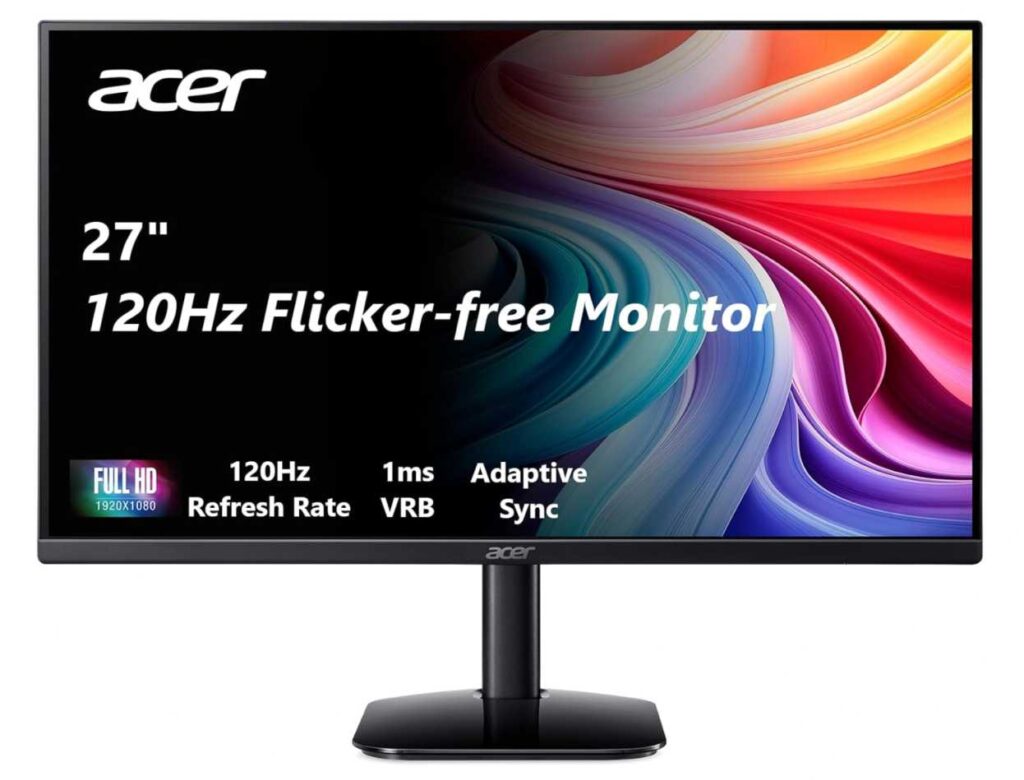
You’re getting a 27-inch IPS display, which is nice for general use like:
- browsing
- documents
- YouTube / streaming
- casual work
Plus, the 120Hz refresh rate makes things feel a bit smoother compared to standard 60Hz monitors—so scrolling and basic usage feels more fluid.
But here’s the important part (and this matters for Mac users):
👉 This is a Full HD (1080p) resolution on a 27-inch screen
And on macOS, that can look less sharp than ideal. Text won’t have that crisp “Mac-like” clarity you get from 4K monitors for Mac Mini M2, and scaling won’t feel as clean.
So compared to something like the INNOCN 27-inch 4K USB-C Monitor, this is a clear step down in sharpness—but also much cheaper.
When this actually makes sense
- You’re on a tight budget
- You need a large screen for basic tasks
- You don’t care too much about pixel-perfect sharpness
When you should skip it
- If you want crisp text and macOS-friendly scaling
- If you’re doing design, editing, or long reading sessions
My take
This is the “just get a big screen for cheap” option.
It does the job, it’s smooth enough for everyday use, and it’s easy on the wallet—but it’s not what I’d call an ideal match for the Mac mini’s capabilities.
If you can stretch your budget, going for a QHD or 4K monitor will make a noticeable difference in your overall experience.
6. ViewSonic VX3276-2K-MHD 32″ – Big Screen Productivity on a Budget
32″ | QHD (2560×1440) | IPS | 75Hz | Slim Bezels
Now this one is for a very specific type of user—someone who wants a lot of screen space without spending too much.
The ViewSonic VX3276-2K-MHD 32-inch QHD Monitor paired with the Apple Mac mini M2 gives you a large, comfortable workspace that’s great for multitasking.
At 32 inches, you immediately feel the difference. You can:
- keep multiple windows open side-by-side
- work on large spreadsheets
- edit documents without constantly switching tabs
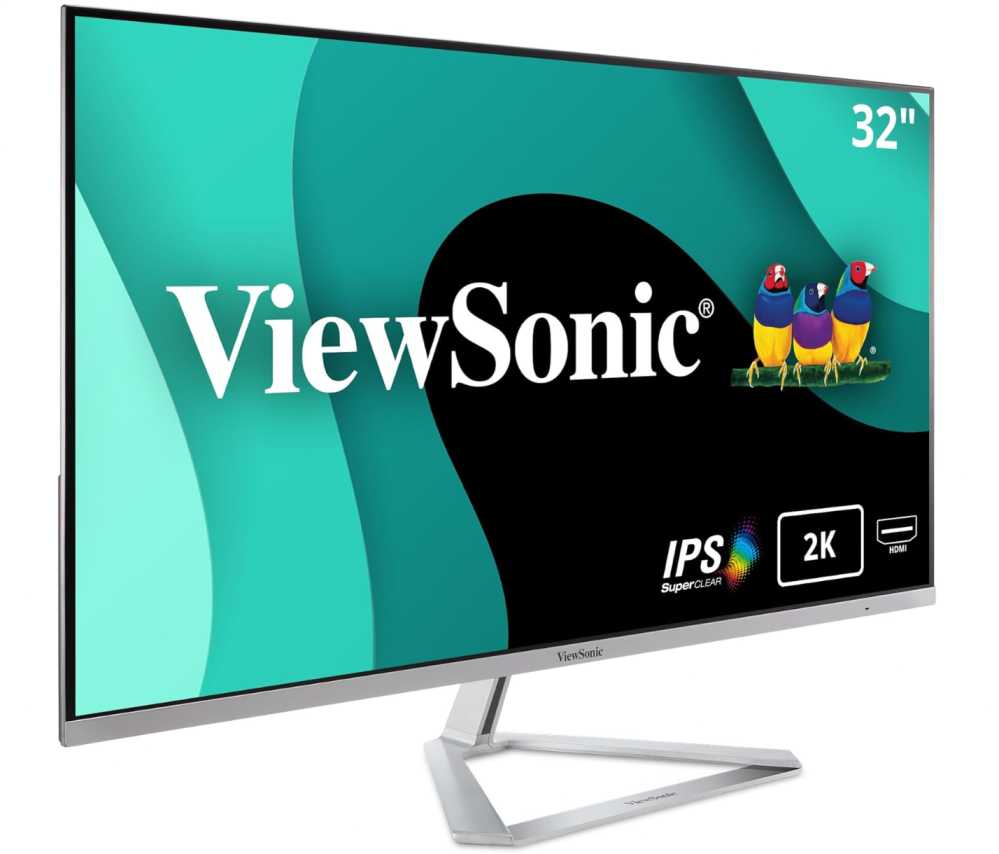
It’s one of those monitors that makes your setup feel more like a proper workstation.
Now, this is a 1440p (QHD) display, not 4K. So compared to something like the INNOCN 27-inch 4K USB-C Monitor, you’re giving up some sharpness—especially noticeable on macOS.
But here’s the trade-off:
👉 You get a much bigger screen at a more affordable price
And for many people, that’s actually more useful than chasing pixel density.
The IPS panel keeps colors decent and viewing angles wide, while features like flicker-free tech and blue light filter help with long work sessions. It’s clearly designed more for productivity and comfort than performance.
Why this makes sense
- Huge 32″ screen → great for multitasking
- QHD resolution → decent balance of clarity and price
- Clean, minimal design with thin bezels
- Good for office work, browsing, and general use
Where it falls short
- Not as sharp as 4K (important for Mac users)
- 75Hz → basic smoothness
- No USB-C (you’ll rely on HDMI/DP)
My take
This is the “more space, less cost” option.
If your workflow benefits from having a large canvas in front of you, this can be a really comfortable setup with the Mac mini.
But if you care more about crisp text and macOS scaling, you’ll still be better off with a 4K monitor.
7. ASUS VA279QG 27″ Eye Care Monitor – Comfortable Budget Option for Everyday Use
27″ | Full HD (1920×1080) | IPS | 120Hz | 99% sRGB | Built-in Speakers
Let’s look at this from a slightly different angle—what if your priority isn’t specs, but comfort?
If you’re using the Apple Mac mini M2 for long hours—emails, documents, browsing—the ASUS VA279QG 27-inch Eye Care Monitor focuses more on reducing eye strain and keeping things simple.
You get a 27-inch IPS display, which is great for general use, along with 99% sRGB coverage, so colors still look decent for everyday tasks. It’s not a creator-level display, but it’s definitely not washed out either.
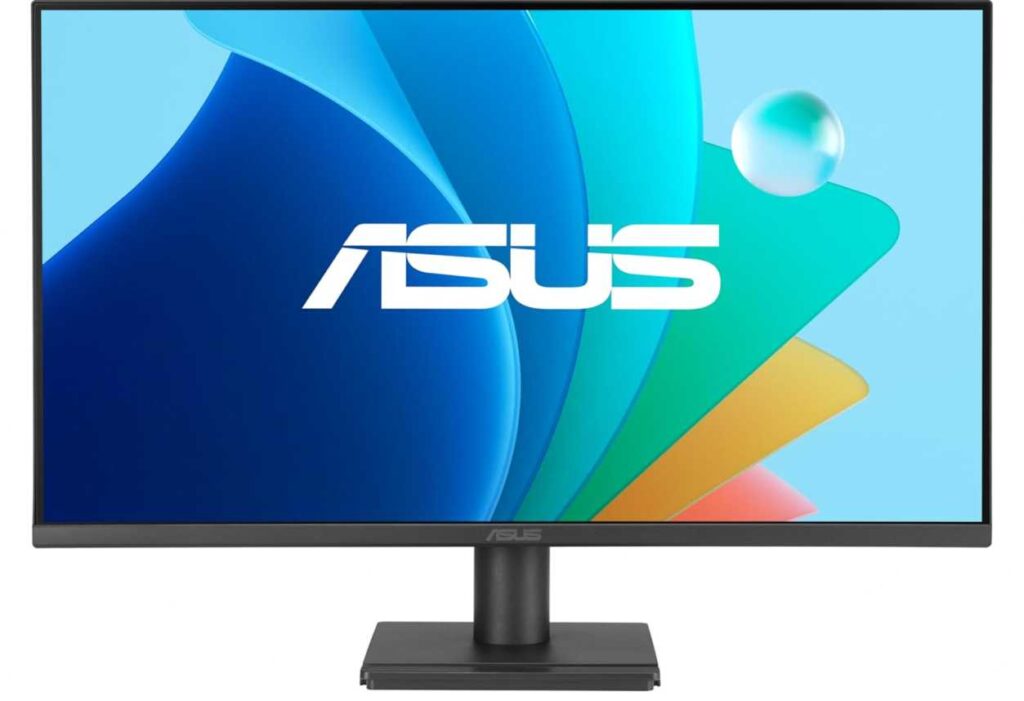
The standout here is the Eye Care features:
- Flicker-free technology
- Low blue light filtering
- TÜV-certified comfort
These might sound like small things, but if you’re sitting in front of your screen for 6–8+ hours, they actually make a noticeable difference.
You also get 120Hz refresh rate, which adds smoother scrolling and a slightly more responsive feel—similar to what we saw in the Acer KB272 27-inch FHD IPS Monitor, but here it’s paired with better comfort tuning.
Now, just like that Acer, this is still a 1080p monitor at 27 inches, which means:
👉 Text won’t be as sharp as on 4K monitors for Mac Mini M2
So again, it comes down to priorities—comfort and price vs sharpness.
Why you might choose this
- Great for long working hours (eye comfort focus)
- Smooth 120Hz experience
- Built-in speakers for convenience
- Affordable and easy to set up
Where it’s limited
- 1080p → not ideal for macOS sharpness
- Not meant for color-critical work
My take
This is the “easy on the eyes” option.
If your main goal is a comfortable, budget-friendly monitor for daily use, it does exactly that. But if you want that crisp, premium Mac-like experience, you’ll still want to move up to QHD or 4K.
Wrapping Up
So here’s the simple truth—there’s no one-size-fits-all answer when it comes to the best monitors for Mac Mini M2. It really comes down to how you use your setup and what matters more to you: sharpness, color accuracy, screen size, or budget.
If you step back and look at everything we covered, the choices become pretty clear 👇
- If you want the best overall experience, a 4K option like the INNOCN 27-inch 4K USB-C Monitor makes the most sense (sharp, clean, macOS-friendly)
- If you’re into creative work, the ASUS ProArt Display PA278CV 27-inch QHD is the more accurate and reliable choice
- If you prefer a bigger workspace, the ViewSonic VX3276-2K-MHD 32-inch QHD Monitor gives you that extra room
- If you need something portable or flexible, options like the Cocopar 16-inch 2.5K Portable Monitor 120Hz USB-C or ARZOPA 16-inch 2.5K Portable Monitor Z1RC are great additions
- And if you’re on a tight budget, the Acer KB272 27-inch FHD IPS Monitor or ASUS VA279QG 27-inch Eye Care Monitor will still get the job done
One thing you’ve probably noticed throughout this guide:
👉 Mac Mini M2 really shines with higher-resolution displays
While budget 1080p monitors work, they don’t fully show what the Mac mini is capable of. If you can stretch your budget even a little, going for QHD or 4K will make a big difference in clarity and overall experience.
At the end of the day, even a simple upgrade to the right monitor can completely change how your Mac feels—whether it’s sharper text, better colors, or just a more comfortable workspace.
Pick based on your usage, not just specs—and you’ll end up with a setup that actually feels right.