
When it comes to photo editing, your monitor isn’t just a screen—it’s your reference for every color, tone, and detail. Even a slight inaccuracy can completely change how your photos look once exported or printed.
That’s why the best monitors for photo editing focus heavily on color accuracy, wide color gamut (sRGB / AdobeRGB), and consistency rather than just size or refresh rate.
A good editing monitor should deliver true-to-life colors, sharp resolution (preferably 1440p or 4K), and reliable panel quality like IPS. Features such as factory calibration, Delta E < 2 accuracy, and hardware calibration support can make a big difference—especially for photographers and content creators.
Whether you’re editing for social media, clients, or professional print work, choosing the right display ensures that what you see is what you actually get.
In this guide, we’ll break down the best options that balance color precision, performance, and value, so you can edit with confidence.
Read also: 7 Best Travel Pillow That Doesn’t Hurt Neck Airplane
1. Best Value Monitor for Photo Editing – ASUS ProArt PA278QV
27″ | QHD (1440p) | IPS | 100% sRGB
Okay, so if you’re getting into photo editing and don’t want to spend a crazy amount, this ASUS ProArt is honestly a really safe pick.
The biggest thing you care about in editing is color accuracy, right? This one comes with 100% sRGB and factory calibration, so colors look pretty much how they’re supposed to. You don’t have to mess around too much with settings—it’s good straight out of the box.
The 1440p resolution is also a sweet spot. It’s sharper than Full HD, so you can actually see details properly, but it’s not as demanding as 4K.
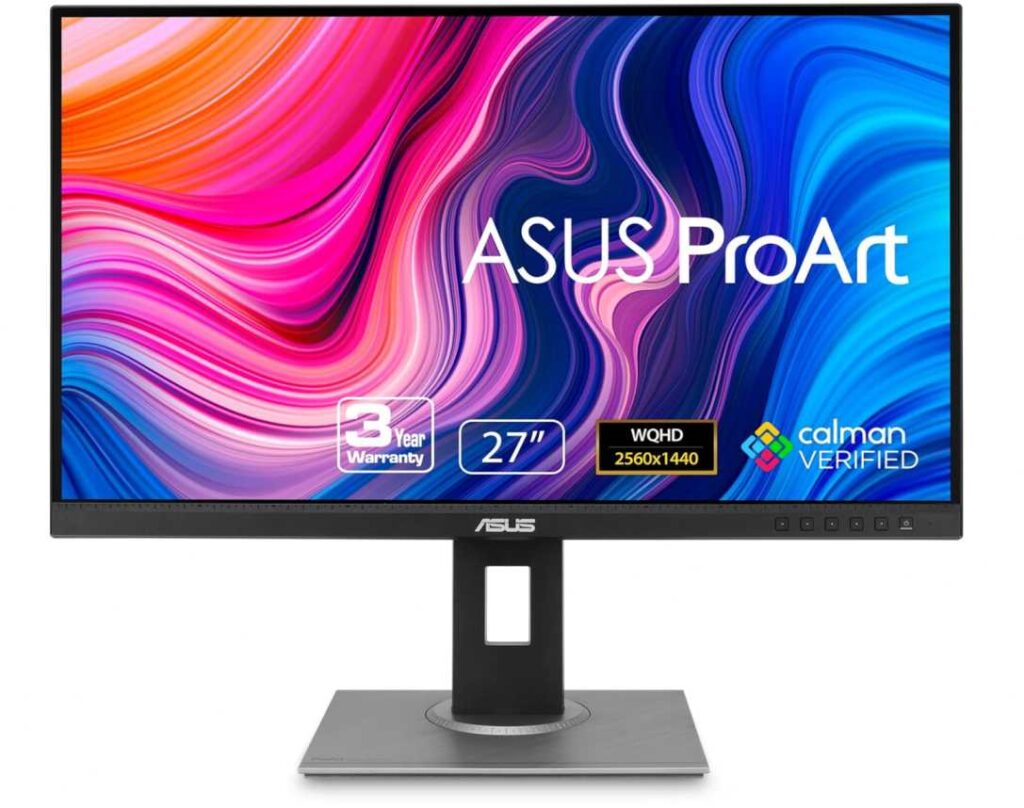
Since it’s an IPS panel, colors stay consistent even if you move around a bit. That’s important when you’re editing and don’t want colors shifting on you.
And one thing I really like—it has a fully adjustable stand. You can move it up, down, tilt, rotate—whatever feels comfortable, especially during long editing sessions.
Why it’s good for you
- Colors are accurate right out of the box
- Full sRGB coverage for editing work
- Sharp enough for detailed photos
- Very comfortable to use long-term
Just keep in mind
- It doesn’t cover AdobeRGB
- Not a 4K display
My honest take
If you want something reliable without overthinking specs, this is a great starting point. It’s one of those monitors you can just use and trust while editing.
2. HP Series 3 27″ Monitor – Simple & Comfortable for Everyday Use
27″ | Full HD | IPS | 100Hz
Alright, if you just want something clean, comfortable, and easy to use every day, this HP monitor is one of those no-stress options.
You get a 27-inch screen, which is great for keeping things open side-by-side—like your class on one side and notes on the other. It just makes studying or working feel less cramped.
The display is Full HD, so it’s decent for everyday stuff—nothing super sharp, but good enough for classes, browsing, and basic work.
Since it’s an IPS panel, colors look consistent and the screen stays clear even if you’re not sitting perfectly straight. That’s always nice for long sessions.
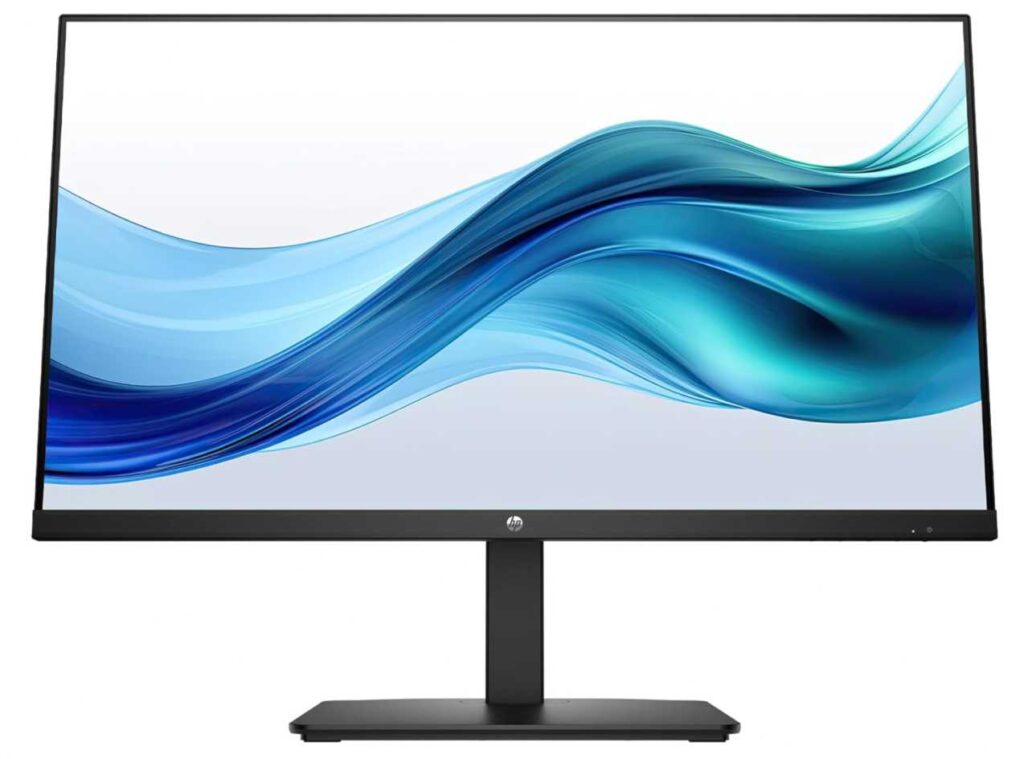
What I like here is the focus on eye comfort. It has HP’s Eye Ease feature, which helps reduce strain without making the screen look weird or too yellow. Good if you’re staring at it for hours.
You also get a 100Hz refresh rate, so things feel smoother than typical monitors—scrolling, switching tabs, all that feels a bit nicer.
Plus, it has built-in speakers, which are fine for classes or casual use, and a pretty clean, borderless design.
Why it’s good
- Big 27-inch screen for multitasking
- Smooth enough with 100Hz refresh rate
- Comfortable on the eyes for long use
- Clean design with built-in speakers
Just keep in mind
- Full HD isn’t the sharpest at this size
- Not meant for color-accurate editing
My take
If you want something simple, comfortable, and reliable for daily use, this is a solid pick. It’s not trying to be fancy—it just works well.
3. CUNPU 27″ 4K Monitor – Budget 4K with Surprisingly Good Colors
27″ | 4K UHD | IPS | 70Hz | 100% DCI-P3
Okay, this one is actually interesting—especially if you want 4K + strong color performance without spending too much.
You’re getting a 27-inch 4K display, so everything looks super sharp. When you’re editing photos or even just browsing, the extra detail is very noticeable compared to Full HD.
What really stands out here is the color side of things. It claims 100% DCI-P3 and ΔE < 2, which is honestly impressive at this price. That means colors should look quite accurate and vibrant—good enough for most editing work unless you’re doing super professional stuff.
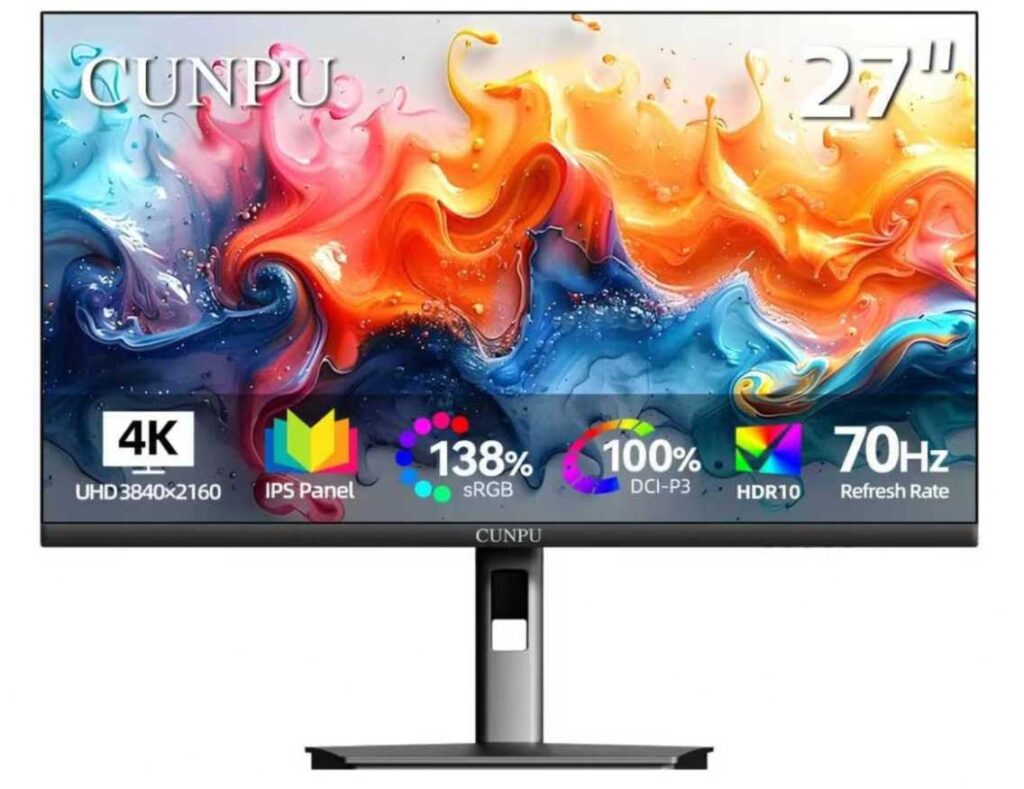
Since it’s an IPS panel, colors stay consistent and viewing angles are solid, which is important when you’re working on images.
It also has PIP and PBP modes, which are actually useful if you want to multitask—like editing on one side and referencing something on the other.
The 70Hz refresh rate is slightly better than standard 60Hz, so general usage feels a bit smoother too.
Why it’s worth considering
- Sharp 4K resolution for detailed editing
- Strong color performance for the price
- IPS panel for consistent visuals
- Useful multitasking features (PIP/PBP)
Things to keep in mind
- Brand isn’t very well known
- Color accuracy may not match high-end professional monitors
My take
If you want a budget 4K monitor that leans toward photo editing, this is a really good value pick. It’s not perfect, but for the price, you’re getting a lot—especially in terms of resolution and color.
4. SANSUI 27″ Monitor – Ultra Budget Big Screen Option
27″ | Full HD | IPS | 120Hz
If you just want a big screen at the lowest possible price, this SANSUI monitor is one of those options that’s hard to ignore.
You’re getting a 27-inch display, which is great for having multiple tabs, documents, or classes open at once. It makes everyday use feel a lot more comfortable compared to smaller screens.
It’s a Full HD panel, so it’s fine for general use like studying, browsing, and watching videos—but don’t expect super sharp detail at this size.
The good part is it’s an IPS panel, so colors stay consistent and viewing angles are decent. That’s useful if you’re moving around or sharing the screen.
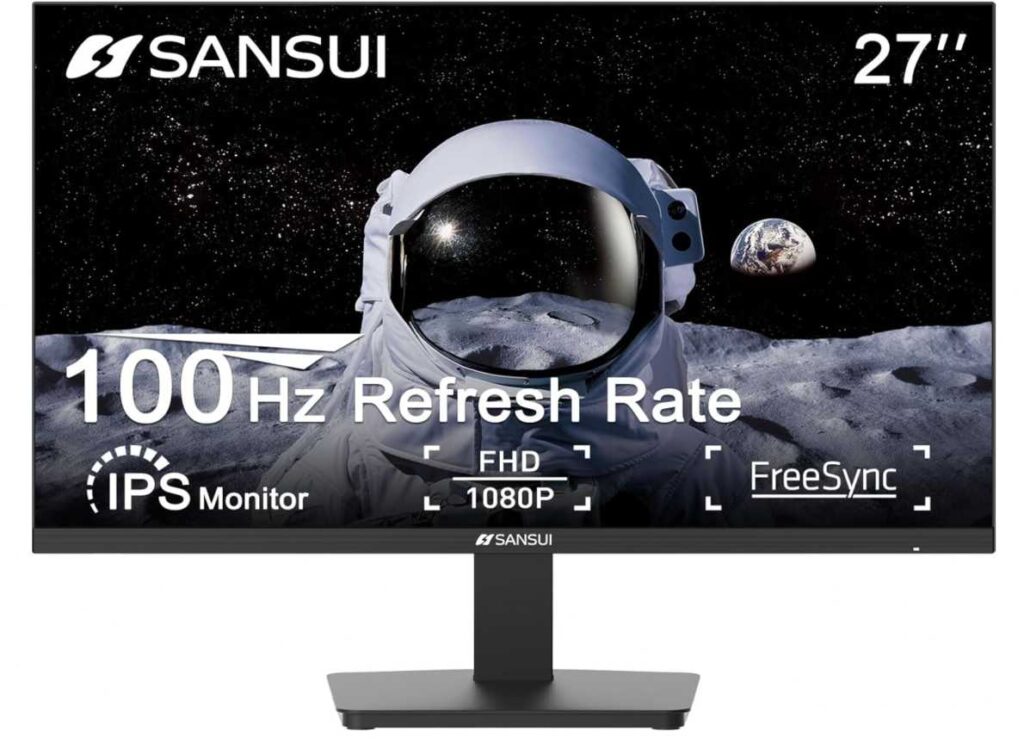
It also supports up to 120Hz, which makes things feel smoother than standard monitors—scrolling and switching between tasks feels a bit more fluid.
Plus, it includes eye-care features like low blue light and anti-flicker, which help during long hours.
Why it’s a good budget pick
- Very affordable for a 27-inch monitor
- Smooth enough with 120Hz refresh rate
- IPS panel for decent color and angles
- Good for basic daily use
Things to keep in mind
- Full HD on 27″ isn’t very sharp
- No built-in speakers
- Not suitable for color-accurate work
My take
If you’re on a tight budget and just want a large, smooth, and simple monitor, this does the job. It’s not fancy, but it gives you a lot of screen for the price.
5. Samsung UJ59 32″ 4K Monitor – Big Screen for Detailed Editing
32″ | 4K UHD | VA | 60Hz
If you’re thinking about photo editing and want a large 4K screen without going too expensive, this Samsung monitor is a pretty solid option.
The first thing you’ll notice is the 32-inch size. It gives you a lot of room to work with—great for editing photos, comparing images, or keeping tools and panels open without feeling cramped.
Since it’s a 4K display, you get sharp details, which really helps when you’re working on fine edits. You can zoom less and still see more of your image clearly.
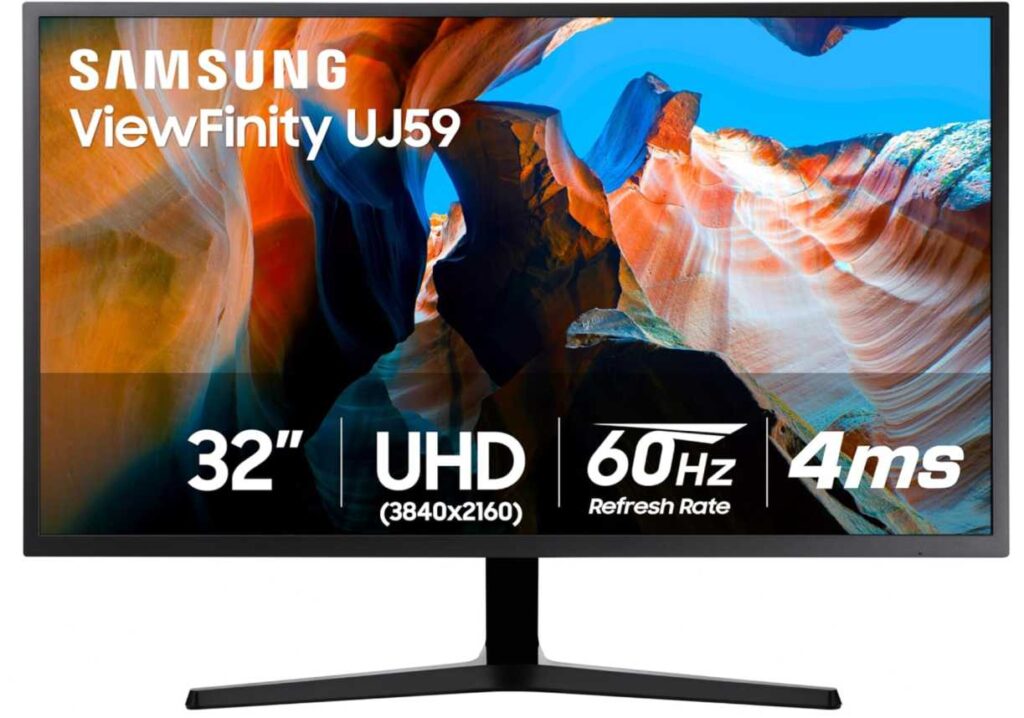
This one uses a VA panel, so you’ll get better contrast and deeper blacks compared to IPS. That can actually make photos look more punchy, especially in darker scenes.
It also supports a wide range of colors (over a billion shades), so overall visuals look rich and detailed for general editing work.
You’ve also got features like PIP/PBP, which are useful if you want to compare images or work across multiple inputs.
Why it works for editing
- Large 32-inch screen for more workspace
- Sharp 4K resolution for detail work
- Strong contrast from VA panel
- Good for multitasking and side-by-side work
Things to keep in mind
- Not as color-accurate as professional IPS monitors
- Limited adjustability on the stand
- 60Hz refresh rate
My take
If you want a bigger 4K screen for editing and general use, this is a good pick. It’s not a pro-level color monitor, but for most people, it offers a really nice balance of size, clarity, and value.
6. Acer KB272 27″ Monitor – Budget Option for Basic Editing
27″ | Full HD | IPS | 120Hz | 99% sRGB
Alright, so if you’re just starting with photo editing and don’t want to spend much, this Acer monitor is more of a beginner-friendly option.
You’re getting a 27-inch screen, which gives you enough space to work with your photos, tools, and panels without everything feeling cramped. That alone makes editing a bit easier compared to smaller displays.
It also claims 99% sRGB, which is actually decent for basic editing. Colors should look fairly accurate for things like social media content, casual editing, or learning.
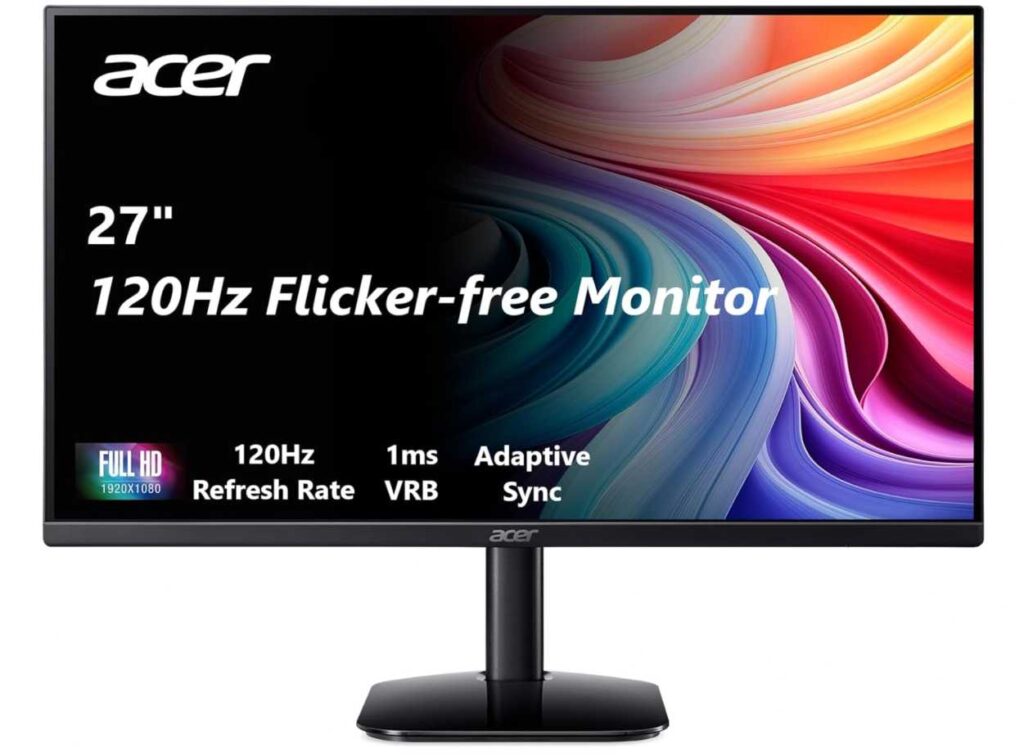
Since it’s an IPS panel, you get consistent colors and good viewing angles, so your image won’t shift too much when you move around.
The 120Hz refresh rate is there too, but honestly for photo editing, it doesn’t matter much. It just makes general usage feel smoother.
Why it’s okay for beginners
- Affordable entry into photo editing monitors
- 99% sRGB for decent color accuracy
- Large enough screen for editing workspace
- IPS panel for consistent visuals
Things to keep in mind
- Full HD isn’t ideal for detailed editing
- Not suitable for professional color work
- Limited adjustments
My take
If you’re just learning or editing casually, this works fine. But if you’re serious about photo editing, you’ll probably want to upgrade to a 1440p or 4K color-accurate monitor later on.
7. Samsung 32″ FHD Monitor – Big Screen but Not Ideal for Editing
32″ | Full HD | 75Hz | VA
Alright, so this one is a bit tricky—it looks good on paper because of the big 32-inch screen, but for photo editing, it’s not the best choice.
Yeah, you get a lot of space to work with. Having a large screen is nice for keeping your image, tools, and panels open. It definitely feels comfortable in terms of layout.
But the issue is the Full HD resolution on a 32-inch display. At this size, things don’t look very sharp, and when you’re editing photos, that lack of detail can actually matter.
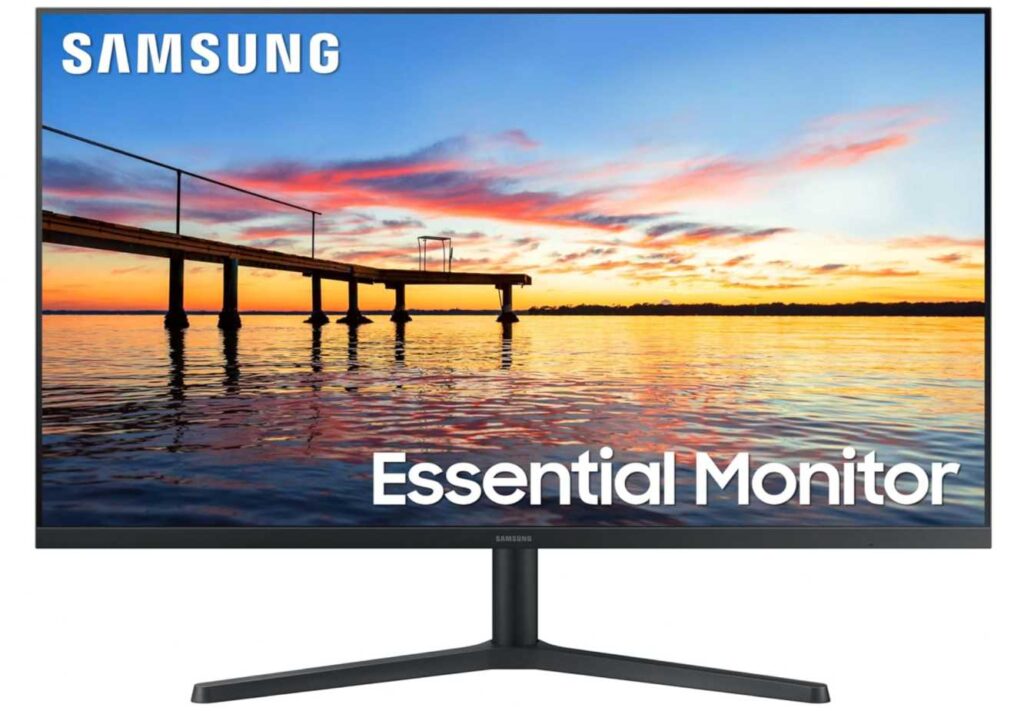
It’s more of a monitor made for general use, watching content, or basic work, not really for color-accurate editing.
You do get eye-care features and a clean borderless design, which is great for long usage, and the experience is smooth enough with 75Hz—but again, that’s not the priority for editing.
Where it works
- Big screen for comfortable layout
- Good for general use and multitasking
- Easy on the eyes for long sessions
Where it falls short
- Full HD is not sharp enough at 32″
- Not designed for accurate color work
- Better options exist for editing
My take
If your main goal is photo editing, I’d skip this one. It’s fine as a general monitor, but for editing, you’re better off going with something 1440p or 4K with better color accuracy.
Wrapping Up
When it comes to photo editing, the monitor you choose really affects how your final images turn out.
If you’re just starting out, a budget IPS monitor with good sRGB coverage can work fine. But as you get more serious, things like higher resolution (1440p or 4K) and better color accuracy (ΔE < 2, wider color gamut) start to matter a lot more.
Not every big or expensive monitor is good for editing. What actually matters is how accurate and consistent the colors are, not just screen size or refresh rate.
For most people, the sweet spot is a monitor that balances sharpness, color accuracy, and comfort, so you can edit for long hours without second-guessing your work.
At the end of the day, the best monitor is the one that helps you see your photos the way they’re meant to look—so you can edit with confidence and get consistent results.