
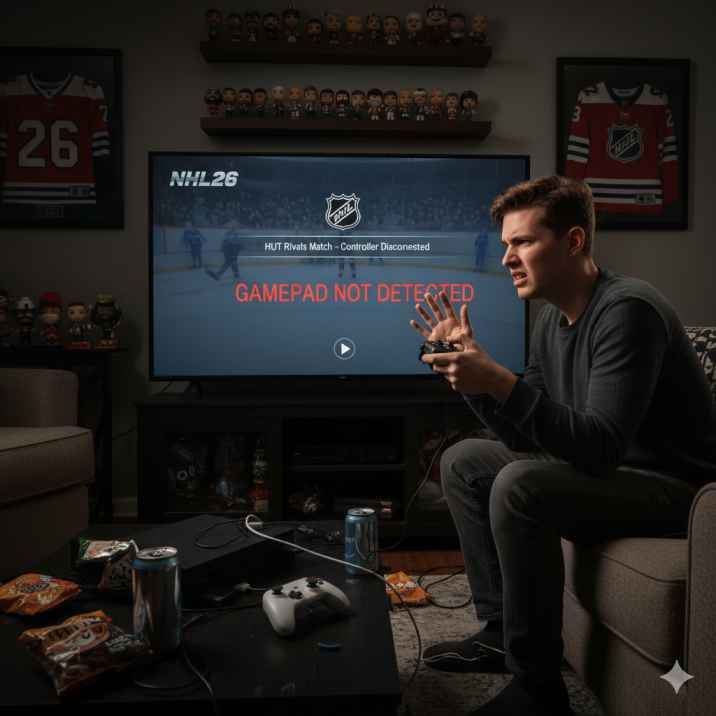
One of the most frustrating problems players face is when the gamepad stops working in NHL 26 Rivals or other online modes. Imagine this: you use your controller to navigate menus, set up your lineup, and start the Rivals match.
But as soon as the game begins, your controller completely stops responding, leaving you unable to move your skater, take a shot, or even pause the game. For many players, this isn’t just an occasional glitch—it happens frequently, sometimes in nearly 50% of matches.
The result? Lost games, wasted time, and a lower ranking in leagues because of something outside your control. Some players have even reported losing over 20 matches due to this bug. Considering the effort and money spent on the Ultimate Edition, this is beyond frustrating.
While the issue may look random, it usually comes down to controller connectivity problems, input conflicts, or NHL 26 failing to properly detect your device once the match begins. Thankfully, there are steps you can try to reduce or completely fix the issue.
Below, we’ll walk you through common causes and step-by-step fixes to get your gamepad working reliably in NHL 26 Rivals and other online modes.
NHL 26 Gamepad Not Working in Online Modes – Why It Happens
Many players have reported issues where the NHL 26 controller is not working in online modes such as Rivals, HUT, and other competitive matches. One moment, the gamepad is functioning perfectly in menus and setup screens; the next, the moment the match begins, the gamepad stops responding in NHL 26, leaving players completely unable to control their team. This problem is frustrating, especially when it causes lost matches, league drops, or missed event objectives.
There are several reasons why this NHL 26 online mode bug happens. One common cause is a temporary input detection failure. The game might recognize the controller in menus, but fail to properly initialize it once the online match starts. This is especially true for wireless controllers, which can occasionally drop the connection or fail to communicate consistently with the game’s servers.
Another frequent cause is conflicts between multiple input devices. Players who have keyboards, mice, or secondary controllers connected alongside their primary gamepad often experience issues where NHL 26 switches to another input source when the match begins. This can make it seem as though the controller has completely stopped working.
Software-related problems also play a role. Outdated controller drivers, firmware, or even game patches can create glitches that prevent the game from recognizing your gamepad consistently. Similarly, on PC versions, Steam or Origin controller settings may interfere with NHL 26 input, causing the game to ignore the controller during online matches.
Finally, server-side or game-specific bugs can trigger this issue. Sometimes the problem is not with your controller at all but with NHL 26 online mode programming, where input signals fail to register at the start of the match. Many players have reported this happens intermittently, affecting roughly 40–50% of their online matches.
Understanding why the NHL 26 controller is not working is the first step toward fixing it. Whether it’s a connectivity issue, a software conflict, or a game bug, identifying the root cause allows players to apply the correct troubleshooting steps, from reconnecting the controller to updating drivers, reconfiguring inputs, or reporting the problem to EA Help.
By knowing the common causes of this problem, you can avoid frustration, reduce lost matches, and improve your experience in NHL 26 online modes.
Common Causes of Gamepad Issues in NHL 26 Rivals
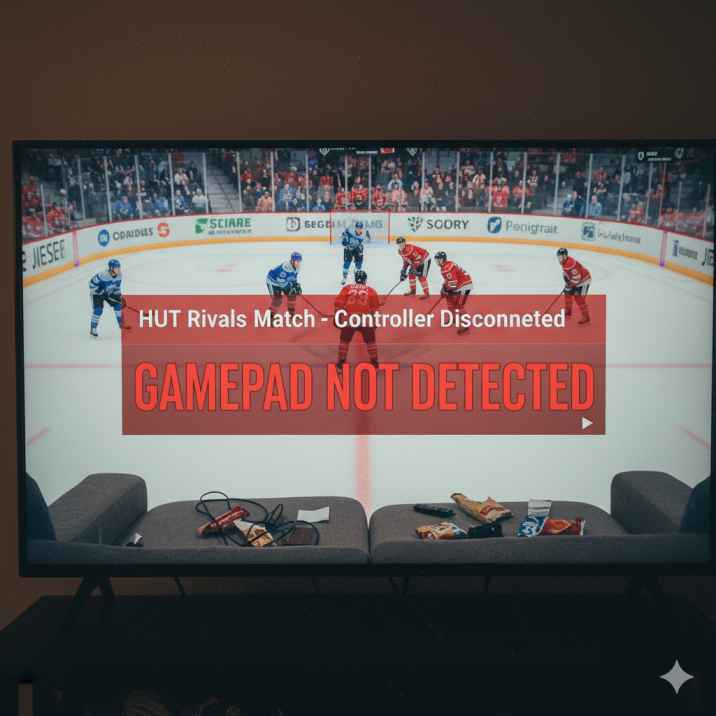
Experiencing a NHL 26 controller glitch during Rivals matches is a common problem for many players. One moment, you navigate menus and team selection perfectly with your gamepad; the next, the match starts, and your controls stop responding. Understanding the common causes of these gamepad input problems can help you troubleshoot effectively and prevent lost games.
One major cause is input detection failure. NHL 26 sometimes fails to properly recognize the controller once the online match begins, even if it worked flawlessly in menus. This is especially noticeable with wireless controllers, where signal drops or minor lag can prevent the game from registering button presses. Players using Bluetooth connections or third-party adapters are more likely to encounter this issue.
Another frequent culprit is input conflicts between multiple devices. If you have a keyboard, mouse, or secondary controller connected alongside your primary gamepad, NHL 26 may inadvertently switch to another input source at match start. This can cause the game to ignore your controller, creating the feeling that your gamepad has stopped working entirely.
Software and driver issues are also significant contributors. Outdated gamepad drivers, console firmware, or PC controller software can lead to gamepad input problems in NHL 26. Similarly, on PC, incorrect Steam or Origin controller configurations may interfere with the game’s ability to detect the controller during online matches.
Finally, game-specific bugs can trigger controller failures in Rivals. Many players report that this Rivals controller bug occurs intermittently, affecting nearly 40–50% of matches. It’s often unpredictable and can cause players to lose games unfairly, drop in league rankings, and miss event rewards. These bugs are sometimes server-related or caused by conflicts in the game’s code, rather than an issue with your controller itself.
By understanding these common causes of NHL 26 gamepad issues, players can better target their troubleshooting. Whether it’s a connection problem, a driver conflict, or a game bug, knowing the root of the problem allows you to take the right steps to fix it, minimize frustration, and ensure you can enjoy Rivals and other online modes without interruption.
How to Fix NHL 26 Gamepad Not Working in Rivals
If your NHL 26 Gamepad Not Working in Rivals, you’re definitely not alone. Many players report the same problem — their controller works perfectly fine in menus but suddenly stops responding the moment a Rivals match begins.
This issue can be frustrating, especially during competitive play, but the good news is that it’s fixable. Below is a comprehensive step-by-step guide to troubleshoot and solve the NHL 26 gamepad not working problem so you can get back to dominating the ice.
1. Restart and Reconnect Your Controller
Start simple. A quick restart often resolves temporary input glitches.
Try this:
- Close NHL 26 completely.
- Turn off your console or PC.
- Disconnect and then reconnect your controller.
- Relaunch the game and enter Rivals again.
This forces the system to re-detect your controller as the primary input device, often resolving temporary disconnections or sync bugs.
2. Check Your Controller Settings
Your NHL 26 Gamepad Not Working in Rivals could stem from incorrect setup.
For PC players:
- Open Steam or EA App settings.
- Go to Controller Settings and make sure your device is listed and active.
For console players:
- Ensure your controller is synced correctly and no other devices (like keyboards or extra controllers) are confusing the input system.
Disconnecting unused peripherals often fixes controller detection issues.
3. Update Drivers and Firmware
Outdated firmware or drivers can cause the NHL 26 Gamepad Not Working in Rivals bug.
Fix it this way:
- Update controller firmware through your console or manufacturer’s app.
- On PC, open Device Manager → Game Controllers → Update Driver.
Keeping both your controller and system software updated ensures stable input communication.
4. Switch Between Wired and Wireless Mode
Wireless connections sometimes drop signals mid-game, especially in online Rivals matches.
Try connecting your controller via USB.
- It provides a stronger, lag-free signal.
- Prevents the controller from disconnecting during gameplay.
Many players report that switching to a wired setup instantly fixes their NHL 26 controller not working problem.
5. Reconfigure Input Settings in NHL 26
Sometimes your control layout may have bugged out or partially reset.
Go to:
- Settings → Controller → Layout.
- Select “Reset to Default” or manually re-map each button.
This ensures the game correctly reads your inputs during Rivals matches.
6. Clear Cache and Reinstall the Game
If your NHL 26 Gamepad Not Working in Rivals even after resets, corrupted cache files might be the culprit.
Console:
- Power off fully, unplug for 30 seconds, and reboot.
PC:
- Verify or reinstall game files via Steam or EA App.
Reinstalling often clears lingering data conflicts that affect input recognition.
7. Report the Issue to EA Help
If you’ve tried all fixes and your gamepad still doesn’t respond, it’s time to contact EA.
Provide:
- Your Gamertag or PSN ID.
- Platform (PS5, Xbox, or PC).
- Details of the issue and when it happens (menus vs Rivals).
EA support can check server logs or known issues related to your specific account.
8. Check Community Updates and EA Announcements
Before trying advanced fixes, look at what other players are experiencing.
Check:
- EA NHL Forums.
- Reddit NHL HUT community.
- @EASPORTSNHL on X (Twitter).
If many players are reporting the gamepad not working in NHL 26 Rivals, it’s likely a global bug — EA usually issues a patch or compensation soon after.
9. Disable Steam or Origin Overlay (PC Only)
Overlays can conflict with controller input on PC.
Turn them off:
- Steam → Right-click NHL 26 → Properties → Disable Steam Overlay.
- EA App → Application Settings → Turn off “In-Game Overlay.”
Disabling overlays prevents input interference and usually improves controller stability.
10. Test the Controller in Other Games
Before assuming it’s an NHL 26 problem, test your controller elsewhere.
Do this:
- Try another game or navigate your console menu.
- If it works fine elsewhere, the issue is game-specific.
- If it fails across all games, you likely have a hardware issue.
This step helps you confirm if the NHL 26 Gamepad Not Working in Rivals is caused by the game or your device.
11. Check for Background Applications
Certain background apps — like controller remappers, recording tools, or antivirus programs — can interrupt input signals.
Fix:
- Close all unnecessary programs before launching NHL 26.
- Especially disable controller overlay or input-mapping tools.
This clears conflicts that often cause random input drops during Rivals matches.
12. Adjust Power Settings for Wireless Controllers
Wireless controllers sometimes go into sleep mode mid-match.
Adjust settings:
- Disable auto-sleep mode in your console or PC power options.
- Keep the controller active while loading into a game.
This ensures your NHL 26 controller stays responsive during Rivals gameplay.
13. Use Controller Emulation Tools (Advanced PC Fix)
If NHL 26 still fails to detect your controller, you can emulate one using trusted tools like DS4Windows or Xpadder.
These programs make your device appear as an Xbox controller, ensuring the game registers all inputs.
Only use official versions to avoid malware.
14. Reboot Your Router or Network Connection
Lag spikes or connection interruptions can indirectly cause input delays during Rivals.
Try:
- Restarting your router.
- Using a wired Ethernet connection.
While not a direct controller fix, stable internet reduces overall gameplay lag and input desync.
15. Keep NHL 26 Updated
EA frequently releases updates to fix gameplay bugs — including controller input issues.
Always:
- Check for the latest NHL 26 patch.
- Enable auto-updates on your platform.
New patches often resolve widespread NHL 26 Gamepad Not Working in Rivals reports.
16. Turn Off Bluetooth Accessories Nearby
Other Bluetooth devices (headsets, speakers, keyboards) can interfere with wireless controllers.
Try this:
- Disconnect nearby Bluetooth devices.
- Re-pair only your controller.
This eliminates input lag or mid-game disconnections caused by wireless interference.
17. Use a Different USB Port or Cable
Faulty ports or damaged cables are sneaky causes of controller not working errors.
Swap cables or USB ports.
- Use a rear port on desktops for stable power.
- Try a different USB-C or micro-USB cable.
A poor connection can mimic an in-game controller bug.
18. Change Input Type in Game Settings
Some users fix their issue by switching the input type manually.
Steps:
- Open NHL 26 Settings → Gameplay → Controller Input.
- Switch from “Auto Detect” to “Xbox Controller” or “DualSense,” depending on your device.
This forces the game to use the correct driver and prevents random input loss.
19. Delete Temporary Configuration Files (PC)
On PC, configuration files can corrupt after updates.
Fix:
- Go to Documents → EA Sports NHL 26 → Settings.
- Delete or rename “config.ini.”
- Restart the game — it’ll rebuild a clean config.
This reset often solves stubborn controller not working in Rivals issues.
20. Rebuild Database or Clear Persistent Storage (Console Fix)
For consoles, a deep refresh can solve invisible hardware sync bugs.
PlayStation:
- Boot into Safe Mode → Select “Rebuild Database.”
Xbox:
- Go to Settings → Blu-ray → Persistent Storage → Clear.
Restart the console and launch NHL 26 again.
This final step often restores full controller functionality in Rivals.
21. Reset Controller Calibration
If your NHL 26 Gamepad Not Working in Rivals, your controller calibration data might be misaligned. This can happen after firmware updates or crashes.
How to fix:
- On PC, open the controller’s configuration software (e.g., DS4, Xbox Accessories, Logitech).
- Select Calibrate Controller → Follow the on-screen steps.
- For consoles, go to Settings → Devices → Controller Calibration.
Once recalibrated, restart NHL 26 and re-enter Rivals. The game should now correctly recognize analog movement and button input.
22. Turn Off Vibration and Haptic Feedback
Some users reported that disabling vibration fixed random input drops in Rivals matches.
This can occur when the controller’s haptic motors overload or fail to initialize properly in online games.
Try this:
- Open NHL 26 → Settings → Controller Settings.
- Disable Vibration and Haptic Feedback.
This small tweak often stabilizes gameplay responsiveness and helps fix the NHL 26 controller not working issue.
23. Delete Old Controller Profiles
Multiple saved profiles can confuse the game’s input system.
If you’ve played NHL 26 with different controllers, old data may remain active.
Steps:
- On PC: Delete unused controller profiles under your Steam or EA settings.
- On consoles: Remove old Bluetooth devices from Accessories → Manage Devices.
Then reconnect only your current controller. This prevents conflicting input signals during Rivals matches.
24. Disable Input Lag Reduction Tools or Filters
If you use tools like Nvidia Reflex, Razer Cortex, or other latency optimizers, they can sometimes interfere with controller polling.
Fix:
- Turn off any third-party input delay reduction software.
- Relaunch NHL 26 without background gaming tools active.
The NHL 26 Gamepad Not Working in Rivals issue can occur when these tools override default input timing.
25. Set Your Controller as Default in System Settings
If multiple devices (like a steering wheel, joystick, or gamepad) are connected, your PC or console might not prioritize the correct input device.
Solution:
- Unplug all other peripherals.
- Go to Device Settings → Input → Set as Default Controller.
Restart the game — your controller will now take priority and should respond correctly in Rivals.
26. Change USB Power Management Settings (PC Only)
Windows sometimes powers down USB ports to save energy, which can cut controller connection mid-game.
Fix this:
- Go to Device Manager → Universal Serial Bus Controllers.
- Right-click each USB Root Hub → Properties → Power Management → Uncheck “Allow computer to turn off this device.”
Restart your PC, then test NHL 26 again. This often fixes random controller disconnections in Rivals.
27. Re-Sync Controller Before Entering Rivals Mode
Sometimes the game loses connection when transitioning from menus to Rivals mode.
Try this method:
- Disconnect and reconnect your controller right before entering a match.
- Wait for vibration or LED confirmation.
- Start the game.
This simple step refreshes controller input recognition and fixes cases where the NHL 26 gamepad stops working after matchmaking.
28. Disable Adaptive Triggers (PS5 Users)
For PlayStation 5 DualSense players, adaptive triggers sometimes misfire during online gameplay, freezing input detection.
To fix:
- Go to Settings → Accessories → Controllers → Trigger Effect Intensity → Off.
- Relaunch NHL 26.
With adaptive triggers off, input registration becomes smoother and prevents Rivals match desyncs.
29. Avoid Using Third-Party Controllers During Online Play
Non-official or third-party controllers may not be fully supported by EA’s online input system.
This can lead to unrecognized signals or partial button mapping failures.
Recommendation:
- Use official Sony DualSense, Xbox, or Logitech controllers.
- Avoid cheap generic Bluetooth gamepads for competitive play.
Sticking with supported hardware drastically reduces the NHL 26 Gamepad Not Working in Rivals error.
30. Reset Network and Console NAT Type
Online connection inconsistencies can cause delay or signal drops that appear as controller lag.
How to fix:
- Restart your router.
- Ensure your NAT Type is set to Open or Type 1.
- Use a wired connection if possible.
Stable NAT and low latency ensure better synchronization between controller input and EA’s servers — helping eliminate Rivals mode unresponsiveness.
31. Rebuild Controller Database via Console Safe Mode
If your NHL 26 Gamepad Not Working in Rivals, your console’s controller database might be corrupted.
Fix (PlayStation):
- Power off the console completely.
- Hold the power button until you hear two beeps — enter Safe Mode.
- Select “Rebuild Database.”
- Restart the console and re-pair your controller.
This resets controller communication data, often restoring full in-game responsiveness in NHL 26.
32. Delete and Re-Download Your Controller Profile
Controller profiles can sometimes store conflicting settings after updates.
Steps:
- Go to System Settings → Accessories → Controllers.
- Delete your existing profile.
- Reconnect your controller and allow the system to recreate it.
Once done, start NHL 26 and test in Rivals — the controller should now function properly.
33. Run NHL 26 as Administrator (PC Only)
If your gamepad not working in NHL 26 Rivals on PC, the game may lack permissions to access your device.
Try this:
- Right-click NHL 26 → Select Run as Administrator.
- Plug in your controller before launching.
This gives the game full hardware access and fixes driver-level communication issues.
34. Turn Off Controller Vibration Globally
If your controller disconnects mid-match, vibration triggers can overload USB or Bluetooth bandwidth.
Fix:
- Disable controller vibration both in NHL 26 and in your system settings.
- Restart the game.
This can prevent sudden drops or freezes, especially for DualShock and Xbox wireless controllers.
35. Revert to Default Controller Driver (Windows Fix)
Sometimes, new Windows updates install incompatible controller drivers.
Fix:
- Open Device Manager → Game Controllers.
- Right-click your device → Update Driver → Browse → Let me pick.
- Select the original manufacturer driver (e.g., Microsoft Xbox Controller).
Reverting removes input translation errors that cause NHL 26 Gamepad Not Working in Rivals.
36. Change USB Polling Rate (Advanced PC Fix)
High polling rates can confuse older games’ input systems.
Steps:
- Download your controller’s driver tool (e.g., DS4Windows).
- Set polling rate to 1000Hz or lower.
- Relaunch NHL 26.
This fix smooths input detection for players experiencing delayed or frozen controls in Rivals.
37. Disable Controller Overlay Apps (Razer Synapse, Logitech G Hub, etc.)
Overlay software from peripherals can block gamepad signals.
Fix:
- Close Razer Synapse, Logitech G Hub, or any macro software before launching NHL 26.
- Restart your system.
This eliminates hidden driver hooks that cause the controller not working in Rivals bug.
38. Check for Bluetooth Signal Interference
Wireless controllers rely on stable Bluetooth signals — interference can cause micro-disconnects.
Try this:
- Keep your console or PC within 1–2 meters of the controller.
- Avoid placing Wi-Fi routers, microwaves, or metal objects nearby.
- If interference continues, switch to a wired setup.
This fix improves real-time input recognition during Rivals matches.
39. Re-Sync Time and Date Settings
Desync between your console’s internal clock and EA servers can cause temporary connection mismatches — affecting input validation.
Fix:
- Go to System Settings → Date & Time → Set Automatically.
- Restart your device and open NHL 26.
This refreshes your sync token and may stop random input lockouts in online modes.
40. Contact EA Support for Known Rivals Controller Bug ID
If you’ve tried everything, open a case specifically referencing “Rivals Controller Bug – NHL 26”.
Include:
- Platform and gamertag.
- When and where the issue happens (only in Rivals or across modes).
- Steps already taken (e.g., reinstall, wired test, overlay off).
EA’s support agents often check your event logs and apply backend patches for controller-related issues.
They can also manually reset your control configuration server-side.
Restarting and Reconnecting Your Gamepad – Step by Step
One of the most effective ways to fix a gamepad not detected in NHL 26 is to restart and reconnect your controller. This method addresses temporary input glitches, sync issues, and connection drops that often cause the NHL 26 controller reconnect problem during online modes like Rivals.
Step 1: Close NHL 26 Completely
Before reconnecting, fully exit the game. On PC, make sure it’s not running in the background. On consoles, press the home button and close the application entirely.
Step 2: Power Off the Controller
Turn off your controller completely. For wireless controllers, press the power button until it shuts down. For wired controllers, simply unplug the USB cable.
Step 3: Restart Your Console or PC
This ensures the system clears any temporary bugs that may interfere with controller detection. A fresh reboot often resolves hidden conflicts that prevent your gamepad from working properly.
Step 4: Reconnect the Controller
Once your system restarts, reconnect the controller. For wireless devices, re-pair via Bluetooth or the console’s pairing button. For wired controllers, plug in the USB cable and wait for the system to recognize it. NHL 26 should now detect your gamepad correctly.
Step 5: Test in Menus
Before entering an online match, test the controller in menus or a practice game. This confirms the fix controller disconnect step worked and ensures you won’t encounter the same issue mid-match.
By following these steps carefully, you can solve most NHL 26 controller reconnect problems, reduce lost games, and ensure smoother online gameplay. Restarting and reconnecting may feel simple, but it’s often the quickest solution to a frustrating gamepad issue.
Checking Steam, Origin, and Console Controller Settings
If your gamepad is not working in NHL 26 Rivals, one of the most common causes is misconfigured controller settings. Both PC and console players need to ensure their devices are properly recognized and prioritized by the game. Checking and adjusting these settings can often resolve the NHL 26 input settings issue.
For PC Players:
If you’re using Steam or Origin, start by verifying that your controller is detected correctly. In Steam, go to Steam → Settings → Controller → General Controller Settings and make sure your device (Xbox, PS, or third-party controller) is checked and configured. For Origin, navigate to Application Settings → Origin In-Game → Enable/Disable Controller Support to ensure your controller is active. Misconfigured or disabled settings can prevent NHL 26 from recognizing your input device in matches.
For Console Players:
Ensure your Xbox or PlayStation controller is synced properly. On PS4/PS5, check the Devices → Controllers menu to confirm your controller is active. On Xbox, verify in Settings → Devices & Accessories that the correct controller is assigned to your profile. Multiple connected controllers can sometimes cause NHL 26 to prioritize the wrong input, leading to a controller not working NHL 26 issue mid-match.
Additional Tips:
- Disconnect other peripherals like keyboards or secondary controllers to prevent conflicts.
- Reset controller configuration in NHL 26 to default if buttons aren’t responding correctly.
- Test the controller in menus before joining an online match.
By ensuring your NHL 26 PC controller settings or console input is correctly configured, you can prevent frustrating interruptions in Rivals or other online modes and enjoy smoother gameplay.
Updating Drivers and Controller Firmware for NHL 26
One common reason your gamepad is not working in NHL 26 is outdated drivers or firmware. Keeping your controller updated ensures the game can communicate with your device correctly and prevents the NHL 26 PC controller problem that many players face during online matches.
For PC users, check the manufacturer’s website for your controller (Xbox, DualShock, or third-party) and download the latest drivers. On Windows, you can also use Device Manager to verify and update controller drivers automatically. Console users should ensure their controllers’ firmware is updated via the console settings—PS4/PS5 and Xbox both offer firmware updates for controllers.
Outdated drivers or firmware can cause buttons to stop responding, lag in Rivals matches, or the game to fail detecting the controller entirely. Once you’ve updated, restart both the console or PC and NHL 26 to ensure the changes take effect. Regularly checking for updates can prevent recurring NHL 26 controller driver update issues and improve overall game stability.
Wired vs Wireless Controller – Which Works Best for Online Modes?
Players often ask whether to use a wired or wireless controller in NHL 26. Wireless controllers are convenient but can cause connectivity issues, lag, or dropped input during competitive online modes. This is a common NHL 26 wireless controller issue, especially in Rivals matches where every second counts.
Using a wired controller fix NHL 26 problem ensures a stable connection, faster input registration, and eliminates signal interference. Even console users may notice improved responsiveness when connecting via USB.
Wireless setups are more prone to battery-related interruptions or interference from other devices. If you experience frequent input failures or lag, switching to a wired connection often resolves the issue. Testing both options can help determine which setup works best for your specific online environment and reduce Rivals controller lag.
Reconfiguring NHL 26 Input Settings and Keybinds
Sometimes, the reason your gamepad buttons are not working in NHL 26 is simple misconfiguration. The solution is to check and reconfigure your NHL 26 controller mapping and keybinds.
Go to NHL 26 settings and reset your controller to default, or manually remap buttons to ensure all inputs are recognized correctly. On PC, double-check Steam or Origin input settings, and on consoles, verify that your controller layout matches the in-game configuration. Misassigned buttons often cause the gamepad to appear unresponsive, especially during online matches.
Reconfiguring controls can serve as an effective NHL 26 keybind fix, preventing frustration and lost matches due to input errors. Always test changes in menus before jumping into Rivals or other online modes.
EA Help and Reporting Gamepad Bugs
If all else fails, reporting the issue to EA Help is critical. Provide detailed information about your NHL 26 support controller issue, including gamertag, platform, match type, and screenshots if possible.
Submitting a report gamepad bug NHL 26 ensures your problem is documented and escalated. While EA Help cannot always instantly restore lost matches, reporting gives you the best chance of resolution. Community managers monitor reports and may issue compensation or patches for widespread EA help NHL 26 online problem cases.
Preventing Gamepad Issues in Future NHL 26 Online Matches
To reduce the chances of facing NHL 26 controller glitches, implement a few preventative measures. Always check your connection, keep your controller drivers updated, and test your controller before entering online modes.
Avoid potential conflicts by disconnecting extra peripherals and ensuring your controller is properly linked. These simple NHL 26 controller tips help you avoid gamepad glitches and maintain online stability, ensuring smoother gameplay in Rivals and HUT.
Community Solutions and Forum Discussions for NHL 26 Controller Bugs
Many players find answers by consulting other users on platforms like Reddit or EA forums. Searching for NHL 26 controller Reddit posts often reveals workarounds for gamepad not working fixes.
Community discussions in NHL 26 forums highlight common bugs, temporary solutions, and announcements from EA. Staying connected with these resources helps you implement fixes faster and keeps you informed about NHL 26 gamepad not working fixes before official patches are released.
NHL 26 Gamepad Not Working – FAQ
Q1: Why does my controller stop working only when a Rivals match starts?
This usually happens because NHL 26 sometimes fails to detect your controller once an online match begins. The game might recognize it in menus but not initialize it for gameplay. Wireless controllers, input conflicts, or temporary software bugs often trigger this issue.
Q2: Can a gamepad glitch in NHL 26 cause me to lose league points or rewards?
Yes. If your controller disconnects or stops responding mid-match, you may forfeit the game, which can impact your Rivals ranking, HUT progress, and event rewards. That’s why troubleshooting early is essential.
Q3: Is it better to play NHL 26 online with a wired or wireless controller?
A wired connection is generally more stable. Wireless controllers can experience lag, dropped input, or signal interference, especially during fast-paced online matches. If your controller often disconnects, switching to wired usually fixes the problem.
Q4: Will updating my controller firmware really solve the issue?
Updating drivers and firmware ensures your gamepad communicates correctly with NHL 26. Outdated software is a common cause of gamepad not detected NHL 26 problems, so keeping everything updated is highly recommended.
Q5: Can EA compensate me for matches lost due to a controller bug?
EA sometimes offers compensation if the bug is widespread and documented. Submitting a detailed report through EA Help or posting on EA Answers HQ increases the chances of receiving packs or other rewards for matches lost to technical issues.
Q6: Are there temporary fixes if my gamepad stops working mid-match?
Quick fixes include reconnecting the controller, switching to a wired connection, or restarting the console/PC. While not guaranteed, these steps often restore input functionality without needing to leave the game.
Q7: How can I prevent NHL 26 controller issues in the future?
- Keep controller firmware and drivers updated.
- Test your controller before joining online modes.
- Disconnect extra peripherals to avoid input conflicts.
- Follow NHL 26 forums and community updates for known bugs and patch announcements.