
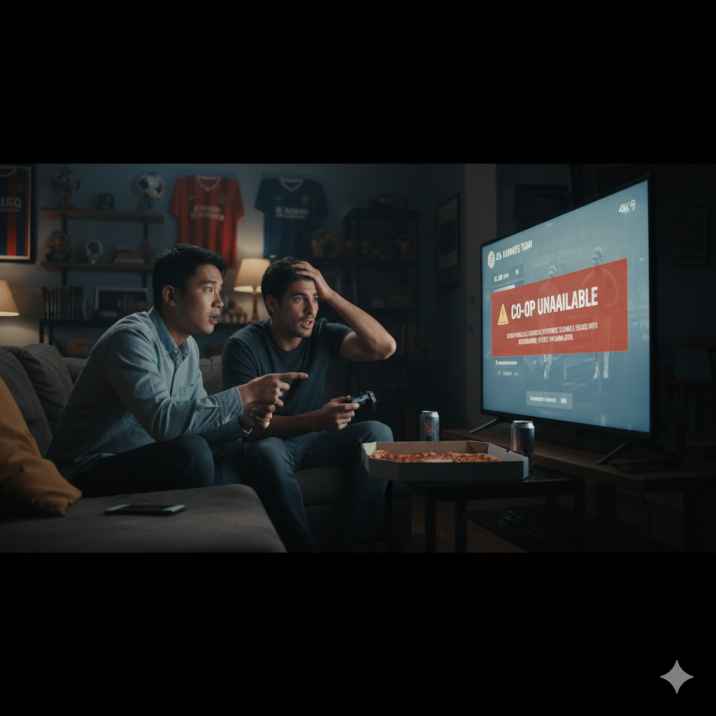
Many players are facing issues when trying to play Division Rivals Co-op in EA FC 26 Ultimate Team. The problem typically occurs when Player 1 (the host) invites Player 2 to their lobby. While the invitation seems to succeed, Player 2 sees only generic Ultimate Team logos instead of the host’s players, and Player 1 remains stuck on the “waiting for player to join” message.
This bug is especially noticeable in cross-platform scenarios—for example, when Player 1 is on Steam and Player 2 is on Xbox. However, swapping roles doesn’t solve the problem: the new host gets stuck on the same waiting screen, and the invited player sees only placeholders instead of real player names or teams.
Possible Causes
- Cross-platform synchronization issues – Crossplay between Steam and Xbox may not always handle real-time player data correctly in co-op mode.
- Server-side bugs – EA servers might fail to sync player data for co-op matches, causing avatars, teams, or names to not appear.
- Lobby initialization conflicts – Sometimes the host’s game may not fully load the co-op session, preventing Player 2 from joining correctly.
- Cache or connection issues – Temporary network or cache problems can stop the lobby from fully recognizing both players.
EA FC 26 Division Rivals Co-op Not Working – Common Issues
Many players are encountering frustrating problems when trying to play Division Rivals Co-op in EA FC 26 Ultimate Team. The most common issue is the game not properly loading the second player, leaving one player stuck on the “waiting for player to join” screen while the other sees only generic Ultimate Team logos instead of the host’s team. This EA FC 26 co-op bug can completely prevent friends from playing together in online competitive modes.
Several factors contribute to this problem. First, cross-platform play is a major culprit. For example, when one player is on Steam and the other is on Xbox, the game sometimes struggles to sync player data correctly. This can cause placeholder logos to appear, while the host cannot progress past the lobby screen.
Server-side issues also play a role. Division Rivals co-op glitches often occur when EA’s servers fail to properly communicate player information between host and guest. This can happen even if both players are on the same platform, as intermittent server errors disrupt lobby initialization.
Other common causes include temporary network or connection problems, which can prevent player data from fully loading, and conflicts during lobby setup. Sometimes, the game fails to properly recognize who is hosting versus who is joining, creating a loop where both players appear stuck in limbo.
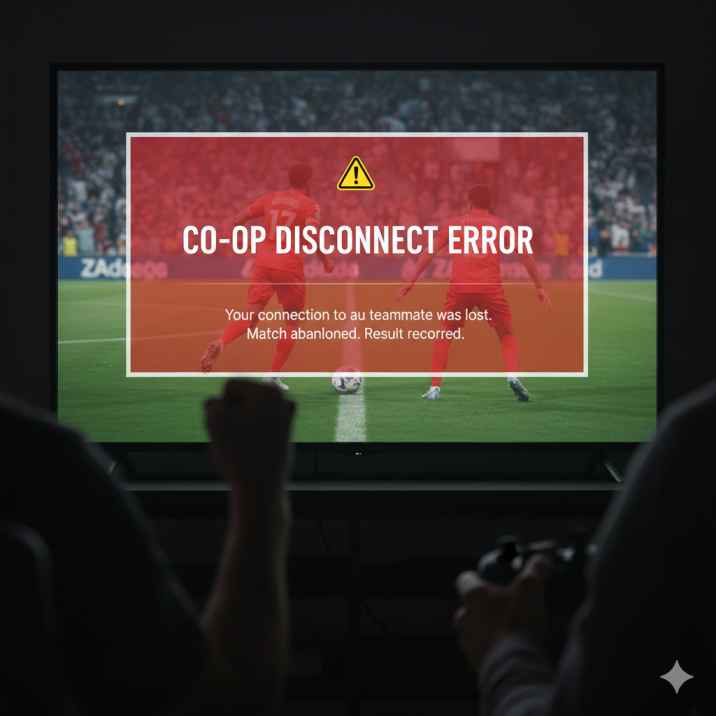
This issue is particularly frustrating because it affects both casual and competitive players. Those attempting to complete objectives, earn points, or participate in co-op matches may find themselves losing progress simply because of a bug beyond their control.
Understanding these common issues with EA FC 26 co-op is the first step toward finding effective solutions. While EA continues to work on patches and server stability improvements, players can use temporary workarounds and troubleshooting steps to minimize the impact of this Ultimate Team Division Rivals not working problem.
By recognizing the root causes—including cross-platform conflicts, server issues, and connection glitches—players can better anticipate potential problems and apply fixes to enjoy smoother Division Rivals co-op sessions.
Why Player 2 Sees Only Ultimate Team Logos in Co-op
One of the most confusing problems in EA FC 26 Division Rivals Co-op is when Player 2 joins the lobby but sees only the basic Ultimate Team logo instead of the host’s actual team, player names, or squad details. This issue, often referred to as the Division Rivals co-op placeholder logo bug, prevents Player 2 from knowing which players they are controlling or joining for the match.
The primary cause of this issue is EA FC 26 co-op player not loading properly. When the host sets up the co-op session, the game must synchronize all player data, including team lineups, chemistry, and squad information. If this synchronization fails, Player 2 only receives placeholder data, which appears as generic logos rather than the actual Ultimate Team players.
Cross-platform gameplay often exacerbates the problem. For example, if Player 1 is on Steam and Player 2 is on Xbox, the game struggles to transfer real-time squad information between platforms. Even when both players are on the same platform, minor network interruptions or server latency can cause the same issue.
Another contributing factor is the lobby initialization process. Sometimes the game does not fully register the host’s squad before sending data to Player 2, which results in missing names and logos. Temporary connection drops, NAT type restrictions, or input conflicts can further prevent Player 2 from seeing the correct team information.
Additionally, client-side issues, such as corrupted cache or outdated game files, can prevent the co-op session from fully loading. Even a single mismatch in game version between the host and guest can cause the game not showing team or player names problem, leaving Player 2 with only the default Ultimate Team logo.
Understanding why Player 2 sees only placeholders is crucial for troubleshooting. Solutions often involve restarting the game, verifying game files, checking network settings, and sometimes limiting cross-platform play until EA resolves the underlying server or synchronization bugs.
By recognizing the causes—co-op player data not loading, cross-platform sync issues, and lobby initialization problems—players can take the right steps to fix or mitigate the placeholder logo issue and enjoy a smoother Division Rivals Co-op experience.
Host Stuck on “Waiting for Player to Join” Screen – Causes
One of the most frustrating issues in EA FC 26 Division Rivals Co-op is when the host becomes stuck on the “waiting for player to join” screen. This prevents the match from starting and leaves both players in limbo, making it impossible to play. This problem is commonly reported as EA FC 26 host stuck co-op or a co-op lobby freeze, and it can occur across platforms, including Steam, Xbox, and PlayStation.
A primary cause of this issue is lobby initialization failure. When Player 1 hosts a co-op session, the game must properly load the host’s squad, synchronize player data, and allow Player 2 to connect. If any part of this process fails, the host remains stuck on the waiting screen while Player 2 may only see placeholder logos.
Cross-platform play often complicates this further. For example, when the host is on Steam and the guest is on Xbox, data transfer between platforms can sometimes fail due to differences in network handling or server communication. Even if both players are on the same platform, network latency, packet loss, or restrictive NAT types can prevent the guest from fully joining the lobby.
Server-side issues also contribute to this problem. If EA’s servers experience temporary instability or high load, co-op sessions may fail to fully synchronize, causing the host to appear frozen. This Division Rivals waiting for player issue often occurs during peak online activity or after new updates when servers are handling a large number of players.
Additionally, client-side problems like corrupted cache, outdated game files, or mismatched game versions can trigger a co-op lobby freeze. Even minor software discrepancies between the host and guest can prevent proper data sharing, leaving both players stuck indefinitely.
Understanding these causes is key to troubleshooting the problem. By addressing network settings, updating the game, and restarting both systems, players can often resolve the EA FC 26 host stuck co-op issue. Awareness of server-side and cross-platform limitations can also help set realistic expectations for co-op play.
Cross-Platform Co-op Issues Between Steam and Xbox
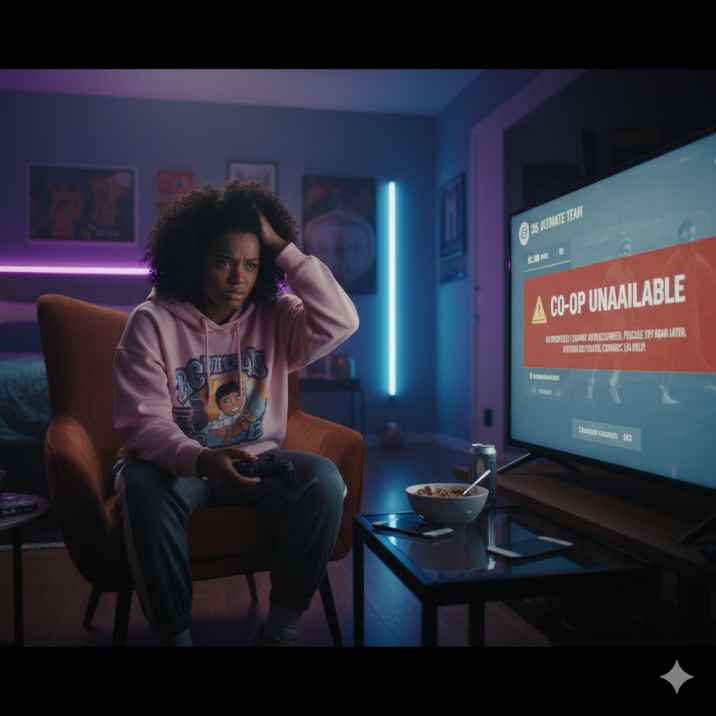
Cross-platform play in EA FC 26 Division Rivals Co-op is a major source of frustration for many players. When one player is on Steam and the other on Xbox, data synchronization between platforms can fail, resulting in Player 2 seeing only placeholder logos while the host gets stuck on the lobby screen. This is a common EA FC 26 crossplay co-op problem.
The main culprit is how different platforms handle input, network packets, and session data. Steam and Xbox servers sometimes fail to fully sync squad information, player names, or club logos. This Steam Xbox Division Rivals bug can occur even with stable internet connections and updated game clients.
Additionally, cross-platform play introduces latency and NAT type compatibility issues, which further complicate co-op sessions. While EA has implemented crossplay, co-op matches remain more prone to glitches than single-platform play, causing the familiar co-op cross-platform glitch where neither player can start the match properly.
Potential Server and Connection Problems Affecting Co-op
Another major cause of co-op issues is EA FC 26 server bug co-op or connection instability. If EA servers experience high traffic or temporary downtime, the host and guest may fail to synchronize, resulting in the “waiting for player” freeze or placeholder logos.
Network issues on the player’s end, like slow connections, packet loss, or strict NAT types, can also trigger Division Rivals online sync issues. Even minor connection drops during lobby initialization can prevent the co-op session from fully loading, leading to repeated failed attempts to start matches.
Monitoring server status and ensuring a stable internet connection are key to preventing this type of co-op connection error.
Step-by-Step Troubleshooting for Division Rivals Co-op
To fix co-op issues, try the following EA FC 26 co-op fix steps:
- Restart both players’ systems and the game.
- Ensure both players are on the latest game version.
- Test a stable internet connection and open NAT types.
- Clear cache (consoles) or verify game files (PC).
- Try hosting the match on the same platform first.
These Division Rivals co-op troubleshooting steps address the most common technical causes and help players get back into the session. Using these tips as an Ultimate Team co-op solution often resolves both placeholder logos and lobby freezes.
Workarounds for Cross-Platform Co-op Problems
If cross-platform issues persist, consider these EA FC 26 co-op workarounds:
- Both players play on the same platform when possible.
- Switch roles: have the other player host the lobby.
- Connect controllers wired instead of wireless to reduce input errors.
- Schedule matches during off-peak hours to reduce server load.
These Steam Xbox co-op fixes can bypass the Division Rivals crossplay solution bug until EA releases an official patch.
Reporting the Bug to EA Help – What You Need to Include
When reporting co-op issues, include:
- Platform details (Steam, Xbox, or crossplay).
- Match type and date/time.
- Screenshots/videos showing placeholder logos or lobby freeze.
- Any troubleshooting steps already attempted.
This ensures EA can properly assess the support co-op bug, increasing the chance of receiving assistance for the EA Help Division Rivals problem or compensation for lost matches.
Preventing Future Co-op Connection Issues
To avoid recurring issues, follow these EA FC 26 co-op tips:
- Keep your game updated with the latest patches.
- Use a stable internet connection and open NAT type.
- Limit cross-platform play when possible.
- Test your co-op setup before entering competitive matches.
These habits help players avoid co-op glitches and maintain Division Rivals stable connection, improving the overall online experience.
Community Discussions and Updates on Co-op Bugs
Many solutions come from player communities. Check EA FC 26 forums co-op, Reddit threads, and fan discussions for the latest workarounds. Players often share temporary fixes for the Ultimate Team Reddit co-op bug or report server-side updates. Following these discussions ensures you stay informed about Division Rivals co-op fix discussion and can act quickly when EA releases a patch.
Common Errors and Error Codes in Division Rivals Co-op
- Some players encounter specific error codes when trying to join co-op sessions. These can indicate server issues, matchmaking failures, or cross-platform compatibility problems. Knowing the error code helps you troubleshoot faster or report the bug accurately to EA Help.
How NAT Type and Firewall Settings Affect Co-op
- A strict or moderate NAT type can prevent Player 2 from connecting to the host’s session. EA FC 26 crossplay relies on open NAT connections to sync data between platforms. Adjusting your NAT to “Open” and ensuring firewalls allow EA servers can reduce lobby freezes and placeholder logo issues.
Testing Local vs. Online Co-op Modes
- If co-op works in local friend matches but fails in Division Rivals, it’s likely a server or crossplay problem rather than your controller or console. Running test matches can help narrow down whether the bug is local or server-related.
Temporary Workarounds During Peak Server Times
- Many co-op issues occur during peak hours. Scheduling matches during off-peak times, or retrying after 10–15 minutes, can sometimes allow sessions to initialize properly. This is particularly effective if cross-platform synchronization is slow.
Controller and Input Settings for Co-op Stability
- Make sure controllers are fully updated and properly synced. Wired connections are generally more stable than wireless. Test both players’ controllers in menus to ensure inputs are detected. Sometimes input conflicts cause the game to stall on the host screen.
Keeping Game and Platform Clients Updated
- Both Steam and Xbox require fully updated clients to ensure co-op compatibility. A mismatch in game versions between platforms can trigger placeholder logo bugs or prevent Player 2 from joining. Always check for updates before attempting Division Rivals co-op.
Understanding EA Server Maintenance and Patch Notes
- EA occasionally performs server maintenance or rolls out updates that can temporarily affect co-op. Monitoring official EA FC 26 Twitter/X, EA forums, and in-game notices helps you avoid trying co-op during maintenance windows.
Using Community Forums and Reddit for Real-Time Solutions
- Reddit and EA forums often have the latest workarounds for specific co-op issues, such as temporary fixes for cross-platform bugs or server errors. Players share steps that may not be officially documented yet.
Documenting Your Attempts Before Contacting EA
- Before submitting a bug report, document your steps, including: platform, time of day, actions performed, and screenshots/videos. This helps EA Help understand the issue and speeds up resolution.
Setting Realistic Expectations for Cross-Platform Co-op
- Currently, crossplay co-op in Division Rivals is less stable than single-platform matches. Understanding the limitations helps avoid frustration and allows players to plan sessions accordingly.
EA FC 26 Division Rivals Co-op – FAQ
Q1: Why does Player 2 only see placeholder Ultimate Team logos?
This happens because the game fails to properly synchronize the host’s squad data with the guest player. Cross-platform play, server latency, or temporary network glitches are common causes of this Division Rivals co-op placeholder logo bug.
Q2: Why is the host stuck on “Waiting for Player to Join”?
This is usually caused by lobby initialization failure, NAT type conflicts, or server-side issues. Even minor network instability can prevent the co-op session from fully loading, resulting in the EA FC 26 host stuck co-op problem.
Q3: Does cross-platform play affect co-op reliability?
Yes. Playing between Steam and Xbox (or PlayStation) can trigger synchronization bugs, input conflicts, and placeholder logo issues. Cross-platform co-op is generally less stable than single-platform sessions.
Q4: Will switching who hosts the game solve the problem?
Sometimes. Changing the host can bypass certain lobby or connection bugs. However, in cross-platform sessions, this may not always resolve the issue, so it’s not a guaranteed fix.
Q5: Can network settings prevent co-op from working?
Yes. Strict NAT types, firewall restrictions, or unstable connections can block proper data transfer. Setting NAT to “Open” and ensuring EA servers are allowed through your firewall often resolves connection issues.
Q6: How can I prevent losing points or rewards due to co-op bugs?
Until EA releases a patch, try playing on the same platform, ensure stable internet, and verify game files are up-to-date. Avoid starting co-op matches during peak server times if possible.
Q7: Should I report the bug to EA Help?
Absolutely. Include platform info, match type, screenshots, and a detailed description. Reporting increases the chances of EA fixing the issue or offering compensation for lost progress.
Q8: Are wired controllers better than wireless for co-op?
Yes. Wired connections reduce latency, signal drops, and input conflicts, which can help prevent co-op freezes or placeholder logo problems.
Q9: Is there a workaround if servers are unstable?
Try restarting the game, reconnecting your controllers, and attempting matches during off-peak hours. Testing local friend matches can also help isolate the issue.
Q10: Where can I find real-time solutions from the community?
Check EA forums, Reddit threads, and fan discussion groups. Many players share temporary fixes and workarounds for cross-platform co-op and server-related issues.
Conclusion
The EA FC 26 Division Rivals Co-op not working issue continues to frustrate players, especially in cross-platform sessions between Steam and Xbox. From hosts getting stuck on the “waiting for player to join” screen to Player 2 seeing only placeholder Ultimate Team logos, this bug affects both casual and competitive gameplay. Understanding the root causes—such as lobby initialization failures, server synchronization problems, crossplay conflicts, and network instability—is the first step toward finding a solution.
While EA works on server improvements and future patches, players can take practical measures to reduce the risk of co-op disruptions. These include ensuring stable internet connections, using wired controllers, playing on the same platform when possible, updating game clients, and monitoring NAT settings. Additionally, documenting bugs and reporting them to EA Help increases the likelihood of fixes and potential compensation for lost matches.
Community resources like Reddit, EA forums, and discussion groups offer valuable insights, workarounds, and real-time updates on server issues. By combining these proactive steps with awareness of known glitches, players can enjoy smoother Division Rivals Co-op sessions and avoid frustrating interruptions.
In short, while the co-op cross-platform glitch remains a challenge, understanding the problem, applying effective troubleshooting steps, and staying informed through community updates ensures the best chance for reliable and enjoyable co-op gameplay in EA FC 26 Ultimate Team.
If you are facing NHL 26 Error then we also have blog post on that.