
One of the most frustrating problems players are currently facing is the CFB 26 roster update error. When trying to log in or start a session, many users are greeted with the message:
CFB 26 Roster Update Error – What Players Are Experiencing
“Roster Update: An error occurred while downloading the latest roster.” Team builder failed.
In some cases, this issue goes beyond a simple download failure. Players who are attempting to continue their online Team Builder Dynasty have reported getting kicked back to the main menu after finishing a game, only to see the second error:
“Unable to import Team Builder teams.”
This is not just a minor annoyance—it directly impacts gameplay. For dynasty players, it means progress may be lost, matches don’t save correctly, and custom teams cannot be loaded into the online mode. For casual players, the roster error prevents them from accessing updated lineups, which takes away from the authentic experience of college football gameplay.
The CFB 26 team builder bug also affects both sides of online play. Hosts often get booted out after matches, while others find they can’t even load into the game because the roster update won’t download. What makes this issue even more frustrating is that it’s not consistent. Some players can get through without problems, while others face the error every single time they log in.
With both casual online play and dynasty modes being disrupted, the roster update error has become one of the biggest community complaints since launch. Until EA releases a stable patch or server-side fix, players are left scrambling for workarounds.
Why Does the Roster Update Error Happen in CFB 26?
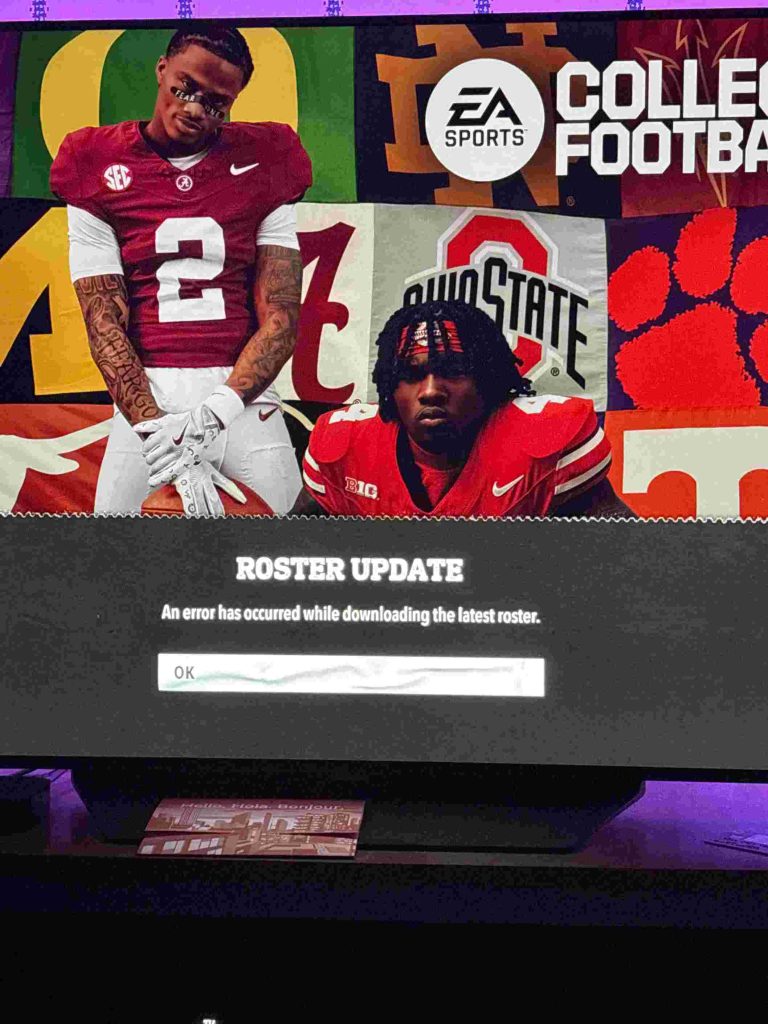
The CFB 26 roster update error has left many players frustrated, especially when they see messages like “Roster Update: An error occurred while downloading the latest roster” or “Unable to import Team Builder teams.” But what exactly causes this bug? There are a few common reasons behind the CFB 26 roster download failed issue, and most of them are tied to server communication problems or corrupted data on the player’s end.
Server Sync Issues
One of the most frequent culprits is a roster sync problem between the player’s game client and EA’s servers. When a player finishes a game in Team Builder Dynasty or logs in to online play, the game attempts to pull updated roster information. If the sync doesn’t complete properly—due to slow response times, packet loss, or an incomplete handshake—the result is the dreaded error message.
Corrupted Cached Roster Files
Sometimes the problem isn’t just with EA’s servers, but with the player’s local console or PC. Cached roster files can become corrupted over time, especially after patches or when switching between offline and online modes. If the cached version doesn’t match what the server expects, the game blocks access, leading to the team builder dynasty error. Clearing cache or re-downloading roster data often helps in these situations.
EA Servers Under Maintenance
EA frequently runs background maintenance and updates, which may cause temporary disruptions. When servers are being updated, rosters may not download properly, leaving players stuck with the error. These cases are usually resolved once maintenance ends, but unfortunately, players aren’t always notified ahead of time.
Cross-Platform Sync Mismatches
With crossplay enabled, there are additional chances for roster sync problems. For example, if one player is on Xbox and another on Steam, mismatches in data versions can prevent rosters from loading correctly. Even small differences in patch timing between platforms can trigger the bug.
In short, the CFB 26 roster update error is usually caused by either server-side problems at EA or corrupted/cached roster files on the player’s device. Understanding these causes makes it easier to troubleshoot and apply the right fix—whether it’s clearing local data, waiting out maintenance, or double-checking platform compatibility.
Impact on Online Team Builder Dynasty
The CFB 26 dynasty not loading issue has become one of the most disruptive problems for fans who enjoy the competitive and community-driven Team Builder mode. When the team builder online error occurs, it doesn’t just stop players from accessing updated rosters—it directly affects the progress and stability of entire dynasties.
One of the most common frustrations is getting booted back to the main menu after finishing a match. Instead of being able to move forward in their dynasty, players suddenly find themselves thrown out of the mode, losing momentum and sometimes even progress.
Another major issue is the inability to import Team Builder teams. Since dynasty modes thrive on customization and creativity, not being able to bring in user-created or custom teams defeats the purpose of the feature. This makes the dynasty roster bug especially painful for players who’ve spent hours creating their ideal setup.
Lastly, matches often fail to save progress when the roster error appears. A full game can be played, but once it ends, the results vanish, leaving players feeling like their time was wasted.
In short, the error doesn’t just cause annoyance—it breaks the core experience of online Team Builder Dynasty.
Step-by-Step Fixes for CFB 26 Roster Update Error
If you’re struggling with the CFB 26 roster update error, you’re not alone. Many players encounter the frustrating messages “Roster Update: An error occurred while downloading the latest roster” or “Unable to import Team Builder teams.” The good news is that there are several troubleshooting steps you can try to fix roster update error CFB 26 and get back into your dynasty or online play. Below is a complete guide covering both simple fixes and deeper solutions.
1. Restart the Game and Clear Cache
Sometimes the simplest fix is the most effective. A quick restart can often refresh your connection to EA’s servers and resolve temporary glitches.
Steps to try:
- Fully close CFB 26 from your console or PC (don’t just back out to the dashboard).
- On console, power cycle the system (turn it off completely and unplug for 30–60 seconds). On PC, exit the game and restart the EA App/Steam.
- Clear cache:
- On Xbox/PlayStation, cache clears automatically after a full shutdown.
- On PC, clear the EA App cache from settings.
Why it works: Cached roster data sometimes conflicts with updated roster files, leading to the roster download failed message. Clearing cache forces the game to pull fresh data from EA’s servers.
2. Check for Pending Game Updates
The CFB 26 roster download fix may be as simple as updating the game. If your client is outdated, it won’t be able to sync rosters properly.
How to check:
- Xbox/PlayStation: Highlight the game, press “Options” (or menu button), then select Check for Updates.
- PC (Steam or EA App): Right-click on the game > Properties > Updates.
EA often pushes hotfixes silently, so you might not notice an update unless you check manually. After updating, restart your console/PC and try loading rosters again.
3. Verify Internet Connection
Roster errors can sometimes be the result of weak or unstable connections. Since Team Builder Dynasty relies heavily on server communication, even minor packet loss can cause the game to kick you back to the main menu.
Tips to stabilize your connection:
- Use a wired Ethernet connection instead of Wi-Fi.
- Run a speed test to ensure stable upload/download speeds.
- If using Wi-Fi, connect closer to the router or switch to 5GHz instead of 2.4GHz.
- Restart your router/modem to refresh your connection.
A stable internet line is essential not just for downloading rosters but also for ensuring dynasty matches save correctly.
4. Delete Saved Rosters and Re-Download
If the team builder dynasty solution above hasn’t worked, it may be that your saved roster files are corrupted or mismatched with EA’s latest server version. Deleting them often clears conflicts.
Steps:
- Go to your saved data management on your console or PC.
- Locate saved roster files for CFB 26.
- Delete them (don’t delete your dynasty or career saves—just roster files).
- Restart the game, and it should prompt you to re-download the latest roster update.
This step forces a fresh roster download fix, which can solve the “unable to download roster” error.
5. Try Switching Platforms (if Crossplay Enabled)
If you’re playing with friends on different platforms (Steam, Xbox, PlayStation), the cross-platform sync may be the root cause of your error. Even small differences in patch release timing can prevent rosters from syncing correctly.
What you can do:
- Test logging into your Team Builder Dynasty on the same platform as your friend.
- If one of you is on PC and the other on console, try both hosting the dynasty to see which side works.
- Disable crossplay temporarily in settings (if supported) and see if rosters load properly.
While not an ideal long-term solution, this workaround has helped some players bypass the crossplay roster mismatch until EA pushes a patch.
6. Additional Fixes That Sometimes Work
If none of the above methods fix the CFB 26 roster update error, here are a few extra steps to try:
- Re-log into your EA account: Log out and log back in through EA App/console account settings.
- Reinstall the game: As a last resort, uninstall CFB 26 and reinstall. This clears corrupted install files but takes time.
- Switch networks: If possible, test on a different Wi-Fi/hotspot to rule out ISP-specific issues.
7. When It’s on EA’s End
Sometimes no amount of troubleshooting will fix the problem because the issue is entirely server-side. If EA’s servers are under maintenance or facing sync issues, players will see widespread reports of the team builder dynasty error.
How to check if servers are down:
- Visit EA’s official server status page.
- Check the EA Sports Twitter/X account for maintenance notices.
- Browse community forums like Reddit or EA Answers HQ for real-time updates.
If many players are experiencing the same problem, the best solution is patience until EA releases a server fix or patch.
8. Summary of Fixes
To recap, here are the main steps to fix roster update error CFB 26:
- Restart game and clear cache.
- Update the game client.
- Verify internet connection.
- Delete saved rosters and re-download.
- Test platform switching and disable crossplay.
- Re-log, reinstall, or test alternative networks if necessary.
- Check EA servers for outages.
6. Adjust NAT Type and Router Settings
Sometimes the team builder dynasty error happens because your network is too restrictive. If your NAT type is set to Strict or Moderate, EA servers may struggle to sync rosters.
Fix:
- On console, test your NAT type under Network Settings.
- Aim for an Open NAT (Xbox) or Type 1/2 (PlayStation).
- Enable UPnP in your router settings or manually forward EA’s recommended ports.
A more open NAT improves connectivity and prevents sync problems.
7. Disable Background Downloads or Streaming
If your internet bandwidth is being shared with streaming (Netflix, YouTube) or other downloads, the roster sync may fail mid-process. This can trigger the CFB 26 roster download failed error.
Fix:
- Pause other downloads on your PC/console.
- Avoid heavy streaming during gameplay.
- Prioritize game traffic using QoS (Quality of Service) if your router supports it.
This ensures smoother communication with EA servers.
8. Check Storage Space on Console/PC
Surprisingly, lack of storage can cause problems when downloading roster updates. If your console/PC doesn’t have enough free space, the game may fail to cache new files, resulting in a dynasty roster bug.
Fix:
- On console, delete unused games/apps.
- On PC, clear temp files and ensure you have at least 10GB free space.
- Reattempt the roster download once storage is cleared.
9. Test Offline Mode to Isolate the Problem
If you’re not sure whether the issue is with your system or EA’s servers, try switching to offline play.
Steps:
- Launch CFB 26 without connecting online.
- Load a roster in offline mode.
- If offline rosters load fine, the problem is server sync, not your game files.
This helps narrow down the cause of the team builder online error and saves time troubleshooting.
10. Join EA Answers HQ or Community Forums for Updates
When troubleshooting on your own doesn’t solve it, the community often finds temporary fixes before EA does. Many players share quick solutions on EA Answers HQ, Reddit, and Discord groups.
What to do:
- Search for “CFB 26 roster update error” threads.
- Post your own experience with console/PC details.
- Follow community workarounds (like re-importing custom rosters).
Sometimes EA even posts official bug acknowledgments here, giving players a clear timeline for fixes.
11. Manually Refresh Rosters in Settings
Sometimes, the automatic download process gets stuck. Instead of waiting for the game to fetch the files, you can force a manual refresh.
Fix:
- Go into CFB 26 settings > Manage Rosters.
- Delete the current roster file.
- Select Download Latest Roster manually.
This often bypasses the automatic error and forces a fresh pull from EA servers.
12. Switch EA Account or Re-Link It
A corrupted EA account link can cause roster sync problems. If your account fails to authenticate correctly, the roster update error appears.
Fix:
- Unlink your EA account from Xbox/PlayStation/Steam.
- Re-link it via EA’s website.
- Test roster download again.
In rare cases, creating a new EA account has solved the team builder dynasty error for players.
13. Change DNS Settings for a Faster Connection
Slow DNS resolution can delay the handshake between your device and EA’s servers. Adjusting DNS can improve response time.
Fix:
- On console/PC, go to network settings.
- Manually change DNS to Google (8.8.8.8, 8.8.4.4) or Cloudflare (1.1.1.1, 1.0.0.1).
- Restart and retry the download.
Many players report DNS tweaks fixing connectivity-related roster issues.
14. Test with a Different EA Profile or Console
If possible, try logging in on another console or PC using the same EA account.
- If the error persists, it’s likely server-side.
- If it works fine on another device, the issue is local to your main console/PC.
This quick test can save hours of troubleshooting.
15. Wait for EA Patch or Compensation
Finally, remember that sometimes it’s 100% on EA’s side. When large numbers of players face the dynasty roster bug, EA typically acknowledges it and releases a fix in a patch or server update.
Players have also received compensation packs or rewards in other EA titles when widespread bugs caused lost progress. Keeping proof of your issue (screenshots, error codes) increases your chances if EA offers compensation.
EA Servers and Maintenance Issues
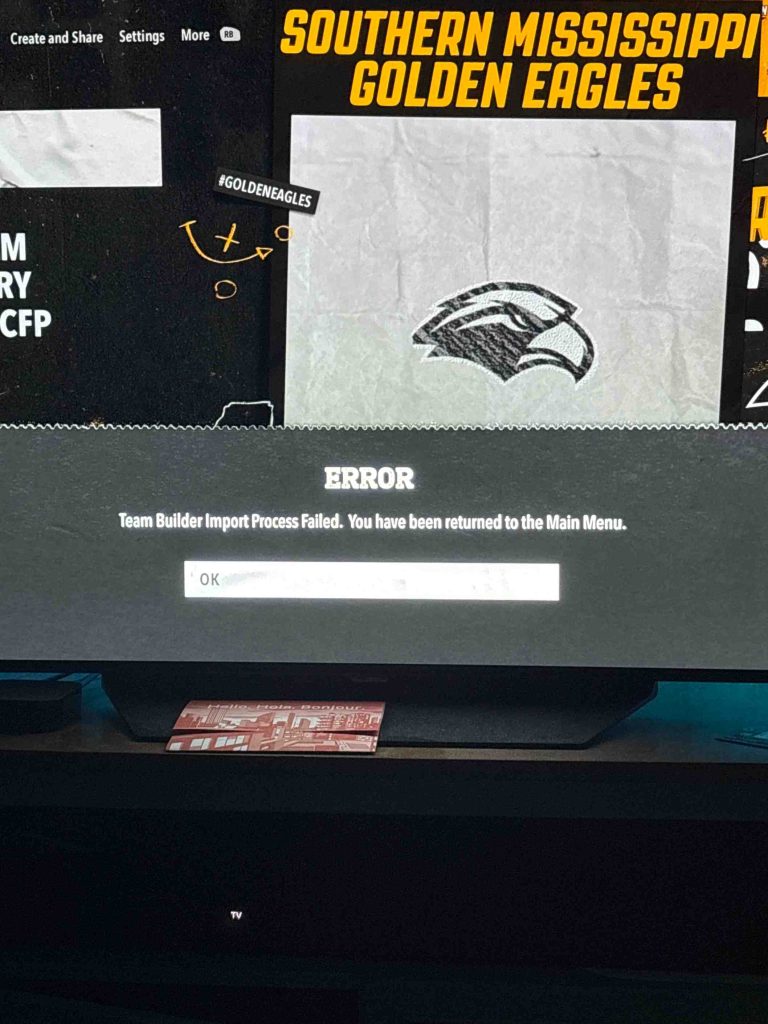
Many instances of the CFB 26 roster update error and team builder dynasty bug are linked to EA servers being down or undergoing maintenance. When EA’s servers experience downtime, roster synchronization fails, resulting in error messages like “Roster Update: An error occurred while downloading the latest roster” or “Unable to import Team Builder teams.” This affects both online Team Builder Dynasty and casual online play, often leaving players stuck in menus or unable to load matches—a classic dynasty connection issue.
To check if EA servers are down, visit the EA Help Server Status page or follow official EA Twitter/X accounts. Community forums such as Reddit or EA Answers HQ are also useful for real-time reports from other players experiencing similar issues.
Roster sync problems are particularly common during peak times, when many players log in simultaneously to download new rosters or play online matches. High server traffic can delay or block data transfers, causing the game to fail roster updates.
EA has a history of roster distribution bugs, sometimes resolving them with server-side patches or maintenance updates. While these issues are often temporary, staying informed through official channels can help you plan your dynasty sessions and reduce the risk of encountering the roster update server error.
Workarounds Players Have Tried
While EA works on permanent fixes, many CFB 26 players have discovered practical community fixes to bypass the roster update error and continue enjoying Team Builder Dynasty. These workarounds are not official, but they can reduce downtime and frustration while EA resolves server or sync issues.
One of the simplest solutions is re-logging into your EA account. Logging out and then signing back in can refresh authentication and re-establish a stable connection to EA servers. Many players report that this step alone resolves minor roster sync issues, especially if the error appears immediately after logging in.
Another effective workaround is creating a temporary offline dynasty. By launching a new offline dynasty session, players can continue playing without relying on live roster updates. While this doesn’t solve the online roster sync error, it allows you to progress in Team Builder gameplay and experiment with strategies until EA releases a patch.
For those who don’t mind playing with non-custom teams temporarily, using default rosters is another option. By selecting the standard EA rosters instead of custom or downloaded files, you can bypass the team builder dynasty bug entirely. This ensures matches load properly and progress is saved, even if your personalized rosters remain inaccessible.
These workarounds highlight the importance of flexibility when server or sync issues strike. While none are permanent solutions, combining them—re-logging, using offline dynasties, and playing with default rosters—can help players continue enjoying CFB 26 without losing progress or match results.
By following these steps, you can reduce downtime and stay productive in Team Builder Dynasty while awaiting official fixes or server updates from EA.
Reporting the Bug to EA Help and Forums
When the CFB 26 roster update error or team builder dynasty bug persists despite troubleshooting, reporting it to EA is essential. Filing a case with EA support ensures the issue is officially tracked and increases the likelihood of a timely fix or compensation.
To report the problem, visit the EA Help website and navigate to Contact Us. Choose CFB 26, select your platform, and specify the issue as Team Builder Dynasty or roster update error. You can choose chat, phone, or email support depending on availability.
When submitting your case, include detailed information:
- Error messages (e.g., “Roster Update: An error occurred while downloading the latest roster”)
- Screenshots or videos showing the problem
- Dynasty details, such as team name and progress
- Platform (PC, Xbox, PlayStation) and whether crossplay is enabled
Additionally, track ongoing discussions on EA Answers HQ or the official CFB 26 forums. Many players share updates, workarounds, and server status information in real time. Following these threads can provide insights into whether the issue is widespread and when a fix might be expected.
Reporting the bug correctly and keeping thorough documentation not only helps EA troubleshoot the problem but also increases your chances of compensation if progress or rewards are lost due to the error.
Will EA Release Compensation or a Patch?
Players encountering the CFB 26 roster update error and team builder dynasty bug naturally wonder whether EA will release a patch or provide compensation for lost progress. Historically, EA has been proactive in addressing widespread server or roster issues through both patches and in-game rewards.
A patch roster fix is the most common solution. EA typically rolls out server-side fixes or client updates when large numbers of players report errors. These patches may arrive as part of a routine title update or as an emergency hotfix. While the exact timing depends on the severity of the issue, monitoring EA Help and official social media accounts often provides the earliest alerts about incoming patches.
In addition to patches, EA has a history of offering compensation for dynasty bugs that result in lost progress or rewards. This may include packs, in-game currency, or exclusive items as a way to apologize for server-side problems. For example, in previous EA sports titles, players affected by widespread roster download errors or offline sync failures received packs directly in their account after verification.
Community expectations are high. Many players now anticipate at least some form of compensation whenever roster sync errors disrupt online play, particularly in modes like Team Builder Dynasty, where hours of effort can be lost. Keeping a record of error messages, screenshots, and affected matches increases the likelihood of receiving compensation if EA deems it necessary.
Preventing Future Roster Sync Errors
While some issues are entirely server-side, players can take proactive steps to avoid roster errors in CFB 26 and reduce the chance of encountering dynasty connection issues in the future.
1. Always update the game before dynasty sessions:
Many roster errors occur when players are running outdated clients. Even a minor patch can improve server synchronization and reduce the likelihood of download failures.
2. Use wired internet for stability:
Wi-Fi connections can be inconsistent, leading to dropped packets during roster downloads. A wired Ethernet connection ensures a stable, high-speed connection and minimizes the risk of the team builder dynasty bug.
3. Backup custom rosters before updates:
Before applying updates, export or save custom rosters locally. This ensures that, even if the server fails to sync, you can restore your team without losing hours of work.
Other tips include logging into your EA account regularly to maintain authentication, avoiding peak hours when servers are crowded, and periodically clearing cached roster files to prevent conflicts with new updates. Combining these steps helps maintain a smoother and more reliable dynasty experience.
Community Discussions and Updates
For many players, staying informed through community resources is key to navigating CFB 26 roster errors. Platforms such as Reddit, EA forums, and EA Answers HQ host active discussions about ongoing issues and potential workarounds.
A roundup of player reports often reveals patterns, such as cross-platform issues between PC and console, errors triggered by specific patch versions, or common fixes like cache clearing. Crowdsourced insights can save hours of troubleshooting, especially when multiple players report the same solution working consistently.
Official threads on EA Answers HQ provide updates from EA representatives, including server maintenance notifications, estimated patch release dates, and acknowledgments of widespread bugs. Participating in these discussions also allows players to share screenshots, error codes, and platform-specific information that can help EA diagnose and fix issues faster.
In addition, community guides often provide step-by-step workarounds, such as temporarily switching to default rosters, creating offline dynasties, or manually re-importing saved teams. By combining official updates with player-generated solutions, gamers can minimize downtime and maintain their Team Builder Dynasty experience despite ongoing server or roster issues.
Frequently Asked Questions (FAQ)
1. Why does CFB 26 keep giving me a roster update error?
The error usually occurs due to server sync issues, corrupted cached roster files, or cross-platform data mismatches. High server traffic or maintenance can also prevent roster downloads from completing.
2. Can I play Team Builder Dynasty offline until EA fixes it?
Yes. Creating a temporary offline dynasty allows you to continue gameplay without relying on live roster updates. Progress made offline may need to be synced once servers are back online.
3. Does cross-platform play make roster errors worse?
Crossplay can introduce synchronization mismatches between PC, Xbox, and PlayStation versions. Some errors only appear when players on different platforms attempt to join the same dynasty session.
4. Is there a manual way to import rosters in CFB 26?
Yes. In the game settings, you can delete corrupted roster files and manually re-download the latest official roster. Backing up custom rosters ensures you can restore them if automatic syncing fails.
5. Will EA give rewards or compensation for lost dynasty progress?
In previous cases of widespread bugs, EA has offered packs, in-game currency, or other rewards. Keeping screenshots, error messages, and dynasty details improves your chances of receiving compensation.
Conclusion
The CFB 26 roster update error and Team Builder Dynasty bug have disrupted gameplay for many players, affecting both online and casual sessions. From failed roster downloads to being booted from matches, these issues highlight the importance of stable server connections and proper game maintenance.
While some problems are server-side and require EA intervention, players can take proactive steps to mitigate the impact: restarting the game, clearing cache, updating the client, using wired internet, and backing up custom rosters. Community workarounds, offline dynasties, and temporary use of default rosters can also help maintain progress while waiting for a permanent fix.
Monitoring EA servers, participating in forums, and reporting bugs with detailed information ensures that your issue is officially logged and increases the likelihood of resolution or compensation. By combining these steps with an understanding of the causes behind roster sync errors, players can continue to enjoy Team Builder Dynasty without major interruptions.
Ultimately, patience, preparation, and staying informed are the keys to navigating CFB 26 roster update errors effectively.