
In the highly competitive world of EA Sports FC 26 Ultimate Team, every advantage counts.
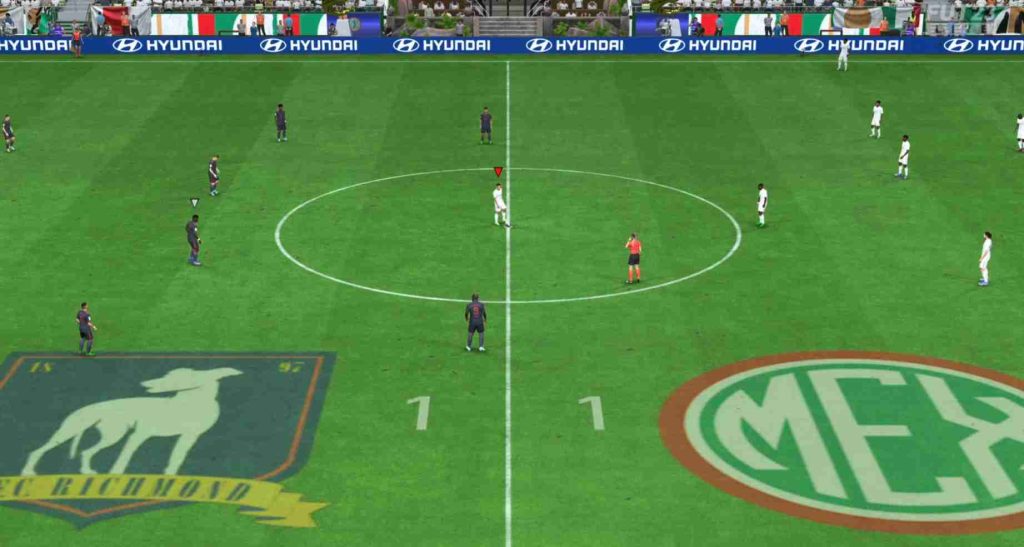
But one visual problem has frustrated many players: the FC 26 Pro Camera Angle Glitch.
In Champions Matches, the camera fails to adjust dynamically, remaining stuck at a low angle and severely limiting visibility. Unlike other modes where the camera rises, tilts, and zooms depending on ball location, this glitch makes it difficult to track teammates, anticipate opponent movements, and execute precise passes.
Searches like “FC 26 Pro Camera not working,” “Pro Camera stuck low angle,” and “FC 26 Ultimate Team camera bug fix” have surged, reflecting how widespread the problem is. This article explores the glitch in detail, including causes, fixes, workarounds, and how to optimize your setup for smoother gameplay.
FC 26 Pro Camera Angle Glitch for Champions Matches
What Makes the Pro Camera Different
The Pro Camera in FC 26 is designed to replicate a broadcast-like experience. It follows the player closely, adjusting tilt, zoom, and height dynamically based on ball position and player movement. Unlike Tele Broadcast or Co-Op Camera, the Pro Camera emphasizes tactical awareness, allowing players to see off-ball movements and make informed decisions.
Why Champions Matches Are More Affected
Champions Matches in Ultimate Team feature unique game logic, increased crowd density, and higher rendering demands. These differences can trigger the FC 26 Pro Camera Angle Glitch, causing the camera to freeze at a low perspective. The result is reduced visibility, disorientation, and a compromised competitive experience.
Common Player Experiences
Many players report the following when encountering this glitch:
- Camera remains low and fails to follow the ball
- Zooming stops working mid-play
- Difficulty judging distance and positioning
- Jittering during corners, goal kicks, or replays
- Reduced awareness of teammates’ movement
Causes Behind the FC 26 Pro Camera Angle Glitch
Game-Mode Specific Script Conflicts
Champions Matches use unique camera scripts to handle dynamic height and zoom. When these scripts fail to load correctly, the camera gets stuck, creating the low-angle view.
Cached Settings and Configuration Errors
Corrupted configuration files or cached camera preferences can lead to this glitch. Frequent changes in controller settings, camera presets, or tactics profiles may increase the likelihood of the problem.
Performance-Related Issues
Unstable frame rates or GPU bottlenecks can prevent the camera from updating its position smoothly. The Pro Camera Angle Glitch often occurs when FPS drops below optimal thresholds, causing desynchronized zoom and tilt.
Post-Update Regressions
After major patches, changes in rendering or camera logic may introduce new bugs. If the glitch appears following an update, it is likely a temporary regression in the camera system.
Diagnosing the Pro Camera Glitch in FC 26
Step 1: Test Across Different Modes
Play Kick-Off or Squad Battles using the same Pro Camera settings. If the camera behaves correctly, the issue is mode-specific to Champions Matches.
Step 2: Reset Camera Settings
Navigate to Settings → Camera → Reset to Default and restart the game. This often resolves glitches caused by corrupted preferences.
Step 3: Observe Patterns
Check when the glitch occurs—after goals, substitutions, or pauses. Understanding the pattern helps identify whether it’s a rendering or configuration problem.
Step 4: Monitor Performance
Use performance overlays or system monitoring tools to ensure frame rates remain stable during gameplay. Frame drops can directly influence camera behavior.
FC 26 Pro Camera Angle Glitch: 18 Detailed Fixes
The Pro Camera Angle in EA Sports FC 26 is a favorite among competitive players for its immersive view and realistic gameplay perspective. However, many players have reported glitches, including jittering, stuttering, or camera freezes during Champions Matches. These issues can disrupt gameplay and affect performance. Below, we explore 18 detailed fixes and workarounds to resolve or mitigate the Pro Camera Angle glitch.
1. Clear Cache and Rebuild Settings
Sometimes, corrupted configuration files cause camera issues. To reset:
- Close FC 26 completely.
- Navigate to Documents → EA Sports FC 26.
- Delete or rename the Settings folder (e.g., “Settings_old”).
- Restart the game.
A fresh configuration is automatically generated, often fixing glitches related to camera movement and transitions. This method also clears residual bugs caused by prior updates.
2. Temporarily Switch Cameras
Switching camera views can force the game to refresh its camera logic:
- Change to Tele Broadcast or Co-op Camera.
- Play a few minutes to load the new camera scripts.
- Switch back to Pro Camera.
This simple method refreshes camera calculations and can restore dynamic movement.
3. Adjust Display Settings
Custom or ultrawide resolutions often trigger scaling problems:
- Use a 16:9 resolution (e.g., 1920×1080) for stability.
- Enable Borderless Window Mode.
This ensures consistent frame rendering and eliminates conflicts caused by unusual aspect ratios.
4. Update GPU Drivers and DirectX
Outdated graphics drivers and DirectX can interfere with camera scripts:
- Update NVIDIA/AMD/Intel drivers via official websites.
- Ensure DirectX 12 or the latest runtime is installed.
- Restart the PC after updates.
This prevents stuttering, freezing, and script errors tied to the Pro Camera.
5. Verify Game Files
Corrupted or missing assets can prevent camera initialization:
- On Steam: Right-click FC 26 → Properties → Local Files → Verify Integrity of Game Files.
- On EA App: Click Settings → Repair Game.
This process replaces faulty files that could trigger camera glitches.
6. Lower Graphics Temporarily
High graphics settings can cause frame rate drops, affecting camera performance:
- Reduce crowd density, shadow quality, and motion blur.
- Enable V-Sync or frame cap to maintain stable FPS.
Smooth frame rates ensure consistent camera transitions, especially in fast-paced Champions Matches.
7. Disable Background Applications
Other programs can compete for GPU/CPU resources:
- Close screen recorders, streaming software, or web browsers.
- Use Task Manager to terminate unnecessary processes.
A lighter system load prevents camera stuttering and improves Pro Camera responsiveness.
8. Adjust Field of View (FOV)
Some FOV settings can interfere with Pro Camera logic:
- Reduce FOV slightly (e.g., 5–10 degrees).
- Test whether this stabilizes the camera during sprinting or set-piece situations.
A moderate FOV prevents visual stretching that can confuse the camera script.
9. Reinstall the Game
If issues persist:
- Backup saves.
- Uninstall FC 26 completely.
- Reinstall on the same drive or a faster SSD.
Fresh installations often resolve deep-seated glitches that updates cannot fix.
10. Use Default Controller Settings
Custom control mappings may conflict with camera rotations:
- Reset Controller Layout to default.
- Test the Pro Camera in matches.
This ensures camera angles are correctly interpreted by the game engine.
11. Reduce Input Lag
Input delay can exaggerate camera jitter:
- Enable High Performance Mode in Windows.
- Reduce polling rate of controllers if excessively high.
- Disable game mode overlays like Discord or GeForce Experience.
A responsive system keeps the camera in sync with player movements.
12. Disable Replays and Commentary
Replay or dynamic commentary scripts sometimes cause camera glitches:
- Navigate to Settings → Match Settings.
- Turn off Replays, Commentary, and Instant Replay Highlights.
This reduces the load on camera routines during critical gameplay moments.
13. Check for Mod Conflicts (PC)
Mods or custom patches can break camera behavior:
- Remove mods from Mods or FIFA folder.
- Verify the game runs cleanly without modifications.
Always use the Pro Camera on a vanilla installation for consistency.
14. Adjust Camera Height and Zoom
Improper Pro Camera settings can amplify glitches:
- Set Camera Height between 2.0–2.5 for stability.
- Set Camera Zoom moderately (1.5–2.0).
Small tweaks prevent camera clipping or erratic movement during high-speed gameplay.
15. Disable HDR or Advanced Rendering
HDR or advanced rendering modes can cause frame inconsistencies:
- Disable HDR if your monitor supports it.
- Turn off Ray Tracing or DLSS in performance mode.
Simpler rendering pipelines allow the Pro Camera to calculate angles accurately.
16. Enable Triple Buffering
If V-Sync is enabled:
- Turn on Triple Buffering in graphics settings.
- This helps reduce stutter and smoothens camera motion.
It is especially effective for 60 FPS capped systems where screen tearing affects the Pro Camera.
17. Monitor Temperature and Performance
Overheating can throttle GPU/CPU, causing camera lag:
- Use HWMonitor or MSI Afterburner to track temperatures.
- Keep GPU < 85°C and CPU < 75°C.
- Ensure proper ventilation or reduce in-game graphics.
Thermal stability ensures consistent camera processing throughout matches.
18. Contact EA Support and Patch Updates
Some glitches may be server-side or engine-related:
- Report your issue to EA Support with logs and screenshots.
- Regularly check for patches or hotfixes addressing Pro Camera bugs.
EA often releases updates targeting specific camera-related issues, especially after Champions Matches testing.
Conclusion:
The FC 26 Pro Camera Angle glitch can be caused by a combination of hardware limitations, corrupted settings, driver conflicts, or in-game rendering issues. By systematically applying these 18 fixes, players can eliminate jitter, stuttering, or freezing, restoring smooth gameplay for Champions Matches. Many users find that combining clearing settings, updating drivers, adjusting resolution, and temporarily switching cameras resolves the majority of problems. Keeping your system optimized, monitoring updates, and reporting persistent issues ensures a reliable and immersive Pro Camera experience.
Advanced Fixes and Player-Reported Tweaks
Manual Configuration Adjustments
Advanced users can edit the settings.ini file, adjusting camera height, zoom, or adaptive pitch parameters. Small tweaks can restore dynamic camera behavior.
Controller Firmware Updates
Outdated controller firmware may cause input delays that affect camera refresh. Updating controllers ensures smoother gameplay and camera transitions.
Clean Boot for Conflict Testing
Background applications like overlays or screen recorders can disrupt camera scripts. Performing a clean boot removes potential software conflicts.
Tactical Profile Refresh
Loading a different tactics preset before entering Champions Matches can sometimes “unstick” the Pro Camera by reassigning camera scripts.
Performance and Hardware Considerations
CPU and GPU Load
High CPU usage delays camera updates. Minimizing background processes ensures smooth gameplay and reduces the likelihood of glitches.
VRR and V-Sync Settings
Variable Refresh Rate or V-Sync inconsistencies can interfere with camera interpolation. Experimenting with these settings may stabilize the Pro Camera.
Overclocking Risks
Over-aggressive overclocking can desynchronize camera updates. Returning hardware to stock settings often resolves erratic behavior.
Comparing Pro Camera Behavior Across Modes
Kick-Off and Friendly Matches
Pro Camera works flawlessly in casual modes, confirming that the glitch is specific to Champions Matches and tied to its unique scripts.
Volta and Career Mode
Other modes use alternative camera logic, which rarely encounters this glitch. This highlights the mode-specific nature of the FC 26 Pro Camera Angle Glitch.
How the Glitch Impacts Gameplay
The Pro Camera Angle glitch in EA Sports FC 26 may seem like a minor visual inconvenience, but its effects can severely disrupt gameplay, particularly during high-stakes matches like Champions Matches. This glitch often manifests as a stuck or jittery camera, sudden frame jumps, or inconsistent panning. While it might appear cosmetic at first glance, its influence reaches core aspects of player control, decision-making, and match outcomes.
Passing Accuracy
Passing is one of the most crucial mechanics in FC 26, and the camera angle plays a significant role in judging distance, speed, and player positioning. When the camera is stuck or misaligned, it distorts the player’s perception of space. A pass that would normally land perfectly may overshoot or undershoot the target because the visual cues are inconsistent. Even short passes in tight formations can become unreliable, frustrating players who rely on precision to build fluid attacks. This glitch can particularly impact through balls and lofted passes, which require a clear understanding of depth and trajectory.
Defensive Positioning
Defenders rely heavily on camera perspective to anticipate opponent movements, maintain proper spacing, and execute tackles. A stuck camera limits visibility, making it difficult to track runs or judge when to press or hold position. Players may inadvertently leave gaps in the defensive line, allowing opponents to exploit open spaces. Misjudged tackles or poorly timed interceptions often result from disoriented visual feedback caused by camera glitches. In competitive matches, where one defensive mistake can decide the outcome, this can be especially costly.
Player Awareness
Awareness in FC 26 encompasses understanding both teammates’ and opponents’ positioning across the pitch. The Pro Camera Angle provides a dynamic overview of the field, helping players make strategic decisions such as switching play, anticipating counterattacks, or executing quick one-twos. A malfunctioning camera disrupts this field awareness, forcing players to rely on memory or partial visual cues. This can slow down reaction times and reduce the effectiveness of coordinated strategies. Teams accustomed to precise movement patterns and spacing may find their usual tactics falling apart.
Reaction Times in High-Pressure Situations
In fast-paced situations—like one-on-one breakaways, set pieces, or last-minute counters—split-second decisions are critical. A glitch that temporarily freezes or misaligns the camera can delay a player’s input response by even a fraction of a second. That delay is often enough for an opponent to intercept a pass, score a goal, or break through the defense. High-level competitive players report that these glitches disrupt rhythm and timing, making previously reliable strategies feel unpredictable and risky.
Overall Gameplay Flow
Beyond technical aspects, the Pro Camera glitch affects the overall flow and immersion of gameplay. Players accustomed to smooth transitions and intuitive controls may find their experience frustrating and inconsistent. Confidence in performing complex maneuvers decreases, and reliance on instinct over visual cues increases, leading to mistakes that can easily turn matches in the opponent’s favor.
In conclusion, the FC 26 Pro Camera Angle glitch has a profound effect on passing accuracy, defensive positioning, player awareness, and reaction times, fundamentally altering gameplay dynamics. For competitive players, even minor camera issues can disrupt strategy execution and reduce performance in high-pressure situations. Addressing this glitch is therefore crucial not just for visual fidelity but for maintaining competitive integrity.
Preventing the Pro Camera Glitch
- Backup camera settings after customizing
- Reapply settings after major patches
- Stick to standard resolutions and display modes
- Monitor community forums for quick workarounds
Consistent proactive steps can reduce the frequency of the glitch and maintain gameplay quality.
Frequently Asked Questions About the FC 26 Pro Camera Angle Glitch
The Pro Camera Angle glitch in EA Sports FC 26 has become a common issue for competitive players, especially during Champions Matches. This section addresses the most frequently asked questions to help players understand, troubleshoot, and temporarily work around the problem.
Why Does the Pro Camera Stay Low Only in Champions Matches?
Many players notice that the camera behaves normally in casual or standard matches but remains low or “stuck” during Champions Matches. This occurs because these high-intensity matches use distinct camera scripts that adjust height, zoom, and panning speed dynamically to improve the viewing experience. When these scripts fail to initialize or load properly, the Pro Camera can become stuck at an unusually low angle.
Factors contributing to this issue include corrupted configuration files, inconsistent frame rates, or minor software conflicts. Even if the game runs perfectly in other modes, Champions Matches put extra demands on both the game engine and hardware, exposing potential glitches. Understanding that this is script-specific helps players realize that fixes should focus on resetting camera logic, clearing corrupted settings, and maintaining stable performance rather than only reinstalling the game.
Can Reinstalling the Game Fix the Glitch?
A full reinstallation of FC 26 can sometimes resolve persistent camera issues, but it is not always necessary. Many players find that clearing cache, rebuilding configuration files, or verifying game files achieves the same result without the time and bandwidth investment of reinstalling.
Reinstallation works because it replaces all potentially corrupted or missing files, effectively restoring the game to its default state. However, it should be considered a last resort. Before reinstalling, try these simpler methods:
- Delete or rename the settings folder in Documents → EA Sports FC 26.
- Verify game files via Steam or EA App.
- Reset display, camera, and controller settings to default.
Often, one of these steps can fix the glitch while preserving your saves and settings.
Does Changing Controllers Help?
Controller input can indirectly influence the Pro Camera. Outdated controllers, firmware mismatches, or inconsistent polling rates may introduce input lag. This delay can affect how the camera updates and responds, especially in high-speed Champions Matches.
While simply swapping controllers might not directly “fix” the glitch, updating controller firmware and using a reliable wired or high-quality wireless controller can reduce the likelihood of camera-related problems. Players using third-party controllers should ensure they are fully compatible with FC 26 to avoid conflicts that affect camera performance.
Are Consoles and PC Affected Equally?
The Pro Camera glitch is platform-agnostic, meaning both console and PC players can experience it. However, the manifestation differs slightly depending on the platform.
- PC: Variable hardware configurations, different GPUs, monitor refresh rates, and graphics settings can increase the likelihood of camera stutter or freezing. Players with ultrawide monitors or non-standard resolutions often encounter the glitch more frequently.
- Consoles: While consoles have standardized hardware, the glitch still occurs because it originates from camera scripts failing to load properly. Firmware updates and game patches are usually sufficient to resolve the issue.
Understanding these differences helps players tailor fixes. PC users may need to focus on driver updates, resolution adjustments, and system optimization, while console players can primarily rely on game patches and settings adjustments.
What Temporary Workarounds Exist?
While waiting for a permanent fix or patch, several temporary workarounds can help players continue using the Pro Camera effectively:
- Switch Cameras Temporarily: Move to Tele Broadcast or Co-op Camera, play briefly, then switch back to Pro Camera to refresh camera logic.
- Pause Menu Toggle: Enter and exit the pause menu to force the camera scripts to reload.
- Adjust Display Settings: Using standard resolutions like 16:9 and enabling Borderless Window Mode on PC often stabilizes camera behavior.
- Lower Graphics Settings: Temporarily reducing crowd density, shadows, or motion blur ensures smoother frame rates, allowing camera scripts to function correctly.
- Restart the Game: A simple restart can clear minor glitches that accumulate during long gaming sessions.
These workarounds do not eliminate the root cause, but they allow players to maintain fluid gameplay until a full fix is applied, making them especially useful during competitive matches.
Community Insights and Player Reports
Players frequently share experiences:
“In a Champions Final, my Pro Camera stayed glued to the ground, making it impossible to track runs.”
“Switching to Tele Broadcast then back fixed it temporarily, but it returned after the next match.”
These reports reinforce that the issue is reproducible and mode-specific, rather than device-dependent.
The Importance of Camera Stability in Competitive Play
Visual consistency is crucial for fairness. The FC 26 Pro Camera Angle Glitch can influence match outcomes, making reliable camera behavior essential for skill-based play.
Conclusion
The FC 26 Pro Camera Angle Glitch is a frustrating but manageable issue. By understanding the causes, applying fixes, optimizing hardware and software settings, and leveraging community tips, players can restore the intended dynamic camera experience. While waiting for a permanent patch, these strategies ensure smoother, more predictable gameplay in Champions Matches.
With careful attention to performance, settings, and temporary workarounds, the Pro Camera can once again provide a clear, immersive view of the pitch, maintaining fairness and enjoyment in FC 26 Ultimate Team.