
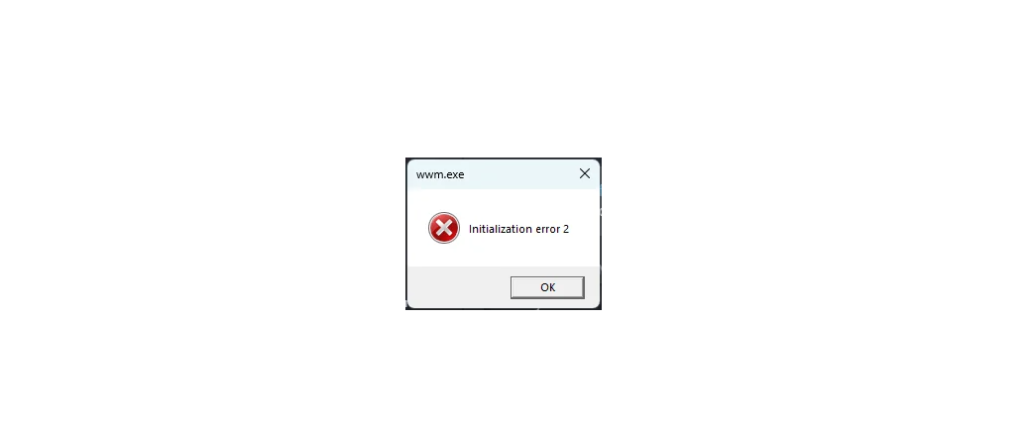
Running into an “initialization error when launching the game” in Where Winds Meet is incredibly frustrating, especially if the game was working fine before. You hit play, expect to dive into Jianghu, and instead get stuck before the game even opens.
In this guide, we’ll walk through:
- What the initialization error actually means
- The most common causes on PC and console
- Step-by-step fixes you can try right now
- Extra advanced troubleshooting if the basics don’t work
- Quick FAQs so you can double-check you’re not missing something simple
The goal is simple: get your game to launch normally again without guesswork.
What Is the “Initialization Error” in Where Winds Meet?
An initialization error usually appears when the game fails during its startup process. Instead of loading into the engine and assets properly, something breaks at the very beginning, and the launcher or system reports an error.
On Where Winds Meet, this can happen:
- Right after clicking Play in the launcher
- When the anti-cheat or game client boots
- During DirectX / graphics initialization
- When some required files or components are missing or corrupted
In plain language: the game is trying to start its “engine” and fails before it can show you anything meaningful.
Common Causes of Initialization Errors in Where Winds Meet
From official guidance and general PC crash reports for Where Winds Meet and similar titles, these are the most common triggers:
- Outdated or buggy GPU drivers
- Missing or corrupted game files (bad install, interrupted update, damaged shader cache)
- DirectX issues (missing components, DX12 problems, or corrupted runtime)
- Overlay conflicts (Discord, GeForce Experience, Steam overlay, etc.)
- Overlays or capture tools hooking into the game too early
- Insufficient system specs or unstable overclocking
- Windows permissions or antivirus blocking game components
- Launcher issues or improper installation of the official PC client
Sometimes, one of these is enough to cause an error. Often, it’s a combination (for example, a partially corrupted install plus an aggressive antivirus).
Before You Start: Basic Checks to fix Initialization Error
Do these simple checks first. They sound obvious, but they fix a surprising number of cases.
1. Confirm System Requirements
Check that your PC at least meets the minimum requirements listed on the Where Winds Meet official site or launcher. If your CPU, GPU, or RAM are below spec, initialization failures and black screens become much more likely.
If you’re close to the minimum, close all non-essential apps so the game has as many resources as possible.
2. Reboot Your System
A full PC restart clears stuck processes, driver issues, and leftover memory allocations from other games/tools that can interfere with initialization.
- Shut down the PC completely (not just sleep).
- Wait 20–30 seconds.
- Boot again, then try launching the game.
Fix 1: Verify or Repair Game Files
Corrupted or missing files are top-tier suspects for startup issues.
- If you’re using the official Where Winds Meet PC launcher:
- Open the launcher.
- Look for Settings / Game Repair / Verify Files.
- Run a full integrity check.
- If you are playing through a platform that provides file verification:
- Find the game in your library.
- Open Properties.
- Choose Verify integrity / Repair game files.
Verification will scan the installation folder and re-download anything broken or missing. After verification completes, restart the launcher and try again.
Fix 2: Update Your GPU Drivers Properly
Broken or outdated graphics drivers can cause DirectX and renderer initialization failures in modern titles, especially those using newer APIs.
Steps:
- Identify your GPU
- Right-click Start → Device Manager → Display adapters.
- Download the latest stable driver from the official website:
- NVIDIA
- AMD
- Intel Arc
- Clean install (if possible):
- Many installers have a “Clean Install” or “Perform a clean installation” checkbox.
- This removes old profiles that might conflict with the game.
- Restart your PC after installing the driver.
Then launch Where Winds Meet again.
Fix 3: Repair or Reinstall DirectX Components
If the error is happening specifically when the game initializes graphics, DirectX may be the problem. Guides focused on Where Winds Meet DirectX errors recommend updating drivers, installing missing components, and ensuring your DirectX runtime isn’t corrupted.
Try this:
- Run Windows Update
- Go to Settings → Windows Update and install pending updates.
- This often includes DirectX and system libraries.
- Install DirectX End-User Runtime
- Download from Microsoft’s official site.
- Run the installer and let it add any missing files.
- Check for Visual C++ Redistributables
- Many games require the Microsoft Visual C++ Redistributables.
- Make sure the 2015–2022 packages are installed and updated.
Once done, reboot and try launching the game again.
Fix 4: Disable Overlays and Third-Party Hooks
Overlays can interfere with how a game initializes its graphics context. This includes:
- Discord overlay
- NVIDIA GeForce Experience overlay
- Steam overlay
- FPS counters, screen recorders, streaming tools, etc.
What to do:
- In Discord:
- Settings → Game Overlay → toggle off.
- In GeForce Experience:
- Settings → General → In-Game Overlay → turn off.
- Close any extra programs like OBS, MSI Afterburner, Radeon ReLive, Xbox Game Bar, etc.
Then try launching Where Winds Meet with only the launcher and essential system processes running.
Fix 5: Run the Game as Administrator and Adjust Permissions
Sometimes the game fails to initialize because it can’t access certain files or system resources due to permissions.
Steps:
- Locate your Where Winds Meet launcher executable in the install folder.
- Right-click → Properties → Compatibility tab.
- Check Run this program as an administrator.
- Click Apply and OK.
- Repeat for the main game executable if it’s separate.
Also, if your game is installed in a highly protected folder or non-standard drive, make sure:
- Your Windows user account has full control over the game folder.
- The folder is not read-only.
Then relaunch the game.
Fix 6: Temporarily Disable Antivirus or Add an Exception
Some antivirus suites or security tools can block game components from loading, which causes initialization errors and crashes during startup.
Only do this if you trust the game’s source.
- Add exceptions for:
- The Where Winds Meet install folder
- The launcher folder
- Any anti-cheat component that comes with the game
- Optionally, temporarily disable real-time protection just to test if the game opens correctly.
If the game starts working with the antivirus off, the fix is to adjust settings and keep the game folder whitelisted.
Fix 7: Turn Off Overclocking and Restore Default Hardware Settings
Overclocked CPU, GPU, or RAM can make your system unstable under certain workloads. That instability can show up as initialization errors.
- If you’re using tools like MSI Afterburner, Intel XTU, or Ryzen Master:
- Reset everything to default or stock.
- If you overclocked via BIOS:
- Enter BIOS and load Optimized Defaults or similar.
After reverting to default clocks, test the game again.
Fix 8: Reinstall the Where Winds Meet Launcher or Game
If nothing else works, your installation itself may be broken beyond what a simple verification can fix.
Clean reinstall steps:
- Uninstall the game and its launcher from Windows.
- Delete any leftover folders in:
- The installation directory
- Documents or AppData paths if clearly related to the game
- Restart your PC.
- Follow the official Where Winds Meet PC Launcher Installation Guide to reinstall.
- Download and install the game again using the freshly installed launcher.
Then try launching once more before installing any extra mods or tools.
Console Players: Quick Checks for Initialization-Like Errors
If you’re on PS5, Xbox, or other consoles, you might not see the exact phrase “initialization error,” but you can still hit similar startup issues.
Try this:
- Close the game completely (not just suspend).
- Clear cache by powering the console off, unplugging for about 30 seconds, then restarting.
- Make sure the game is fully updated.
- Ensure you have enough free storage for updates and shader caches.
- If needed, reinstall the game from your library or store.
Many console initialization errors are tied to corrupted local data or incomplete updates.
Advanced Steps (For Stubborn Cases)
If your initialization error persists even after all the basic fixes, you can try a few more advanced steps:
1. Switch Display Mode and Disable Fullscreen Optimizations (PC)
Guides on black screen and launch issues for Where Winds Meet recommend running the game in Windowed or Borderless Windowed mode and disabling Fullscreen Optimizations in the executable’s compatibility settings.
2. Delete or Refresh Shader Cache
A corrupted shader cache can cause early crashes.
- In your GPU control panel, look for options to clear shader cache.
- Some games store their shaders in specific directories – deleting those or letting the game rebuild them can help.
3. Check for Known Issues on Official Channels
Because Where Winds Meet is relatively new, occasional patches or updates might introduce new bugs. Keep an eye on official website news, launcher announcements, and patch notes.
If the initialization error started right after a patch, it might be a temporary issue that developers are already working on.
FAQ: Initialization Error When Launching Where Winds Meet
1. I played before without issues. Why am I suddenly getting this error?
Common reasons:
- A new patch changed the way the game initializes.
- A driver update or Windows update introduced a conflict.
- Some files got corrupted during an update or power loss.
Start with file verification and driver updates, then go through the overlay and antivirus checks.
2. Is this the same as a DirectX error?
Not always, but they’re often related. An initialization error can include DirectX initialization failures, which is why fixes for Where Winds Meet DirectX errors (updating drivers, repairing DirectX, disabling overlays) are highly relevant.
3. Will reinstalling Windows fix the problem?
That’s overkill for most people. In rare cases where your system files and DirectX runtime are badly corrupted, a clean Windows installation can fix stubborn DirectX or graphics issues, but you should try verifying files, reinstalling the game and launcher, updating drivers, and repairing DirectX first.
4. Could my internet connection cause an initialization error?
If the game needs to authenticate online or initialize online services at startup, a poor or blocked connection can contribute to errors. Make sure your firewall or router isn’t blocking the game or launcher and that you aren’t on a restrictive network.
However, purely graphics-related initialization errors are usually unrelated to internet quality.
Final Thoughts
The “initialization error when launching the game” in Where Winds Meet is usually fixable by systematically working through:
- Verifying or repairing game files
- Updating GPU drivers
- Repairing DirectX and system components
- Disabling overlays and third-party hooks
- Checking permissions, antivirus, and hardware stability
- Reinstalling the game and launcher if needed
Work through the fixes in order, test after each, and you should be able to narrow down what’s blocking the game from starting.
If after all this you still see the same error, capturing a screenshot of the exact message and checking official support or community threads for your exact wording and platform is the next best step.