
If A.I.L.A keeps crashing on your PS5, you’re not alone. It’s a brand-new survival horror game built on modern tech and, like a lot of fresh launches, it can be buggy and heavy on the console.
This guide is written specifically to help “AILA game keeps crashing on PS5”, “AILA PS5 crashing/freezing”, while still actually helping real players fix the problem.
1. What Is A.I.L.A and Why Does It Crash on PS5?
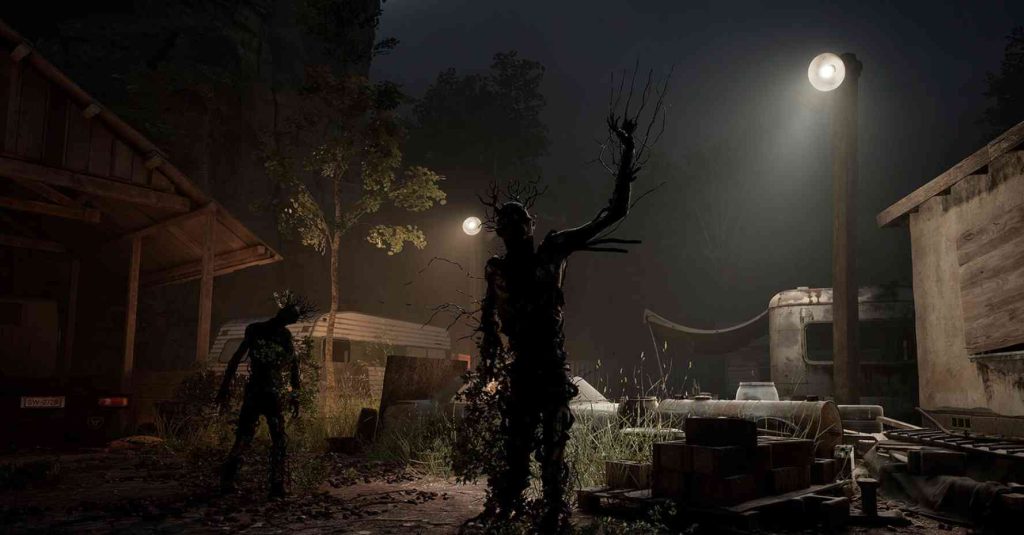
A.I.L.A is a first-person psychological/survival horror game from Pulsatrix Studios and Fireshine Games, released on PS5, Xbox Series X|S, and PC. You play as game tester Samuel in a near-future setting, diving into horrifying VR-like scenarios generated by an advanced AI called A.I.L.A.
The game uses Unreal Engine 5 and advanced graphical tech like Lumen and detailed character rendering, which makes it look amazing but also demanding and occasionally unstable on some systems. Previewers and reviewers have noted heavy framerate drops, performance issues, freezes, and crashes in early builds.
Even though some reports were for pre-release or PC builds, they reveal something important:
A.I.L.A is demanding and somewhat fragile technically.
On PS5, this can translate to frequent crashes, freezes, or system errors—especially around loading new areas or during intense scenes.
2. Quick Fix Checklist (Try These First)
If A.I.L.A keeps crashing on PS5, try this quick list before the full guide:
- Restart the PS5 completely (not Rest Mode)
- Make sure both A.I.L.A and PS5 system software are fully updated
- Ensure at least 30–50 GB free space on the internal SSD
- Turn off high-demand video output features (4K/120Hz, VRR, HDR tweaks)
- Check if your PS5 has ventilation space to avoid overheating
- Try another game to compare
- If many games crash → system issue
- If only A.I.L.A crashes → game files or game bug
3. AILA Game Full Troubleshooting Guide (Step-by-Step)
Step 1 – Fully Update A.I.L.A on PS5
Most launch-day crashes get fixed through patches. Because A.I.L.A is a new release, expect frequent updates.
How to check for A.I.L.A updates:
- Highlight A.I.L.A on the PS5 home screen.
- Press the Options button.
- Select “Check for Update.”
- Install any available update.
- Restart the PS5 and relaunch the game.
Step 2 – Update PS5 System Software
Sony recommends keeping both game and system software updated to avoid freezes and crashes.
How to update PS5 system software:
- Go to Settings > System > System Software.
- Choose System Software Update and Settings.
- Select Update System Software → Update Using Internet.
- Let the update install and reboot.
Step 3 – Clear PS5 Cache & Rebuild Database
A.I.L.A streams heavy assets. Corrupted cache or a messy database can cause crashes during loading or transitions. Clearing cache and rebuilding the database often fixes random PS5 crashes and slowdowns.
How to clear cache & rebuild database:
- Turn off the PS5 completely.
- Hold the power button until you hear two beeps to enter Safe Mode.
- Connect your controller via USB and press the PS button.
- Select Clear Cache and Rebuild Database.
- First choose Clear System Software Cache.
- If crashes continue, repeat Safe Mode and choose Rebuild Database.
This does not delete games or save files.
Step 4 – Check for Corrupted A.I.L.A Save Data
If A.I.L.A crashes at the same point every time, your save file may be corrupted.
Signs of a corrupted save:
- The game crashes consistently at the same section
- A new game works fine, but your previous save does not
How to test:
- Start a New Game and play for 10–20 minutes.
- If this works but your old save crashes, the old save may be corrupted.
You can also back up your save:
- Go to Settings > Saved Data and Game/App Settings.
- Open Saved Data (PS5).
- Back up your saves to cloud or USB.
- Delete the local saved data and test with a fresh save.
Step 5 – Reinstall A.I.L.A (Digital or Disc)
If the issue persists, your installation may be corrupted. Reinstalling can fix persistent crashing.
Digital Version:
- Highlight A.I.L.A on home screen.
- Press Options > Delete.
- Go to Game Library > Your Collection.
- Download A.I.L.A again.
- After installing, check for updates.
Disc Version:
- Delete the game from your console.
- Remove the disc and clean it with a soft cloth.
- Reinsert and reinstall the game.
- Check for updates again.
Step 6 – Tweak Graphics & Performance Options
A.I.L.A uses heavy Unreal Engine 5 features. Console instability often appears in high-load lighting or effects-heavy scenes.
You can try:
- Switching from Quality to Performance mode
- Disabling effects like motion blur or film grain
- Limiting your display from 120Hz to 60Hz
- Turning off VRR
On PS5:
- Go to Settings > Screen and Video > Video Output.
- Disable high-demand features temporarily.
Step 7 – Fix Overheating & Ventilation Issues
Demanding games can overheat the PS5. Overheating can cause sudden shutdowns, crashes, and performance drops.
Check:
- Is the PS5 inside a cabinet or near a wall?
- Are vents blocked or dusty?
- Does the fan get loud before crashes?
Fix:
- Improve ventilation
- Dust the vents gently
- Avoid placing the console in closed spaces
If the game runs longer after improving airflow, overheating was the issue.
Step 8 – Disable Rest Mode & Activity Resume
Some unstable games crash when resumed from Rest Mode.
Try:
- Closing A.I.L.A fully before entering Rest Mode
- Relaunching from the home screen instead of Activity Cards
- Temporarily disabling Rest Mode features under Settings > System > Power Saving
Step 9 – Disable PS5 “Restore Licenses” Conflicts
Sometimes game crashes happen when the PS5 struggles to verify licenses in the background, especially with newly purchased digital titles.
How to restore licenses:
- Go to Settings > Users and Accounts.
- Select Other.
- Choose Restore Licenses.
- Restart your PS5 and launch A.I.L.A again.
This can fix random crashes or startup errors related to digital ownership checks.
Step 10 – Turn Off HDCP
Some players report that HDCP (High-bandwidth Digital Content Protection) triggers crashes with certain games or TVs.
How to disable HDCP:
- Go to Settings > System.
- Select HDMI.
- Disable Enable HDCP.
- Restart the PS5.
Try running A.I.L.A again to see if stability improves.
Step 11 – Change PS5 Resolution to Reduce Load
If A.I.L.A is struggling at 4K, forcing the console to run at a lower resolution can dramatically reduce crashes in demanding scenes.
How to do it:
- Go to Settings > Screen and Video.
- Select Video Output.
- Change Resolution to 1080p or 1440p depending on your display.
Then launch A.I.L.A and test stability.
Step 12 – Rebuild PS5 Database a Second Time
Some heavy Unreal Engine games require more than one rebuild to fully sort file structures.
If you rebuilt once and A.I.L.A still crashes, do another:
- Enter Safe Mode.
- Select Rebuild Database.
A second rebuild can resolve deeper file indexing issues.
Step 13 – Disable 3D Audio (Headphones or TV)
A few PS5 games crash due to audio engine conflicts—especially with 3D audio processing.
To disable:
- Go to Settings > Sound > Audio Output.
- Turn off Enable 3D Audio.
Restart the game afterward.
Step 14 – Use a Different PS5 Profile
Sometimes user profile–specific data becomes corrupted, causing only that account to crash in a specific game.
Test A.I.L.A on a second PS5 user profile:
- Create a new user under Settings > Users and Accounts.
- Launch A.I.L.A from this account.
If it works fine, your primary user profile may have corrupted data linked to the game.
Step 15 – Move Saved Data to Cloud and Redownload
Even if your save isn’t fully corrupted, micro-errors can still cause scene-specific crashes.
Fix by resyncing:
- Upload A.I.L.A saved data to cloud storage.
- Delete local save files.
- Download the cloud version again.
Then launch the game.
Step 16 – Disable PS5 Voice Chat & Voice Commands
Some games using Unreal Engine crash due to voice input or audio permissions clashing with the game’s mic detection.
Try disabling voice features:
- Go to Settings > Sound > Microphone.
- Mute or disable input.
- Disable “Voice Command” if activated.
Test A.I.L.A again.
Step 17 – Power Cycle the PS5 Properly
A normal restart isn’t always enough. A full power cycle clears deeper hardware and system cache.
How to do it:
- Turn off the PS5 completely.
- Unplug the power cable from the wall.
- Wait 2 minutes.
- Plug it back in and restart.
This often fixes persistent crashing caused by background system memory stuck processes.
Step 18 – Reinstall PS5 System Software (Without Resetting Console)
If your PS5’s OS has become unstable, you can reinstall the system software without deleting games.
Steps:
- Boot PS5 into Safe Mode.
- Select Option 3: Update System Software.
- Choose Update Using Internet.
This performs a clean reinstall of the system OS, fixing deep-level crash issues.
4. Advanced Fixes Based on HOW A.I.L.A Crashes
A) A.I.L.A Crashes on Startup
- Test other games
- Clear cache and rebuild database
- Reinstall A.I.L.A
- If other games crash too, it’s a system-level issue
B) A.I.L.A Crashes After a Specific Level or Cutscene
Some earlier A.I.L.A builds on other platforms had crashes after the prologue or demanding sequences.
Fix:
- Replay section or load earlier checkpoint
- Start a new game to see if crash is repeated
- Lower in-game and system-level performance settings
- Watch for new patches that fix chapter-based crashes
C) A.I.L.A Crashes During Loading Screens
This usually indicates:
- Storage issues
- Database fragmentation
- Corrupted installation
Use:
- Cache clear
- Database rebuild
- Reinstall game
- Ensure plenty of free SSD space
5. How to Prevent Future A.I.L.A PS5 Crashes
To keep A.I.L.A stable:
- Install game and system updates quickly
- Clear PS5 cache occasionally
- Keep at least 50GB free on internal SSD
- Maintain console airflow
- Avoid relying on Rest Mode for unstable games
6. When It’s Not You – It’s the Game
Because A.I.L.A is new, some PS5 crashes are caused by game-side bugs the developers need to patch. Early impressions note frame drops, performance dips, and technical hiccups.
If you’ve:
- Updated PS5 and the game
- Cleared cache
- Rebuilt database
- Reinstalled the game
- Tested other games successfully
…and A.I.L.A still crashes, the current build of the game likely has bugs.
Report it using PS5 crash reporting tools and wait for patches.
7. A.I.L.A PS5 Crash – FAQ
1. Why does A.I.L.A crash only on my PS5?
Console builds can have specific bugs not present on PC. A.I.L.A uses demanding Unreal Engine 5 features that stress hardware. Updates should improve stability.
2. Will clearing cache or rebuilding database delete my data?
No. These options do not delete games or save files. They only reorganize system data.
3. Is A.I.L.A poorly optimized on PS5?
Early builds show performance dips and occasional technical issues. Updates typically resolve these over time.
4. Does reinstalling A.I.L.A delete my save?
Deleting the game does not delete save data. Saves are stored separately. For safety, back them up to cloud or USB.