
Many players experience ghosting, blurring, or screen tearing in Escape from Tarkov, especially when using borderless windowed mode on a 240 Hz or 165 Hz monitor with G-Sync enabled. The menus feel smeared, the lobby looks blurry, and only switching to another display mode seems to help.
This issue is frustrating because raids feel smooth, but the game’s interface and camera movements look wrong.
Quick answer:
Most Escape from Tarkov ghosting problems come from G-Sync and VRR interacting poorly with borderless mode and Windows Desktop Window Manager (DWM). The two most reliable fixes are:
- Use exclusive fullscreen + G-Sync with correct FPS and V-Sync settings, or
- Keep borderless mode, but disable G-Sync for Tarkov only.
What Is Ghosting in Escape from Tarkov?
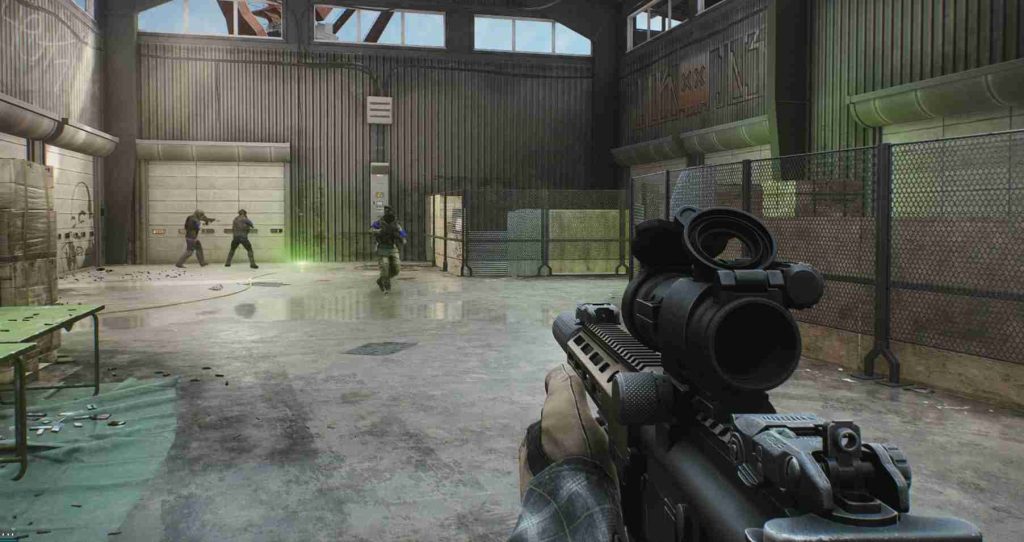
In Escape from Tarkov, ghosting appears as:
- Trails behind moving objects or text
- Smearing when moving the camera in menus
- Slight blur on edges during motion
- UI elements that look “double” or smeared
This is not a texture issue or a bug in Tarkov’s graphics.
It is a display synchronization issue caused by how the game and the monitor exchange frames.
Why Escape from Tarkov Ghosts in Borderless Mode
Borderless + G-Sync + Windows = Conflict
In borderless windowed mode, Escape from Tarkov runs through Windows DWM. The game no longer has full control of the display. At the same time:
- G-Sync / VRR is trying to match refresh rate to the game’s FPS.
- Windows adds its own compositing and timing.
The result is:
- Escape from Tarkov ghosting in menus and lobby
- Micro stutters or judder when rotating the camera
- The feeling that windowed mode is smoother than borderless
The problem shows up more on:
- High refresh rate monitors (240 Hz, 165 Hz)
- Systems using G-Sync or FreeSync
- Multi-monitor setups
Why Gameplay Feels Fine but Menus Look Bad
In raids, Escape from Tarkov often runs at more stable FPS, so:
- G-Sync has a clear frame rhythm to follow.
- Ghosting is less noticeable.
In menus and lobbies:
- FPS fluctuates or drops.
- VRR + DWM + overdrive settings create visible ghosting and smearing.
This is why many players report:
“In-game is smooth, but the main menu looks ghosty or blurry.”
Best Fix: Fullscreen Mode with G-Sync
The most effective Escape from Tarkov ghosting fix is switching to exclusive fullscreen and letting Tarkov control the display directly.
In-Game Tarkov Video Settings
- Display Mode: Fullscreen
- V-Sync: Off
- FPS Limit: 3–5 FPS below monitor refresh rate
- For a 240 Hz monitor: 235–237 FPS
- For a 165 Hz monitor: 160–162 FPS
Capping FPS prevents the GPU from overshooting and keeps G-Sync working inside its ideal range.
NVIDIA Control Panel Settings (Per-Game)
- Open NVIDIA Control Panel.
- Go to Manage 3D Settings → Program Settings.
- Select EscapeFromTarkov.exe.
Set:
- Monitor Technology: G-Sync (if listed)
- Vertical Sync: On
- Low Latency Mode: On or Ultra
- Max Frame Rate: Match your in-game FPS cap
With this setup:
- G-Sync handles fullscreen Tarkov correctly.
- Screen tearing is removed.
- Ghosting is reduced or eliminated in most cases.
Borderless Mode Fix: Disable G-Sync for Tarkov
Some players need borderless windowed mode for:
- Alt-tabbing quickly
- Using a second monitor
- Streaming or content creation
In this case, the best approach is to keep borderless, but remove G-Sync only for Escape from Tarkov.
Steps to Fix Tarkov Borderless Ghosting
- Open NVIDIA Control Panel.
- Go to Manage 3D Settings → Program Settings.
- Select EscapeFromTarkov.exe.
- Change:
- Monitor Technology: Fixed Refresh
- Vertical Sync: On or Fast
Keep Escape from Tarkov set to Borderless Windowed in the in-game settings.
This prevents VRR conflicts, keeps borderless convenience, and usually removes:
- Tarkov menu ghosting
- Borderless stutter
- Random blur in the UI
Monitor Settings That Increase Ghosting
Overdrive / Response Time
Most gaming monitors offer response-time options such as:
- Off / Normal / Fast / Extreme
- Or similar naming (AMA, TraceFree, OD, etc.)
For Escape from Tarkov on a 240 Hz monitor:
- Normal or Medium is usually ideal.
- Extreme / Fastest often causes inverse ghosting, where bright trails appear behind dark objects.
If ghosting remains after G-Sync changes, lower the overdrive level and test again.
Motion Blur Reduction / ULMB / MBR
Features like:
- ULMB
- ELMB
- “Motion Blur Reduction”
- Backlight strobing
should be disabled when using:
- G-Sync / FreeSync / VRR
Mixing strobing with VRR causes severe artifacts and unstable motion.
Windows Settings That Affect Tarkov Ghosting
On Windows 10/11, some system-level options also change how borderless games behave.
Check under System → Display → Graphics (wording may vary):
- Optimizations for windowed games
- Variable refresh rate
For Tarkov ghosting or stutter in borderless:
- Test with both enabled and disabled.
- Keep the combination that produces the smoothest motion.
Different GPUs, drivers, and monitor models respond differently.
Quick Tips: Fast Escape from Tarkov Ghosting Fixes
Use these quick adjustments to troubleshoot:
- Tip 1: Try Fullscreen + G-Sync + FPS cap first.
- Tip 2: If ghosting happens only in borderless, disable G-Sync for Tarkov.
- Tip 3: Lower monitor overdrive from Extreme to Normal.
- Tip 4: Turn off motion blur reduction / strobing features.
- Tip 5: Test with V-Sync off in-game, on in NVIDIA Control Panel.
- Tip 6: Keep Tarkov on your main G-Sync monitor, not a secondary display.
Comparison Table: Fullscreen vs Borderless vs Windowed in Tarkov
| Mode | G-Sync Behavior | Ghosting Risk | Best Use Case |
|---|---|---|---|
| Fullscreen (Exclusive) | Direct control, best for G-Sync | Lowest, if configured | Competitive play, main recommendation |
| Borderless Windowed | Through Windows DWM, VRR conflicts | Medium to High with G-Sync | Multitasking, dual monitors, streaming |
| Windowed | More stable, often no VRR | Low, but less immersive | Quick testing, temporary workaround |
For maximum smoothness and minimum ghosting, Fullscreen + G-Sync + correct FPS cap is the top option.
Final Summary
Escape from Tarkov ghosting in borderless mode is caused by G-Sync, VRR, and Windows compositing working against each other.
To fix it:
- Prefer Fullscreen + G-Sync + FPS cap just below refresh rate.
- If you must use borderless windowed mode, disable G-Sync for Tarkov and tune monitor overdrive.
With the right combination of in-game settings, NVIDIA Control Panel options, and monitor configuration, Escape from Tarkov can look smooth and clear on any 240 Hz or 165 Hz gaming monitor.
FAQ – Escape from Tarkov Ghosting, Stutter & Display Issues
Does Escape from Tarkov ghosting happen only with G-Sync?
No. G-Sync significantly increases the chance of ghosting, but it is not the only factor.
Ghosting can also appear due to monitor overdrive settings, Windows display optimizations, or unstable frame pacing in menus. However, the most common scenario is Escape from Tarkov borderless mode combined with G-Sync or VRR, which causes timing conflicts through Windows Desktop Window Manager.
Disabling G-Sync per game or switching to exclusive fullscreen usually resolves the problem.
Why does Escape from Tarkov feel smoother in windowed mode than borderless?
Windowed mode forces a consistent Windows-managed refresh path, which often prevents VRR activation.
Because G-Sync is partially or fully inactive, motion looks smoother and more stable even though input delay may increase slightly. Borderless mode, by contrast, attempts to use VRR while still depending on Windows compositing, creating blur, ghosting, or uneven motion.
This is why many players report windowed mode as cleaner despite it not being ideal for gameplay.
Can incorrect FPS limits cause ghosting in Escape from Tarkov?
Yes. Uncapped FPS or incorrect frame caps can cause G-Sync to fall outside its optimal operating range.
When FPS exceeds the refresh rate—or fluctuates wildly—screen tearing, ghosting, and micro-stutter become more noticeable, especially on 240 Hz monitors. This is most visible in Tarkov’s menus and stash screen.
Capping FPS 3–5 frames below the monitor refresh rate ensures stable VRR behavior and reduces visual artifacts.
Why does Escape from Tarkov ghost more in menus than during raids?
Menus and lobbies use different rendering behavior than in-raid gameplay.
Frame rates are often lower or inconsistent, and camera movement interacts directly with UI elements. This exposes VRR timing issues, inverse ghosting, and overdrive artifacts that are less noticeable during regular gameplay.
High refresh monitors magnify these effects, making menu ghosting more obvious on 165 Hz and 240 Hz displays.
Can monitor overdrive cause inverse ghosting in Escape from Tarkov?
Yes. High overdrive or “Extreme” response-time settings often cause inverse ghosting in Tarkov.
When frame rate fluctuates—especially in menus—overdrive overshoots pixel transitions, creating bright halos or trails behind dark objects. This is commonly mistaken for GPU or game-related ghosting.
Setting monitor overdrive to Normal or Medium provides better balance for Escape from Tarkov, particularly when using VRR.