
If you’ve opened the Draw Shop, stared at the screen, clicked a button… and nothing happened — yeah, you’re definitely not alone.
It’s one of those moments where you’re not sure if the game froze, your input didn’t register, or you’re just being impatient — until it keeps happening.
A lot of players are currently running into a slow or straight-up unresponsive Draw Shop in Where Winds Meet, especially after recent updates. The menu technically loads, but inputs lag behind, buttons take way too long to respond, or the entire screen locks up for a few seconds before finally catching up. Sometimes it feels fine, other times it happens every single time you open the shop, which makes it even more frustrating.
The good news?
This usually isn’t a “your game is broken” situation or something you messed up.
It’s a fairly common UI performance issue that a lot of players are seeing right now. Below, we’ll break down what’s actually causing it — and what you can do right now to fix it or at least make it happen less often.
What the Problem Looks Like
Most players describe the issue in very similar ways, which makes it easy to recognize once you’ve run into it yourself.
The most common complaint is that the Draw Shop opens, but buttons don’t respond for 5–20 seconds, leaving you staring at the screen wondering if the game has frozen.
Backing out of the Draw Shop can feel just as bad, with noticeable delays or the menu seeming completely stuck before it finally closes.
Players also point out that the issue happens more often after updates, which suggests it’s tied to post-patch UI behavior rather than random performance drops.
It’s especially noticeable in busy cities or crowded areas, where there’s already a lot happening in the background. Importantly, overall gameplay usually runs fine — combat, movement, and exploration aren’t affected. It’s mostly the menu and UI acting up, not a full performance or FPS issue.
Read also: Where Winds Meet Gear Farming Guide
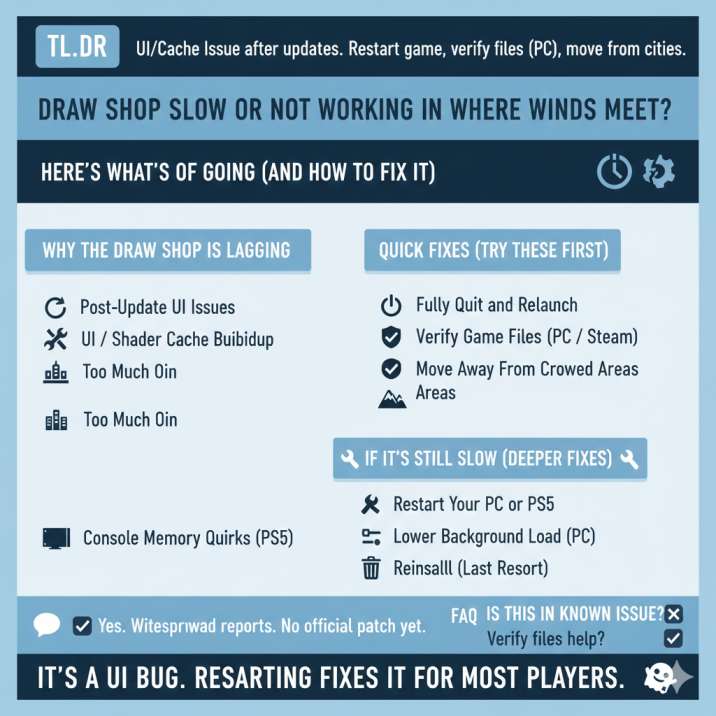
Why the Draw Shop Is Lagging
Based on community reports and player testing, here’s what’s most likely happening behind the scenes — and why this issue feels so inconsistent.
1. Post-Update UI Issues
After patches, some UI files don’t always load cleanly. When the Draw Shop tries to pull those assets, it can briefly stall while everything catches up. This lines up with the fact that many players started noticing the problem right after recent updates.
2. UI / Shader Cache Buildup
Long play sessions can cause menus to slow down as temporary UI and shader data piles up in memory. The Draw Shop seems especially sensitive to this, which is why restarting the game often helps.
3. Too Much Going On in the Background
Opening the Draw Shop while the game is loading NPCs, textures, and effects — especially in busy cities — can choke the menu and delay inputs.
4. Console Memory Quirks (PS5)
PS5 players appear to hit this more often, suggesting cache or memory handling rather than internet or server issues.
In short, it’s a performance/UI issue, not a Draw Shop feature bug in Where Winds Meet.
Quick Fixes (Try These First)
Do these in order — most players won’t need to go past step two or three before the problem improves or disappears entirely.
1. Fully Quit and Relaunch the Game
This means a full exit, not rest mode and not leaving the game running in the background. Close the game completely, wait a few seconds, then launch it again and head back to the Draw Shop.
Doing this clears out temporary UI and cache data that can build up during longer play sessions. In many cases, this alone is enough to get rid of the input delay and make the Draw Shop feel responsive again almost immediately.
2. Verify Game Files (PC / Steam)
If you’re playing on PC, this is one of the most reliable fixes after updates. Open Steam, head to your Library, right-click Where Winds Meet, then go to Properties → Installed Files and select Verify integrity of game files. Steam will scan for any missing or corrupted files and automatically re-download them if needed. This process can take a few minutes, but it has fixed Draw Shop lag for a lot of players, especially when the issue started immediately after a patch.
3. Move Away From Crowded Areas
Before opening the Draw Shop, try fast traveling out of major cities or avoiding busy hubs packed with NPCs and effects. Crowded areas put more strain on background loading, and opening menus during that can slow everything down. Less background activity usually means smoother, more responsive menus.
If It’s Still Slow (Deeper Fixes)
🔧 4. Restart Your PC or PS5
This one isn’t exciting, but it’s surprisingly effective. A full system restart does more than just closing and reopening the game — it clears system-level cache and temporary memory that can build up over time, especially after long play sessions or multiple rest modes. On consoles, rest mode can keep leftover data hanging around, which can cause UI menus like the Draw Shop to behave unpredictably. Restarting forces everything to reload cleanly from scratch.
After rebooting your PC or PS5, launch the game fresh and head straight to the Draw Shop to test it before doing anything else. Many players find that this completely removes the input delay, or at least makes the menu far more responsive than before.
🔧 5. Lower Background Load (PC)
If the Draw Shop is still lagging on PC, try temporarily lowering a few graphics settings to reduce what the game is doing in the background. Start by turning down texture quality, post-processing, and motion blur, as these tend to have the biggest impact on background loading and UI responsiveness. You don’t need to make the game look bad — just lowering them one step can help. After changing the settings, restart the game and test the Draw Shop again to see if the input delay improves.
🔧 6. Reinstall (Last Resort)
Reinstalling should only be considered if everything else fails. Do this only if file verification doesn’t find or fix any issues, or if the Draw Shop is unusable every single session no matter what you try. A fresh install ensures all UI and game files are clean, but most players won’t need to go this far to fix the problem.
Read also: How to Fix Co-Op Boss Arena Lockout in Where Winds Meet (Dalang Boss Bug)
How to Report It (If You Want It Fixed Faster)
If the issue keeps happening even after trying the fixes above, the best thing you can do is report it through in-game Customer Service. This is the recommended option because it automatically sends your system and account information along with the report, which makes it much easier for the developers to diagnose what’s going wrong. Reports sent this way are generally more useful than vague complaints on social media, especially for UI and performance issues like this.
When you submit the report, keep it clear and simple. You can copy and paste the template below and adjust it if needed:

Copy-Paste Bug Report (Use This)
Platform: PC (Steam) / PS5
Issue:
Draw Shop menu opens but inputs are delayed or unresponsive for several seconds.

When It Happens:
Usually after updates and more often in crowded areas.

Reproduction:
1. Enter a busy city
2. Open Draw Shop
3. Menu becomes slow or unresponsive

What I Tried:
- Restarted game
- Verified files
- Moved to less crowded area
If you’re able to attach a short video — even a quick phone recording of the delay — it helps a lot and makes the issue much easier to understand and reproduce.
Is This a Known Issue?
There isn’t an official patch note yet that specifically says “Draw Shop fix,” but all the signs point to this being a known and widespread problem. A large number of players are reporting the same slow or unresponsive Draw Shop behavior, often describing nearly identical symptoms. The timing also lines up closely with recent updates, which strongly suggests the issue was introduced or made worse by a post-patch change rather than something on the player’s end.
On top of that, the fact that temporary fixes — like restarting the game, verifying files, or moving away from crowded areas — work for some people further supports the idea that this is a UI performance issue rather than a broken feature. In most cases, problems like this tend to get smoothed out over time as follow-up updates roll out.
Read also: How to Check Food Buffs in Where Winds Meet (Buff Icon, Tooltip & Status Effects Explained)
Quick FAQ
Is this a server problem?
No. This isn’t server lag or a connection issue. The Draw Shop slowdown is tied to local UI and menu performance, which is why gameplay itself usually feels fine while the menu struggles to respond.
Does verifying files actually help?
Yes — especially after updates. Verifying game files can fix missing or corrupted UI data, and it’s one of the most effective solutions for PC players dealing with Draw Shop lag.
Is PS5 worse than PC?
It seems that way based on player reports, but both platforms are affected. PS5 players appear to run into it more often, likely due to cache or memory handling, while PC players have more ways to reduce or fix it.
Bottom Line
If your Draw Shop is slow or unresponsive in Where Winds Meet, you’re not doing anything wrong — and you’re definitely not alone.
This is a common UI issue that’s popped up for a lot of players, especially after recent updates. In most cases, simple fixes like restarting the game, verifying files if you’re on PC, or opening the Draw Shop away from crowded cities are enough to make things feel normal again.
Those steps alone solve the problem for the majority of players.
If the issue keeps coming back, it’s worth reporting through in-game Customer Service. Clear, detailed reports help the devs identify patterns faster, which usually means quicker fixes in future patches.
If you want, I can turn this into a Reddit-style answer, trim it down into a 1-minute quick fix guide, or optimize it specifically for Google Discover — just let me know.