
So you load into Where Winds Meet, start running around, soaking in the scenery, chasing quests, doing your thing… and then you notice something’s off. Your minimap is gone.
Your HUD has vanished. No markers, no objectives, no helpful icons guiding you where to go next.
Just vibes. And confusion.
The good news? Your game isn’t broken, your save isn’t corrupted, and you didn’t mess anything up permanently. This is actually a super common situation that a lot of players run into — especially if you’re using a controller. What happened is that you accidentally triggered a hidden HUD toggle, a feature the game barely explains (or honestly, doesn’t explain at all).
It feels like a bug, but it isn’t.
And thankfully, the fix is quick once you know what to do.
Let’s fix it.
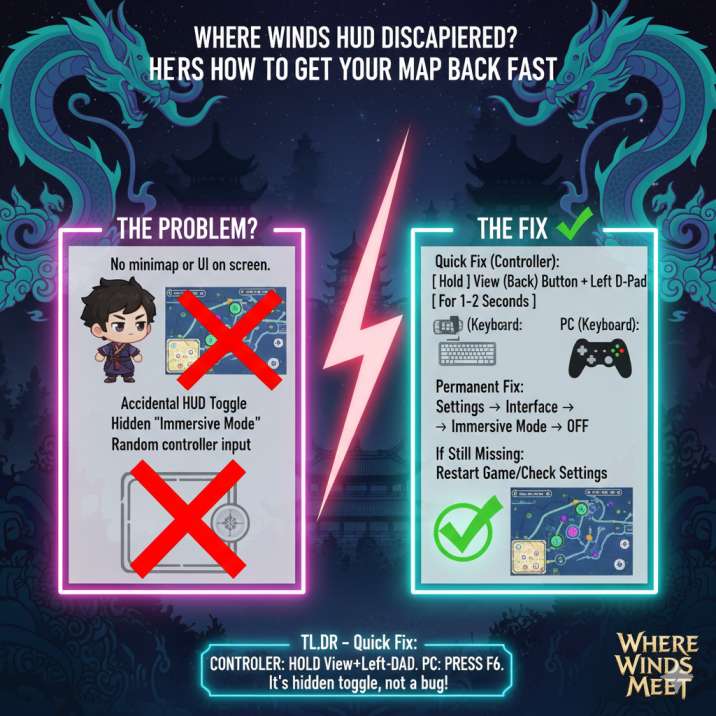
Quick Fix Where Winds Meet HUD Disappeared
Xbox Controller
If your HUD or minimap disappeared, this is the shortcut almost everyone hits by accident.
Press and HOLD:
View (Back) button + Left D-Pad
Hold both for about 1–2 seconds.
That’s it. No menu, no warning, no pop-up — the HUD simply toggles back on.
Once you do this, your screen should immediately restore:
- The minimap in the top-left corner
- Quest objectives and tracking text
- Exploration markers and points of interest
- Compass indicators while roaming
Because the game doesn’t show any confirmation message or sound cue, it often feels like the HUD disappears at random. In reality, this button combo is just very easy to press accidentally while navigating menus or opening the map with a controller.
PC (Keyboard)
If you’re playing on keyboard and mouse, the fix is even simpler.
- Press F6 → this toggles the HUD on and off
- Press M → this opens the full world map
If your minimap, quest tracker, or other UI elements suddenly vanished, hitting F6 will usually bring everything back instantly. There’s no warning or confirmation when the HUD is toggled, so it’s easy to press it by mistake during normal play. Once you know the keybind, though, restoring the interface takes just a second and you can get right back to exploring without missing any important markers or objectives.
Why This Even Happens
This isn’t a bug — it’s a feature called Immersive Mode, and it’s… not explained well at all.
What’s actually happening is that the game includes a hidden shortcut that turns the HUD on and off. There’s no tutorial popup, no control hint, and no visual confirmation when it activates. That makes it incredibly easy to toggle by accident and assume something is broken.
Once the HUD is turned off, it stays off until you manually toggle it back on, which is why the minimap and objectives don’t magically reappear on their own.
Most players trigger this without realizing it while:
- Opening the map too quickly
- Navigating menus with a controller
- Resting a thumb on the D-Pad
- Using sensitive, elite, or custom controllers
So yeah — it feels like the game bugged out. In reality, it’s just a poorly communicated feature doing exactly what it was designed to do.
Permanent Fix: Stop the HUD From Disappearing Again
If this keeps happening to you, the easiest solution is to lock the HUD back on permanently so it can’t be toggled off by accident.
Head into the menu and follow this path:
Settings → Interface (or Other) → Immersive Mode → OFF
Turning Immersive Mode off disables the hidden HUD toggle entirely. Once it’s off, your minimap, quest tracker, and exploration markers will stay visible during normal gameplay, even if you’re navigating menus quickly or using a sensitive controller. This is the best option if you don’t care about a “clean” screen and just want reliable on-screen info at all times.
Still Missing the Map? Try This
If your HUD or minimap doesn’t come back immediately, don’t panic. Run through these quick checks — they cover almost every remaining edge case players run into.
- Toggle the HUD again
Use View + Left D-Pad on controller, or press F6 on PC. Sometimes the input just doesn’t register the first time. - Open and close the map
Press M to bring up the full map, then back out. This can force the UI to refresh. - Fast travel or change zones
Loading into a new area often resets the HUD state. - Reload your save
A quick reload can clear UI desync issues. - Restart the game
Rarely needed, but it fully resets interface states.
In nearly every case, one of the first two steps fixes the problem right away.
How to Avoid This in the Future
Once you know what causes the HUD to disappear, it’s pretty easy to prevent it from happening again.
- Don’t rest your fingers on the D-Pad while opening menus or the map, especially on controller
- Turn Immersive Mode OFF if you don’t actively use it, so the HUD can’t be hidden accidentally
- Be careful with controller remaps, since changing bindings can make the toggle easier to trigger
- Lower input sensitivity on elite or third-party controllers, which are more prone to accidental inputs
A couple of small adjustments here can save you from wondering where your minimap went mid-exploration.
Quick FAQ
Why did my minimap disappear in Where Winds Meet?
You accidentally toggled the HUD off using a hidden shortcut or Immersive Mode.
Is this a known bug?
No — it’s intended behavior, it’s just poorly explained in-game.
Can this affect quests or progress?
Not at all. This only hides visual UI elements and doesn’t impact quests, rewards, or progression.
Does this happen on console only?
Nope. It can happen on PC, Xbox, and any setup using a controller.
Final Takeaway
If your Where Winds Meet HUD or minimap disappears, don’t panic — nothing is broken and your progress is safe.
In almost every case, it comes down to:
- A hidden HUD toggle
- Immersive Mode being turned on
- An accidental controller input
Once you know what’s causing it, fixing the problem takes two seconds. It’s one of those situations where the game never explains what happened, but now that you know the shortcut, you’ll never be stuck wandering around without a map again.
Read more articles on WWM: