
So you finally found an Ikran skin you like…
You equip it…
You load back in…
And—yep. It’s gone again.
If cosmetics in Avatar: Frontiers of Pandora aren’t saving, keep resetting, or just refuse to show up, you’re not doing anything wrong. This is a real, ongoing issue that’s hit a lot of players since launch—and frustratingly, it still pops up after updates, hotfixes, and DLC installs.
What makes this bug especially annoying is how inconsistent it feels. Sometimes the cosmetic sticks for a while. Sometimes it disappears after fast travel. Other times it never shows up at all, even though you know you unlocked or purchased it. That inconsistency makes it easy to assume you messed something up—but you didn’t.
Let’s break down why this happens, what fixes actually work, and when Ubisoft Support is the only real solution, so you can stop re-equipping the same cosmetic over and over and actually get back to playing.
Quick Fix
Before you start digging through settings or reinstalling anything, try this simple reset first—it fixes the issue more often than you’d expect.
Re-equip the cosmetic → fully close the game → relaunch it.
Make sure the game is completely closed, not just sitting at the main menu or running in the background. When you load back in, check your cosmetic again.
- If it sticks after restarting: nice, you just ran into a UI or cache refresh bug, and you’re good to go.
- If it keeps resetting or never shows up: don’t worry, this means the issue goes deeper—and the fixes below will walk you through exactly what to do next.
What Does This Bug Look Like?
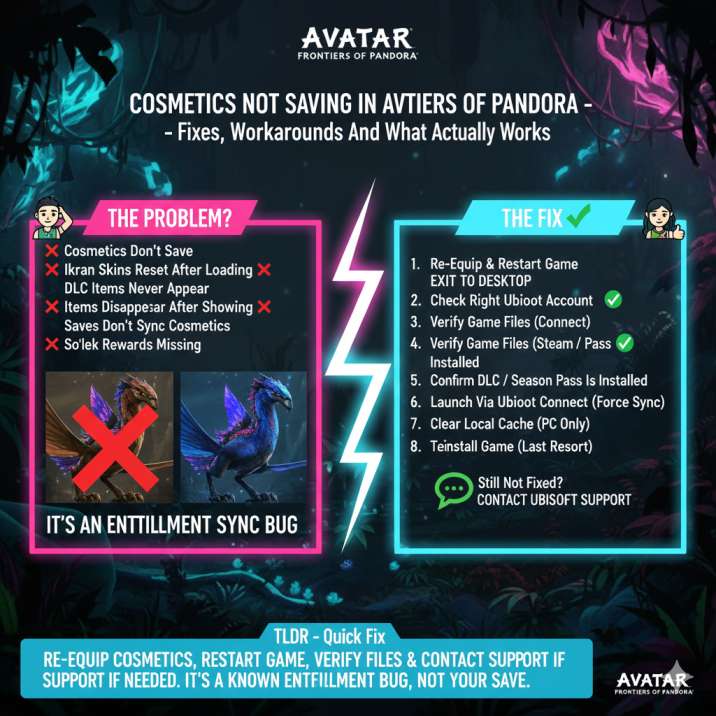
If you’re affected, the problem usually shows up in one (or several) very specific ways. Players commonly report things like:
- Cosmetics don’t save after equipping, even though the game confirms the change
- Ikran skins resetting after loading a save, fast traveling, or restarting the game
- DLC cosmetics never appearing at all, despite being installed or purchased
- Items briefly showing up, only to disappear again a few minutes later
- Cosmetics working on a new save, but refusing to appear on your main or long-running save
- So’lek or Season Pass rewards missing, even though they should unlock automatically
If any of that sounds familiar, you’re not dealing with a random glitch or user error—you’re running into the same cosmetic bug affecting a lot of other players.
Why Cosmetics Aren’t Saving (The Real Reason)
Most cosmetic issues in Avatar: Frontiers of Pandora come down to entitlements not syncing properly.
Cosmetics in the game aren’t just stored in your save file. They’re tied to your Ubisoft account entitlements, which the game checks every time it launches or loads a save. If that check fails—even briefly—the cosmetic won’t show up, no matter how many times you re-equip it or restart the mission.
This is why some fixes feel inconsistent and others seem pointless:
- Reinstalling sometimes does nothing, because the issue isn’t local files
- New saves can show the cosmetic, while older saves don’t load it correctly
- Ubisoft Support can “fix it instantly”, because they’re restoring the entitlement on their end
In other words, the game doesn’t think you own the item—even though you absolutely do.
Fixes to Try Cosmetics Not Saving in Avatar: Frontiers of Pandora
1. Re-Equip and Restart (Most Common Fix)
Yeah, it sounds almost too simple—but this fix works more often than it should.
Start by equipping the cosmetic again, even if it already looks selected. Once that’s done, fully exit to desktop (don’t just back out to the main menu or suspend the game). After that, relaunch the game and load back in.
- If it works: the issue was caused by a UI refresh or local cache glitch, and you’re good to go.
- If it doesn’t: don’t waste time repeating it—move on to the next fix below, because the problem runs deeper than the UI.
2. Make Sure You’re on the Right Ubisoft Account
This one trips up more players than you’d expect, especially if you’ve ever used multiple Ubisoft or platform accounts.
Double-check that you’re logged into:
- The same Ubisoft account that originally purchased or unlocked the cosmetic
- The same platform account (Steam, PlayStation, or Xbox) used for that purchase
If you’re logged into a different account—even by accident—the game won’t recognize the cosmetic at all. Unfortunately, cosmetics do not transfer between accounts, even if everything else looks correct.
3. Verify Game Files
Sometimes the problem isn’t the cosmetic itself—it’s missing or partially installed game or DLC files. When that happens, the game simply can’t load the cosmetic, even if you own it.
- Steam: Right-click the game → Properties → Installed Files → Verify
- Ubisoft Connect: Use the Repair option for the game
This process checks for missing or corrupted files and re-downloads anything that didn’t install correctly. It’s a quick step, but it fixes more cosmetic issues than you’d expect.
4. Confirm DLC / Season Pass Is Installed
Go to your platform’s store page and double-check the basics, even if you’re sure everything should already be there. Cosmetic issues often come down to DLC not being fully recognized by the platform or the game itself.
Make sure that:
- The DLC is marked as Installed, not just owned
- No downloads are stuck, paused, or pending in the background
- Redemption actually completed, which is especially important for physical editions, bonus codes, or Season Pass vouchers
In some cases, the store shows the DLC as owned, but the files never finish installing correctly. If anything looks off, try restarting your platform, rechecking the store page, and letting it fully sync before launching the game again.
5. Launch the Game Through Ubisoft Connect
Even if you purchased the game on Steam or another platform, make sure you launch it directly through Ubisoft Connect at least once. This step forces the launcher to perform a fresh entitlement check against your Ubisoft account.
In some cases, launching through shortcuts or third-party launchers can skip or delay that check, which is exactly what causes cosmetics to go missing. Starting the game from Ubisoft Connect ensures the game properly verifies what you own before loading your save. Once everything syncs correctly, you can go back to launching the game however you prefer.
6. Clear Local Cache (PC Players)
If you’re playing on PC, clearing the local cache is worth trying—especially if the cosmetic keeps disappearing even though you know you own it.
Start by fully closing the game, then completely exit Ubisoft Connect (make sure it’s not still running in the system tray). Once that’s done, clear the Ubisoft cache folders on your system. This removes old or corrupted data that can interfere with entitlement checks.
After clearing the cache, restart Ubisoft Connect and relaunch the game. This forces the launcher to perform a fresh entitlement sync, which can make missing cosmetics reappear if the issue was cache-related.
7. Test a New Save
This step is more of a diagnostic check, but it’s extremely useful for narrowing down the cause of the problem.
Create a brand-new save and play far enough to access the cosmetic menu. If your missing cosmetics appear there but still refuse to show up on your main save, that tells you two important things right away:
- Your account and purchases are fine
- Your main save isn’t loading cosmetics correctly
That confirmation is important, because it means this is not a purchase or payment issue. It’s a save-side or entitlement loading problem, which helps determine what to do next—and what to tell Ubisoft Support if you need to contact them.
8. Reinstall (Last Resort)
Only try this step if nothing else above has worked. Reinstalling takes time, and while it can help in certain cases, it isn’t a guaranteed fix—especially if the problem is entitlement-related.
Before uninstalling, make sure you back up your saves, particularly if you’re on PC. Once the game is reinstalled, let all updates and DLC fully download before launching it again. Reinstalling can resolve corrupted files or installation errors, but keep in mind it won’t fix server-side entitlement issues by itself. If the cosmetic is still missing afterward, support intervention is usually required.
Still Not Fixed? This Is Where Ubisoft Support Comes In
If you’ve worked through all the fixes above and the cosmetic still refuses to show up, this is almost certainly a server-side entitlement issue. At that point, there’s nothing more you can do locally—no amount of restarting, reinstalling, or re-equipping will force the game to recognize something it thinks you don’t own.
Here’s the good news, though: Ubisoft Support can fix this. Once they verify your purchase or unlock, they can manually restore the missing cosmetic to your account. This isn’t a rare exception either—players report that support regularly resolves these cases once ownership is confirmed, making this the most reliable fix when everything else fails.
Is This a Known Issue?
Yes—this is a known and widely reported issue. Players have been running into it since launch, and it has a habit of resurfacing after certain events, including:
- Title updates and patches
- DLC or Season Pass installs
- Save syncing between sessions or platforms
- Logging in or out of Ubisoft accounts
The upside is that this problem is cosmetic only. Your gameplay, stats, gear effectiveness, and overall progress aren’t affected. It’s annoying and immersion-breaking, but it won’t break your save or lock you out of content.
Will This Ever Be Fully Fixed?
Updates have definitely helped reduce how often this bug shows up, but it hasn’t been completely eliminated. Cosmetic issues still pop up from time to time, especially after major patches, DLC releases, or account-related changes.
Until Ubisoft adds a proper manual “resync entitlements” option—either in-game or through Ubisoft Connect—contacting support remains the most reliable solution when cosmetics refuse to stick. It’s not the most convenient answer, but for now, it’s the one that consistently gets missing cosmetics restored.
Quick FAQ
Why do my cosmetics keep resetting?
Because the game sometimes fails to properly load your cosmetic entitlements when launching or loading a save, causing owned items to disappear or reset.
Do I lose cosmetics if I reinstall the game?
No. Cosmetic purchases are tied to your Ubisoft account, not your save file, so reinstalling the game won’t remove items you own.
Can Ubisoft actually restore missing cosmetics?
Yes—and in most cases they do. As long as you can provide proof of purchase or unlock, support can manually restore the missing cosmetics to your account.
Are Ikran skins affected more than other cosmetics?
Yes. Ikran skins are among the most commonly reported items to go missing or reset, especially after updates or save reloads.
Bottom Line
If cosmetics aren’t saving in Avatar: Frontiers of Pandora, it’s definitely frustrating—but the good news is that it is fixable.
Start with the quick, local fixes first, since those solve a lot of cases without any extra hassle. If the problem keeps coming back or nothing sticks, reaching out to Ubisoft Support is the most reliable next step—they can restore missing cosmetics once ownership is verified.
Annoying bug? Absolutely.
Permanent damage to your save or purchases? Nope.
Read more articles: