
You finally get your Na’vi looking perfect, load back into the game… and your body paint is gone. Again.
If body paint keeps disappearing in Avatar: Frontiers of Pandora, you’re definitely not alone. A lot of players have been running into this issue where body or face paint unequips whenever they load a save, fast travel, enter co-op, or even just move to a new area. It’s annoying, it breaks immersion, and constantly reapplying it gets old fast.
The good news? This isn’t something you’re doing wrong — and in most cases, it can be fixed. This issue is tied to how the game handles cosmetic loading, cloud saves, and account syncing, not your character or your progress.
Plenty of players have reported the same behavior across PC and console, especially after longer play sessions or switching activities.
While it’s frustrating to deal with, understanding why it happens makes it much easier to fix and helps you avoid wasting time reapplying body paint over and over again.
Read also: Avatar Frontiers of Pandora Flickering : Solved
What’s Actually Causing Body Paint to Disappear?
The Avatar Frontiers of Pandora body paint disappearing bug usually comes down to a handful of technical issues happening behind the scenes, not anything you’re doing wrong with customization. In Avatar: Frontiers of Pandora, cosmetics like body and face paint rely on save data, account syncing, and session state. When any of those systems hiccup, paint is often the first thing to break.
Cloud Save Desync (Most Common)
If you’re using cloud saves, the game can sometimes load an older version of your save that simply doesn’t remember your cosmetic choices. That’s why your body paint looks fine one moment, then vanishes after a reload, fast travel, or relaunch. It’s not being “removed” — it’s just never loading in properly.
Entitlement Sync Issues
This one shows up a lot for players who:
- Switched platforms
- Bought the game on Steam after playing elsewhere
- Use cross-progression
In these cases, the game briefly forgets you’re “allowed” to use certain cosmetics and strips them on load.
Scene & Co-op Transitions
Fast travel, entering co-op, or leaving multiplayer can also reset cosmetics. The paint may still appear equipped in menus, but it won’t show on your character in-game, making it feel like it vanished for no reason.
Read also: Cosmetics Not Saving in Avatar: Frontiers of Pandora: Solved
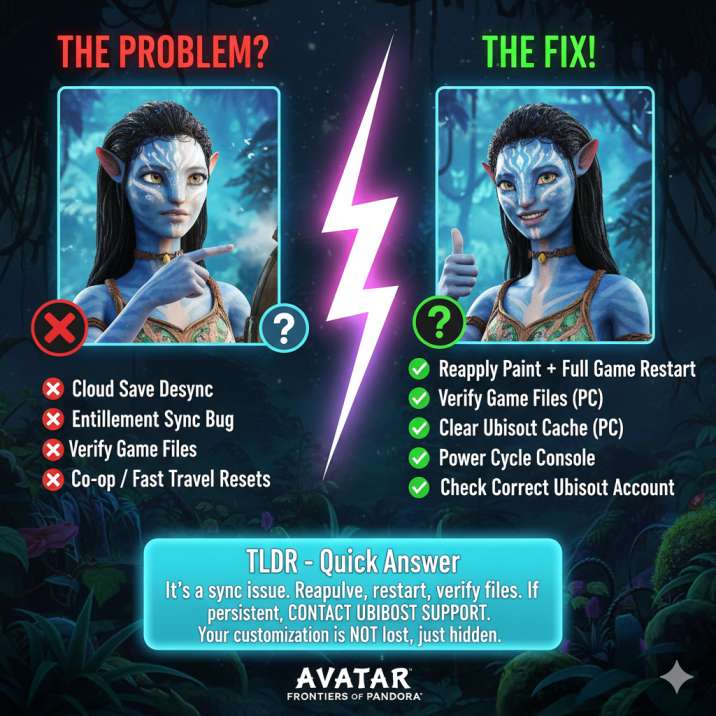
Quick Fix You Can Try Right Now
This won’t always be a permanent solution, but it does work for a lot of players and is the fastest thing you should try before digging deeper. In Avatar: Frontiers of Pandora, cosmetic data doesn’t always reload cleanly, especially after long sessions or multiple area transitions.
Start by reapplying your body paint in the customization menu and make sure it visibly shows on your character. Next, fully quit the game — don’t just return to the main menu or suspend the session. Close the application completely so it forces a fresh reload. Then relaunch the game and load your save as normal.
If your paint comes back after doing this, that’s a strong sign you’re dealing with a temporary load or sync issue rather than a broken or corrupted save. It may still reoccur later, but at least you’ll know your progress is safe and the issue is fixable.
Fixing Cloud Save Problems (Worth Doing)
If body paint keeps disappearing every single time you load in, cloud saves are the next thing you’ll want to check, as they’re the most common cause of this issue in Avatar: Frontiers of Pandora. When the game pulls the wrong version of your save from the cloud, it can forget cosmetic choices like body or face paint.
When you see a prompt, always choose Download Cloud Save instead of using a local version. If the sync fails or hangs, retry until it fully completes — partial syncs can cause the same problem to repeat. Once the cloud save is successfully downloaded, reapply your body paint, manually save, fully quit the game, then reload your save to check if it sticks.
Some players have also reported success by temporarily disabling cloud saves, saving locally, then turning cloud saves back on so the game re-uploads a clean, updated save.
Read also: What Is the Path of Temrey in Avatar: Frontiers of Pandora?
PC / Steam Fixes That Actually Help
If you’re on PC — especially if you’re playing through Steam — these fixes are genuinely worth trying and have helped a lot of players dealing with cosmetics disappearing in Avatar: Frontiers of Pandora. PC setups rely heavily on background services like Ubisoft Connect, and when those don’t sync properly, cosmetic data like body paint is often the first thing to break.
Start by verifying your game files through Steam. This checks for missing or corrupted files that could prevent cosmetic data from loading correctly. Next, fully sign out of Ubisoft Connect, not just minimize it, then sign back in. This forces a fresh account and entitlement check. Finally, restart Ubisoft Connect completely before launching the game again to ensure it initializes correctly.
Together, these steps push the game to revalidate your cosmetic entitlements and save data, which can stop body paint from unequipping every time you load in.
Console Players: Do This
If you’re playing on console and body paint keeps disappearing in Avatar: Frontiers of Pandora, these steps may sound basic, but they fix more sync-related issues than you’d expect. Console systems tend to cache session data aggressively, and that can interfere with how cosmetics load between saves and scene transitions.
First, fully power off your console — don’t use rest mode or quick resume. Shut it down completely so the system clears cached data. Next, make sure your system software is fully up to date, as outdated firmware can cause background sync issues with online services. Finally, double-check that you’re logged into the correct Ubisoft account linked to your save and progression.
It sounds simple, but a full power cycle combined with the right account login often clears cosmetic sync problems that keep body paint from showing correctly.
Read also: Cosmetics Not Saving in Avatar: Frontiers of Pandora: Solved
When Nothing Works (And Why That Happens)
If Avatar Frontiers of Pandora body paint disappears every single time you load in, no matter how many restarts, cloud sync attempts, or file checks you do, the issue is almost always on Ubisoft’s end rather than yours. At that point, you’ve effectively ruled out local saves, temporary loading bugs, and platform-specific hiccups.
In these cases, the problem is usually a broken entitlement or account sync tied to your Ubisoft account. When that happens, the game no longer correctly recognizes that you’re allowed to use certain cosmetics, so it quietly removes them every time a save is loaded. Unfortunately, this isn’t something players can fix on their own.
That means only Ubisoft Support can resolve it by manually resyncing or repairing your account entitlements. Once that’s done, body paint should finally stay equipped as intended.
How to Contact Ubisoft (And Get It Fixed Faster)
When you reach the point where only Ubisoft Support can fix the issue, providing the right information upfront can make a big difference in how quickly it gets resolved. The clearer your ticket is, the less back-and-forth you’ll have to deal with. In Avatar: Frontiers of Pandora, body paint issues are often tied to account entitlements, so being specific really helps.
When submitting a ticket, clearly mention “Body paint disappearing after loading” in the subject or opening line so it’s immediately understood as a known cosmetic issue. Include your platform, whether that’s Steam, PS5, or Xbox Series X, and note if you use cloud saves or cross-progression. Also explain exactly when the paint disappears, such as after loading a save, fast traveling, or leaving co-op.
Players who provide these details upfront often see the issue resolved faster once Ubisoft resets or repairs their entitlements.
Read also: Hairstyles Not Showing in Avatar: Frontiers of Pandora? Solved
Is This a Known Issue?
Yes. The Avatar Frontiers of Pandora customization bug affecting body paint and other cosmetics has been widely reported by players ever since the game launched. Across forums, social media, and community discussions, many players have shared similar experiences of body or face paint disappearing after loading saves, fast traveling, or switching platforms. The issue appears most often among players who use cloud saves, cross-progression, or who moved between PC and console versions of Avatar: Frontiers of Pandora.
While post-launch patches have fixed several cosmetic and UI-related problems, this specific issue hasn’t been fully eliminated and still pops up for some players. That’s why you’ll continue to see new reports even after updates. The important thing to know is that this isn’t a rare or isolated bug, and Ubisoft is already familiar with it, which helps when seeking support.
Final Take
If your body paint keeps vanishing in Avatar: Frontiers of Pandora, the most important thing to remember is that you’re not doing anything wrong. This isn’t a mistake with your character, your save, or how you’re playing the game. In most cases, the problem comes down to cloud save issues or entitlement syncing problems that cause cosmetics to fail when the game loads.
Temporary fixes do exist, like restarting the game, reapplying body paint, or forcing a cloud sync, and these can get you back into the game quickly. However, if the issue keeps happening over and over, reaching out to Ubisoft Support is often the only permanent solution.
Annoying? Absolutely. But at least now you understand why it’s happening, what steps to try first, and when it’s time to escalate it so you can get back to exploring Pandora without constantly fixing your look.
Read more articles: