
So you fire up Hytale, connect your shiny 4K monitor, and… your FPS immediately falls off a cliff.
You dig through the settings looking for a simple 1920×1080 resolution option — and it’s just not there.
If that’s you, don’t worry. You’re not missing anything — and you’re definitely not alone.
This is a super common situation, especially for players using high-resolution monitors or MacBook setups with external displays. Hytale automatically matches your screen resolution, which means it often runs at full 4K by default. While that looks great on paper, it can seriously hurt performance if your system isn’t built to push that many pixels smoothly.
Here’s the straight-up answer, followed by the best real solutions that actually work. No guesswork, no fake config tweaks, and no wasted time — just the practical ways players are actually fixing low FPS and getting Hytale to run closer to a smooth 1080p experience right now.
The Short Answer : Manually Change Resolution in Hytale
No — Hytale does not currently let you manually set a resolution like 1920×1080 through its in-game settings.
There’s no classic resolution dropdown, no hidden config file trick, and no reliable launch option that lets you hard-lock the game to 1080p. If you’ve been searching for a width-and-height setting or a secret tweak buried in the game files, you can stop — it simply doesn’t exist right now.
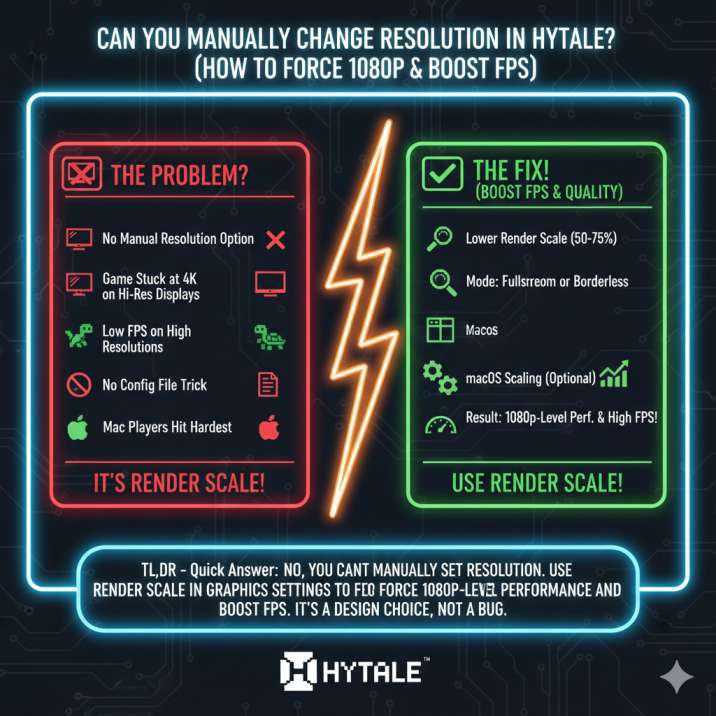
But — and this is the important part — that doesn’t mean you’re stuck with terrible performance.
You can still force 1080p-level performance and get a very noticeable FPS boost by using the tools Hytale already provides. The game is designed around internal rendering adjustments rather than manual resolution switching, which means performance fixes are still very much possible. You won’t get a true native 1080p toggle, but you can dramatically reduce GPU load, smooth out gameplay, and make Hytale feel far more playable, especially on 4K monitors or MacBook setups.
Why Hytale Feels “Stuck” at 4K in Hytale
Hytale automatically matches your display’s resolution when it launches. If you’re playing on a 4K monitor — which is especially common with MacBook + external display setups — the game will default to rendering at full 4K.
That’s where the problem starts.
Instead of offering manual resolution options like 1920×1080, Hytale relies on Render Scale. Render Scale controls how many pixels the game renders internally before scaling the image up to your screen’s resolution. In other words, the game cares less about output resolution and more about internal rendering resolution.
Because of this design choice:
- You don’t see traditional resolution options in the settings
- Performance can drop sharply on high-resolution monitors
- Mac players tend to feel the impact more than most, especially on 4K displays
Nothing is technically “broken” — but without adjusting render scale or display behavior, Hytale can easily feel locked at 4K and unnecessarily demanding on your hardware.
Read also: How to Get Chalk Bricks in Hytale ?
The Best Way to Force 1080p Performance in Hytale (This Is the One)
✅ Lower the Render Scale
This is the intended and most reliable solution in Hytale, and it’s the method most players end up using — whether they realize it or not.
On a 4K display, Hytale renders far more pixels than necessary for smooth gameplay. Render Scale lets you dial that back without needing a manual resolution option.
Here’s how it breaks down:
- 100% render scale = full 4K rendering
- 50% render scale ≈ 1080p internal resolution
What to do:
- Open Settings
- Go to Video / Graphics
- Lower Render Scale to 50–75%
- Apply the changes
That’s it. No restart tricks, no file edits, no mods.
Once you do this, you’ll immediately notice:
- A big FPS boost
- Lower GPU usage
- Slight visual softness compared to true native 1080p, but still very playable and smooth
For most players — especially those on 4K monitors or MacBook setups — this single setting completely fixes the problem and makes Hytale feel how it’s meant to play.
Still Want More FPS in Hytale? Try These Extras
If lowering render scale isn’t quite enough, these extra tweaks can help squeeze out even more performance — especially if you’re playing Hytale on a 4K monitor or a MacBook setup.
🖥️ Run Windowed or Borderless Window
Instead of fullscreen, try running Hytale in Windowed or Borderless Window mode and resize the game window to around 1920×1080.
Why this works:
- Smaller window = fewer pixels to render
- Reduced GPU load
- Smoother FPS on high-resolution displays
This is a simple way to force 1080p-style performance in Hytale without changing system settings, and it’s especially useful if Hytale feels stuck at 4K in fullscreen mode.
🍎 macOS Display Scaling (Optional but Effective)
If you’re playing Hytale on macOS with a 4K external monitor, system-level scaling can make a big difference.
Here’s how to do it:
- Open System Settings → Displays
- Select your 4K monitor
- Hold Option and click Scaled
- Choose “Looks like 1920×1080”
This forces macOS to run at a lower effective resolution, which in turn helps boost FPS in Hytale, reduce stuttering, and prevent unnecessary 4K rendering. It’s one of the most effective fixes for Hytale low FPS on MacBook M1/M2 systems.
Used alongside render scale, these tweaks can make Hytale feel dramatically smoother without mods, config edits, or unsupported workarounds.
Read also: What to Do With Sapphire in Hytale (And Is Silver Better Than Cobalt?)
What Doesn’t Work (Save Yourself the Time)
Let’s clear this up quickly, because a lot of players waste hours chasing fixes that simply don’t exist in Hytale right now.
These methods will not let you manually change resolution or force true 1080p:
- ❌ Editing config files to force resolution
- ❌ Using launch options like
-widthor-height - ❌ Reinstalling the launcher or the game
- ❌ Toggling fullscreen, borderless, and windowed modes endlessly
None of these tricks unlock a hidden resolution setting, and none of them override Hytale’s display behavior. There’s currently no supported, secret, or undocumented way to manually lock Hytale to 1920×1080 using files or launch commands.
If you see posts claiming otherwise, they’re either outdated, platform-specific guesses, or straight-up misinformation. For now, performance improvements come from render scale, window size, or system-level display scaling — not manual resolution overrides.
Best Settings for 4K Monitors (Quick Setup)
If you just want a smooth, no-nonsense experience in Hytale without spending time tweaking every option, this setup works for the vast majority of players using 4K displays.
Recommended settings:
- Render Scale: 50–75% (this is the biggest FPS boost and effectively mimics 1080p performance)
- Display Mode: Fullscreen or Borderless Window
- macOS Display Scaling: Only enable a 1080p-scaled mode if FPS is still low after lowering render scale
This configuration gives you the best balance of performance and visual clarity right now. You avoid the heavy GPU load of full 4K rendering while keeping the game sharp enough to enjoy, especially on larger monitors or MacBook + external display setups.
FAQ – Hytale Resolution & Performance
Can you manually change resolution in Hytale?
No. Hytale does not currently include a native resolution selector like 1920×1080 in its settings.
Is Hytale stuck at 4K?
Only if you’re using a 4K display. The game automatically detects your monitor’s resolution and renders accordingly by default.
Does render scale really equal 1080p?
On a 4K monitor, yes. Setting render scale to around 50% is roughly equivalent to 1080p internal rendering in terms of performance impact.
Is this a bug or performance issue?
No. This behavior is a design choice, not a glitch or error with the game.
Will proper resolution options be added later?
Very likely. Resolution controls and accessibility settings are frequently requested, but there’s been no official confirmation or timeline yet.
Final Take
If you’re trying to force 1080p in Hytale, here’s the honest truth — no fluff, no myths:
- You can’t manually set resolution
- You can absolutely fix your FPS
- Render Scale is the key setting
- Everything else is optional fine-tuning
Hytale isn’t broken, and your setup isn’t doing anything wrong. The game is simply built around internal rendering instead of traditional resolution controls. Once you adjust render scale (and optionally tweak windowed mode or macOS scaling), performance issues on 4K and high-resolution monitors mostly disappear.
Until Hytale adds native resolution options, this remains the cleanest, fastest, and most reliable way to play smoothly, especially if you’re running a 4K monitor or a MacBook with an external display.
Read also: