
If you’re using two computers—like a work laptop and a personal PC—switching between them can get annoying fast. That’s where the Best Monitors with KVM Switch for Dual PC Setup come in.
A built-in KVM switch (Keyboard, Video, Mouse) lets you control multiple devices using a single keyboard and mouse, all through one monitor. No unplugging cables, no extra accessories—just press a button and switch instantly.
These monitors are perfect for remote workers, developers, traders, and multitaskers who constantly move between systems. Instead of cluttering your desk with multiple peripherals, you get a clean, efficient setup that saves both time and space.
When choosing one, it’s worth looking at things like USB-C support, number of inputs, switching speed, display quality (QHD or 4K), and USB hub functionality.
In this guide, we’ll break down the best monitors with built-in KVM switch, so you can easily manage a dual PC setup without the usual hassle.
Read also: Best TV Screen Cleaning Kits (Safe for OLED & LED)
1. Samsung ViewFinity S8 32″ – Perfect for Dual PC Setup with KVM
32″ | 4K UHD | IPS | USB-C (90W) | Built-in KVM
If you’re serious about a dual PC setup, this is exactly the kind of monitor you want in the Best Monitors with KVM Switch for Dual PC Setup category.
The main feature here is the built-in KVM switch. You can connect two devices—like your work laptop and personal PC—and control both using one keyboard and mouse. Just switch, and you’re instantly on the other system. No unplugging anything.
It also supports split screen, Picture-in-Picture, and Picture-by-Picture, so you can even view both systems at the same time if needed.
On top of that, you’re getting a 32-inch 4K IPS display, so everything looks sharp and detailed. Plenty of space for multitasking, coding, editing, or just working comfortably.
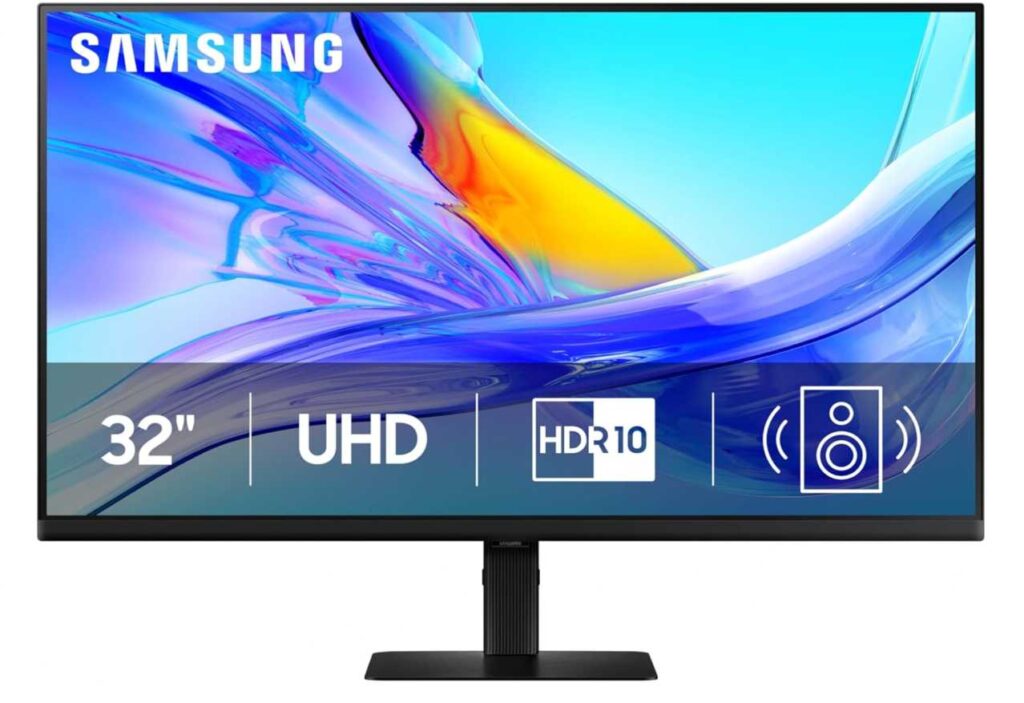
The USB-C with 90W charging is a big plus too. One cable can handle power, display, and data, which makes your setup way cleaner.
You also get built-in speakers, ergonomic adjustments, and eye-care features, so it’s designed for long hours of use.
Why it’s a strong pick
- Built-in KVM switch for dual PC control
- Sharp 4K display with lots of workspace
- USB-C (90W) for single-cable setup
- Multiple viewing modes (PIP/PBP)
- Great for productivity-heavy workflows
Things to keep in mind
- More expensive than basic monitors
- Might be overkill if you don’t need KVM
My take
If you’re constantly switching between two systems, this makes your life way easier. It’s one of those monitors that turns a messy setup into something clean, efficient, and actually enjoyable to use.
2. INNOCN 24.5″ QHD Monitor – Fast, Sharp & Great for Multi-System Setups
24.5″ | QHD (1440p) | IPS | 240Hz
If you’re building a dual PC setup, this INNOCN monitor is a really solid option—especially if you care about both performance and clarity.
The 1440p resolution on a 24.5-inch screen hits a sweet spot. Everything looks sharp, whether you’re working, browsing, or gaming across multiple systems.
Where it really stands out is the 240Hz refresh rate with 1ms response time. It feels super smooth—perfect if one of your systems is for gaming, but even regular tasks like switching apps or scrolling feel faster.
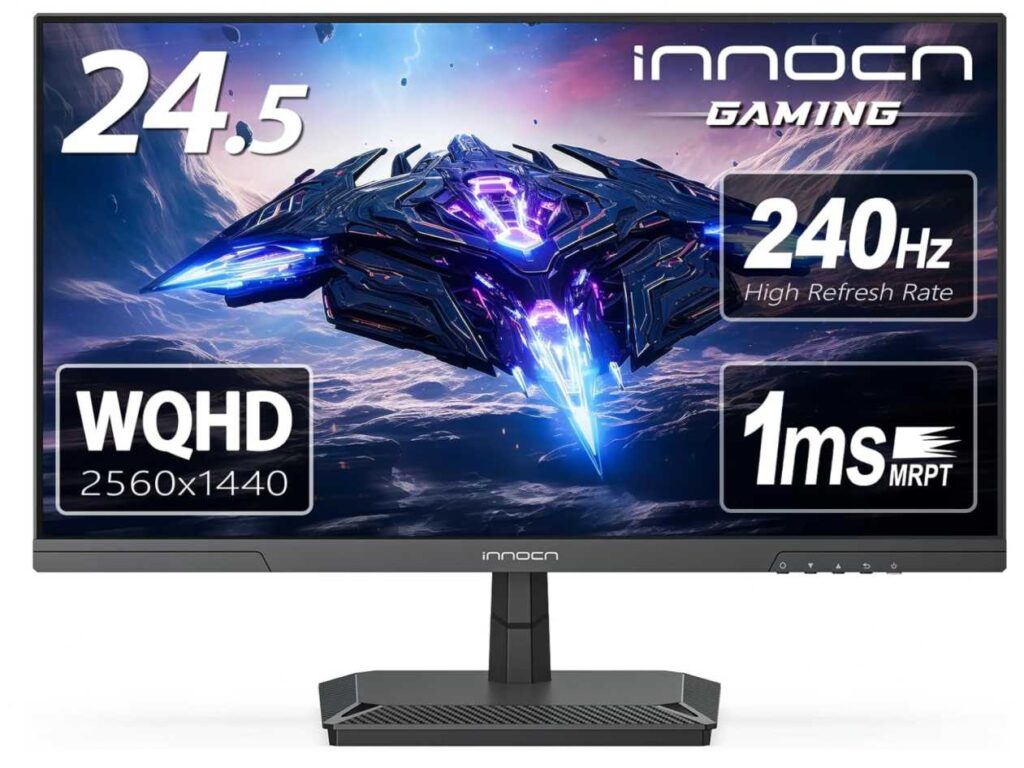
Since it’s an IPS panel with ~99% sRGB, colors look clean and consistent, so it works well for both productivity and entertainment.
It also comes with multiple connectivity options (HDMI 2.1 + DisplayPort), which makes it easy to hook up more than one device and switch between them when needed.
Why it works well for dual setups
- Sharp QHD display for clear visuals
- Ultra-smooth 240Hz performance
- Easy multi-device connection with HDMI & DP
- Good balance of work + gaming performance
Things to keep in mind
- Compact screen size compared to larger monitors
- More focused on performance than extra features
My take
If you want a monitor that handles multiple systems while staying fast and responsive, this is a great pick. It’s one of those options that keeps things smooth whether you’re working or switching over to gaming.
3. Kado Dual 24″ Monitor Setup – Simple & Effective for Dual PC Use
Dual 24″ | Full HD | Curved | 75Hz
If you’re setting up a dual PC workstation, this Kado dual monitor bundle actually makes things really straightforward.
Instead of figuring out how to manage everything on one screen, you get two 24-inch monitors right out of the box. You can dedicate one screen to each system, which honestly feels more natural than constantly switching back and forth.
The 1500R curved design helps a bit with comfort too, especially when both screens are placed side by side—it feels more immersive and easier on your eyes during long sessions.
Each monitor is Full HD, which is fine for everyday work, browsing, trading setups, or even casual gaming. Plus, the 75Hz refresh rate keeps things smooth enough for daily use.

It also covers 100% sRGB, so colors look decent for general tasks, and the built-in speakers help keep your setup clean without extra accessories.
Why it works well for dual PC setups
- Comes as a ready-made dual monitor setup
- Easy to dedicate one screen per system
- Curved design for better viewing comfort
- Clean setup with built-in speakers
Things to keep in mind
- Full HD resolution is basic
- Not as sharp as QHD or 4K options
My take
If you want a simple and practical dual PC setup without overcomplicating things, this is a really good option. It’s more about workflow and convenience than high-end specs, and for most people, that’s exactly what matters.
4. AV Access KVM Switch Dock – Full Control for Dual PC + Dual Monitor Setup
Dual Monitor | USB-C | 4K | KVM Dock
If you’re serious about a dual PC setup, this is the kind of gear that makes everything feel seamless.
Instead of relying only on a monitor’s built-in KVM, this gives you a full KVM dock, so you can connect two laptops and two monitors at the same time and control everything with one keyboard and mouse.
The biggest win here is how easy it makes switching. You just press a button and instantly move between systems—no unplugging, no reconnecting devices.
It also works like a complete docking station, with tons of ports—USB, Ethernet, HDMI—so your whole setup stays connected and organized.
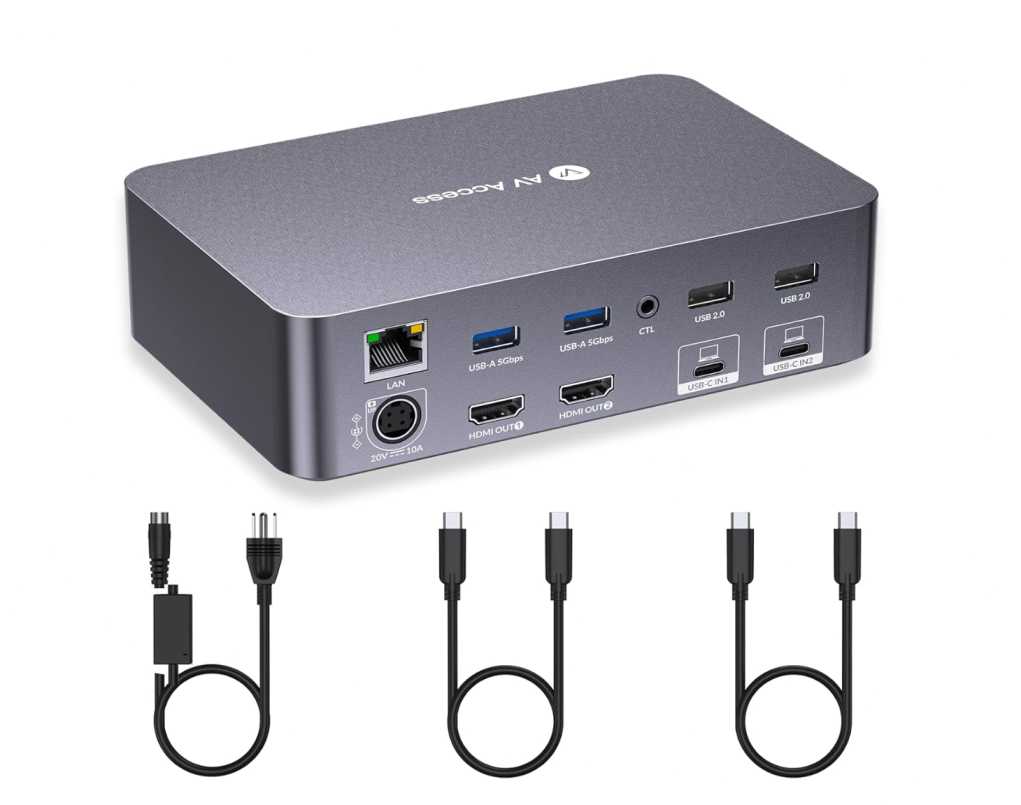
You even get USB-C with 60W charging for each laptop, which means both systems can stay powered while connected.
Performance-wise, it supports 4K, high refresh rates (144Hz/240Hz), so you’re not sacrificing display quality just to get KVM functionality.
Why it’s great for dual PC setups
- True KVM control for 2 laptops + 2 monitors
- Switch between systems in seconds
- Built-in USB-C docking with charging
- Supports high resolution and refresh rates
- Keeps your entire setup clean and centralized
Things to keep in mind
- Takes a bit of setup initially
- macOS has some display limitations with dual screens
My take
If you want a proper dual PC workstation, this is a game changer. It basically turns your setup into one unified system where switching between devices feels effortless.
5. ViewSonic VX3418C-2K 34″ Ultrawide – One Big Screen for Dual PC Workflow
34″ | Ultrawide QHD | Curved | 180Hz
This one is perfect if you like the idea of handling a dual PC setup on a single big screen instead of using two monitors.
The 34-inch ultrawide (21:9) basically gives you the space of two screens side by side. You can easily keep one system on one side and the other on the second half—clean and super efficient.
The 1500R curved design helps everything feel more natural, especially when you’re using the full width for multitasking.
What makes it even better is the 180Hz refresh rate with 1ms response time. So if one of your systems is for gaming, this thing feels really smooth, but even normal work feels faster and more fluid.
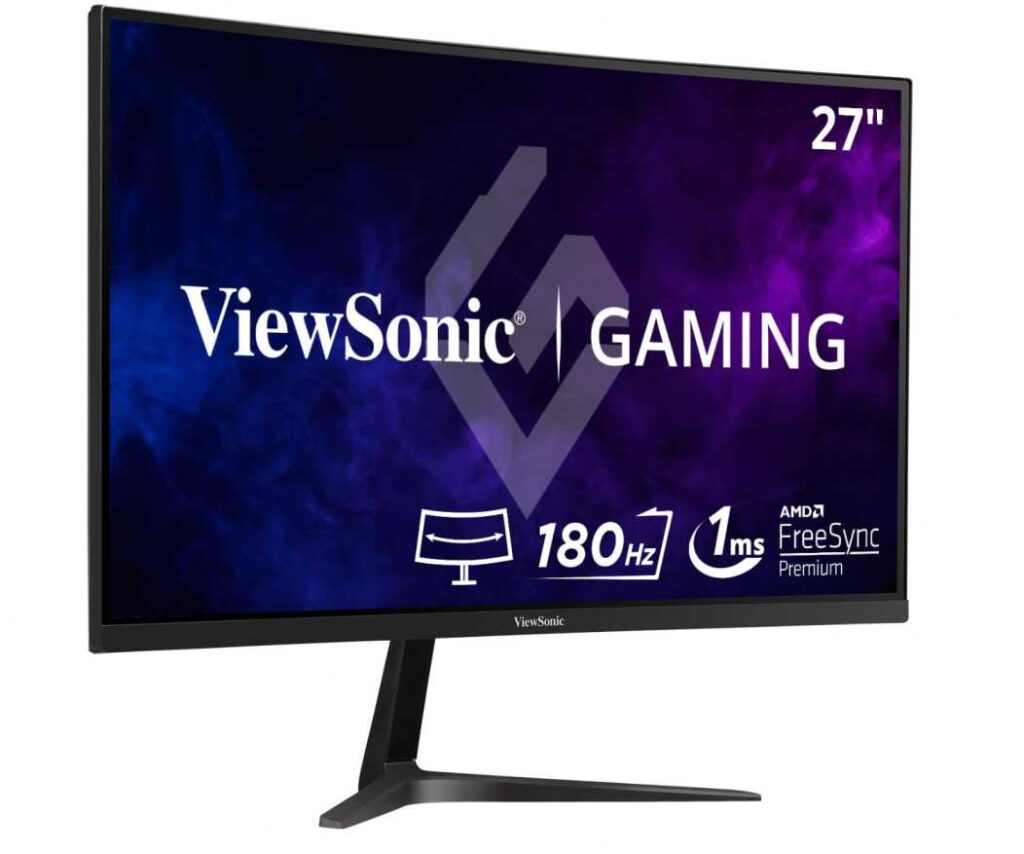
You also get FreeSync Premium and HDR10, so visuals look good whether you’re working, watching content, or gaming.
Why it works well for dual setups
- Ultrawide screen replaces a dual monitor setup
- Easy side-by-side workflow for two systems
- Smooth 180Hz performance
- Curved design for better immersion and comfort
Things to keep in mind
- Takes up more desk space
- You’ll need to manage inputs manually when switching
My take
If you don’t want two separate monitors, this is a great way to handle a dual PC setup on one clean ultrawide screen. It keeps things simple while still giving you plenty of space to work with.
6. CRUA 24.5″ Monitor – Simple, Flexible for Dual Setup
24.5″ | Full HD | 180Hz
So this one is more about keeping things easy and flexible rather than going for anything fancy.
If you’re using two systems, this size actually works really well. You can either pair it with another monitor or just connect multiple devices and switch when needed without overcomplicating your setup.
The best part is the adjustable stand. You can rotate it vertical, move it up/down, tilt it—basically set it however you want. That’s super helpful when you’re juggling between screens or working on long documents.
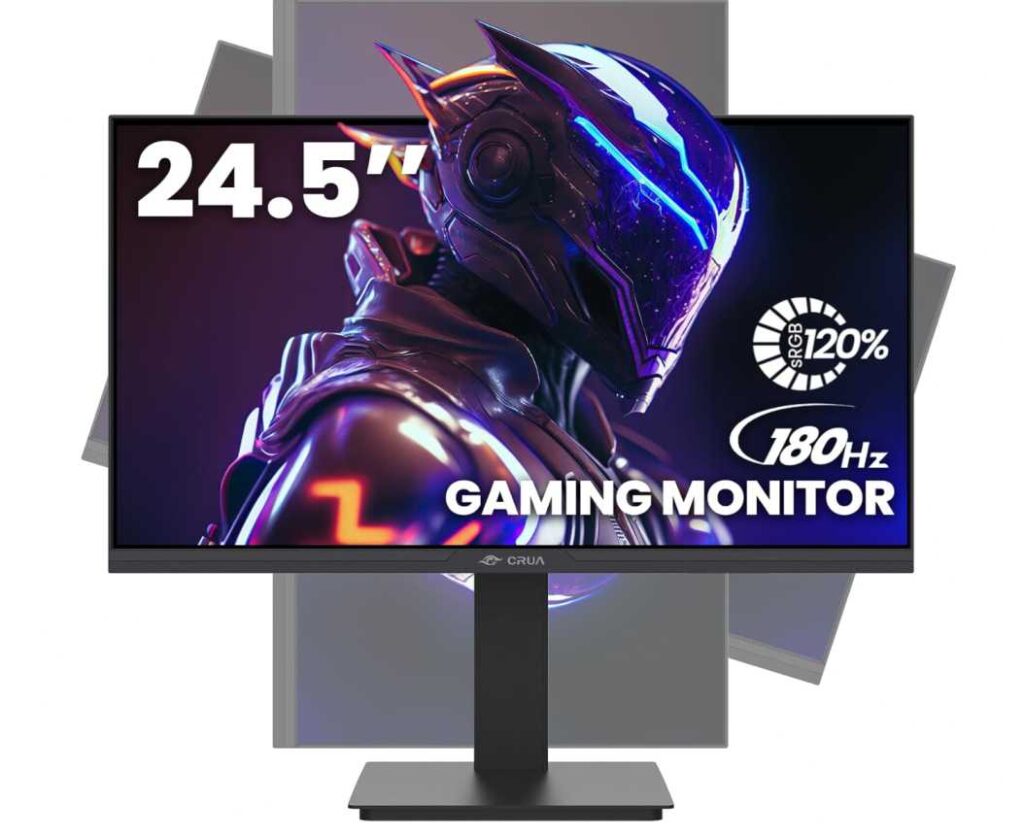
It’s also pretty smooth with up to 180Hz, so everything feels quick—scrolling, switching tabs, even just normal use feels better.
You’ve got HDMI and DisplayPort, so connecting more than one device is straightforward.
What you’ll like
- Easy to fit in a dual monitor setup
- Vertical mode is actually useful
- Smooth enough for everyday use
- Simple multi-device connectivity
Just know this
- Full HD is basic, not super sharp
- More practical than premium
My take
If you just want something that works without overthinking, this is a good pick. It keeps your dual PC setup clean and flexible without costing too much.
Wrapping Up
So yeah, when it comes to the Best Monitors with KVM Switch for Dual PC Setup, it really depends on how you like to work.
Some people prefer a single monitor with built-in KVM, where you just press a button and switch between systems. Others go for ultrawide screens or dual monitor setups, where you can keep both systems visible at the same time.
If you want the cleanest setup, go for something with USB-C + KVM—one cable, less mess, everything just works.
If you care more about screen space, then ultrawide or dual monitors make multitasking feel easier.
And if you’re on a budget, even a simple monitor with multiple inputs can still handle a dual PC workflow pretty well.
At the end of the day, it’s less about specs and more about how smoothly you can switch and work between systems.
Pick the one that makes your setup feel simple, fast, and comfortable to use every day.