
If Subnautica 2 suddenly looks blurry every time you move your camera underwater, you’re not imagining things. A growing number of players are dealing with a frustrating particle ghosting issue that causes bubbles, lighting effects, and underwater particles to leave long streaks across the screen.
The problem appears to affect AMD GPU users the most, especially players using cards like the RX 9070 XT, RX 7900 XTX, and other Radeon GPUs while running TSR upscaling in Subnautica 2.
Thankfully, the community may have already found the best Subnautica 2 particle ghosting fix — and it’s working for a lot of players right now.
Read also: Subnautica 2 Teleport Bug Solved: Why Your Tadpole Keeps Teleporting Back to Base
What Is the Subnautica 2 Particle Ghosting Issue?
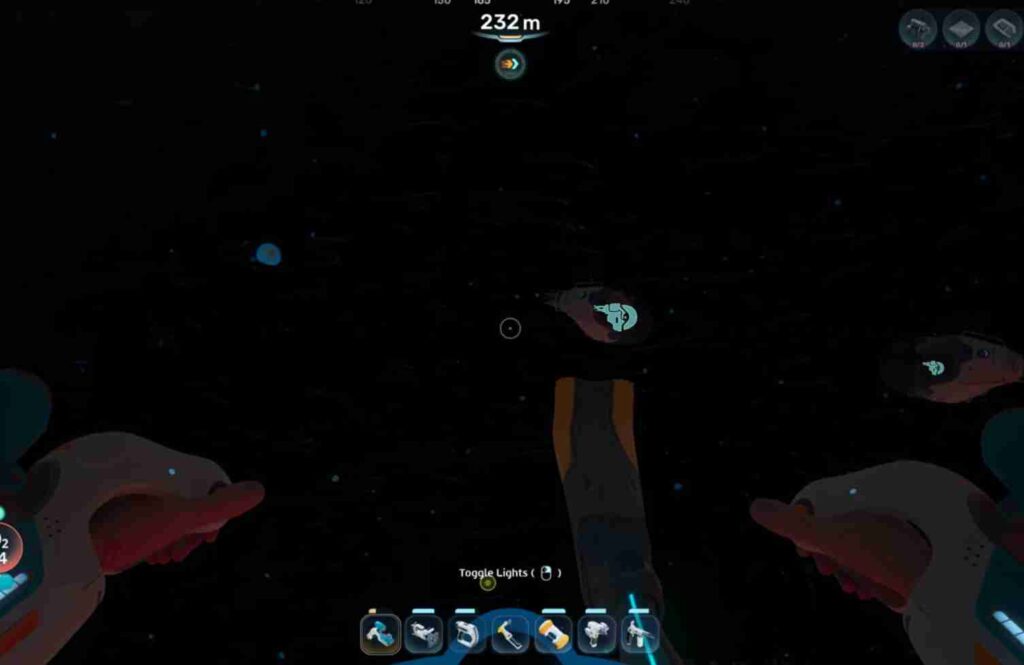
The Subnautica 2 ghosting bug is a visual issue where particles and lighting effects smear or trail behind objects while moving around the environment.
Players commonly report:
- Particle streaking underwater
- Blurry bubbles and lighting
- Heavy ghosting while turning the camera
- Trails following moving particles
- Smearing effects in darker biomes
- Visual blur even after disabling TSR
The issue is heavily connected to Subnautica 2’s TSR (Temporal Super Resolution) implementation and Unreal Engine 5 temporal rendering.
Oddly enough, many users say turning off upscaling inside the game settings doesn’t completely remove the problem, suggesting some temporal reconstruction effects may still remain active internally.
Why Subnautica 2 Ghosting Happens on AMD GPUs
Most community reports point toward AMD graphics cards having the biggest problems with Subnautica 2 particle ghosting.
Affected GPUs mentioned online include:
- RX 9070 XT
- RX 7900 XTX
- RX 7800 XT
- RX 6750 XT
- RX 6000 and RX 7000 series cards
The main reason appears to be that Subnautica 2 currently supports NVIDIA DLSS natively, while AMD users rely more heavily on TSR upscaling.
Unfortunately, TSR in Unreal Engine 5 games can sometimes create:
- Ghosting
- Motion smearing
- Particle trails
- Blurry movement artifacts
This is especially noticeable in underwater environments with dense particles and lighting effects like Subnautica 2.
Best Subnautica 2 Particle Ghosting Fix Right Now
After extensive testing across Reddit, Steam forums, and Discord communities, the most recommended fix is using OptiScaler.
OptiScaler is a free open-source tool that lets AMD GPU users access alternative upscaling methods, including DLSS compatibility layers.
For many players, switching away from TSR entirely removes the streaking and ghosting issue.
How To Install OptiScaler in Subnautica 2
If you want to try the current community fix for Subnautica 2 ghosting, follow these steps carefully.
Step 1: Download OptiScaler
Search for:
“OptiScaler GitHub”
Download the latest release version.
Step 2: Locate Your Game Folder
Open your Subnautica 2 installation folder and go to:
steamapps/common/Subnautica2/Subnautica2/Binaries/Win64
Step 3: Extract the Files
Extract the OptiScaler files directly into the Win64 folder.
Step 4: Run setup_windows.bat
Run:setup_windows.bat
You may need Administrator permissions because Windows SmartScreen sometimes blocks batch files.
Step 5: Rename the DLL File
If it doesn’t happen automatically, rename:
OptiScaler.dll
to:
dxgi.dll
Some installations already do this automatically.
Step 6: Launch Subnautica 2
Start the game normally.
Press:Insert
to open the OptiScaler menu in-game.
Best OptiScaler Settings for Subnautica 2
Most players reporting success are using:
- DLSS Quality
- DLSS Performance
- Frame Generation ON
- Radeon Anti-Lag ON
One important note:
Many users report the “Balanced” DLSS preset can sometimes cause issues or fail to apply properly.
If ghosting still appears, try switching to:
- Quality
- Performance
- Native AA
instead.
Does OptiScaler Actually Fix Subnautica 2 Ghosting?
For many AMD users, yes.
Community reports consistently mention:
- Sharper underwater visuals
- Reduced particle streaking
- Cleaner motion clarity
- Less blur during movement
- Better image stability than TSR
Players using the RX 9070 XT especially seem to report major improvements after switching away from the game’s default TSR implementation.
While results can vary depending on drivers and hardware, OptiScaler currently appears to be the most reliable Subnautica 2 ghosting fix available.
Other Settings That May Reduce Ghosting
If you don’t want to install third-party tools yet, there are still a few in-game tweaks worth trying.
Disable Motion Blur
Set Motion Blur to:0
This alone can noticeably reduce visual smearing.
Turn Off Chromatic Aberration
Chromatic aberration can make ghosting appear even worse during movement.
Use Native AA Instead of TSR
Several players report Native AA causes fewer streaking issues than TSR.
Disable Frame Generation Temporarily
Frame generation can sometimes amplify ghosting artifacts in Unreal Engine 5 games.
Update AMD Adrenalin Drivers
New driver versions occasionally improve temporal rendering and compatibility.
Known Issues With OptiScaler
While OptiScaler is helping many players, it isn’t completely perfect yet.
Some reported issues include:
- UI flickering
- Rare crashes
- Black artifacting
- DLSS preset bugs
- Inconsistent behavior with Balanced mode
Still, most players dealing with severe Subnautica 2 particle ghosting say the tradeoff is worth it.
Will Unknown Worlds Fix the Ghosting Bug?
There’s a good chance.
Subnautica 2 is still in Early Access, and Unreal Engine 5 optimization issues are common during early development builds.
The community is heavily requesting:
- Official AMD FSR support
- Better TSR optimization
- Improved temporal anti-aliasing
- Cleaner particle rendering
Until official patches arrive, though, OptiScaler currently remains the most effective workaround for Subnautica 2 streaking and particle ghosting issues on AMD GPUs.
FAQ
How do I fix particle ghosting in Subnautica 2?
The most recommended fix right now is using OptiScaler to bypass the game’s TSR implementation and use alternative upscaling methods.
Why does Subnautica 2 look blurry underwater?
The blur is usually caused by TSR ghosting, temporal anti-aliasing artifacts, or particle streaking issues in Unreal Engine 5.
Does Subnautica 2 support AMD FSR?
Currently, players report that DLSS is supported natively, but official AMD FSR support appears limited or unavailable.
Is the ghosting issue only affecting AMD GPUs?
No, but AMD users appear to experience it more frequently based on community reports.
Does disabling TSR fix the issue?
Not always. Some users report ghosting still persists even after turning TSR off in the in-game settings.
Is OptiScaler safe to use?
OptiScaler is an open-source community tool available on GitHub. As with any third-party software, download it only from the official source.