
Boot up Battlefield 6, jump into a match, and suddenly your screen looks… wrong. Weird lines, flickering visuals, broken-looking characters — the kind of stuff that makes you pause mid-fight and wonder if your GPU is about to tap out or if a driver just catastrophically failed at the worst possible moment.
Relax. You’re not alone, and your PC probably isn’t dying.
What you’re running into is a known Battlefield 6 DLAA visual glitch, and it’s been catching a lot of PC players off guard lately, especially those running RTX cards with DLAA enabled.
The issue can pop up randomly, stick around longer than it should, and completely ruin immersion if you don’t know what’s causing it. Let’s break down what’s going on, why it happens, and what you can do about it right now before it ruins another match.
What Is the DLAA Visual Glitch in Battlefield 6?
When DLAA is enabled in Battlefield 6, a lot of PC players are running into some pretty noticeable visual issues. The most common problems include:
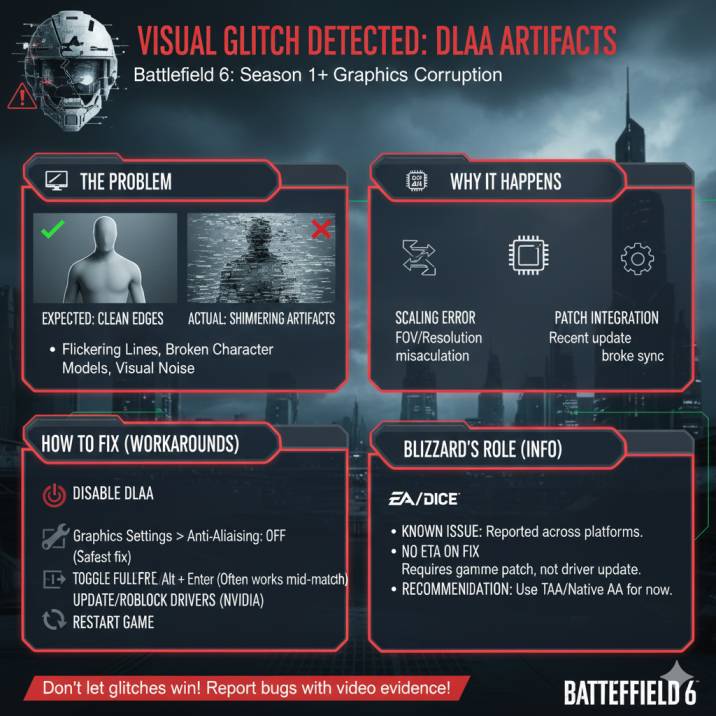
- Shimmering or jagged lines on soldiers, weapons, and gear
- Blocky or sliced-looking character models
- Flickering textures or UI elements that don’t behave normally
- Visual artifacts that refuse to go away until you die or redeploy
What makes this glitch especially frustrating is how random it feels. The game often looks perfectly fine when you first load in, then suddenly breaks mid-match, right after respawning, or when you alt-tab in and out of the game.
If you’ve been searching for terms like “Battlefield 6 DLAA artifacts” or “DLAA visual glitch Battlefield 6,” this is exactly the issue players are talking about — and you’re definitely not the only one seeing it.
Why DLAA Causes Artifacts in Battlefield 6
DLAA (Deep Learning Anti-Aliasing) is NVIDIA’s AI-powered anti-aliasing method, designed to deliver cleaner edges and sharper visuals than traditional options. Unlike basic AA techniques, DLAA relies heavily on temporal data — information pulled from previous frames — to intelligently smooth out the image you see on screen.
Here’s where Battlefield 6 runs into trouble.
Right now, the game doesn’t always sync cleanly with DLAA’s temporal data. When that information gets even slightly out of alignment, DLAA starts reconstructing visuals incorrectly. The result is a mix of:
- Corrupted frame history
- Misaligned motion data
- Visual elements being rebuilt in the wrong place
That’s why the bug behaves the way it does. The artifacts often look consistent or repeatable, dying or redeploying can temporarily fix the issue, and toggling fullscreen can instantly clear the glitch. In short, this isn’t user error — it’s a DLAA integration bug, likely introduced or made worse by a recent update.
How to Fix DLAA Artifacts in Battlefield 6
There’s no official fix yet, but these workarounds are helping most players deal with the issue until a proper patch arrives.
Quick Fixes (Try These First)
- Disable DLAA
Head to Graphics Settings → Anti-Aliasing → Turn DLAA OFF.
This is easily the most reliable fix right now and completely stops the visual artifacts for most players. - Die and Redeploy
Not exactly convenient, but dying and redeploying often resets the visual glitch during a match and clears the artifacts temporarily. - Toggle Fullscreen
Press Alt + Enter to switch fullscreen modes.
It sounds simple, but this trick has been surprisingly effective at instantly clearing the glitch for a lot of players experiencing DLAA artifacts in Battlefield 6.
Additional Things Worth Trying
If the quick fixes don’t fully solve the problem, these extra steps are worth testing as well.
- Switch to TAA or Native AA
You’ll lose a bit of sharpness compared to DLAA, but these options are far more stable and won’t introduce the same visual artifacts. - Update or Roll Back NVIDIA Drivers
Some driver versions seem to make the DLAA bug worse. If the issue started recently, rolling back to a previous NVIDIA driver can help reduce or eliminate the glitches. - Restart the Game
A full restart can temporarily clear the visual artifacts. Just keep in mind that the glitch may return later, especially if DLAA is still enabled in Battlefield 6.
Is EA Aware of the Battlefield 6 DLAA Bug?
Yes — EA is aware of the issue. Multiple threads on the EA forums confirm that the Battlefield 6 DLAA artifacts bug is reproducible and not limited to a single setup.
Players have consistently reported that:
- The DLAA artifacts can be reliably reproduced
- The issue affects different NVIDIA RTX GPUs
- The problem started appearing after recent game patches
So far, EA hasn’t shared an official fix timeline. That usually suggests this isn’t something that can be solved purely with a driver update and will instead require a game-side patch for Battlefield 6 to properly resolve the DLAA visual glitch.
Should You Use DLAA in Battlefield 6 Right Now?
Honestly? Probably not.
Until EA patches the issue, DLAA just isn’t worth the risk. The visual glitch can pop up mid-match without warning, visual clarity takes a hit at the worst possible moments, and competitive play suffers when you’re fighting the graphics as much as the enemy team.
If you want a smoother, more reliable experience in Battlefield 6, you’re better off sticking with TAA or native anti-aliasing for now. Once EA rolls out a proper fix, DLAA will be worth revisiting — but until then, stability beats sharpness every time.
FAQ: Battlefield 6 DLAA Artifacts
Is DLAA broken in Battlefield 6?
Not completely, but it’s currently buggy and causes visual glitches for many players.
Is this an NVIDIA driver problem?
Drivers can influence it, but the core issue appears to be how Battlefield 6 handles DLAA.
Will EA fix the DLAA visual glitch?
Most likely, yes — but it’ll require a game update.
Does this happen on all PCs?
It mainly affects NVIDIA RTX GPUs, since DLAA is exclusive to them.
The Bottom Line
- The Battlefield 6 DLAA artifacts bug is real
- There’s no permanent fix yet
- Disabling DLAA is the safest workaround
- EA needs to patch the game to fully solve it
If your Battlefield 6 visuals look busted with DLAA turned on, it’s not your setup — it’s the game. Turn it off for now, keep an eye on updates, and you’ll save yourself a lot of frustration.