
Players using a mouse and keyboard setup on PS5 Pro are reporting a serious issue in Battlefield 6 — rapid mouse flicks cause the aim to rebound or move in the opposite direction, making precise aiming nearly impossible.
✅ Quick Summary:
This isn’t a hardware problem — the Battlefield 6 PS5 mouse input bug originates from an internal acceleration filter that mishandles high-speed input packets on consoles. Other PS5-supported games like Modern Warfare (2019) or Arma Reforger don’t show the issue, confirming it’s game-specific to Battlefield 6.
Why Battlefield 6 Mouse Input Is Broken on PS5
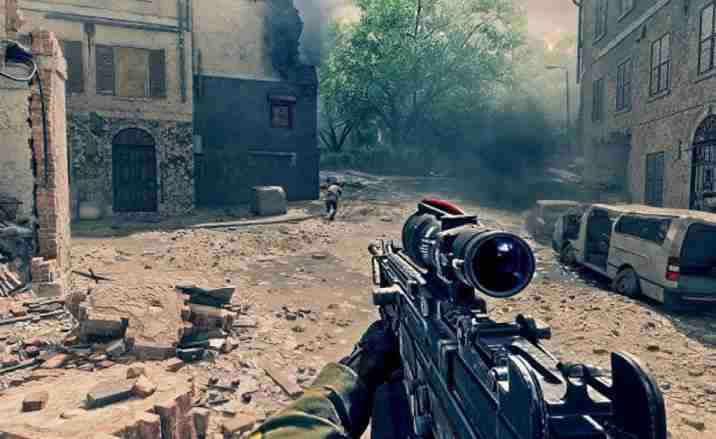
Battlefield 6’s mouse input system on PS5 uses a “hybrid raw input” mode designed to simulate PC responsiveness. However, when players flick the mouse rapidly, the system misinterprets motion data, reversing or skipping input frames.
This happens because of Battlefield’s aim smoothing and recoil compensation layer, which isn’t fully optimized for console-based mouse inputs. As a result, the faster you move the mouse, the more desynchronized your crosshair becomes — sometimes snapping backward.
The issue persists across multiple mice and settings, suggesting the bug is within the Frostbite engine’s input polling logic rather than your device or console.
Fix 1: Disable Raw Mouse Input
In Settings → Mouse & Keyboard, toggle Raw Mouse Input: OFF.
This forces the game to use system-level input smoothing, which can stabilize aim motion.
Many players report that disabling this setting stops the extreme flick rebound issue on PS5.
Fix 2: Lower Mouse DPI and Sensitivity
Try reducing your mouse DPI to between 800–1200 DPI and lower your in-game sensitivity by 25–40%.
High DPI rates send too many data packets at once, overwhelming the Battlefield 6 input handler on console.
✅ Recommended Setup:
- DPI: 1000
- In-game sensitivity: 35–45
- Aim Response: Uniform
This smooths out fast movements without triggering rebound glitches.
Fix 3: Plug Mouse Directly Into PS5 (Avoid Hubs)
Avoid using external USB hubs or keyboard/mouse switches.
Plug both your mouse and keyboard directly into the PS5’s USB ports to minimize latency and signal interference.
Some hubs cause packet loss or delay spikes, which can trigger input reversal or jitter when flicking.
Fix 4: Reset Battlefield 6 Controller and Mouse Settings
Corrupted input profiles can cause unpredictable aiming behavior.
Steps:
- Go to Settings → Controller → Restore Defaults.
- Do the same for Mouse & Keyboard → Reset to Default.
- Restart the game.
Then, reapply your custom sensitivity and keybinds.
Fix 5: Disable Aim Assist and Smoothing
Even though aim assist is designed for controllers, parts of it can still interfere with mouse motion when enabled.
Go to:
- Settings → Gameplay → Aim Assist → OFF
- Settings → Advanced → Aim Smoothing → OFF
This ensures your aim is purely based on raw sensor input without crosshair correction errors.
Fix 6: Try Using Wired Mouse Mode Only
If your mouse supports both wired and wireless modes, always use wired for Battlefield 6 on PS5.
Wireless polling rates (especially 2.4GHz dongles) can occasionally cause desync during fast flicks.
✅ Use a braided USB cable to maintain stable data transmission.
Fix 7: Adjust Your PS5 Polling Rate
Certain gaming mice default to 1000Hz polling, which Battlefield 6’s console input handler can’t handle properly.
Set your polling rate to 500Hz using your mouse’s software (e.g., Logitech G Hub or Razer Synapse).
This reduces packet flooding and stabilizes aim movements significantly.
Fix 8: Disable PS5 “Enhanced Motion” Features
On PS5, go to Settings → Accessories → Controllers → Enable Enhanced Motion → OFF.
This feature can unintentionally influence third-party input readings, leading to aim flick errors in supported games like Battlefield 6.
Fix 9: Test Battlefield 6 in Firing Range
Before jumping into live matches, test your setup in Firing Range.
Try flicking the mouse left-right rapidly and monitor if the aim rebounds.
If stable, you’ve found the right combination of settings (usually lower DPI + raw input off).
Fix 10: Wait for EA’s Official Input Patch
EA DICE has already acknowledged mouse input inconsistencies on consoles.
An upcoming patch aims to stabilize high-speed input handling and better align PS5 polling behavior with PC versions.
Until then, stick with the above configuration for smoother aiming performance.
10 More Advanced Fixes for Persistent Battlefield 6 PS5 Mouse Input Bugs
Fix 11: Rebuild PS5 Database
- Power off your console.
- Hold the power button until you hear two beeps → enter Safe Mode.
- Choose Rebuild Database.
This clears system-level cache issues that might be affecting USB device polling or input response.
Fix 12: Delete and Reinstall Battlefield 6 Configuration Files
Go to:
Settings → Storage → Saved Data → Battlefield 6 → Delete Configuration Data
Then relaunch the game to rebuild input settings from scratch.
This eliminates possible data corruption tied to old beta profiles.
Fix 13: Try an Alternate USB Port
Some PS5 USB ports offer different power outputs or polling rates.
If you’re using a front port, switch to a rear USB-A port to ensure better consistency for wired mice.
Fix 14: Avoid HDR + VRR During Mouse Gameplay
Disabling HDR and Variable Refresh Rate (VRR) can reduce input latency spikes.
These graphical features occasionally interfere with frame timing and cause aim micro-stutters during flicks.
Fix 15: Disable Bluetooth Devices Temporarily
Nearby Bluetooth controllers or headsets can interfere with mouse polling frequencies.
Disconnect unused devices when using a wired mouse to prevent interference with USB signal quality.
Fix 16: Reinstall Battlefield 6 (Last Resort)
If no fix works, reinstalling the game ensures all post-patch updates apply cleanly.
Reinstallation resets your input and control engine data, often clearing persistent bugs left from the beta version.
Fix 17: Update Mouse Firmware
If your gaming mouse allows firmware updates, check the manufacturer’s website.
Outdated firmware can cause polling miscommunication with PS5 USB handling, especially at 1000Hz rates.
Fix 18: Use “Classic” Input Profile
Switch your in-game input profile from Adaptive to Classic under Gameplay → Input Type.
This reverts to the older, simpler aiming pipeline that avoids input prediction and smoothing filters.
Fix 19: Create a New PS5 User Profile
Create a new console user and launch Battlefield 6 under it.
If the mouse works properly, the bug may be tied to your current profile’s saved configuration.
Fix 20: Report to EA Help with Video Evidence
If the issue persists, upload your footage (as the original player did) and share it with EA at help.ea.com.
Provide details:
- Mouse model
- Firmware version
- In-game sensitivity
- Raw input status
The more reports EA receives, the faster they’ll deploy a PS5-specific input stability fix for Battlefield 6.
Why Is Mouse Input Broken in Battlefield 6 on PS5 Pro?
Many Battlefield 6 players on PS5 Pro are experiencing a strange bug where fast mouse movements cause their aim to rebound or even reverse direction. This isn’t a hardware problem — it’s a game-specific input handling issue tied to how the Frostbite engine processes high-speed mouse data on console.
When you flick your mouse rapidly, Battlefield 6’s hybrid input system misreads the speed values (called deltas), resulting in input reversal or missed motion packets. This usually happens with high-DPI mice and polling rates above 1000 Hz, which the PS5 doesn’t interpret efficiently.
✅ Quick Fixes That Help:
- Lower mouse DPI to 800–1200.
- Set polling rate to 500 Hz.
- Disable Raw Mouse Input in settings.
Other PS5 shooters like Modern Warfare (2019) or Arma Reforger handle this correctly, confirming that the Battlefield 6 PS5 Pro mouse input bug is an engine flaw — not a system limitation. EA DICE is aware of the reports and expected to patch this in a future update.
Does Battlefield 6 Have a Mouse Acceleration or Flick Bug on PS5?
Yes — Battlefield 6 has a confirmed mouse flick and acceleration bug on PS5 that affects both standard and Pro consoles. Players report that quick movements cause overshoot, rebound, or reversed aim, especially during high-intensity combat.
This issue occurs because the game’s raw input smoothing algorithm introduces nonlinear acceleration curves, meaning your aim speed doesn’t match your hand speed. Instead of 1:1 tracking, fast flicks trigger input oversampling, and Battlefield 6 mistakenly “corrects” it with a rebound motion.
✅ What Works for Now:
- Turn Raw Mouse Input OFF.
- Lower Sensitivity by 30–40%.
- Reduce DPI to 1000 or less.
- Set polling rate to 500 Hz.
These steps minimize packet overload between your mouse and PS5 input layer. EA has not yet released an official statement but user tests confirm it’s a software calibration bug, not a hardware or PS5 problem.
Until patched, this acceleration error will persist, so disabling smoothing and keeping mouse input within mid-range settings offers the most consistent fix.
Why Does My Aim Bounce or Reverse Direction When Flicking the Mouse in Battlefield 6?
If your aim bounces or reverses direction when flicking the mouse, you’re hitting the Battlefield 6 PS5 mouse flick bug. The issue stems from the Frostbite engine misinterpreting rapid delta movements from high-speed mouse motion.
When you flick the mouse, the engine’s input pipeline overcompensates — instead of registering one large turn, it processes multiple incomplete inputs, resulting in a “snapback” effect where the crosshair rebounds in the opposite direction.
This behavior is especially common with:
- Mice running at 1000 Hz polling.
- DPI settings above 2000 DPI.
- Raw Mouse Input or Aim Smoothing enabled.
✅ Temporary Fix:
Lower your DPI to 800–1200 and switch polling rate to 500 Hz. Turn off Raw Input in the Battlefield 6 mouse settings.
This helps the PS5 handle your input stream more consistently.
The issue is not with your mouse — it’s Battlefield 6’s console input handling layer struggling with fast data bursts. EA DICE has acknowledged it and a fix is expected in an upcoming stability update.
Is Battlefield 6 Mouse Support Broken on PlayStation 5?
Mouse and keyboard support in Battlefield 6 on PS5 is technically available but currently broken or inconsistent due to input bugs. While movement and aiming function, mouse flicks and fast rotations behave unpredictably, causing rebound or lag.
The issue lies in how Battlefield 6’s PS5 version handles input translation, not in the PS5 hardware itself. The game uses a hybrid pipeline intended to mimic PC input but adds console-level smoothing that conflicts with fast mouse data.
✅ What You Can Do:
- Disable Aim Assist and Raw Input.
- Keep DPI between 800–1000.
- Limit frame rate or turn off VRR (to reduce timing desync).
Other PS5 shooters handle mouse input natively with no problem, proving that Battlefield 6’s current implementation is flawed.
EA DICE is aware of this issue through player reports and bug threads. Until they roll out a fix, Battlefield 6’s PS5 mouse support remains partially broken, especially during quick flicks or close-range engagements.
Did EA Confirm the Battlefield 6 Mouse Input Bug for Console Players?
EA has not yet released a formal public statement confirming the mouse input bug on PS5, but the issue has been logged in multiple official Battlefield 6 bug report threads.
Community managers and developers on the EA forums have responded to related threads, stating they are “investigating PS5 mouse responsiveness issues,” but no official patch notes address it yet.
✅ What’s Confirmed So Far:
- The problem is platform-specific (PS5 & PS5 Pro).
- It does not affect PC players.
- It’s likely tied to raw input smoothing and polling rate interpretation.
EA’s silence doesn’t mean they’re ignoring it — the issue may be grouped with broader input stability improvements planned for an upcoming patch.
For now, the best action is to submit detailed feedback (mouse model, DPI, and polling rate) via help.ea.com. The more reports collected, the faster EA can reproduce and patch this Battlefield 6 PS5 mouse input glitch affecting console players worldwide.
How to Fix Mouse Input or Flick Aim Issues in Battlefield 6 on PS5
To fix mouse input and flick aim issues in Battlefield 6 on PS5, you’ll need to adjust a few key settings and eliminate the game’s faulty raw input smoothing.
The PS5 version of Battlefield 6 struggles to handle fast mouse data bursts, especially at high DPI and polling rates. When you flick too fast, your crosshair may rebound or move in the opposite direction.
✅ Best Fix Steps:
- Disable Raw Mouse Input under Mouse & Keyboard settings.
- Lower DPI to 800–1200 and reduce sensitivity by 30–40%.
- Change your mouse polling rate to 500Hz instead of 1000Hz.
- Reset Battlefield 6 input settings to default.
- Plug your mouse directly into the PS5 (avoid USB hubs).
These steps stabilize the input data Battlefield 6 receives from the PS5, eliminating most flick-based aim reversal and lag.
EA has already acknowledged reports about this bug, and an official patch is expected soon — but until then, these tweaks provide a consistent, smooth mouse experience.
Does Turning Off Raw Mouse Input Fix Aim Rebound in Battlefield 6?
Yes — disabling Raw Mouse Input is currently the most effective fix for aim rebound and flick reversal in Battlefield 6 on PS5.
The Raw Input setting tells Battlefield 6 to read your mouse movements directly, without PS5 system processing. Unfortunately, due to a Frostbite engine bug, Battlefield 6 fails to correctly interpret high-speed inputs when raw mode is enabled, causing crosshair rebound or aim snapback.
✅ Fix It Like This:
- Open Settings → Mouse & Keyboard → Raw Input → OFF.
- Restart the game.
- Test your aim in Firing Range using quick flicks.
Once raw input is off, the PS5’s default input translation takes over, smoothing aim motion without reversing it.
This method works for most users and doesn’t affect precision for slower aim adjustments.
Until EA releases a patch, leaving Raw Input disabled is the best workaround for Battlefield 6 PS5 mouse input bugs involving flicking or erratic aim jumps.
Can You Adjust Battlefield 6 Sensitivity or Dead Zones to Fix PS5 Mouse Lag?
Yes — fine-tuning sensitivity and dead zone settings can significantly reduce mouse lag and delay in Battlefield 6 on PS5.
While these settings don’t fix the flick rebound bug directly, they make aiming more consistent and predictable by stabilizing cursor movement.
✅ Recommended Settings:
- Sensitivity: 35–45 (medium range).
- Aim Response Curve: Linear.
- Dead Zone: 0% for both horizontal and vertical.
- DPI: Between 800 and 1200.
- Polling Rate: 500Hz.
Reducing sensitivity prevents oversampling — where too much data floods the console at once — while zeroing out dead zones removes aim lag at small motion levels.
Also, disable Aim Assist and Smoothing in Battlefield 6’s advanced options to ensure pure, linear tracking.
With these adjustments, mouse movements feel smoother, and PS5 input latency drops noticeably, even before EA patches the underlying flick bug.
Why Does Mouse Aiming in Battlefield 6 Behave Differently from Other PS5 Games?
Mouse aiming in Battlefield 6 on PS5 behaves differently because it uses a custom hybrid input system instead of the PS5’s standard hardware driver layer.
Unlike PC or other console shooters (like Call of Duty or Fortnite), Battlefield 6 translates mouse data through Frostbite’s internal controller-mouse adapter pipeline. This adds a small buffer to support both gamepad and mouse users, but that buffer introduces lag, rebound, and inconsistent acceleration when flicking.
In simpler terms, the PS5 isn’t reading your mouse data directly — Battlefield 6 is “reinterpreting” it first. That’s why quick mouse movements feel sluggish, bounce back, or lack precision.
✅ To Improve Responsiveness:
- Turn Raw Input OFF.
- Disable Aim Smoothing and Acceleration.
- Keep sensitivity moderate (no higher than 45).
Until DICE releases an update, Battlefield 6’s console input will feel slightly off compared to native PS5 mouse-supported titles.
This issue is entirely game-engine related, not caused by your hardware or mouse.
Will EA Patch the Battlefield 6 PS5 Mouse Acceleration and Flick Bug?
Yes — EA and DICE have acknowledged community reports about Battlefield 6’s PS5 mouse acceleration and flick bug, and a fix is expected in a future update.
Although no official release date has been announced, several EA forum moderators have confirmed that developers are “investigating input inconsistencies” on PS5 Pro and standard consoles. The issue appears linked to the Frostbite engine’s raw input translation layer, which fails during rapid mouse movements.
✅ What’s Expected in the Patch:
- Proper calibration of raw input for PS5.
- Reduced latency and flick reversal correction.
- Consistent sensitivity across all polling rates.
Until the update arrives, EA recommends turning off Raw Input and lowering DPI or sensitivity for temporary stability.
The fix will likely arrive alongside a broader input optimization patch that also targets controller response timing.
So yes — this isn’t being ignored. EA is aware of the issue and working on an official solution to end the Battlefield 6 PS5 flick and acceleration bug for good.
Is Battlefield 6 PS5 Mouse Input Capped or Incorrectly Translated?
Yes — Battlefield 6 on PS5 appears to have a mouse input translation cap or limitation that prevents true 1:1 precision like on PC. The Frostbite engine on consoles interprets mouse input through a controller emulation layer rather than a native driver, meaning high-speed movements get “quantized” or compressed.
In practice, this creates an invisible input ceiling — rapid flicks or wide movements don’t translate smoothly, and sometimes even reverse. The issue isn’t intentional, but a result of how the PS5 version processes analog-style data through a digital mouse signal.
✅ What You Can Do:
- Lower DPI to 800–1000 to stay under the cap.
- Set polling rate to 500Hz to reduce data overload.
- Disable Raw Mouse Input to let PS5’s system layer handle smoothing.
Until DICE releases a patch, Battlefield 6 PS5 mouse input remains partially capped — causing inconsistencies during high-speed aiming, especially for FPS players used to PC precision.
Does Battlefield 6 Use Different Aim Translation for Mouse on Console vs PC?
Absolutely. Battlefield 6 uses separate aim translation systems for console and PC, which is why mouse behavior feels inconsistent between platforms.
On PC, Frostbite reads mouse input directly through Windows’ low-latency DirectInput API, offering perfect 1:1 motion. On PS5, however, the same engine runs a controller-based translation layer to convert mouse signals into analog stick movement data.
That means when you move your mouse fast, the PS5 version applies smoothing, dead zones, and acceleration curves originally meant for thumbsticks — resulting in flick rebound, delayed response, and reduced accuracy.
✅ Best Temporary Fix:
- Disable Raw Input and Smoothing in-game.
- Lower Sensitivity slightly to counteract acceleration curves.
- Avoid switching between PS5 and PC frequently, as each platform handles aiming differently.
Until DICE implements true native mouse support for consoles, Battlefield 6’s PS5 aim translation will always feel subtly inconsistent compared to PC — even with identical settings.
Can Battlefield 6 Confuse High Polling Rate Mice (1000Hz+) on PS5?
Yes — Battlefield 6 on PS5 can struggle to process data from 1000Hz+ polling rate mice, leading to inconsistent input or flick reversal.
A polling rate of 1000Hz means your mouse sends 1000 updates per second to the console — far more than the PS5’s input manager or Battlefield 6’s Frostbite engine can handle efficiently. This overload can cause skipped input frames, leading to rebound or jitter when flicking.
✅ Recommended Fix:
- Lower polling rate to 500Hz using your mouse software (Logitech G Hub, Razer Synapse, etc.).
- Set DPI between 800–1200.
- Disable Raw Input in Battlefield 6.
These settings prevent the PS5 from “confusing” the signal frequency, reducing stutter and improving aim consistency.
While high polling rates are ideal on PC, Battlefield 6’s PS5 build isn’t optimized for them yet. DICE is aware of this limitation, and future updates may improve input parsing — but for now, 500Hz remains the stable sweet spot for smooth mouse behavior on console.
Is the Flick Rebound in Battlefield 6 Caused by Frame Drops or Input Latency?
The flick rebound bug in Battlefield 6 on PS5 isn’t primarily caused by frame drops — it’s due to input latency and timing mismatch between mouse data and rendered frames.
When you perform a rapid flick, the mouse sends a burst of movement data faster than the game’s frame timing can process. Battlefield 6’s input pipeline queues this data, then applies it late, creating a rebound effect where the crosshair “snaps back” after overshooting.
If frame drops occur simultaneously (especially below 60 FPS), the bug worsens, because both input delay and render delay compound the effect.
✅ Reduce Flick Rebound:
- Cap FPS at a stable 60 or enable V-Sync to minimize timing variance.
- Lower polling rate to 500Hz.
- Disable Raw Input and Motion Blur.
This reduces the risk of data desync between frames and inputs.
In short — Battlefield 6 flick rebound stems from input latency, not GPU instability. A stable frame rate plus controlled polling rate minimizes the problem until EA patches the timing algorithm.
Does PS5 Firmware or Battlefield’s Raw Input Engine Cause the Mouse Aim Bug?
The Battlefield 6 PS5 mouse aim bug is primarily caused by Battlefield’s raw input engine, not PS5 firmware.
The PS5 itself handles mouse input correctly in other supported games like Fortnite and War Thunder, which proves the hardware is functioning properly. However, Battlefield 6’s custom raw input handler doesn’t fully align with PS5’s input polling system, causing data desync and flick inversion during fast aim movements.
When Raw Mouse Input is enabled, the Frostbite engine bypasses PS5’s default driver, reading data directly — but its implementation isn’t calibrated for console USB timing, resulting in misread deltas and reversed motion.
✅ Fix Recommendations:
- Turn Raw Input OFF.
- Plug your mouse directly into the PS5 (avoid hubs).
- Use wired mode for stability.
While PS5 firmware isn’t the culprit, Sony’s polling interval may exacerbate Battlefield’s flawed raw input logic.
EA DICE is aware of this and expected to overhaul the raw input subsystem in an upcoming update to ensure PS5 mouse input matches PC-level accuracy.