
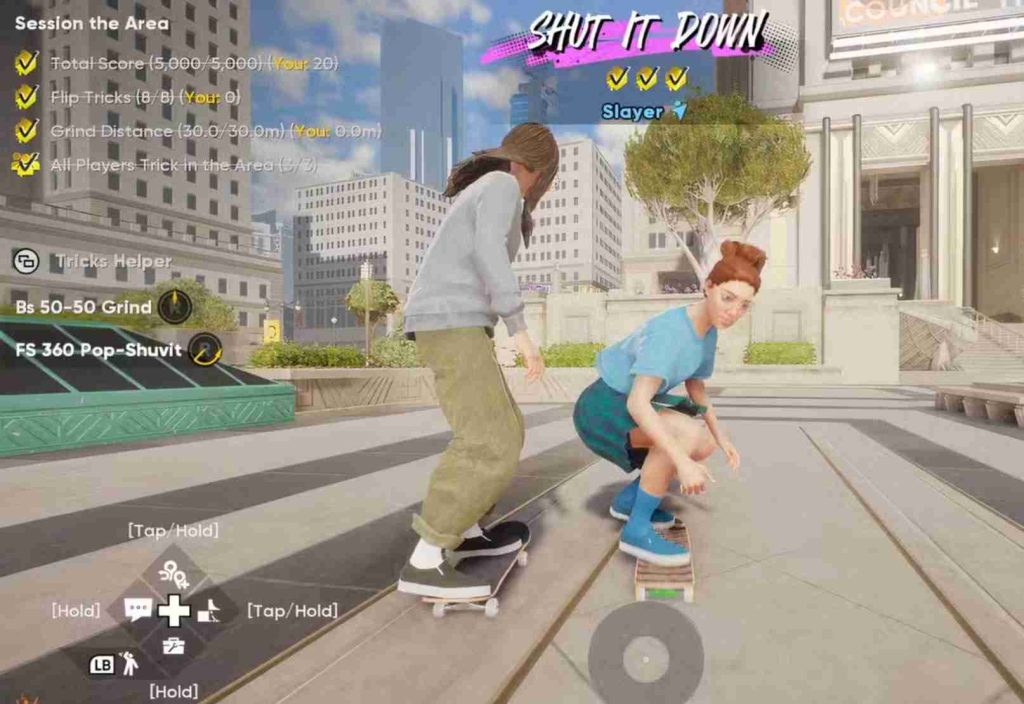
Many new and returning players of Skate have reported a consistent and game-breaking issue on PC, where the game crashes immediately after receiving the skateboard.
The problem typically occurs after completing character creation and progressing through the early tutorial sections, such as scaling the wall or preparing on the mega ramp.
Instead of continuing gameplay, the game either freezes or locks up completely, forcing users to terminate the process via Task Manager. This makes the game effectively unplayable, even on high-end systems.
Players across different hardware setups have reported the problem. For example, one user with a Ryzen 7 9700X CPU and Radeon 9070XT GPU noted that the game crashes consistently three times in a row, even with up-to-date graphics drivers.
Attempts to run the game in windowed mode, as an administrator, or directly from the local directory did not resolve the issue. Another user on an Nvidia card described the exact same scenario, highlighting that the problem is not limited to a single GPU manufacturer.
Some affected players experience additional error messages. One user reported a Windows “Critical Low Memory” error, indicating a failure to allocate memory, even on a system with sufficient RAM.
This suggests the issue may be related to how the game handles memory allocation during the board introduction sequence or while rendering the mega ramp area.
Attempts to minimize background processes and run only Steam and Skate have also failed to prevent crashes, indicating that the bug is likely within the game itself, rather than caused by conflicting software.
Overall, this crash affects the initial gameplay experience, preventing players from progressing past the first few moments of play. Community reports suggest that it is a widespread issue across multiple hardware configurations and driver setups, making it one of the most critical technical problems in the current PC release of Skate.
Why Skate Crashes After Getting the Board
Many players have experienced immediate crashes in Skate after reaching the board sequence, often right after character creation or while setting up on the mega ramp. Based on player reports, system logs, and forum discussions, there are several likely causes behind this critical crash.
1. Memory Allocation Issues
A common culprit appears to be improper memory handling. Several players reported receiving a Windows “Critical Low Memory” error even on systems with sufficient RAM. The crash typically occurs during cutscenes, board intro sequences, or when rendering the mega ramp, all of which are resource-intensive moments. The game may fail to allocate enough memory for textures, physics calculations, and animations simultaneously, causing the freeze or crash.
2. Graphics Driver Conflicts
Even with up-to-date drivers, certain GPUs—both AMD and Nvidia—have shown crashes linked to FSR (FidelityFX Super Resolution), ray tracing, or heavy texture loading. These conflicts can occur if the driver interprets rendering instructions incorrectly or if certain graphical features overload the GPU during the initial board sequence. Players with Radeon 9070XT or Nvidia cards reported similar symptoms, indicating that the issue is not hardware-specific but related to how the game interfaces with modern drivers.
3. Steam Overlay / Administrative Conflicts
Some crashes happen due to Steam overlay interactions or insufficient administrative privileges. Running the game without admin rights can prevent proper access to system resources, resulting in freezes during high-load sequences like the board intro. Similarly, the Steam overlay may conflict with the game’s rendering pipeline, especially during transitions or cutscenes, triggering a crash before the player can start skating.
4. Corrupted Game Files
Missing or corrupted assets, particularly in the tutorial or board sequences, can cause the game to fail immediately after spawning. This could include textures, physics assets, or sound files required for the mega ramp setup. Even partial corruption in these critical files can prevent proper initialization, resulting in a hard crash.
5. Background Applications
Other programs running in the background, such as browsers, Discord overlays, or antivirus scans, may compete for RAM and CPU resources. During resource-intensive moments like the mega ramp sequence, this can lead to critical memory allocation failures, which force the game to crash. Players are advised to close unnecessary programs before launching Skate to reduce the likelihood of interference.
In summary, crashes after getting the board in Skate are typically caused by a combination of memory handling problems, driver conflicts, Steam overlay or admin issues, corrupted game files, and background application interference. Identifying which factor is affecting a particular system can help guide the appropriate fix.
Step-by-Step Fixes for Skate Crashing After Getting the Board

Many players of Skate on PC have reported that the game consistently crashes immediately after receiving the board, often during the character intro, scaling the wall, or preparing on the mega ramp. This makes the early gameplay sequence unplayable, forcing players to close the game via Task Manager. Based on community reports and technical analysis, the crash is typically caused by memory allocation issues, graphics driver conflicts, corrupted game files, or background application interference. Below is a detailed guide on step-by-step fixes and preventative measures to resolve this problem.
1. Verify Game Files on Steam
One of the first steps to fix crashes is to ensure that all game files are complete and intact. Corrupted or missing files are a common cause of crashes during the tutorial board sequence.
Steps:
- Open Steam and navigate to your Library.
- Right-click on Skate and select Properties.
- Go to Local Files → Verify Integrity of Game Files.
- Steam will automatically scan the game folder and download or replace any missing or corrupted files.
Verifying game files ensures that all essential assets—textures, animations, sound files, and physics data—are correctly installed. Many players have reported that crashes occurring immediately after getting the board were resolved by this step alone, as it eliminates the possibility of corrupted tutorial sequence assets.
2. Update Graphics Drivers & Disable FSR/RTX
Even if your graphics drivers are up-to-date, certain GPUs (both AMD and Nvidia) can experience conflicts due to features like FSR (FidelityFX Super Resolution), RTX ray tracing, or high-resolution texture loading. These features increase GPU load and can trigger memory allocation errors during intensive sequences like the mega ramp cutscene.
Steps:
- Open your GPU control panel (AMD Radeon Software or Nvidia GeForce Experience).
- Ensure your drivers are fully updated.
- Temporarily disable FSR, RTX, or other upscaling technologies.
- Lower graphics settings such as texture quality, shadow detail, and render scale to reduce GPU and RAM usage.
Reducing graphics load during the tutorial sequences allows the system to allocate memory more efficiently, preventing the crash that occurs when the game attempts to render high-fidelity textures and animations simultaneously.
3. Launch as Administrator
Crashes can also occur if the game cannot properly access necessary system resources or interacts poorly with the Steam overlay. Launching Skate as an administrator helps resolve permission-related conflicts.
Steps:
- Navigate to your Skate installation folder.
- Right-click Skate.exe and select Run as Administrator.
- Optionally, disable the Steam overlay by right-clicking the game in Steam → Properties → General → uncheck “Enable Steam Overlay while in-game.”
This step ensures that the game has full system access, which can prevent freezes during board introduction sequences.
4. Free Up System Memory
Many crashes are linked to critical memory allocation failures, particularly during cutscenes or the mega ramp setup. Freeing up RAM and adjusting virtual memory can help stabilize the game.
Steps:
- Close unnecessary background applications such as browsers, Discord overlays, antivirus scans, and streaming software.
- Increase virtual memory (page file) on Windows 10:
- Go to Settings → System → About → Advanced System Settings.
- Under Performance, click Settings → Advanced → Virtual Memory → Change.
- Increase the size of the page file to at least 1.5x your installed RAM.
- Restart your PC to ensure changes take effect.
This step reduces the likelihood of the game running out of allocatable memory during the resource-heavy board intro sequence.
5. Skip Cutscenes / Intro Boards
Some players report that skipping cutscenes or the initial board animations improves stability. The crash often occurs during the board spawn or tutorial animations, so skipping these sequences allows the game to bypass the problematic rendering or memory allocation step.
Steps:
- Use the Skip All option where available during character creation and board introduction.
- Proceed directly to the mega ramp or free skate section.
While this doesn’t fix the underlying memory or graphics issue, it provides a temporary workaround that allows players to access the main gameplay without crashing.
6. Reinstall the Game
If crashes persist after all other fixes, a full reinstallation of Skate can resolve deeper issues caused by corrupted assets, incomplete updates, or misconfigured game files.
Steps:
- Uninstall Skate from Steam.
- Navigate to your installation folder and ensure all remaining files are deleted.
- Re-download the game from the Steam library.
- Launch the game after verifying game files again.
A fresh installation ensures that all tutorial sequences, textures, physics assets, and cutscenes are fully intact and properly installed. Many players have found that this step resolves persistent crashes that other methods could not fix.
Additional Tips for Stability
- Monitor System Temperatures: Overheating can exacerbate crashes during high-load sequences. Ensure your CPU and GPU are within safe temperature ranges.
- Use Windowed Mode: Running the game in windowed mode sometimes reduces GPU memory spikes during cutscenes.
- Update Windows: Ensure your operating system is fully patched, as memory handling improvements in updates can reduce crash frequency.
- Check Hardware Requirements: Ensure your PC meets or exceeds Skate’s recommended specifications, particularly for RAM and GPU memory.
By following these step-by-step fixes, most players can resolve the crashing issue immediately after getting the board. Combining game file verification, driver management, administrative launch, memory optimization, skipping cutscenes, and reinstalling the game offers the highest chance of success. While some fixes address specific causes (like corrupted files or FSR conflicts), implementing all steps systematically provides a comprehensive approach to stabilizing Skate on PC.
7. Disable Background Overlays and Recording Software
Applications that display overlays or capture gameplay—such as Discord, GeForce Experience, OBS, or Xbox Game Bar—can interfere with Skate’s memory allocation and graphics rendering during the board intro.
Steps:
- Close all overlay applications before launching the game.
- Disable automatic recording or performance monitoring in GPU control panels.
- Relaunch the game and attempt the tutorial sequence again.
This can prevent conflicts between the game and third-party software that use significant system resources.
8. Adjust In-Game Graphics Settings
Even if you have a high-end GPU, certain settings can trigger crashes during early gameplay sequences.
Recommended adjustments:
- Lower texture quality and shadows.
- Turn off ray tracing, motion blur, and ambient occlusion.
- Reduce screen resolution or render scaling temporarily for the tutorial.
These adjustments reduce the memory and GPU load, minimizing the chances of a crash during cutscenes and mega ramp rendering.
9. Update DirectX and Visual C++ Redistributables
Skate relies on system libraries such as DirectX 12 and Microsoft Visual C++ Redistributables. Outdated or missing components can cause crashes when the game tries to load complex scenes.
Steps:
- Install the latest DirectX End-User Runtime from Microsoft’s website.
- Update all Visual C++ Redistributable packages (2015–2022).
- Restart the PC and relaunch the game.
Updating these components ensures proper memory management and resource allocation during intensive gameplay sequences.
10. Limit Background Applications Using RAM
Even with sufficient system memory, having multiple memory-heavy applications running simultaneously can trigger critical memory errors.
Tips:
- Close web browsers with multiple tabs, music streaming apps, or virtual machines.
- Temporarily disable antivirus scans or schedule them for later.
- Use Task Manager to monitor RAM usage and ensure enough free memory is available before starting the game.
This step helps prevent the Windows “Failed to allocate memory” error reported by several players.
11. Monitor GPU and CPU Usage During Gameplay
Tracking hardware usage can reveal whether crashes are caused by resource spikes.
Steps:
- Use tools like MSI Afterburner or HWMonitor to track CPU, GPU, and RAM usage.
- If spikes occur consistently during board intro, lower graphics settings or disable background apps.
Monitoring helps diagnose whether the crash is due to system limitations rather than the game itself.
12. Temporarily Disable Mods or Third-Party Enhancements
If you have installed mods, texture packs, or third-party enhancements, they can conflict with core game files and trigger crashes during the tutorial.
Steps:
- Remove all mods and revert to the original game installation.
- Verify game files on Steam again.
- Launch the game without any external modifications.
This ensures the game runs in its default environment and reduces unexpected errors.
13. Test on a Clean Boot
A clean boot starts Windows with minimal background processes, reducing potential conflicts.
Steps:
- Press Windows + R → msconfig → Services tab → Hide all Microsoft services → Disable all remaining services.
- Go to Startup → Open Task Manager → Disable all startup apps.
- Restart the PC and launch Skate.
Running a clean boot isolates potential software conflicts and often prevents crashes during memory-intensive sequences like the mega ramp introduction.
Temporary Workarounds for Skate Crashing After Getting the Board
While waiting for an official patch to resolve the board intro crash in Skate, there are several temporary workarounds that can help make the game playable. These methods don’t fully fix the underlying issue but can reduce the likelihood of crashes, allowing players to access the tutorial and start skating.
1. Run the Game in Windowed Mode
Running Skate in windowed mode instead of full-screen can reduce GPU and system memory load, particularly during high-intensity sequences like the board introduction or mega ramp setup. Windowed mode can also help prevent memory allocation spikes that often trigger crashes.
Steps:
- Open Skate → Settings → Display.
- Select Windowed Mode or Borderless Windowed.
- Launch the game and attempt the tutorial sequence.
This adjustment can improve stability, especially on systems with limited RAM or GPUs prone to driver conflicts.
2. Lower Resolution or Texture Quality During First Launch
Reducing graphics settings temporarily can help the game allocate memory more efficiently during the critical board intro sequence.
Steps:
- Lower screen resolution to 1080p or below.
- Reduce texture quality, shadow detail, and disable advanced effects like motion blur or ray tracing.
- Save these settings and restart the game.
Many players report that starting the game on lower settings allows them to complete the tutorial without crashing, after which they can gradually increase settings once past the first board sequence.
3. Use a Dedicated GPU
If your system has both integrated and dedicated graphics, ensure Skate is using the dedicated GPU. Integrated graphics may struggle with the tutorial’s memory and rendering requirements, leading to crashes.
Steps:
- Open your GPU control panel (Nvidia or AMD).
- Set Skate.exe to run on the dedicated GPU.
- Disable automatic switching to integrated graphics.
This ensures maximum performance and stability, reducing the chance of memory allocation failures or rendering conflicts during the early game sequences.
These temporary workarounds provide a practical way to access Skate’s gameplay while mitigating crashes during the board introduction. They are especially useful for players with mid-range hardware, memory limitations, or persistent tutorial sequence crashes.
1. Critical Low Memory Error in Skate – What It Means
The Critical Low Memory Error occurs when Windows is unable to allocate enough RAM for Skate during resource-heavy sequences, such as the tutorial board intro or mega ramp cutscenes. Even high-end PCs can encounter this if the game tries to load large textures, complex physics, or multiple assets simultaneously.
Why it happens:
- High graphics settings (ultra textures, high-resolution shadows) increase memory demand.
- Background applications consuming RAM (Discord, Chrome, Steam overlay).
- Virtual memory/page file is too small, so Windows can’t compensate when RAM runs out.
- Corrupted game files may require more memory than intended due to inefficient asset loading.
Symptoms:
- Game freezes on the mega ramp or after character creation.
- Windows pops up “Critical Low Memory Error: Failed to allocate memory. Please restart your PC and try again.”
- Steam shows Skate as running, but the game is unresponsive.
2. How to Fix Skate Freezing After Character Creation
Freezing after character creation is common and usually linked to memory allocation or graphics conflicts.
Step-by-step fixes:
- Close Background Applications
- Shut down apps like Discord, Chrome, or video software.
- Free up RAM and reduce memory pressure.
- Lower Graphics Settings
- Start the game in windowed mode.
- Reduce texture quality, shadow detail, and disable FSR/RTX.
- Run as Administrator
- Right-click
Skate.exe→ Run as Administrator. - Ensures the game has proper system permissions.
- Right-click
- Verify Game Files on Steam
- Steam → Library → Right-click Skate → Properties → Local Files → Verify Integrity of Game Files.
- Replaces missing or corrupted assets causing freezes.
- Increase Virtual Memory/Page File
- Windows 10 → Settings → System → About → Advanced System Settings → Performance → Advanced → Virtual Memory → Set a higher page file (e.g., 16GB or higher).
- Skip Cutscenes or Intro Boards
- Press Skip All where possible. Reduces memory load at startup.
3. Skate Tutorial Board Crashing on Steam: Step-by-Step Fix
The tutorial board crash is specifically when the game tries to load your board and the mega ramp.
Step-by-step solution:
- Launch in Windowed Mode
- Right-click Skate → Properties → Set Launch Options →
-windowed.
- Right-click Skate → Properties → Set Launch Options →
- Disable FSR/RTX/High-Resolution Textures
- Temporarily turn off any upscaling or ray tracing.
- Verify Steam Game Files
- Replace missing or corrupted files that may crash during the tutorial.
- Update GPU Drivers
- Both AMD and Nvidia users should have the latest drivers installed.
- Free System Memory
- Restart your PC. Run only Steam and Skate. Close all unnecessary background apps.
- Increase Virtual Memory/Page File
- As explained in section 2, helps prevent low memory crashes.
- Optional: Reinstall the Game
- If crashes persist, a clean reinstall ensures no corrupted files remain.
4. Skate PC Crashing with Nvidia or AMD GPU
Crashes affecting both Nvidia and AMD GPUs suggest it’s a game optimization issue rather than a hardware-specific bug.
Causes:
- High VRAM usage on ultra textures.
- FSR/RTX or other upscaling technologies causing memory spikes.
- Driver-specific conflicts with Windows 10/11.
Fixes:
- Lower graphics settings to medium/high instead of ultra.
- Disable FSR/RTX or similar GPU features.
- Update GPU drivers to the latest version.
- Run the game as administrator and disable Steam overlay.
- Check for Windows updates; outdated OS can cause GPU conflicts.
Pro Tip: Some players report running in DirectX 11 mode instead of DirectX 12 reduces crashes for both Nvidia and AMD cards.
5. Skate Game Freezes After Scaling Wall – Temporary Workarounds
Freezing after scaling the wall usually occurs during the first interaction with the mega ramp.
Temporary Workarounds:
- Skip Cutscenes – Reduces the number of assets loaded at once.
- Run in Windowed Mode – Prevents full-screen VRAM spikes.
- Close All Background Apps – Especially Chrome, Discord, OBS, and Steam overlay.
- Lower Graphics Settings – Reduce texture quality, shadows, and effects.
- Increase Virtual Memory – Prevents low memory allocation errors.
- Use a Clean Game Install – If repeated freezes occur, reinstalling can remove corrupted tutorial assets.
Optional: Some players report temporarily moving the game to an SSD (if installed on HDD) reduces freezes due to faster asset streaming.
Summary
- Memory allocation and corrupted files are the primary causes of crashes/freezes.
- Step 1: Close background apps, lower graphics, and skip cutscenes.
- Step 2: Verify game files and update GPU drivers.
- Step 3: Increase virtual memory or page file size.
- Step 4: Reinstall the game if problems persist.
- Both AMD and Nvidia users experience crashes; fixes are software/optimization-focused.