
Let’s be real — deleting the wrong Hytale world feels awful. One misclick and suddenly hours (or days) of progress are just… gone.
Take a breath though. Your world might not be lost forever.
Yes, you can sometimes recover a deleted Hytale world, depending on how it was deleted and what’s happened on your drive since. This guide walks you through every real option — from quick fixes to last-ditch recovery — without hype, myths, or false hope.
What matters most right now is time and awareness. If the world was deleted recently and your system hasn’t written much new data, your chances are still decent.
On the other hand, if you kept playing, installing games, or moving large files around, recovery becomes harder. Either way, you’re in the right place. Instead of guessing or giving up immediately, this guide focuses on practical steps that actually work and helps you understand when recovery is possible — and when it’s not — so you can make the right call without wasting more time or effort.
Quick Answer: Can a Deleted Hytale World Be Recovered?
Here’s the straight-up truth:
✅ Yes, if the save folder still exists in backups or previous versions
⚠️ Maybe, if you use recovery software and the data wasn’t overwritten
❌ No, if the drive has been heavily used since deletion
Time matters. The sooner you act, the better your odds.
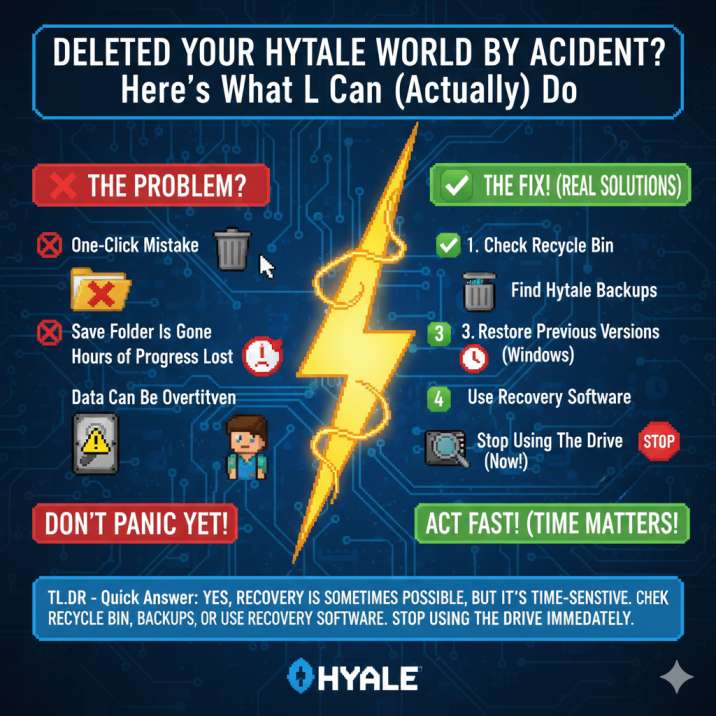
What this really means is that deletion doesn’t always equal permanent loss. In many cases, the data still exists on your drive, just marked as “free space” by the system. Until that space gets reused, recovery is possible. That’s why acting fast is so important. If you continue gaming, downloading files, or installing software, you increase the risk of overwriting the deleted world.
This guide focuses on helping you identify which situation you’re in and what steps are actually worth trying, so you don’t waste time on methods that won’t work for your case.
Read also: How to Install Mods Using OrbisPlace Launcher (Linux Compatible): Step by Step
Where Hytale Worlds Are Actually Stored
Before doing anything else, you need to know where Hytale saves your worlds.
Hytale save file location (Windows)
C:\Users\YourUsername\AppData\Roaming\Hytale\UserData\Saves
Each world is its own folder here. If that folder is gone, recovery depends on backups or undelete methods.
Important:
If you haven’t already, stop playing, stop installing things, and stop using that drive. New data can overwrite the deleted world and make recovery impossible.
This step matters more than most players realize. Many people assume the world is tied directly to the launcher or cloud, but Hytale worlds are simple local folders.
That means if the folder still exists, even partially, you have a real chance of recovery. It also means accidental deletions behave like any other deleted file on your system. The moment new data is written to the same drive, the old world data can be permanently replaced. Knowing the exact save location helps you avoid wasting time searching random folders and lets you focus only on methods that actually work.
Step 1: Check the Recycle Bin (Fastest Win)
It sounds obvious, but it works more often than you’d think.
If you deleted the world manually:
Open the Recycle Bin
Look for your world’s folder
Right-click → Restore
If it’s there, you’re done. Seriously.
This step is quick, safe, and requires no tools, which is why it should always be your first move. When a Hytale world is deleted through File Explorer, Windows usually sends the entire world folder to the Recycle Bin instead of wiping it instantly.
Many players skip this out of panic and jump straight into recovery software, even though the fix is already sitting there. Take a moment to scan the list carefully, especially if your world name was generic. Restoring from the Recycle Bin puts the folder back exactly where it was, with no risk of corruption or missing files.
Step 2: Look for Automatic Hytale Backups
Hytale sometimes creates backup archives of worlds.
What to do:
Search your Hytale folders for .zip files
Extract any backup into the Saves folder
Restart the launcher and check your worlds list
This is one of the most common ways players recover a deleted world without realizing backups even existed.
These backups are easy to miss because Hytale doesn’t always clearly label or surface them in the launcher. In many cases, players delete a world, assume it’s gone, and never think to check for archived files sitting quietly in the game’s data folders.
If you find a backup, make sure you extract it correctly so that the world folder sits directly inside the Saves directory, not nested inside extra folders. Once restored, relaunching Hytale forces the game to re-scan the saves list, which often makes the recovered world appear instantly.
Step 3: Restore a Previous Version (Windows Only)
If you’re on Windows, this step is huge.
Right-click the Saves folder
Select Properties → Previous Versions
Restore or copy an older version
This only works if File History or System Protection was enabled earlier — but if it was, you might get your world back instantly.
What makes this method so powerful is that it restores the entire folder as it existed at an earlier point in time, often before the accidental deletion happened. Even if the world folder is completely gone now, a previous version may still contain it intact.
It’s usually safest to copy the older version to another location first, just in case you need to undo anything. If you see multiple dates, start with the most recent one before the deletion. For many players, this step alone fully restores the world with zero extra tools or risk.
Step 4: Use Recovery Software (If the Folder Is Gone)
If the world folder is completely missing, recovery software is your next option.
Tools that actually work:
Recuva (portable version recommended)
TestDisk (best for keeping filenames)
PhotoRec (deep scan, messy results but powerful)
Rules to follow:
Don’t install recovery tools on the same drive
Recover files to a USB or external drive
Scan the drive where AppData is stored
At this stage, you’re relying on the fact that deleted data isn’t immediately erased — it’s just marked as free space. Recovery software scans that space and tries to rebuild what was there before.
Results can vary a lot. Sometimes you’ll get the full world folder back cleanly, other times you’ll recover fragments that need sorting. Focus on finding folders that contain Hytale save data like configuration files, JSON files, and world or region data. Even partial recovery can be useful, especially if you’re willing to experiment or merge files later.
Read also: Where Can You Find Gold Most Easily in Hytale?
macOS & Linux Players — Quick Notes
macOS
If you’re on macOS, your first stop should always be Time Machine. If it was enabled before the deletion, restoring a previous version of your Hytale saves folder is usually the cleanest and safest recovery method. If Time Machine isn’t available, check inside Application Support for Hytale save folders, as this is where game data is commonly stored. If the world folder is missing entirely, recovery tools like TestDisk or PhotoRec are your next best option. Just make sure you recover files to an external drive to avoid overwriting anything.
Linux
On Linux, save locations vary depending on the launcher you’re using. Common places include ~/.config or the launcher’s own data directory. Before running recovery tools, identify the correct partition where your home directory lives. When possible, avoid mounting the drive in read/write mode during recovery, as writing new data can permanently overwrite deleted world files.
When Is a Hytale World Truly Gone?
Unfortunately, there are cases where recovery just isn’t possible.
Your world is likely permanently deleted if:
The drive has been heavily used since deletion
New games or large files were installed
The deleted data was overwritten
That’s not a Hytale issue — it’s how storage works.
When a file is deleted, the system doesn’t immediately erase it. Instead, it marks that space as available for new data. As long as nothing replaces it, recovery is possible. Once new data is written over those same sectors, however, the original world data is gone for good. This is why continuing to play, downloading updates, or installing software after deletion dramatically lowers your chances. It’s frustrating, but it’s a limitation of how hard drives and SSDs function, not a bug or mistake on Hytale’s side.
How to Avoid This Happening Again
Once you’re past the panic, future-proof yourself:
Back up the Saves folder regularly
Enable File History or Time Machine
Rename worlds clearly before deleting anything
Copy important worlds before experimenting
Five minutes of prep saves hours of regret.
Most accidental deletions happen during quick cleanups or testing sessions, not because players are careless. A simple backup habit makes a massive difference. Even copying your Saves folder to another drive once in a while is enough to protect dozens of hours of progress. Clear world names also reduce the chance of deleting the wrong save when you’re tired or rushing. These small steps don’t take long, but they completely remove the stress of losing a world in the future.
Final Verdict
Here’s the honest answer:
- ✔️ Recovery is possible
- ⚠️ Recovery is time-sensitive
- ❌ Some worlds can’t be saved
Your best move right now is to stop using the drive and work through the steps above in order. If there’s a way to get your world back, this is it.
Read also: