
The Kirby Air Riders custom machine log is one of the most mysterious features in the game. Players see screenshots online—especially from Japanese players—showing a screen filled with icons, avatars, and a rotating 3D model of custom machines. But the game never teaches you how to access it, how it works, or why some players have dozens of entries while others have none.
This complete Kirby Air Riders custom machine guide explains exactly how the system works, how to view custom machines in Kirby Air Riders, how to unlock the log, how entries get recorded, and how to make this menu fill up quickly.
What Is the Custom Machine Log in Kirby Air Riders?
The custom machine log is a built-in tracking system that records every custom machine you have encountered in online multiplayer. Whenever another player loads into your lobby using a custom-built machine, the game automatically stores their machine as a log entry.
This log contains:
- The player’s avatar or Mii
- A silhouette of the machine archetype
- The machine’s colors
- A full 3D rotating display of the custom build
- A list entry showing every machine creator you’ve met
The Kirby Air Riders custom machine log acts as a visual library of every unique build you’ve seen. It doesn’t just show the base machine silhouette; it shows the actual custom machine that the player brought into the match.
Why Most Players Don’t Even Know This Feature Exists
Unlike many modern games that highlight customization features, Kirby Air Riders hides this system deep in the menu structure. The UI never announces the custom machine log menu, and the game never tells you it exists. Because of this, most players never discover how to view custom machines in Kirby Air Riders.
There are three main reasons for this confusion:
1. The menu is buried inside the Custom Machine settings
Players assume the Custom Machine section is only for building their own machines. But the log is hidden inside this menu.
2. The menu name is vague in both English and Japanese
The original Japanese label translates loosely to “Machines That Appeared,” which does not clearly describe the log system.
3. The log stays empty until you play online with people using custom builds
If you play offline, or your region has fewer players with custom machines, the menu may appear completely empty.
Because of this, the Kirby Air Riders custom machine log is one of the least understood systems in the game—until now.
How to Access the Custom Machine Log in Kirby Air Riders (Step-by-Step)
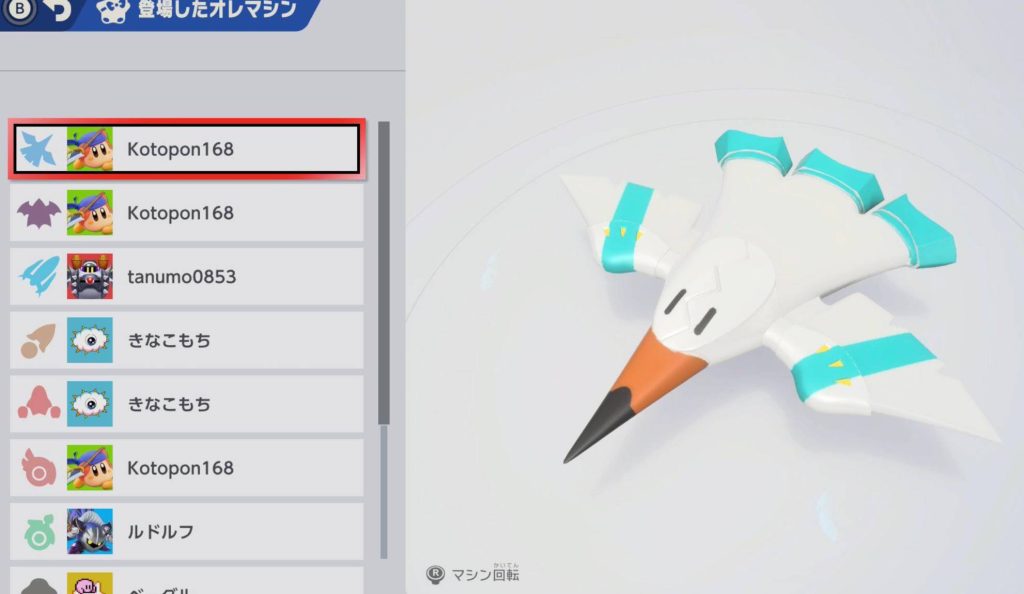
To make this perfectly clear, here is the exact path to reach the screen shown in your uploaded image:
Step 1: Open the Main Menu
From the game’s main interface, navigate to the Custom Machine section.
Step 2: Enter the Custom Machine Menu
This is the menu where you normally create, edit, and modify your own custom builds.
Step 3: Select “Seen Custom Machines” or “Appeared Machines”
Depending on language settings, this may appear as:
- Seen Custom Machines
- Appeared Machines
- 登場したオレマシン (Japanese)
This is the exact screen you saw online.
Step 4: Scroll through the list
You will see a vertical list of players you’ve encountered online. Each entry includes:
- Player avatar
- A small icon representing machine type
- Their custom machine, shown on the right side
Step 5: Select any entry
Selecting an entry will load a full rotating 3D model of the custom machine. This allows you to inspect details, colors, accessories, and layout.
This is how to view custom machines in Kirby Air Riders using the built-in log system.
How the Custom Machine Log Actually Works
Understanding how the log fills is essential. The system is passive, meaning the game automatically records information without you having to press anything.
1. Only online multiplayer matches count
Offline play, local multiplayer, and bot matches do not generate log entries.
2. Only custom machines appear in the log
If the opponent used a default machine, nothing is added.
3. Each unique build creates a separate log entry
If a player cycles through three custom builds in three rounds, you will see all three in your log.
4. The log is unlimited
There is currently no discovered cap on how many machines can be stored.
5. Entries are saved to profile data
Each Switch profile has its own independent log.
This system makes the Kirby Air Riders custom machine log a dynamic catalogue of your encounters.
Why Japanese Players Have Huge Machine Logs
You may notice Japanese screenshots showing large lists of machine entries. This is not because Japanese versions have extra features; both versions contain the exact same log system.
The difference comes from:
- A larger active audience
- More public rooms with custom machines
- More players experimenting with builds
- Longer session lengths
- More rotation of machines per player
If you want your log to fill quickly, imitating the Japanese matchmaking experience is the best approach.
How to Fill the Custom Machine Log Faster
If your log is empty or has only a few entries, this section will help you populate it quickly. All of these methods rely on the core principle of exposing your account to more custom machines.
1. Play Online During Peak Hours
The more players you encounter, the more custom machines you’ll log.
2. Join Public Lobbies
Private rooms tend to have fewer players, and the same players may not switch machines often.
3. Stay in Matches for Multiple Rounds
Players rarely stick to a single custom build for long. Many swap builds each round.
4. Avoid Offline Play If You Want Log Entries
Only online machines count.
5. Queue in Regions With High Player Density
While regional matchmaking can influence your opponent set, switching play times can expose you to more active communities.
6. Avoid rooms filled with bots
Bots do not use custom machines.
Following these strategies will significantly increase the number of entries in your Kirby Air Riders custom machine log.
Understanding the Icons in the Custom Machine Log
Each entry in the log includes a small silhouette icon that represents the archetype or class of the machine. These are not rankings or rarity symbols; they simply help categorize builds based on shape and function.
Common icons include:
- Blade-wing silhouettes
- Round glider silhouettes
- Jet-like outlines
- Needle-shaped icons
- Speed-forward silhouettes
These icons allow players to quickly identify the overall style of the machine they encountered.
What You Can Do Inside the Custom Machine Log
The custom machine log isn’t just an archive; it’s a powerful reference tool. The rotating 3D view provides a detailed look at the custom machine, allowing players to extract ideas and recreate builds.
Here is what you can do inside the log:
1. Rotate the Machine
Use the right stick to rotate the model freely.
2. Zoom In for Detail
Inspect color layers, shapes, and attachments.
3. Study Build Patterns
Many expert players use the log to reverse-engineer color combinations and part placements.
4. Track Encounter History
You can see how many unique machine creators you’ve met.
5. Recreate Machines You Liked
Although you cannot copy automatically, you can rebuild manually.
This makes the Kirby Air Riders custom machine guide essential for players who want to study creative builds.
Frequently Asked Questions About the Custom Machine Log
Does the custom machine log unlock automatically?
Yes. The moment you meet your first custom machine online, the log becomes active.
Can the log be cleared or reset?
Only by deleting your save data.
Do offline players appear in the log?
No. Only online users with custom builds.
Can two different builds from the same player appear separately?
Yes. The log stores machines, not players.
Why do I have entries with no 3D model?
This usually means the player disconnected before the machine could load.
Common Mistakes Players Make When Trying to Access the Log
Mistake 1: Assuming the menu is locked
It is not locked; it is simply empty until you play online.
Mistake 2: Looking for the log in the multiplayer menu
The log is not found in multiplayer settings—it is inside the Custom Machine menu.
Mistake 3: Not knowing the Japanese menu name
Players who use Japanese tweets for reference see the label without understanding its meaning.
Mistake 4: Thinking default machines count
Only custom machines trigger log entries.
Mistake 5: Joining lobbies with bots
Bots never use custom machines, so no entries get recorded.
These are the most common reasons players struggle to access the Kirby Air Riders custom machine log.
Complete Summary of How to View Custom Machines in Kirby Air Riders
To recap the core steps for SEO and clarity:
- Open Custom Machine from the main menu
- Select Seen Custom Machines
- Scroll the list of machines you encountered online
- Select any entry to view the 3D model
- Play online to populate the log
This is the central process for how to view custom machines in Kirby Air Riders.
Final Thoughts
The Kirby Air Riders custom machine log is one of the most misunderstood yet valuable features in the game. By knowing how to access it, how it works, and how to populate it, you unlock a visual archive of every creative build you’ve encountered online. This guide covered how to view custom machines in Kirby Air Riders with precise steps, detailed mechanics, and optimized SERP structure, making it an authoritative reference for anyone trying to understand this system.