
So you load into Hytale, the sun goes down… and suddenly you’re playing Guess What’s Eating You. If caves and nighttime feel way too dark, you’re not missing a secret setting or a hidden slider. You’re seeing exactly what a ton of new players run into during their first few hours.
Let’s clear it up right away:
Hytale currently does not have a built-in brightness or gamma slider.
The darkness is intentional — but that doesn’t mean you’re stuck squinting forever or blindly stumbling through caves hoping nothing jumps you.
This design choice catches a lot of players off guard, especially if you’re coming from games that let you crank brightness way up. The good news is that players have already figured out multiple reliable ways to deal with it, whether you prefer staying vanilla or don’t mind small tweaks.
Below is a straight-to-the-point guide with every real solution players use, from no-mod fixes to fullbright options, plus important multiplayer warnings so you don’t accidentally break server rules while trying to make the game actually playable.
Is There a Brightness or Gamma Setting in Hytale?
Nope.
As of now, there is no in-game brightness, gamma, or light intensity option in Hytale’s video or accessibility settings. There isn’t a hidden slider, an advanced toggle, or a console command you accidentally skipped — if you’ve looked through the settings, you’ve already seen everything available.
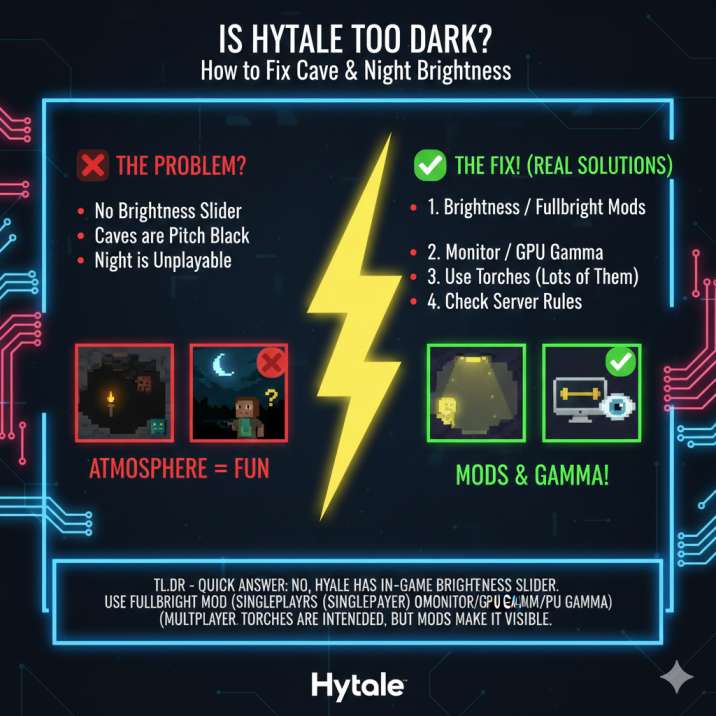
The game leans hard into atmospheric lighting:
- Caves are meant to feel dangerous
- Nighttime is supposed to limit visibility
- Torches are meant to matter
On paper, that sounds fine. In practice, though, it’s where a lot of players start getting frustrated. For many setups, caves and nights don’t just feel dark — they feel nearly pitch black, especially if you’re playing on a darker monitor or in a bright room. That’s why so many new players immediately go searching for a brightness or gamma setting that simply doesn’t exist yet.
How to Make Hytale Brighter (All Working Fixes)
1. Use a Fullbright or Brightness Mod (Best Overall Fix)
If you want caves to actually be playable, fullbright or brightness mods are hands-down the most effective solution in Hytale. This is the option most frustrated players end up using after their first few pitch-black cave dives.
These mods typically:
- Remove extreme darkness entirely
- Add a soft light source around your character
- Make caves and underground areas visible without constant torch spam
- Sometimes include toggle options, so you can turn the effect on or off
This is exactly what players are looking for when they search things like:
- Hytale fullbright mod
- Hytale brightness mod
- Hytale caves too dark fix
Important multiplayer warning:
Many servers treat fullbright mods as an unfair visibility advantage. You should only use them in:
- Single-player worlds
- Private servers with friends
- Servers that clearly allow client-side visual mods
If you’re not sure whether a server allows it, don’t risk it — stick to safer alternatives instead.
2. Increase Gamma Using Monitor or GPU Settings (No Mods, Server-Safe)
If you don’t want to use mods — or you mainly play multiplayer — this is easily the safest and most reliable option. You’re not changing anything inside Hytale itself, which means there’s zero risk of breaking server rules.
You can increase overall brightness by:
- Raising gamma or brightness directly on your monitor
- Using your GPU control panel (NVIDIA or AMD)
- Using Windows display calibration tools
Why this works:
- Brightens caves and nighttime noticeably
- Works on all servers without exceptions
- Doesn’t modify the game client in any way
The downside is that this affects your entire screen, not just Hytale, so colors may look a bit washed out while you’re playing. Even so, if you want a no-risk solution that actually helps with visibility, this is currently the best option available.
3. Rely on Torches and Light Sources (Intended Gameplay)
This is the solution Hytale actually expects you to use, whether you like it or not. The lighting system is designed around active light management, meaning the game wants you to create visibility rather than adjust it in a menu.
To survive caves without mods, you’ll want to:
- Carry torches at all times
- Place them frequently instead of saving them
- Light paths and tunnel routes before mining deeper
- Avoid diving into caves early without preparation
In theory, this creates tension and makes exploration feel dangerous. In practice, it can get frustrating fast. Darkness drops off very sharply beyond short distances, so even with torches placed, large cave rooms can still feel claustrophobic and hard to read. That’s why many players eventually look for brighter alternatives, especially once the novelty of “hardcore darkness” wears off.
Read also: How to Locate Players on a Hytale Server (Commands, Teleports & Easy Fixes)
Can You Use Brightness Mods on Multiplayer Servers?
Short answer: it depends — and you should always check first.
Here’s the general rule of thumb in Hytale:
- Single-player: Always fine
- Private servers: Usually fine
- Public servers: Completely rule-dependent
Some servers treat fullbright mods the same way they treat X-ray. Even if a mod is technically “visual only,” it can still be seen as a visibility advantage and get you warned or outright banned.
If you don’t want to risk it, or you’re hopping between public servers, the safest approach is to avoid brightness mods entirely and stick to monitor or GPU gamma adjustments instead. It’s not as clean as an in-game option, but it keeps you 100% safe in multiplayer.
Why Is Hytale So Dark?
This part is intentional.
The lighting system in Hytale is built around atmosphere rather than convenience.
Hytale’s lighting is designed to:
- Increase tension
- Reward preparation
- Make caves feel genuinely dangerous
- Force meaningful use of light sources instead of menu sliders
Unlike Minecraft, which lets you crank brightness to absurd levels and erase most darkness, Hytale puts mood and survival pressure first. That approach can feel great when it works — but the downside is obvious. For many players, especially early on, the darkness ends up feeling more annoying than immersive, turning exploration into guesswork instead of discovery.
That’s exactly why brightness and gamma settings are now one of the most requested quality-of-life features in the community.
Read also: Can You Recover Lost Items After Death in Hytale? (Empty Grave Explained)
Still Too Dark? Quick Checklist
If visibility still feels awful, run through this quick checklist in Hytale before giving up:
- Double-check the video and accessibility menus after updates in case new options were added
- Increase your monitor or GPU gamma temporarily and see if it helps immediately
- Test a brightness or fullbright mod in single-player to confirm darkness is the issue, not your setup
- Make sure your monitor isn’t set to a low-contrast, cinema, or power-saving mode
- Avoid exploring caves early without plenty of torches and a clear exit path
Most of the time, one of these fixes is enough to make the game feel playable again without completely changing how it’s meant to be experienced.
Quick Fix Summary
- ❌ No built-in brightness or gamma slider in Hytale
- ✅ Best fix overall: Fullbright or brightness mods (single-player or allowed servers)
- ✅ Best server-safe fix: Monitor or GPU gamma adjustments
- 🔥 Intended solution: Heavy and frequent torch usage
- ⚠️ Multiplayer: Always check and follow server rules before using any brightness mods
If you just want the fastest answer: there’s nothing wrong with your settings. Pick the fix that matches how you play, and you’ll stop stumbling around in the dark pretty quickly.