
If you’ve jumped into Hytale Creative mode ready to build something cool, only to be greeted by thick fog and terrible visibility — yeah, that’s frustrating. One minute you’re trying to line up a build or shape terrain, and the next you can barely see what you’re placing.
You’re not doing anything wrong, and you’re definitely not the only one dealing with it. A lot of Creative players run into fog and assume it’s just something you’re stuck with.
The good news? Fog can be removed or reduced in Creative mode, depending on where it’s coming from. In most cases, it’s either tied to weather or atmospheric settings, both of which can be adjusted if you’re building in your own Creative world.
The bad news? There is one place where fog is locked and can’t be disabled. Below, we’ll break down exactly how fog works, when you can remove it, and what your best options are so you can get back to building with clear visibility.
Can You Get Rid of Fog in Hytale Creative?
Yes — most fog in Hytale Creative can be removed or reduced. Fog in Creative mode usually isn’t random; it comes from specific systems that control how the world looks and feels. Once you understand which system is causing the fog, dealing with it becomes straightforward instead of frustrating.
It usually comes from one of three sources:
Weather fog → removable with commands. This type of fog changes when the weather changes and is often the easiest to fix using simple in-game commands.
Atmospheric / zone fog → adjustable in Creative settings. This fog is baked into the world’s atmosphere but can usually be reduced or nearly removed through Creative tools.
Creative Hub fog → not removable (hard limitation). This fog is intentional and can’t be disabled.
Once you know which one you’re dealing with, fixing it is easy and saves you a lot of wasted time while building.
Fast Fix: Remove Fog with a Weather Command
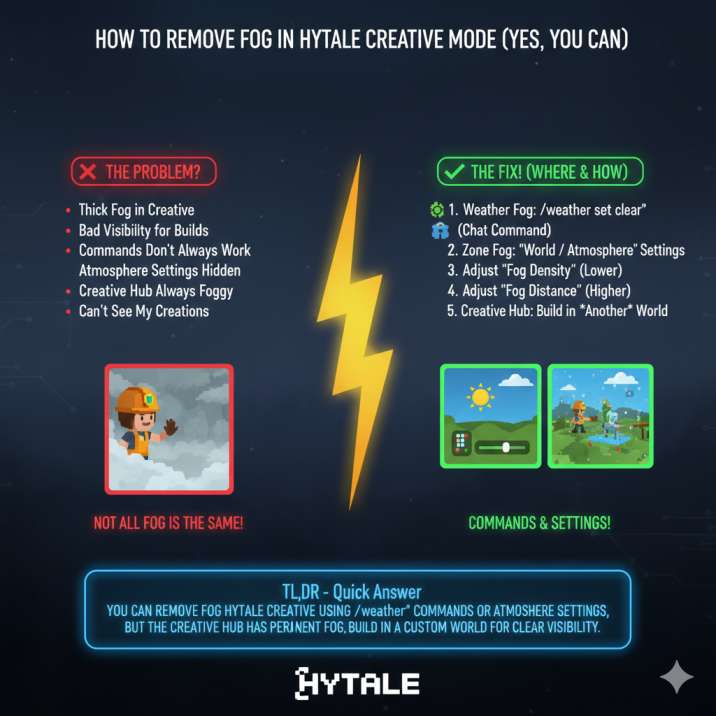
If the fog changes when the weather changes, it’s weather-based fog. This is the most common type players run into when building outdoors, especially in large open areas or while working on terrain-heavy projects. Luckily, it’s also the easiest kind of fog to deal with.
Open chat and force clear weather:
/weather set clear
or try:
/weather set sunny
Using either of these commands instantly removes weather fog and clouds, making outdoor builds way easier to see and work on. You don’t need to reload the world or mess with settings — the change applies immediately. If fog comes back later, it usually means the weather shifted again, so just reapply the command.
Best for: quick visibility fixes, terrain builds, large projects
Works in: most Creative worlds in Hytale
Proper Builder Fix: Adjust Fog in Creative Atmosphere Settings
If fog is always there, even with clear weather, it’s atmospheric fog. This type of fog is tied to the world’s visual settings rather than dynamic weather, which is why commands alone won’t remove it. You’ll notice this most when fog stays consistent no matter how many times you clear or change the weather.
In Creative mode:
- Open World / Atmosphere settings
- Lower Fog Density
- Increase Fog Distance
- Save your changes
Turning fog density way down gives you clean, clear visibility without needing commands every time you load the world. This is the best option if you’re planning a long build session or working on detailed structures where visibility really matters. Once it’s set, you won’t have to keep reapplying fixes.
Best for: long-term Creative worlds and detailed builds in Hytale
Why You Can’t Remove Fog in the Creative Hub
If you’re building inside the Creative Hub, the fog is intentional and can’t be disabled. This isn’t a bug or a setting you’ve missed — it’s a deliberate visual effect built into the hub itself. Because of that, commands won’t help, and atmosphere settings won’t override it, no matter what you try. Even forcing clear weather won’t make a difference here.
The only workaround:
- Leave the Creative Hub
- Create or load your own Creative world
- Build there instead
That’s it — there’s no hidden command, toggle, or advanced trick that removes hub fog. If visibility is important for your builds, the Creative Hub simply isn’t the right place to work. Moving your projects to a personal Creative world gives you full control over weather and atmosphere, which is why most serious builders avoid the hub entirely when working on large or detailed builds in Hytale.
The Bottom Line
✅ Fog can be removed in Hytale Creative
✅ Use weather commands for quick fixes
✅ Use atmosphere settings for permanent clarity
❌ Creative Hub fog is not removable
At the end of the day, fog doesn’t have to ruin your Creative experience. In most cases, it’s either tied to weather or atmosphere settings, both of which are fully manageable once you know where to look. Weather commands are perfect when you just need fast visibility, while atmosphere settings are the better long-term solution if you’re spending hours building or working on detailed projects.
The only real limitation is the Creative Hub, where fog is intentionally locked and simply can’t be disabled. If visibility is killing your builds, the smartest move is to work in a custom Creative world with adjusted atmosphere settings.
That gives you full control and lets you focus on building instead of fighting the fog — simple as that.
Read also: