
Many players are running into the Where Winds Meet menu stuck on top of the screen issue where the UI displays “1.28 km | Switch Item (Left)” or similar prompts that won’t disappear.
This floating UI banner stays even when switching modes, fighting, or exploring, cluttering the screen and breaking immersion. The problem is most common on PC but can appear on PS5 as well, usually caused by UI mode conflicts or an action-wheel bug.
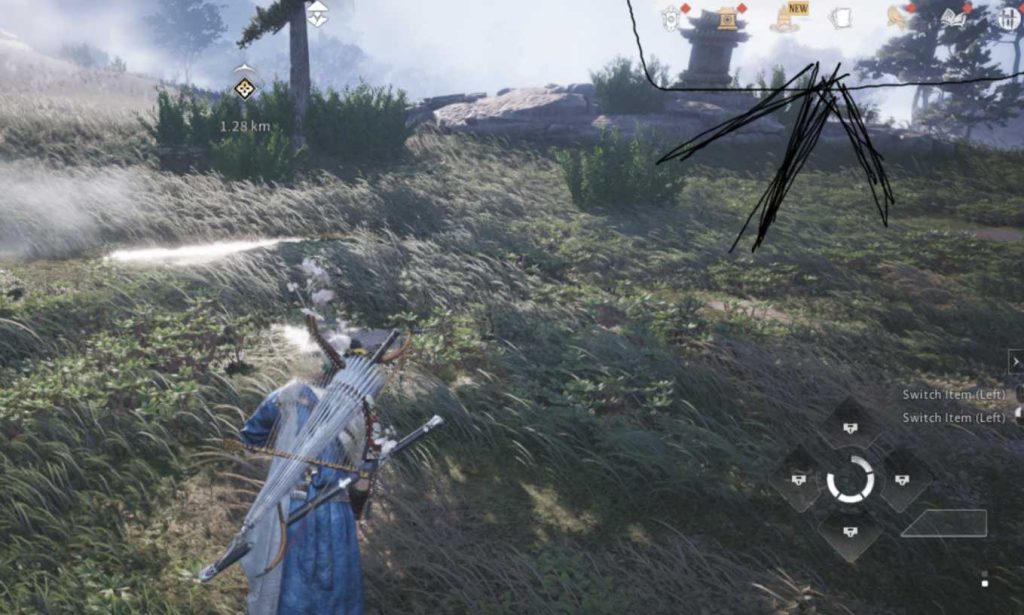
Here’s how to hide or remove only that menu without disabling your entire HUD.
Quick Fix
Switch UI Mode → Immersive → Back to Standard; this refreshes UI layers and removes the stuck Switch Item menu while keeping everything else visible.
Fix 1 – Refresh UI Mode by Toggling Immersive On → Off
The Where Winds Meet Switch Item menu stuck issue often appears after swapping items rapidly.
Switching into Immersive Mode temporarily disables most UI elements, then switching back reloads only the needed HUD.
This removes the stuck banner without hiding your entire interface.
Steps:
- Open Settings
- Go to Display / UI
- Select Immersive Mode
- Switch back to Standard Mode
How it helps: Reloads only the top HUD layer and clears UI stuck on screen.
Fix 2 – Press F6 to Cycle HUD Layers (PC)
F6 is the built-in HUD cycle key for Where Winds Meet.
It hides or shows different UI layers individually.
Pressing it cycles UI elements one by one until the stuck menu disappears.
Steps:
- Press F6
- Cycle through modes
- Stop once the Switch Item banner disappears
How it helps: Removes the exact UI layer responsible for the stuck menu.
Fix 3 – Switch the Control Scheme Between ARPG ↔ MMO
UI bugs often come from switching between gameplay modes.
Toggling the mode forces the HUD to rebuild item and action prompts.
This removes lingering Switch Item indicators.
How it helps: Forces a soft reload of the top-center UI region.
Fix 4 – Open the Quick Wheel and Close It Slowly
The Switch Item menu is tied to the quick-wheel system.
Opening the wheel and letting it fully close resets the prompt.
Works especially well if the menu got stuck from item cycling.
How it helps: Clears lingering commands tied to the item wheel.
Fix 5 – Equip a Different Item, Then Re-Equip the Original
The item-switch UI appears when an item is missing or changed.
Changing the active slot forces the UI to update.
Re-equipping restores the correct display without the stuck banner.
How it helps: Refreshes item-linked UI elements.
Fix 6 – Enter Photo Mode to Reset Screen Overlays
Photo Mode removes all HUD overlays during activation.
Exiting it causes the game to reload only essential UI.
This removes the stuck top-menu banner.
How it helps: Forces a full HUD redraw.
Fix 7 – Open Inventory and Let the Animation Complete
Inventory opening triggers a global UI reset.
If you close it too fast, the UI doesn’t fully update.
Opening and closing slowly forces a proper reload.
How it helps: Clears partial UI states that cause stuck elements.
Fix 8 – Toggle Combat Mode On → Off
Combat stance loads a different HUD set.
Switching in and out of combat recalculates prompts for weapons and items.
This removes bugged Switch Item prompts tied to combat mode.
How it helps: Resets UI regions used during combat.
Fix 9 – Change Keybinds for Item Switching Temporarily
Rebinding the Switch Item Left/Right keys forces the UI to reload that system.
After rebind, the stuck menu disappears.
You can then revert to your original settings.
How it helps: Forces HUD reinitialization related to item cycling.
Fix 10 – Change Display Preset (Windowed ↔ Fullscreen)
Switching display mode refreshes overlay coordinates.
This removes UI elements that were improperly anchored.
Useful if the stuck banner shifted after a resolution change.
How it helps: Fixes visual overlay bugs caused by display transitions.
How do I hide the top item-switch menu in Where Winds Meet?
In Where Winds Meet, the top item-switch menu (the strip that shows “Switch Item – 1.28 km”) cannot be disabled through regular in-game settings. That UI element is tied to the Quick Item / Weapon Hint System, which the developers haven’t given a toggle for yet.
The only semi-workaround is to switch the item wheel category, open the bag, or perform an action that forces the UI to refresh. This moves or hides the bar temporarily, but it returns during movement, combat, or quests.
Because the hint bar is part of the “exploration assist” HUD layer, players currently cannot remove it fully without also removing the entire HUD.
Can you remove the 1.28 km Switch Item UI from the top of the screen?
Not entirely. That bar is hard-coded into the current global client. Even if you reduce HUD opacity, switch tabs, or change modes, the “switch item” UI returns as long as you have:
- A tracked destination
- A quick-switch item equipped
- A usable consumable in the slot
The only consistent semi-fix is to unselect your tracked objective so the game stops trying to guide your item use during travel. This removes the distance indicator but still keeps a minimal form of the switch hint.
Why does the item-switch bar always stay on my screen?
Because Where Winds Meet uses an MMO-style contextual hint system, the game constantly checks whether you can use your next item or weapon. The top bar is designed to stay visible whenever:
- You’re following a quest route
- You have a switchable item selected
- The game detects usable tools nearby
Unlike traditional RPGs, this hint bar is not considered part of the “optional HUD”—it’s classified as a core traversal hint, so it stays active.
This is also why it appears even with minimal UI settings enabled.
How do you disable the weapon/item switching hint in WWMeet?
There is currently no direct toggle to disable the weapon/item switch hint in Where Winds Meet. However, players have found a few temporary ways to hide it:
Try these:
- Clear your active waypoint so the distance marker disappears.
- Empty the top “quick-select” slot in your bag.
- Switch between Solo ↔ Online mode to reset the HUD layer.
- Open the Bag → close it → fast travel (forces UI reload).
These methods hide the hint for a while, but the system recreates it the moment you scroll items or interact with the environment.
Is there a way to hide only part of the HUD without using F6?
Unfortunately, no. The game does not yet support granular HUD customization. The only options are:
- Full HUD toggle (PC F6 / PS5 equivalent in Settings)
- Minimal HUD mode (hides quest log, compass, and pop-ups)
- Photo mode (removes everything temporarily)
But individual elements like:
- Item-switch bar
- Distance indicator
- Weapon hints
- Tracking markers
cannot be selectively disabled.
A future patch may add a proper HUD editor, but right now the system is very limited.
???? Insight 1 — The top “Switch Item” menu is tied to the combat mode
That bar appears when you are in:
- ARPG mode (default)
- OR when the game thinks you’re in “combat-ready state”
Switching to:
- MMO Mode
or - Immersive Mode
will hide or change how that HUD element displays.
This isn’t obvious because the game doesn’t explain HUD dependencies.
???? Insight 2 — The menu appears when the game detects an item wheel action-ready state
This happens when:
- You just equipped new items
- You unlocked a new martial art
- You changed consumables
- You used an item-switch key recently
- There’s a tutorial hint still active
If the tutorial hint is stuck, the menu won’t auto-hide.
???? Insight 3 — F6 hides everything, but Immersive Mode hides only overlays
Immersive Mode:
- Removes top bar
- Removes hints
- Removes clutter
- Keeps health bars, compass, quests (configurable)
This is often the only method to hide the Switch Item bar without nuking every UI element.
???? Insight 4 — The global version has fewer HUD toggles than the CN client
The CN version has:
- HUD element sliders
- Individual UI toggles
- Hint visibility options
The global version currently does not, which is why players feel trapped with permanent UI elements.
???? Insight 5 — Some weapon/tutorial HUD hints are stuck due to a known early-game bug
A known issue:
- The UI thinks you are still in a tutorial state
- That locks the “Switch Item” prompt visible
Switching modes, relogging, or completing a NEW tutorial interaction usually clears it.
Final Thought
The Where Winds Meet stuck Switch Item menu bug is caused by UI layers freezing after swapping items, switching modes, or interacting too quickly with the quick wheel. By refreshing UI modes, toggling immersive mode, using F6, adjusting display settings, or resetting the combat/item wheel, you can remove the top-screen banner without hiding the entire HUD. This keeps gameplay clean and avoids constant screen clutter.