
If you’re here because Hytale chunks are not loading, your world looks white or completely empty, or only one player can’t see terrain after restoring a backup, you’re definitely not alone — and no, your world is probably not gone.
This is one of those frustrating Hytale issues that looks way worse than it actually is, especially when items, mobs, or players still load but the terrain itself just refuses to appear.
This problem usually shows up after a crash, power outage, forced shutdown, or corrupted save, particularly when a backup has been restored in a hurry. The good news is that in most cases, the world data still exists and the issue comes down to how chunks are loading, rendering, or being read by the game.
Below, we’ll break down exactly why this happens, what it means, and how to fix it — starting with the fastest and safest solutions first, before moving on to deeper fixes only if you actually need them.
Quick Fix: Try This First (Most Searched Solutions)
Before you dig into files or start worrying about your world being permanently broken, try these quick fixes first. These are the most searched and most successful solutions for cases where Hytale chunks won’t load for one player or the world appears white or empty.
In many situations, the issue is simply a rendering or client-side problem, and these steps can fix it in just a few minutes.
Start by lowering the view distance or render distance, as high settings can prevent chunks from loading correctly after a crash or restore. Next, restart the game and update your graphics drivers, since outdated GPU drivers are a common cause of missing terrain.
After that, disable any mods, shaders, or custom resource packs, as even small visual mods can interfere with chunk loading. Finally, rejoin the world and check if the terrain loads normally. If the world still shows white chunks or missing terrain, keep going to the deeper fixes below.
Why Hytale Chunks Are Not Loading After a Backup
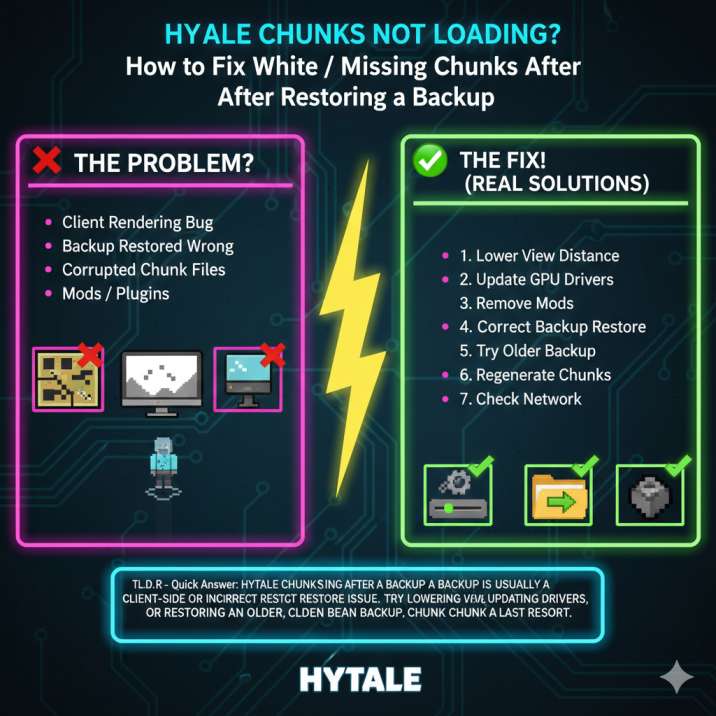
Most searches around this issue point to a handful of common causes, especially after a crash or unexpected shutdown. One of the most frequent reasons is a client-side rendering bug, which is why this problem often affects only one player while everyone else can see the world normally.
In other cases, the issue comes from a backup being restored incorrectly, such as extracting files into the wrong folder or not overwriting existing data properly.
Another common cause is corrupted chunk files created during a crash or power loss, which can stop specific areas of the world from loading at all. Mods or server plugins can also interfere with chunk streaming, especially performance or chunk-unloading mods. Finally, network issues or outdated graphics drivers can prevent chunk data from reaching or rendering correctly on the client.
Important detail:
If players, entities, and items load correctly but the world itself does not, the save usually still exists. In most cases, the chunks are present — they’re just not rendering properly.
Fix 1: Hytale Chunks Not Loading for One Player (Client Fix)
If only your friend sees white or missing chunks while everyone else can see the world normally, this is almost always a client-side issue. The server and world save are usually fine — the problem is how the game is rendering or loading chunks on that player’s system.
Lower View Distance
This is one of the most searched fixes for this issue, and it works more often than you’d expect. High view or render distance settings can stop chunks from loading correctly after a crash or backup restore. Reduce the view/render distance in the settings, restart Hytale, and then rejoin the world to see if the terrain loads properly.
Update GPU Drivers
Outdated graphics drivers are another common reason why the Hytale world won’t load chunks correctly. Update your NVIDIA, AMD, or Intel GPU drivers to the latest version, restart the PC, and try joining the world again.
Remove Mods or Resource Packs
Mods, shaders, or custom resource packs can break chunk loading after updates or restores. Disable everything temporarily and test the world on a clean client to rule out mod-related issues.
Fix 2: Restore the Hytale Backup the Correct Way
A huge number of “Hytale chunks not loading after backup” problems come down to one simple mistake: the backup wasn’t restored the right way. Even if the correct backup file is used, extracting it incorrectly can result in white chunks, missing terrain, or parts of the world failing to load.
Correct Backup Restore Method
First, make sure Hytale is completely closed. Restoring a backup while the game is running can cause additional corruption. Next, go to your world save folder:
Windows:%APPDATA%\Hytale\UserData\Saves\<WorldName>\
Linux:~/.local/share/Hytale/UserData/Saves/<WorldName>/
Once there, open the backups folder and select the backup .zip you want to restore. Extract the contents of that zip directly into the universe folder, allowing all files to overwrite when prompted. After the files are replaced, start the game and load the world again.
❗ Important: Do not create a new folder inside the universe folder.
That single mistake is one of the most common causes of white or missing chunks after restoring a backup.
Fix 3: Try an Older Backup (Very Important)
If you restored the latest backup and the chunks still aren’t loading, don’t assume all your backups are broken. This is a very common situation, especially after a crash, power outage, or forced shutdown.
What you should do instead is restore an older backup and test them one by one. Start with the backup created just before the latest one, then work your way backward if needed. Load the world after each restore and check whether the missing or white chunks are still present.
Why this works:
Backups are often created after corruption has already started, not before it. That means the most recent backup may already contain broken chunk data, while an older backup was saved when the world was still healthy.
Fix 4: Fix Corrupted Chunks in Hytale (Advanced)
If the same area of the world is always white, restoring backups doesn’t fix the problem, and only specific chunks refuse to load, then you’re most likely dealing with corrupted chunk data. This usually happens after crashes or power loss and can affect only certain regions instead of the entire world.
How to Regenerate Corrupted Chunks
⚠️ Always back up your world first. This step is critical.
Start by noting roughly where the broken chunks are, such as the affected X/Z area. Next, fully close the game or stop the server. Open the world’s universe folder and move the corrupted chunk or region files out of that folder (don’t delete them permanently yet). Once that’s done, restart the game or server.
Hytale will automatically regenerate any missing chunks when the world loads again.
⚠️ Warning:
Regenerated chunks reset to world generation, which means player-built structures in those chunks may be lost. Always keep a backup in case you need to roll back.
Fix 5: Mods, Plugins, and Chunk Loading Issues
If you’re running server plugins, chunk unloaders, or performance mods, they could be the reason Hytale chunks aren’t loading properly after a restore. Mods that control chunk unloading or optimization can behave unpredictably after a crash or backup restore, especially if chunk data was already unstable.
To test this, temporarily disable all plugins and mods, then restart the server or game and load the world again. If the chunks load normally with everything disabled, you’ve found the cause. You can then re-enable mods one by one to identify which one is responsible. Some plugins simply don’t play well with restored worlds and can trigger white or missing chunks until they’re removed or reconfigured.
Fix 6: Network Issues Causing Chunks Not to Load
If remote players see white or missing chunks but players on the same local network don’t have any issues, the problem may be network-related rather than a corrupted world. In some cases, chunk data simply isn’t being fully delivered to the client.
To test this, have the affected player try joining from a different network, such as a mobile hotspot, to see if the chunks load correctly. You should also restart your router to clear any temporary connection issues.
If you’re running a server, try increasing the server’s RAM allocation, as low memory can interrupt chunk streaming. While this isn’t the most common cause, network problems can absolutely lead to chunks failing to load properly.
Final Answer (Straight to the Point)
If your Hytale chunks are not loading, the world looks white or empty, or only one player can’t see terrain after restoring a backup, the world is usually recoverable. In most cases, the issue is related to rendering, an incorrect backup restore, or corrupted chunk data — not a permanently broken save.
Start by trying the client-side fixes, especially lowering view distance and updating graphics drivers. If that doesn’t work, make sure the backup was restored correctly into the universe folder. Next, test older backups, since the newest one may already contain corrupted data. If the same area still won’t load, regenerating corrupted chunks is the final and most effective solution.
Most players resolve this issue well before needing extreme measures, and with the right steps, your world can usually be brought back without a full reset.