
So you made custom costume armor in Hytale, typed in the ID… and nothing happens. No spawn. No equip. No errors. Just vibes — and not good ones. You double-check the spelling, try again, maybe even restart the game, and still nothing. At that point it’s easy to assume the ID system is broken or that Hytale just isn’t cooperating today.
If you’re searching things like “Hytale costume armor ID not working”, “custom armor not showing in Hytale”, or “Hytale cosmetic item ID broken”, you’re definitely not alone. This exact problem shows up constantly in modding discussions, Discord servers, and Reddit threads, especially for people making their first cosmetic armor pieces.
The good news is that this issue is extremely common, and it almost always comes down to setup — not a bug, not bad luck, and not a broken game. Once you know where things usually go wrong, the fix is surprisingly straightforward.
Let’s fix it properly.
Why Hytale custom costume armor IDs fail
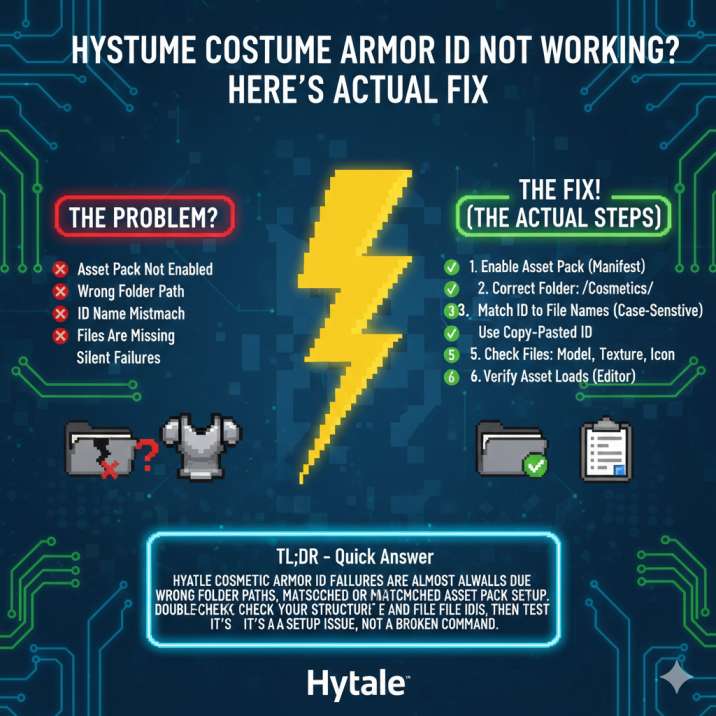
In Hytale, costume armor (cosmetics) is handled very differently from normal items or gear, and that distinction trips up a lot of creators. If your custom costume armor ID doesn’t work, it’s usually not because the ID itself is “wrong,” but because something in the setup chain breaks before the game ever recognizes the asset. In most cases, one of these issues is to blame:
- The asset pack is not loading at all
- The folder structure for cosmetics is incorrect
- The asset ID does not exactly match the file and folder names
- The cosmetic asset was never properly registered
- Required model or icon files are missing
The tricky part is that Hytale won’t throw clear error messages for most of these problems. Instead of warning you, the game simply ignores the cosmetic entirely, making it feel like the ID is broken when, in reality, the asset was never loaded in the first place.
Step 1: Make sure your Hytale asset pack is enabled
Before you start checking IDs, file names, or folder paths, the very first thing to confirm is that your asset pack is actually active. This sounds obvious, but it’s one of the most common reasons custom costume armor simply doesn’t work.
Open the Hytale Asset Editor, then head to Manage Packs. From there, make sure your pack is enabled and not set to read-only. If the pack isn’t loaded, Hytale won’t recognize anything inside it — which means no custom armor IDs will work, even if the files themselves are perfectly set up.
You should also double-check that your pack includes a valid manifest.json file. If the manifest is missing, incorrectly formatted, or broken, Hytale will ignore the entire pack without throwing an obvious error. In short: no manifest, no pack, no working IDs.
Step 2: Use the correct Hytale cosmetic armor folder path
This is one of the biggest reasons custom armor is not showing in Hytale, even when the ID looks correct. Costume armor is treated as a cosmetic asset, not a normal item, so it must live in the Cosmetics directory. Placing it under Items, Gear, or any other folder will cause Hytale to completely ignore it.
Your folder structure should look like this:
Common/
└─ Resources/
   └─ Cosmetics/
      └─ Head/   (or Chest, Legs, Feet)
         └─ CustomArmor/
            ├─ CustomArmor.blockymodel
            ├─ CustomArmor.png
            └─ Icon/
               └─ CustomArmor.png
The slot folder (Head, Chest, Legs, or Feet) needs to match the type of costume armor you’re creating, and the cosmetic itself must live inside its own folder. If your armor is placed anywhere outside this exact path, Hytale will never register the asset, which means the ID simply won’t exist in-game.
Step 3: Match the asset ID to file names exactly
If your Hytale armor ID is not working, this is the step you need to check very carefully. Hytale is extremely strict about naming, and even a tiny mismatch will cause the cosmetic to fail without any warning.
Your asset ID must match exactly across all of the following:
- The folder name
- The
.blockymodelfile name - The texture file name
- The icon file name
Example:
ID: CustomArmor
Files:
CustomArmor.blockymodel
CustomArmor.png
Icon/CustomArmor.png
Any variation will break the asset:
❌ customarmor.png
❌ Custom_Armor.blockymodel
❌ customArmor
Hytale asset IDs are case-sensitive, and underscores, capitalization, or spelling differences all count as mismatches. One wrong character is enough for Hytale to silently ignore the cosmetic entirely, making it seem like the ID itself is broken when it’s really just a naming issue.
Step 4: Don’t guess the cosmetic ID — copy it
When you’re using a cosmetic armor ID in commands, recipes, loot tables, or scripts, never rely on memory or type it out manually. Even if you think you know the name, a single missing character or capitalization mistake is enough to break it.
Instead, always do the following:
- Open the Asset Editor
- Select your cosmetic armor
- Copy the exact asset ID shown
- Paste that ID wherever you’re using it
This removes all guesswork and guarantees you’re referencing the correct identifier. If your armor does not appear in the Asset Editor list at all, that’s a clear sign the asset was never registered — which means the ID doesn’t exist yet, no matter how many times you try to use it.
Step 5: Make sure all required cosmetic files exist
For a Hytale costume armor to load correctly, every required file has to be present. If even one is missing, the cosmetic can fail to register and make it seem like the ID isn’t working.
A functional costume armor needs:
- A
.blockymodelfile for the model - A
.pngfile for the texture - An
Icon/.pngfile for the UI icon
Missing icon files are a surprisingly common reason custom armor IDs don’t load. Even if the model and texture are correct, an incorrect or missing icon path can cause Hytale to silently ignore the cosmetic entirely. Always double-check that the icon exists, is named correctly, and matches the asset ID exactly.
Step 6: Check if the asset is actually loaded
At this point, the fastest way to confirm what’s going on is to check whether Hytale can actually see your cosmetic armor at all. Open the Asset Editor (or use the /assets command, if it’s available) and search for your armor’s ID.
- If the asset appears in the list → the ID works and the cosmetic is properly loaded
- If it doesn’t appear → something is wrong with the pack, folder path, or file names
This step removes all guesswork. If Hytale doesn’t list the asset, the ID simply doesn’t exist in-game yet, which means the issue is still somewhere in your setup.
Advanced reasons Hytale custom armor still doesn’t work
If everything looks correct and your cosmetic armor still isn’t working, the issue is likely coming from something less obvious. One common problem is duplicate asset IDs across multiple packs, where two packs use the same ID and one silently overrides the other. This can make it seem like your armor isn’t loading at all.
Another frequent cause is JSON errors anywhere in the pack. Even a small formatting mistake in an unrelated file can stop the entire pack from loading properly. Broken or incompatible .blockymodel exports are also an issue, especially when exporting from tools like Blockbench, as malformed models can fail without clear errors.
Finally, item metadata such as durability or repair state can break crafting or testing. Always test your custom armor using a fresh, unmodified item to rule out metadata-related issues.
Quick test to confirm your setup
If you’re still stuck, the fastest way to narrow things down is to run a simple sanity check. Create a brand-new asset pack in the Asset Editor and add a basic cosmetic armor using the editor UI, without importing any of your existing files.
- If the test armor works → your original pack has a structural or naming issue
- Compare the working pack to the broken one file by file
This approach isolates the problem almost immediately and makes it much easier to spot what’s different. It’s one of the quickest ways to figure out whether the issue is with your setup or something deeper.
Final answer
If your Hytale costume armor ID is not working, it’s almost always because one of a few core setup steps was missed. In most cases, the problem comes down to one of the following:
- The asset pack isn’t loading
- The cosmetic folder path is wrong
- The asset ID doesn’t exactly match the file names
- The cosmetic asset was never registered
Once those issues are fixed, the ID usually starts working instantly. There’s rarely anything “broken” with Hytale itself — it’s almost always a small setup detail that’s easy to overlook but quick to correct once you know where to look.