
So you’ve opened Creative Mode, grabbed the tint tool, started clicking… and nothing happens.
Yeah — you’re not missing something obvious. The tint tool in Hytale does work, but it’s one of those features that’s barely explained and very easy to think is broken.
Let’s clear it up properly.
The confusion usually comes from how limited and quiet the tool is. There’s no tooltip, no error message, and no clear indication when a block simply doesn’t support tinting. So when you click and see zero feedback, it feels like the tool isn’t doing anything at all.
In reality, the tint tool is extremely specific about where, when, and how it works. It only functions in Creative Mode, only applies to certain block types, and can even be affected by lighting conditions. If any of those requirements aren’t met, the tool just silently fails.
Once you understand those limitations, the tint tool makes a lot more sense — and suddenly stops feeling broken.
Is the Hytale Tint Tool Actually Working?
Yes, it is.
But it’s also limited, picky about what it works on, and gives almost no feedback when it fails.
That combo is why so many players assume it’s unfinished.
Here’s what you need to know before using it.
First, the tint tool in Hytale only functions in Creative Mode. If you’re testing it in Survival or on a world where you don’t have full creative permissions, it simply won’t apply anything — and the game won’t tell you why.
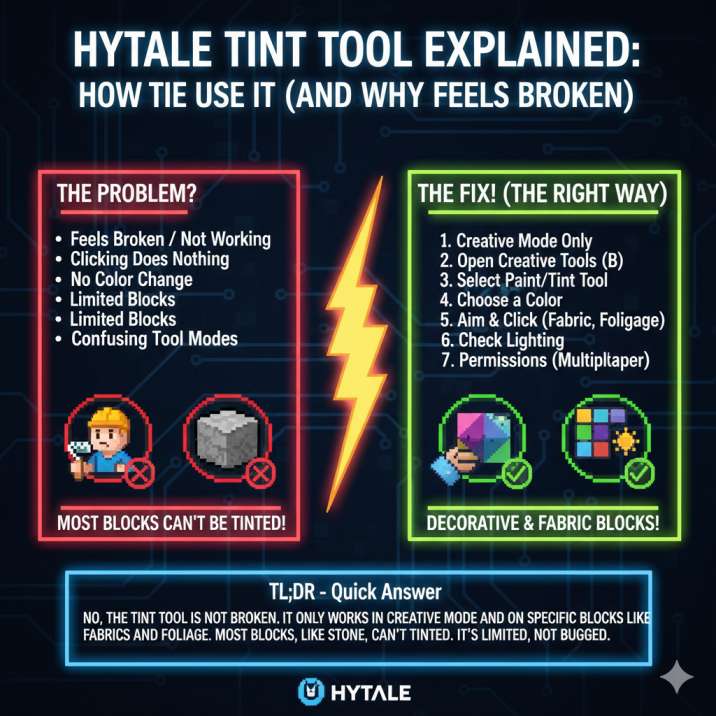
Second, not every block supports tinting. Many core materials like stone, metal, and ores ignore the tool entirely. Decorative blocks, foliage, and fabric-style materials are where tinting usually works, which isn’t obvious unless you already know that.
Finally, lighting plays a bigger role than you’d expect. Subtle colors can be completely invisible at night or in shadow, making it seem like nothing changed even when the tint applied correctly.
Put all that together, and it’s easy to see why the tool feels broken — even though it technically isn’t.
How to Use the Tint Tool in Hytale (The Right Way)
If you want this to work, follow these steps exactly.
1. Make Sure You’re in Creative Mode
The tint tool does not work in Survival. If you’re not in Creative, it will never apply — no exceptions.
2. Open the Creative Tools Menu
Press B to bring up the builder / creative tools.
This is where the tint tool actually lives.
3. Select the Paint / Tint Tool
Depending on the build, it may be called:
Paint Tool
Paint Brush
Tint Brush
If you’re in a selection tool or prefab mode, tinting won’t do anything.
Once the correct tool is selected, you’ll also need to choose a color before painting. The color picker is part of the tool’s UI, and using a bright, obvious color is recommended when testing so the effect is easy to see. Subtle shades can be hard to notice, especially under shadows or at night.
Also keep in mind that the tint tool in Hytale only applies to certain block types. If nothing happens when you paint, try switching to a decorative or foliage-style block before assuming the tool isn’t working.
4. Choose a Color
Open the color picker and select your color. Bright colors are best for testing, since subtle shades can be hard to see.
5. Paint the Block
Aim at a block face and apply the tint.
If the block supports tinting, the color applies instantly.
If nothing happens, keep reading — this is where most people get stuck.
At this point, most players assume the tint tool in Hytale is broken, but in most cases it’s reacting exactly as designed. The game doesn’t show an error message or warning when a block can’t be tinted, so failed attempts look identical to successful ones.
Lighting can also play a huge role here. Dark areas, nighttime, or heavy shadows can make applied colors almost invisible. If you’re testing the tool, try daylight and a high-contrast color first to confirm it’s working.
If you still don’t see a change, the block itself is likely the issue — many core materials simply don’t support tinting at all.
Read also: Do Torches Prevent Monsters From Spawning in Hytale?
Hytale Tint Tool Not Working? Here’s Why
This is the part most guides don’t explain.
Most Blocks Can’t Be Tinted
This is the #1 reason people think the tool is broken.
Tinting usually works on:
Decorative blocks
Fabric-style materials
Foliage or detail assets
It usually does not work on:
Stone
Ores
Metal blocks
Core building materials
If you’re clicking stone and nothing happens, that’s normal.
What makes this especially confusing is that Hytale doesn’t give you any feedback when a block can’t be tinted. There’s no warning, no tooltip, and no visual cue — the action just silently fails.
That means a successful tint and a failed tint can look identical if the color is subtle or the lighting is poor. For testing, it’s always best to switch to a decorative block and use a bright, high-contrast color. Once you see the effect clearly, you’ll know the tool is working and can adjust from there.
Understanding this limitation alone solves most “tint tool broken” confusion.
Read also: How to Remove a Stuck Home Icon in Hytale ?
You Might Be in the Wrong Tool Mode
Creative mode has a lot of tools, and only one of them actually applies tint.
If you’re:
Selecting blocks
Editing prefabs
Placing structures
…the tint won’t apply. Make sure the paint/tint brush is active.
This trips up a lot of players because Creative mode doesn’t clearly tell you which tool is currently in control. You can be clicking on blocks and interacting with the world, but if the selection or prefab tool is active, the tint input is simply ignored.
In Hytale, the paint/tint brush is a separate tool entirely, not a modifier layered on top of other tools. That means switching tools resets what actions are possible.
If tinting suddenly stops working, the first thing to check isn’t the block — it’s the active tool. Re-select the paint or tint brush, confirm the color picker is open, and then try again. This alone fixes a surprising number of “it worked five minutes ago” moments.
Lighting Can Hide the Tint
Low light, shadows, or night-time can make tints almost invisible.
If you’re unsure:
Try daylight
Use a bright color
Test on a lighter block
This alone fixes a lot of “it’s not working” moments.
Lighting interacts heavily with how color is displayed in Hytale, especially in Creative Mode where builds often use darker palettes. A subtle tint that technically applied can look identical to the original block once shadows or ambient lighting kick in.
Shaded interiors, caves, or nighttime scenes are the worst offenders. Even strong colors can lose contrast depending on the material. That’s why testing outdoors during the day with a high-saturation color is the fastest way to confirm whether the tint tool is actually working.
Once you know the tint applies correctly, you can fine-tune the color or lighting afterward without second-guessing the tool itself.
Multiplayer Permissions Can Block It
On shared worlds or servers:
You may not have Creative permissions
Paint tools can be disabled
If you can’t freely build, tinting won’t work either.
This is especially common on multiplayer servers in Hytale, where Creative Mode exists but individual tools are restricted. Some servers allow block placement but disable paint, tint, or editing tools to prevent griefing or unwanted changes.
The problem is that, just like with non-tintable blocks, the game doesn’t warn you when permissions block the tint tool. You can click normally, see no errors, and still get zero results.
If tinting works in a single-player Creative world but not on a server, permissions are almost always the reason. In that case, you’ll need to check server rules, request elevated build permissions, or test your build ideas offline where full Creative tools are enabled.
Does Tinting Permanently Change Blocks?
No — and this is important.
The tint tool:
Changes the instance, not the asset
Only affects the area you paint
Can be removed or reset
It’s meant for creative builds and visual variety, not permanent texture replacement.
In Hytale, this means tinting is more like a visual layer than a true block edit. You’re changing how a block looks in that specific location, not rewriting the block’s texture or material across the entire game.
Because of this, tinted blocks won’t carry their color if you place a fresh version of the same block elsewhere. Each placement starts with the default appearance unless you tint it again. This design makes the tool safer for creative experimentation, since you can add color without permanently altering assets or affecting other builds.
If you’re looking to permanently recolor blocks across a project, that requires asset editing — the tint tool isn’t meant for that job.
What the Tint Tool Is Actually Meant For
Think of it as a creative finishing tool, not a core building mechanic.
It’s best used for:
Adding color variation to builds
Making areas feel less repetitive
Creative maps, screenshots, and detailing
It’s not designed to recolor every block in the game — at least not yet.
In Hytale, the tint tool shines when you use it subtly. Small color shifts across walls, props, or decorative elements can make builds feel more natural and less copy-pasted without changing the original style of the block.
This is especially useful for custom maps or cinematic scenes, where visual variety matters more than raw functionality. Instead of swapping materials entirely, you can tweak tone and mood with light tinting.
If you approach the tool expecting a full recolor system, it’s disappointing. If you treat it as a finishing pass for creative builds, it suddenly makes a lot more sense.
Final Take
If the Hytale tint tool feels broken, it’s almost always a limitation issue, not a bug.
Once you:
Use the correct Creative tool
Test on tint-compatible blocks
Check lighting and permissions
…it works exactly as intended — just with more restrictions than most players expect.
The real problem isn’t that the tint tool in Hytale doesn’t function. It’s that the game does a poor job of explaining what the tool can and can’t do. There’s no tutorial, no feedback when it fails, and no indication that a block simply doesn’t support tinting.
Because of that, first-time users almost always assume the feature is unfinished. In practice, once you understand its boundaries, the tint tool becomes a reliable part of Creative Mode — just not a universal recoloring solution.
Set expectations correctly, and the frustration disappears.
Quick FAQ
Is the Hytale tint tool broken?
No. It works, but only on certain blocks and only in Creative Mode.
Can you use the tint tool in Survival?
No.
Why does nothing happen when I use it?
Usually because the block doesn’t support tinting or the wrong tool is selected.
Will it improve in future updates?
Probably — but nothing official has been confirmed.
Read more articles: