
Players are experiencing a frustrating Where Winds Meet makeup bug where the head refuses to change color or display any makeup, even though the body updates correctly.
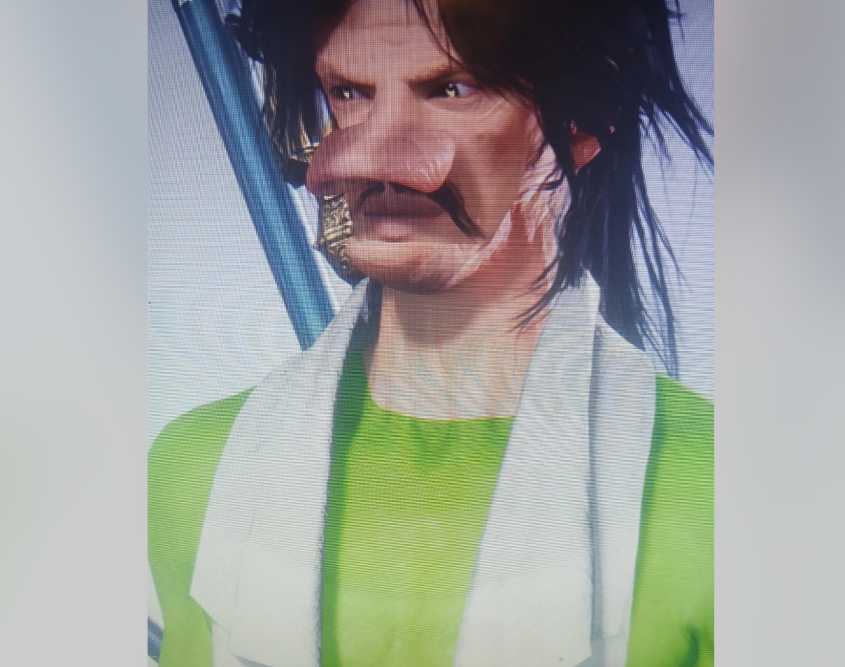
The glitch causes character templates to load only partially, leaving the head stuck in default skin tone while the rest of the character appears green or tinted.
Many also report that switching presets or reloading templates doesn’t fix the issue, and makeup like face paint, tint, or full-head colors simply won’t apply. This bug affects both newly created and existing characters across multiple modes.
This guide explains why the makeup and head tint fail to load and the best working solutions.
Quick Fix
Swap between Solo Mode and Online Mode from the profile icon—this forces the game to refresh your full appearance model and reapply missing head tint or makeup.
Fix 1 – Reload Appearance by Switching Solo ↔ Online
The Where Winds Meet makeup bug often comes from your appearance failing to sync between gameplay modes. Switching triggers a full model refresh.
Your face, tint, and cosmetics reload from the server instead of cached files.
Many players fixed the missing head color instantly with this method.
Steps:
- Press Options
- Click the tiny Solo/Online toggle under your profile
- Switch to Solo → then back to Online
How it helps: Forces a complete rebuild of your head textures and makeup layers.
Fix 2 – Change Equipment to Refresh Character Shaders
Putting on or removing helmets, masks, or armor forces the game to reload face shaders. This helps correct the Where Winds Meet makeup bug when the head stays human-colored.
It’s simple and works without resetting anything else.
Several players reported their head tint reappearing after switching outfits.
How it helps: Shader reload corrects the mismatch between body color and head color.
Fix 3 – Reapply Your Saved Template After Restarting
Templates often display the correct tint but fail to load in gameplay. Restarting clears cache, allowing the template to apply properly on the next load.
This helps ensure your green/blue/red tint loads correctly.
It’s useful if the creator shows the right color but gameplay does not.
Steps:
- Save template
- Restart game
- Reapply template
How it helps: Refreshes the appearance data that was stuck.
Fix 4 – Add New Makeup, Save, Then Remove It
Adding and removing any makeup layer triggers a cosmetic system reset.
This technique helps when the face refuses to change color or accept tint.
It’s especially useful when the makeup options look locked.
How it helps: Forces reinitialization of all cosmetic layers.
Fix 5 – Change to a Different Face Type Temporarily
Face types load separate texture bundles. Switching resets them.
Returning to your preferred face type reloads shaders cleanly.
This is a strong fix for the Where Winds Meet makeup bug affecting head color.
How it helps: Clears corrupted tint layers linked to the original face template.
Fix 6 – Adjust Makeup Opacity to 0% Before Applying Tint
Invisible makeup layers may block the tint from showing.
Lowering opacity clears the obstruction, making your head tint visible.
This solves cases where cosmetics don’t visibly update.
How it helps: Removes hidden face layers stopping tint from applying.
Fix 7 – Remove All Makeup Categories and Re-Enter the Editor
If a hidden cosmetic layer gets stuck, the “Remove All” function wipes everything.
Re-entering the editor loads a clean appearance base.
This method resolves locked makeup problems for many players.
How it helps: Clears all blocked cosmetics that prevent head tint changes.
Fix 8 – Heal Miasma or Status Effects That Override Appearance
Some afflictions, like Miasma, override your normal skin tint.
Healing removes the temporary shader effect, restoring your chosen look.
Players reported tint returning immediately after curing the effect.
How it helps: Ensures negative effects aren’t hiding your applied makeup.
Fix 9 – Get Healed by Another Player to Trigger Shader Refresh
Receiving healing from another player causes the server to refresh your model.
This can restore head tints or makeup that didn’t load.
NPC healing doesn’t always work—player healing works more reliably.
How it helps: Triggers a server-side appearance rebuild.
Fix 10 – Change Hair Color or Style to Reload Face Textures
Changing hairstyles forces the character creator to reload head textures.
This can break the Where Winds Meet makeup bug when tint refuses to appear.
Works well when only the head is unaffected.
How it helps: Refreshes face shaders so tint applies normally.
Fix 11 – Load Into a New Region to Refresh Appearance Streaming
Different zones load different lighting and shader bundles. When you move into a new region or teleport, the game forces a full appearance refresh.
Players with the Where Winds Meet makeup bug often see their head tint finally update after fast traveling.
This works because entering a new zone reloads texture memory from scratch.
How it helps: Forces your full character model—including head tint and makeup—to reload cleanly.
Fix 12 – Disable Cosmetic Filters in the Character Editor
Some presets include hidden cosmetic filters that override tint layers. These filters cause the Where Winds Meet makeup bug by preventing the head from adopting the selected color.
Turning off filters restores normal tint behavior.
How to do it:
- Open Appearance Editor
- Check for complexion filters
- Set filter intensity to 0
How it helps: Removes hidden overlays blocking head tint.
Fix 13 – Reset Face Shine and Texture Smoothness
Overly shiny or smoothed textures can block tint visibility on the face.
Reducing these sliders lets your chosen color appear correctly.
This resolves cases where the body turns green but the face remains unchanged.
How it helps: Ensures skin tint isn’t being overridden by shine textures.
Fix 14 – Apply a Different Tint First, Then Switch Back
Some tints fail to update when switching between similar colors like green-to-green.
Applying a drastically different color first breaks the lock.
How it helps: Forces the tint layer to refresh instead of staying cached.
Fix 15 – Remove Headgear, Helmets, and Masks Before Editing
Headgear often loads special shaders that override face textures.
Removing them before entering the editor prevents the Where Winds Meet makeup bug.
After removing, the tint usually applies correctly.
How it helps: Eliminates accessory-based texture overrides.
Fix 16 – Try Editing Makeup Only After Unequipping All Reactive Armor
Some armor pieces include environmental shaders that alter lighting on your character.
These shaders interfere with tint layers.
Editing makeup with no armor equipped often fixes broken face colors.
How it helps: Gets rid of armor-based shader interference.
Fix 17 – Use the “Reset Face Only” Option (Not Full Reset)
This lesser-known option resets only your face mesh without affecting your entire build.
It clears the tint specifically on your head, resolving the Where Winds Meet makeup bug locally.
How it helps: Rebuilds your head texture without touching body or items.
Fix 18 – Wait for Weather or Lighting Changes In-Game
Strangely, lighting conditions affect tint visibility.
If you are in heavy fog, night cycles, or miasma areas, head tint may look “off” or fail to appear.
Moving to bright daylight often shows the correct tint again.
How it helps: Ensures tint isn’t being visually suppressed by environmental shaders.
Fix 19 – Use High Settings for Character Models (PC)
Low model quality settings sometimes skip certain face layers entirely.
Raising character model quality reloads all shader passes, fixing the Where Winds Meet makeup bug if you’re playing on PC.
How it helps: Loads full shader complexity so tint appears correctly on the face.
Fix 20 – Delete and Recreate the Tint Layer Fresh
If the tint layer itself is corrupted, reassigning it from scratch fixes it.
Instead of editing old tint, remove the tint entirely and add it as a new layer.
This often resolves stuck, invisible, or mismatched head color.
How it helps: Replaces broken tint values with a clean layer the engine can render properly.
Why is my character’s head not changing color in Where Winds Meet?
If your character’s head isn’t changing color when you adjust makeup or skin tone, it’s because the face layer is handled by a separate shader from the body. Where Winds Meet sometimes fails to sync those two layers, causing the head to remain “default” while the body takes on the correct color.
This desync usually appears on PS5 and PC after fast-traveling, entering cutscenes, or loading into the game too quickly.
The bug occurs when the face texture map fails to reload, so the game defaults to the base skin tone even if you selected a custom color in character creation.
Restarting the game or reloading any appearance menu temporarily fixes the mismatch, but the bug frequently returns because it’s caused by renderer/texture streaming issues, not user error.
Why does my makeup not appear on my character’s face?
Makeup doesn’t appear because the makeup overlay shader is not loading on certain models. This affects lipstick, eyeliner, blush, tattoos, patterns, and even face markings.
Where Winds Meet sometimes loads the character with only the base head texture, skipping the makeup overlay entirely.
This happens most often when:
- You load into crowded areas
- You teleport rapidly between regions
- You switch from day to night lighting
- The character creation UI fails to sync
- PS5’s HDR/contrast rendering resets
It also affects characters using imported presets or CN templates.
The makeup still exists in your settings — it’s just not being rendered.
Re-entering the customization screen, changing one option, then changing it back usually forces the face overlay to reload.
Why is my head normal but my body is colored?
This is one of the most common Where Winds Meet visual bugs. The head and body use different texture passes, and sometimes only the body updates when you apply new skin tones or makeup.
The result: the head stays pale/normal, while the body shows the color you selected.
You’ll see this most often when:
- Switching outfits too fast
- Using certain armor or robes that hide the neck
- Applying color tones that use dynamic lighting
- Loading into cutscenes during transitions
Because the body loads its texture from the equipment pipeline and the head loads from the face pipeline, a mismatch can occur.
Changing outfits or toggling any appearance slider usually forces the two layers to resync.
Is the makeup system bugged on PS5/PC?
Yes — the makeup system is bugged for many PS5 and PC players. Makeup layers can:
- Fail to render
- Render only partially
- Get overwritten by lighting transitions
- Disappear after teleporting
- Reset after applying new hairstyles
- Break when using CN presets on Global client
This is not caused by incorrect settings — it’s a known issue with the way the engine loads face textures.
Makeup and skin-tone shaders often break when the game tries to save memory or load a new area quickly. Because of this, the face loses its layered effects and reverts to basic skin only.
Developers are expected to patch it in a future visual update.
Why won’t my saved face template apply correctly?
Your saved face template isn’t applying correctly because templates load shape data first and texture/makeup data second. When the second layer fails to load, your face shape updates, but makeup, skin tint, blush, and details do not.
This happens most often when:
- Using CN presets not fully compatible with Global
- Loading templates rapidly
- Applying templates during UI lag
- Switching head models too quickly
- Using certain hairstyles that hide face mapping
If makeup, eyebrows, or tattoos don’t appear when applying a saved preset, re-enter the face customization menu, adjust one slider (any slider), and confirm. This forces the face textures to reload and usually applies the missing elements.
If even that doesn’t work, restarting the game is the only reliable workaround until patches arrive.
How do I fix makeup not appearing in Where Winds Meet?
Makeup not appearing in Where Winds Meet happens when the face overlay shader fails to load, leaving only the base skin texture visible. This affects lipstick, eyeliner, blush, tattoos, and detail patterns. The bug occurs on PS5 and PC when the game’s texture streaming doesn’t finish before your character model loads.
Try these fixes:
- Enter the Appearance menu → change any slider → confirm → change it back
- Switch zones or fast-travel to trigger a full character reload
- Remove your headgear or mask, then re-equip it
- Change your hairstyle once, then swap back
- Restart the game (the most reliable fix)
These force the face texture layers to reload fully. The makeup values are saved — they just aren’t rendering until the engine refreshes the head overlay.
How to fix head color not matching the body?
A mismatched head and body color means the face tint shader didn’t sync with the body’s skin-tone texture. This happens when the body loads its texture from armor/robe pipelines, but the head uses a separate facial shader that sometimes fails to update.
Ways to fix it:
- Switch outfits or remove/re-add clothing layers
- Change your skin tone one step up or down, then revert
- Enter a cutscene or meditation action to force a lighting reload
- Toggle between day and night zones to refresh the tint
- Re-enter the character customization screen and press Confirm again
This desync is one of the most common visual bugs in Where Winds Meet. The color mismatch usually disappears after a full reload or after forcing both texture layers to update at the same time.
Does swapping between Solo and Online fix makeup issues?
Yes — switching between Solo and Online mode can temporarily fix makeup issues because the game reloads your entire character model when changing modes. The face, body, outfit, tint, emissive masks, and makeup overlays are all refreshed.
This method works because mode-switching forces:
- New lighting initialization
- Full shader rebuild
- Character texture reload
- Makeup overlay reattachment
- Equipment skin validation
Solo → Online → Solo is a common workaround to restore missing eyeliner, lipstick, or face paint.
However, this fix is temporary. Makeup may disappear again after teleporting or entering a crowded hub, because the underlying issue is still the face-texture streaming bug.
Can Miasma or other afflictions remove facial colors?
Yes — certain afflictions like Miasma, Venom, or heavy debuffs temporarily override parts of your character’s color mask. These effects apply a darkening or pale filter to the character model, which can hide makeup, blush, lipstick, and even tattoos.
Common symptoms include:
- Washed-out or grey skin
- Makeup fading or disappearing
- Pale face during sickness
- Damp/dirty filter applied after specific quests
However, these effects should revert automatically once cured.
If your makeup stays missing after curing an affliction, then you’re dealing with a separate shader bug — not a status effect.
A mode swap, fast-travel, or outfit change usually restores your original appearance.
Why does the head tint reset after loading or equipping gear?
The head tint resets because the face shader reloads separately from the body shader, and equipping new gear sometimes wipes the temporary tint cache. This causes the head to revert to default color while the body keeps the customized tint.
This happens after:
- Equipping hats, hoods, veils, or masks
- Switching armor sets rapidly
- Loading into hubs with many players
- Starting certain story cutscenes
- Changing zones with heavy lighting effects
The engine unloads non-essential facial overlays during gear swaps to improve performance, but sometimes fails to reload them.
Fix it by:
- Reopening the customization menu
- Adjusting a skin-tone slider
- Swapping outfits
- Reloading the game
- Switching between Solo/Online mode
These force the tint layer to reapply correctly.
Final Thought
The Where Winds Meet makeup bug is typically caused by appearance syncing errors, cached tint layers, and shader misloads. Switching modes, reloading templates, changing equipment, or applying temporary makeup are the most reliable methods to restore missing head color and face cosmetics. With these fixes, your character should finally appear as intended—green head included.