
So you finally grab the Mangkwan Cosmetic Pack because it looks great… and then the game does something weird.
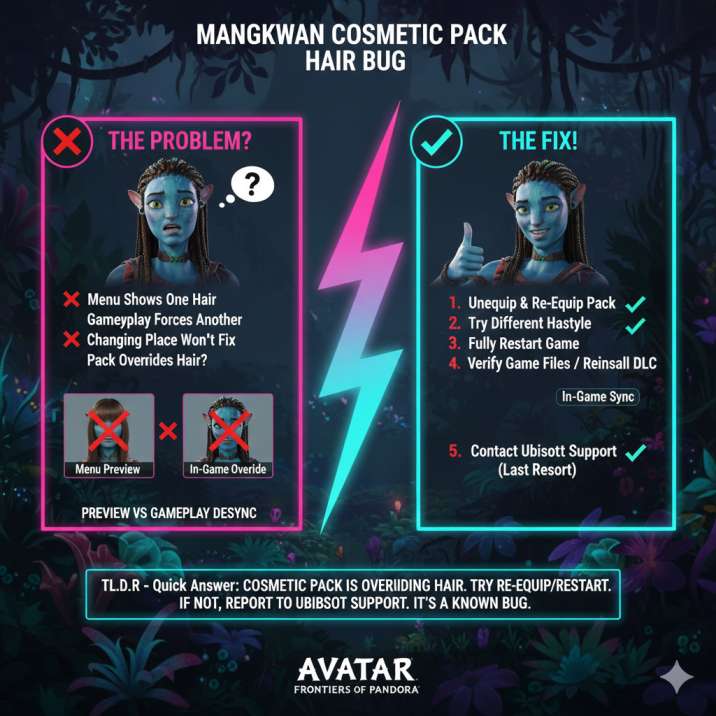
In the character menu, your Na’vi still has bangs. Everything looks fine. But the moment you jump back into gameplay, your hair suddenly switches to Mangkwan braids — and no amount of visiting a changing place seems to fix it.
If that’s happening to you, don’t worry. You’re not missing a setting, and you didn’t break your character. This is a real issue players are running into in Avatar: Frontiers of Pandora, and here’s what’s actually going on.
What makes this especially frustrating is how convincing the menu preview is. The game shows your chosen hairstyle correctly, giving the impression that everything is working as intended. Then, as soon as you load back into the world, the cosmetic changes behind the scenes, leaving you with a completely different look than the one you selected.
Because changing places don’t resolve it, many players assume they’ve done something wrong or that the pack is permanently stuck. The good news is this behavior isn’t unique to you — it’s a known cosmetic inconsistency that affects multiple players, and it’s tied to how this particular pack applies its appearance in gameplay rather than any mistake on your end.
Read also: Stuck on the Combined Forces Mission in Avatar: Frontiers of Pandora? Here’s How to Beat It
Why Your Hair Looks Different in the Menu vs Gameplay
What’s happening here comes down to how the Mangkwan Cosmetic Pack is handled behind the scenes.
Unlike regular mix-and-match cosmetics, the Mangkwan pack appears to act like a full cosmetic override. That means when it’s equipped, the game may quietly force a specific hairstyle during gameplay — even if the customization menu still shows your original hair with bangs. From the player’s perspective, it feels inconsistent and unintuitive, especially since the menu strongly suggests your chosen hairstyle is locked in and ready to go.
To make things more confusing, there’s also a known issue where the menu preview doesn’t always match the in-game model in Avatar: Frontiers of Pandora. So while everything looks correct in the UI, the actual character you’re controlling loads a different appearance once you’re back in the world. This disconnect makes it hard to tell whether the behavior is intentional or bugged.
In short: the game says one thing, does another — and that mismatch is the root of the frustration.
Can You Fix the Mangkwan Hair Bug?
There’s no guaranteed fix yet, but a few things are still worth trying before you give up on it entirely. Some players have managed to get the hair to behave, at least temporarily, by running through a few troubleshooting steps.
First, try unequipping the Mangkwan Cosmetic Pack, backing out of the menu completely, and then re-equipping it to see if the game properly reapplies the appearance.
You can also switch to a completely different hairstyle, save your changes, and then switch back, which sometimes forces the game to refresh the character model.
A full restart of the game — not just reloading a save — can also help clear cosmetic desync issues. On PC or console, verifying game files or reinstalling the DLC may fix any missing or corrupted data.
Finally, if you see a cosmetic override toggle, try turning it off. These steps can sometimes resync your appearance, but if the hair keeps switching back during gameplay, it’s not something you’re doing wrong.
Read also: Stuck on Stun Grenades? Here’s How to Switch Grenade Types in Avatar: Frontiers of Pandora
Is This a Known Bug or Intended Behavior?
Right now, it’s a bit of both, which is what makes the situation so confusing for players.
The Mangkwan pack does appear to be designed to apply a specific, curated look rather than behaving like a fully modular cosmetic. In that sense, some level of visual override may be intentional.
However, the way it currently behaves raises red flags. When the menu shows one hairstyle, gameplay consistently forces another, and changing places don’t fix it, that points much more toward a cosmetic sync bug than deliberate design.
If this were fully intended, the game would clearly communicate that the hairstyle is locked or overridden. Instead, the menu implies your chosen hair is active, only for the game to quietly swap it during gameplay. Other store-bought cosmetics have shown similar preview-versus-gameplay inconsistencies in the past, which suggests this isn’t an isolated issue and further supports the idea that something isn’t syncing correctly behind the scenes.
What You Should Do If It Keeps Happening
If none of the quick fixes work, the best move is to report the issue directly to Ubisoft so it can be properly investigated. Cosmetic problems like this are much easier for developers to fix when they have clear, repeatable examples.
When you submit your report, make sure to include your platform (PC, PS5, or Xbox), the exact game version you’re running, and confirmation that you own the Mangkwan Cosmetic Pack. This helps narrow down whether the problem is platform-specific or tied to certain builds.
It also helps to include a short, clear description such as:
“Hair appears correctly in the customization menu but switches to Mangkwan braids during gameplay.”
If possible, attach a screenshot showing the menu preview and a short gameplay clip demonstrating the hair change in action. Clear reports help the devs reproduce the issue faster — and cosmetic bugs like this usually get fixed once enough players flag them and provide consistent evidence.
Read also: Where to Find the RDA Shotgun in Avatar: Frontiers of Pandora (Fire and Ashes)
The Bottom Line
If the Mangkwan Cosmetic Pack is changing your hairstyle once you’re back in gameplay, you’re definitely not alone — and you’re not overlooking some hidden option or secret setting.
This issue has caught a lot of players off guard because the game gives you every reason to believe your chosen hairstyle is applied correctly in the menu. Unfortunately, that isn’t always what actually loads when you return to the world.
Right now, the pack can override your hair in-game, the menu preview isn’t always reliable, and visiting changing places often won’t fix the problem. Because of that, a proper patch or backend fix is likely needed to fully resolve the mismatch.
Until then, your best bet is to try the resync steps above, keep expectations realistic, and submit a report if the issue sticks. The more consistent reports Ubisoft receives, the better the chances this gets properly addressed in a future update.
Read more articles: