
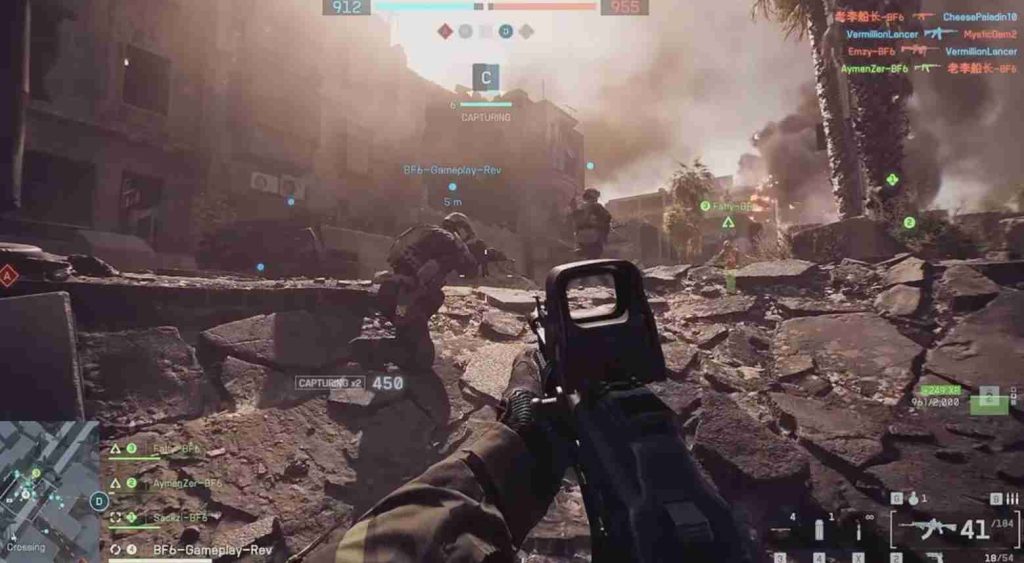
Many players have reported that mouse input stops working for aiming in Battlefield 6, particularly after spawning into a match. This issue often appears when the Battlefield 6 mouse input system fails to reinitialize after a loading screen or respawn.
Players can still fire, ADS (aim down sights), or use menus, but the mouse movement for camera or aim becomes completely unresponsive. This makes gameplay nearly impossible since the player cannot look around or adjust their aim.
Why Mouse Input Stops Working for Aiming in Battlefield 6
One major cause of this Battlefield 6 mouse aim bug is corrupted configuration files or miscommunication between the game and connected peripherals. In several cases, the bug has been linked to Windows 11 24H2 compatibility problems, where system input layers interfere with Battlefield 6 input detection.
Players using high-end mice like the Logitech Pro X Superlight 2 or Razer Viper 8K have reported the problem due to polling rate mismatches or USB power management issues.
The issue also commonly appears after alt-tabbing or switching between full-screen and borderless modes. This can cause the Battlefield 6 mouse not working glitch by temporarily disabling mouse capture focus. In other cases, overlays from applications like Discord or NVIDIA ShadowPlay may conflict with the game’s input system. Players have also noted that disabling Raw Input or resetting keybindings can sometimes restore control temporarily.
Ultimately, this Battlefield 6 mouse input problem is tied to how the game interprets peripheral commands during state changes—like spawning or entering vehicles. Until a patch permanently fixes the issue, players may need to reset inputs, unplug and reconnect their mouse, or restart the game session to regain control.
Understanding the Battlefield 6 Mouse Aim Bug After Spawning
The Battlefield 6 mouse aim bug after spawning is one of the most frustrating issues affecting PC players. The problem occurs when players spawn and find that mouse movement isn’t registering, even though other inputs like shooting or scoping still function. This typically means that camera rotation input is lost while the rest of the mouse buttons continue to respond.
The root cause is often a game input state error triggered during player respawn. Battlefield 6 uses multiple input layers—one for the menu, one for the game world, and another for vehicles. When these layers fail to synchronize properly after spawning, the mouse movement control gets stuck in the wrong state, resulting in no aim or look-around capability.
Another possible source is conflict between Battlefield 6 and background software that hooks into mouse input. Programs such as Logitech G Hub, Razer Synapse, or Windows Game Bar may cause interference.
Similarly, high polling rate settings (1000Hz) on advanced gaming mice can occasionally overload the game’s input buffer, especially during frame stutters or CPU spikes on systems running Ryzen 7 7700X or RTX 4070Ti GPUs.
Players also report that this Battlefield 6 mouse input issue appears more frequently in high-action modes like Breakthrough, where input refresh rates must synchronize with dynamic server updates. Restarting the game or toggling between windowed and full-screen modes can temporarily restore aim. However, a long-term fix usually involves verifying game files, adjusting polling rates to 500Hz, and updating all peripheral drivers.
Common Symptoms When Battlefield 6 Mouse Movement Fails
When the Battlefield 6 mouse movement fails, players notice several recurring symptoms that make the issue easier to identify. The most obvious sign is that camera movement stops completely, preventing players from turning or aiming even though shooting and other actions still work. This makes it seem like the mouse is disconnected, but it’s actually an input recognition failure.
Another frequent symptom is that the Battlefield 6 mouse works fine in menus, such as weapon loadout or pause screens, but stops functioning once back in gameplay. This indicates that the issue lies in the transition between the menu input layer and the gameplay input layer. Players also report the bug triggers when spawning from vehicles or switching between soldier and gunner seats.
In some cases, the Battlefield 6 mouse aim glitch comes with erratic or delayed movement, also known as input lag. This might occur due to unstable frame rates, conflicting V-Sync settings, or corrupted user configuration files. A few users have noticed that their mouse stops working after alt-tabbing out of the game, which causes the input handler to lose focus.
Players using specific devices—like the Corsair K70 keyboard or HyperX Pulsefire mouse—may experience combined input freezes where both keyboard and mouse stop responding simultaneously. Additionally, the Battlefield 6 mouse sensitivity bug can appear when the sensitivity setting resets to zero or when the input scale stops applying properly. Recognizing these symptoms helps players narrow down whether the issue is hardware-related, driver-related, or caused by a temporary game-side glitch.
How Controller and Mouse Switching Can Cause Input Conflicts in Battlefield 6
Switching between a controller and mouse is one of the main reasons players face Battlefield 6 mouse input issues and aiming glitches. When you plug in or alternate between these devices, the game sometimes fails to detect which input method should take priority, leading to Battlefield 6 mouse not working after spawning or even a total control freeze.
Why it happens:
- Battlefield 6 automatically detects connected input devices but doesn’t always switch between them properly.
- When you move from controller to mouse mid-match, the system might still prioritize controller input.
- Wireless controllers (like Xbox or DualSense) connected via Bluetooth often interfere with USB mouse input.
- Windows 11 24H2 updates have introduced additional input latency and detection problems.
Common symptoms of input conflict:
- Battlefield 6 can shoot but can’t look around using mouse.
- Battlefield 6 mouse aim broken after spawning.
- Camera movement locks but shooting or ADS still works.
- Controller aim drift or delayed response.
- Temporary input freeze requiring restart.
Step-by-Step Fixes for Battlefield 6 Mouse Input Not Responding
Many players run into Battlefield 6 mouse not working, mouse aim bug, or “can shoot but can’t aim” moments. Below are 15 practical, tested fixes you can perform one-by-one until your mouse movement and aiming respond correctly in matches.
Fix 1: Fully restart the game and PC
Close Battlefield 6, quit the EA/Steam launcher, unplug the mouse, reboot your PC, then relaunch. A full restart clears stuck input handlers and often fixes the Battlefield 6 mouse input issue that appears after spawning or alt-tabbing.
Fix 2: Reconnect the mouse and try another USB port
Unplug the mouse and plug it into a different USB port (preferably a back-panel USB 2.0/3.0 port). This rules out USB power/hub problems that cause the mouse movement not registering symptom.
Fix 3: Test the mouse in Windows and other apps
Confirm the mouse moves and aims normally in Windows desktop, menus, and another game. If it works elsewhere but not in-game, the problem is likely Battlefield 6 input focus or config rather than hardware.
Fix 4: Disable controller input or disconnect controllers
If a controller is connected (Bluetooth or USB), disconnect it or disable controller support in-game. Switching between controller and mouse can cause input conflicts and the Battlefield 6 aim not working behavior.
Fix 5: Turn off overlays and recording software
Disable Discord/Steam/NVIDIA/OBS overlays and background recording. Overlays can hook into the input stack and cause the “mouse works in menus but not in match” issue.
Fix 6: Lower the mouse polling rate and DPI temporarily
Set polling to 500Hz or 250Hz and reduce DPI (e.g., 800–1600). Some mice (Logitech Pro X Superlight 2, etc.) at 1000Hz can overwhelm the input buffer and trigger the mouse aim bug during stutters.
Fix 7: Toggle Raw Input and in-game mouse capture options
In the game settings, toggle Raw Input, mouse smoothing, and pointer capture options. Sometimes enabling or disabling Raw Input forces the engine to re-read your device and restores camera movement.
Fix 8: Update mouse firmware and drivers
Use the manufacturer’s software (Logitech G Hub, Razer Synapse, etc.) to install firmware updates. Outdated firmware can produce Battlefield 6 mouse input freeze bug or broken aiming after respawn.
Fix 9: Update GPU drivers and DirectX
Install the latest NVIDIA/AMD drivers and ensure DirectX runtimes are current. GPU/driver issues can cause stuttering or input read failures that look like “ADS works but no camera movement.”
Fix 10: Verify and repair game files (EA App / Steam)
Run “Verify Integrity of Game Files” to replace corrupted input-related assets. Corrupt files sometimes cause inconsistent input mapping or the mouse working in menus but not in matches.
Fix 11: Clear or reset Battlefield 6 config files
Back up then delete your PROFSAVE_profile and local settings so the game recreates defaults. Corrupted config entries (sensitivity=0, wrong bind) are common causes of aim not working PC.
Fix 12: Disable USB power saving and update chipset drivers
In Device Manager, disable USB selective suspend and update motherboard chipset drivers. Windows power management can suspend USB polling mid-match, causing the mouse to stop tracking.
Fix 13: Test with a different mouse or basic wired device
Try a basic wired mouse; if that works, the issue is with your primary mouse (hardware, firmware, polling). This isolates Logitech/HyperX specific problems like Logitech Pro X Superlight 2 quirks.
Fix 14: Run Battlefield 6 as Administrator and check permissions
Right-click launcher → Run as administrator. Ensure Battlefield 6 has permission to read input devices. Lack of permissions can block the anticheat/input service interaction and cause input failures.
Fix 15: Run a clean boot and reintroduce apps one-by-one
Perform a clean boot (disable non-Microsoft services) to see if background software causes the input bug. Re-enable apps one at a time to identify the culprit—common offenders are peripheral suites, remapping tools, and overlay utilities.
After each fix, launch a quick match and test spawn behavior (move, ADS, look around). If the mouse still fails to aim but firing works, prioritize polling rate, Raw Input, overlays, and unplugging controllers—these resolve most “can shoot but can’t look” cases. If nothing helps, gather logs and reach out to EA Support with details (OS, mouse model, polling rate, drivers, steps tried) so they can escalate Battlefield 6 mouse aim not working scenarios.
Why Mouse Works in Menus but Not for Aiming in Battlefield 6
One of the most confusing bugs players face is when the mouse works in menus but not in matches — you can click and navigate fine, but as soon as you spawn, aiming or looking around stops responding. This problem is tied to how Battlefield 6 handles input focus between the game UI, match world, and anticheat services.
Common Causes
- Input focus loss – When the game window loses focus (especially after alt-tabbing), Battlefield 6 sometimes fails to re-capture mouse input properly.
- Controller interference – Having a controller plugged in can confuse the input manager, locking the camera while keeping clicks active.
- Raw input desync – The Raw Input system occasionally fails to initialize after respawning, leading to a mouse movement not registering bug.
- Third-party overlays – Steam, Discord, or NVIDIA overlays can intercept mouse hooks, blocking aim movement.
- Corrupt user config – A broken PROFSAVE file may cause the game to misread sensitivity or bind data.
Recommended Fixes
- Alt-tab out and back in to restore input focus.
- Disconnect any controllers or gamepads.
- Toggle “Raw Mouse Input” on/off in settings.
- Disable all overlays and restart.
- Delete the PROFSAVE_Profile (explained below) to reset binds.
Battlefield 6’s UI and gameplay run on different input layers. When one layer becomes unresponsive, the mouse appears to “work in menus but not in match.” Reinitializing input through toggling, restarts, or resetting configs often restores normal aiming.
How to Reset PROFSAVE_Profile Without Losing Other Settings
The PROFSAVE_Profile file stores your Battlefield 6 settings — including sensitivity, controls, and graphics preferences. When corrupted, it can lead to Battlefield 6 mouse aim bugs, camera lock-ups, or input mapping errors. Resetting this file often fixes the issue, but you can do it safely without losing everything.
Step-by-Step Reset Process
- Locate the config folder:
Go to:Documents > Battlefield 6 > Settings - Backup your profile:
CopyPROFSAVE_Profileto another folder (e.g., Desktop). This keeps your custom keybinds safe. - Delete the original file:
RemovePROFSAVE_Profilefrom the game directory. - Launch Battlefield 6:
The game will automatically create a fresh config file with default settings. - Restore selected settings:
Open both old and new files in Notepad. Copy specific values like resolution or FOV from the backup into the new file (avoid copying control or mouse data).
Why This Works
- Corrupt lines in the profile file can cause mouse sensitivity bugs or input failure after spawning.
- Resetting forces Battlefield 6 to rebuild your control schema.
- It isolates faulty binds or leftover data from patches that interfere with EA Javelin or Raw Input.
This method restores clean functionality while letting you keep your visual and audio preferences. Always test mouse movement in a solo match after resetting.
USB and Hardware Checks to Solve Battlefield 6 Mouse Issues
When software fixes don’t help, the cause of Battlefield 6 mouse not working for aiming can be rooted in hardware or USB configuration. Battlefield’s input system relies on constant data polling — so unstable USB connections, firmware problems, or power management settings can break aiming mid-match.
Key Hardware-Related Causes
- Loose or worn USB port – Can cause intermittent input loss.
- High polling rate conflicts – 1000Hz rates sometimes overload the game’s input buffer.
- USB power saving – Windows can suspend mouse ports during gameplay.
- Faulty hub or extension cable – Hubs can drop packets, causing aim glitches.
- Outdated firmware – Especially common with Logitech and Razer gaming mice.
Fix and Optimization Steps
- Plug your mouse directly into the motherboard USB port.
- Avoid using front-panel or hub-connected ports.
- Open Device Manager → USB Root Hub → Power Management, uncheck “Allow computer to turn off this device.”
- Lower polling rate to 500Hz or 250Hz in your mouse software.
- Update mouse drivers and firmware through Logitech G Hub, Razer Synapse, or similar tools.
- Test with a second mouse to rule out hardware failure.
Performing these checks resolves most Battlefield 6 mouse movement not registering issues linked to unstable hardware communication. Keeping your device drivers, firmware, and USB settings optimized ensures smoother aiming and prevents random input drops during matches.
How Overlay Software Like Discord or Steam Can Break Mouse Input
Many Battlefield 6 mouse input issues come from conflicts caused by overlay software such as Discord, Steam, NVIDIA GeForce Experience, or MSI Afterburner. These overlays hook into the game’s rendering and input layers to display FPS counters, chat messages, or voice popups — but in doing so, they can interrupt the Raw Mouse Input Battlefield 6 depends on.
Common Symptoms
- Mouse works in menus but stops moving after spawning.
- Inconsistent sensitivity or stutter when aiming.
- “Battlefield 6 mouse not working” errors after alt-tabbing.
- Camera locking randomly mid-game while overlays are active.
Fix Steps
- Disable all overlays temporarily:
- Steam → Settings → In-Game → Uncheck “Enable the Steam Overlay.”
- Discord → Settings → Game Overlay → Turn off “Enable in-game overlay.”
- NVIDIA → Disable GeForce Experience overlay.
- Restart the game after disabling overlays — some hooks persist until restart.
- Check background overlays (Razer Cortex, AMD ReLive, etc.).
- Re-enable overlays one by one to identify which causes the issue.
Why This Fix Works
Battlefield 6’s DirectInput and RawInput layers are sensitive to third-party injection. When overlays intercept these calls, mouse movement stops registering, even though clicks still work. Disabling overlays ensures Battlefield 6 gets uninterrupted access to the input stream, restoring consistent aiming and camera control.
Why Battlefield 6 May Not Recognize DPI or Sensor Changes Mid-Match
Players often find that Battlefield 6 does not register DPI changes or sensor shifts during a match — even though the mouse’s DPI light changes. This happens because the game locks input scaling at match start, preventing real-time sensor updates from external mouse software.
Technical Reasons
- Battlefield 6 captures DPI data at spawn and caches it for that session.
- Polling or sensor recalibration isn’t re-read unless the mouse is reinitialized.
- Logitech, Razer, and Corsair software DPI switches may not propagate mid-match.
- High-DPI mice (12K–30K) may exceed Battlefield’s internal sensitivity scaling.
Workarounds
- Set DPI before launching Battlefield 6 — avoid changing it mid-round.
- Use Raw Input mode to allow the game to bypass Windows scaling.
- Create separate in-game sensitivity profiles for each DPI tier.
- Replug your mouse if it desyncs from the active DPI profile.
- Disable “Enhanced Pointer Precision” in Windows.
Insight
When Battlefield 6 fails to recognize DPI or sensitivity changes, aiming feels inconsistent or stuck. Setting DPI at launch ensures stable control, especially when dealing with Battlefield 6 mouse sensitivity bugs or aim acceleration issues caused by sensor recalibration.
Advanced Config Tweaks to Fix Battlefield 6 Mouse Aiming Bugs
For persistent Battlefield 6 mouse aiming glitches, applying advanced configuration tweaks can help stabilize responsiveness and eliminate camera lock-ups. These settings manually adjust how the game reads and prioritizes input from your mouse device.
Advanced Fixes
- Force Raw Input mode:
- Go to
Documents > Battlefield 6 > Settings→ openPROFSAVE_Profile. - Search for
GstInput.RawInput 0and change it to1.
- Go to
- Reset sensitivity scaling:
- Find
GstInput.SoldierMouseSensitivityand set it to0.02–0.04.
- Find
- Disable aim smoothing:
- Add
GstInput.MouseSmoothing 0.
- Add
- Launch with DirectInput mode:
- In Steam → Properties → Launch Options → add
+GstInput.RawInput 1.
- In Steam → Properties → Launch Options → add
- Use exclusive fullscreen:
- Borderless mode can cause frame latency affecting mouse precision.
Why It Works
These manual edits reset broken control parameters that the UI doesn’t always reflect. Battlefield 6 sometimes saves corrupted input data, leading to aim lag, mouse movement not registering, or erratic sensitivity jumps. Adjusting the Raw Input and smoothing values ensures direct communication between your mouse sensor and the game engine.
Pro Tip
Always back up your config files before editing. These tweaks are most effective after you’ve ruled out overlays, USB issues, and controller conflicts.
Checking for Windows 11 Input Compatibility Problems with Battlefield 6
Many PC players have reported that Battlefield 6 mouse not working or mouse aim bugs started appearing after upgrading to Windows 11 24H2. The reason lies in how the new OS handles HID (Human Interface Device) drivers, background services, and system security layers that sometimes interfere with the EA anticheat or DirectInput system used by the game.
Common Compatibility Issues
- Battlefield 6 can shoot but can’t aim or look around.
- Mouse movement freezes randomly after spawning.
- “Battlefield 6 mouse input issue” appears only on Windows 11 systems.
- High polling rate devices (e.g., Logitech Pro X Superlight 2, Razer Viper) desync mid-match.
Troubleshooting Steps
- Update chipset and USB drivers via Windows Update or motherboard support page.
- Disable Core Isolation → Memory Integrity in Windows Security (temporarily for testing).
- Set Battlefield 6 to run in Windows 10 compatibility mode.
- Update EA App and game to the latest patch.
- Turn off background device managers like Armoury Crate or iCUE.
Why It Works
Windows 11 applies tighter kernel-level security that can sometimes delay or block input communication. These steps restore normal HID access, resolving the Battlefield 6 mouse aim not working issue for many players.
How to Rebind Controls and Restore Default Key Settings Safely
A corrupted keybinding file is another cause of Battlefield 6 mouse and keyboard input issues. When bindings conflict between devices — such as switching from controller to mouse — inputs may stop registering or behave unpredictably.
Step-by-Step Guide
- Open Settings → Controls → Keybinds.
- Choose “Restore Defaults” and confirm reset.
- Manually rebind mouse aim, ADS, and movement controls.
- Apply settings and restart the game.
- Optional: Open
Documents > Battlefield 6 > Settingsand deletePROFSAVE_Input(the game will rebuild it).
Pro Tip
Make a backup of your control configuration before resetting. You can copy the original file to a safe folder in case you want to revert.
Why This Helps
Rebinding eliminates old or overlapping control data that could be linked to Battlefield 6 input delay problems or stuck aiming glitches. After reset, the game re-registers your mouse as the active device, ensuring smooth aiming and movement once again.
Why This Bug Feels Similar to Battlefield 2042’s Launch Input Glitches
Veteran fans may remember that Battlefield 2042 launched with a near-identical issue where players could shoot but not look around. The Battlefield 6 mouse input bug resembles it because both stem from the Frostbite Engine’s input handling and controller/mouse conflict layers.
Key Similarities
- Affected after respawn or switching loadouts.
- Input data halts for one device (keyboard or mouse).
- Overlay software intensifies the freeze.
- Occurs more often with Windows 11 HID management changes.
Lessons from Battlefield 2042 Fixes
- Resetting
PROFSAVE_Profileresolved corrupted mappings. - EA patched the Frostbite input stream to improve device priority.
- Running in exclusive fullscreen helped reduce input lag.
- Updating device firmware fixed detection delays.
Takeaway
Because Battlefield 6 builds on the same Frostbite base, some legacy bugs persist until patched. Understanding these shared roots helps diagnose Battlefield 6 mouse input freezes faster, especially for players familiar with past Battlefield titles.
Reporting Mouse Input Problems to EA Support and Providing Logs
If none of the fixes work, the next step is reporting your Battlefield 6 mouse input issue to EA Support — but doing so effectively requires submitting logs that help engineers reproduce the problem.
How to Report Properly
- Visit the EA Help Website.
- Log in with your EA or Steam account.
- Select Battlefield 6 → Technical Issues → Mouse or Input Bug.
- Describe your issue: “Battlefield 6 mouse not working for aiming but works in menus.”
- Attach diagnostic files:
DxDiag.txtEAApp.logPROFSAVE_Profile(optional but useful).
- Mention your hardware (e.g., Logitech G Pro, AMD Ryzen 7 7700X, RTX 4070Ti).
Why It Matters
Detailed logs help EA reproduce input-related crashes or freezes quickly. Reports containing configuration files often get escalated faster, resulting in potential hotfixes or driver-specific solutions.
Tip
You can also post on EA Answers HQ under “Battlefield 6 Technical Issues.” Tag it with #Battlefield6mousebug or #mouseaimnotworking to reach visibility among other players experiencing the same glitch.