
So you die, hit Continue, and instead of picking up where you left off…
the game dumps you into a save from hours ago. Or worse — last year.
Yeah. That’s not on you.
If Of Ash and Steel’s Continue button isn’t loading your latest quick save, you’ve run into a real, known save bug that’s been catching a lot of players lately. It’s confusing, frustrating, and makes it feel like the game just erased your progress — but in most cases, that’s not what actually happened.
The good news? Your progress usually isn’t gone. The game is simply grabbing the wrong save file due to messy save-sorting logic or old data lingering in the background.
Let’s fix it — safely and without losing anything.
The Short Answer (No BS)
Yes, this is a bug.
The Continue button sometimes loads an older save because the game messes up how it sorts save dates — most commonly due to cloud sync conflicts or leftover old save files still sitting on your system.
What’s happening is simple but annoying: the game sees multiple valid saves and doesn’t always recognize which one is actually the newest. Instead of choosing the most recent quick save, it grabs an older file that technically still looks “correct” to the system.
The important part: your latest save is usually still there.
The game just isn’t smart enough to pick it automatically. This makes it feel like progress was lost, when in reality, it’s usually just being ignored.
Why Continue Loads the Wrong Save
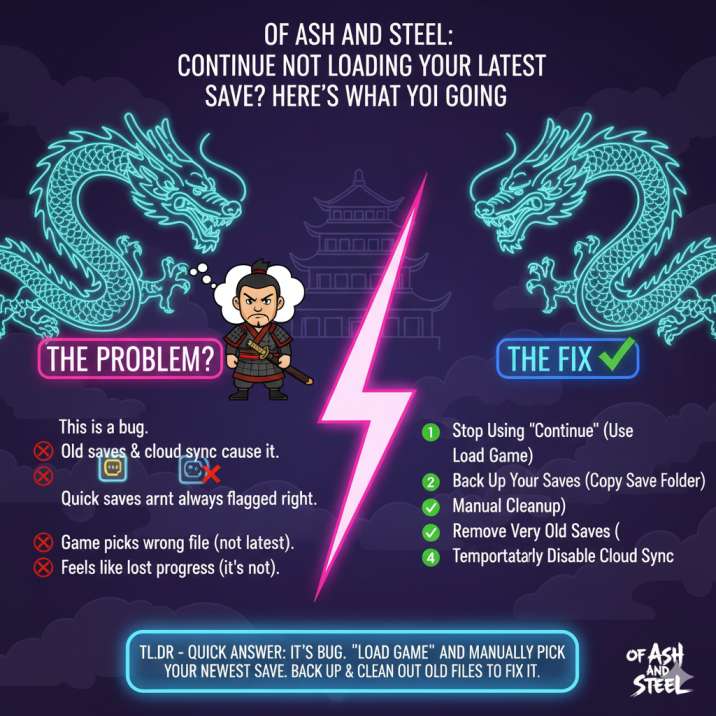
Here’s what’s actually happening behind the scenes:
- The game doesn’t always recognize which save is the newest
- Older saves (even from previous years) can confuse the save loader
- Quick saves aren’t always flagged correctly as the “latest”
- Cloud sync can reintroduce outdated or duplicate files
When all of that combines, the system ends up choosing a save that’s technically valid — just not the one you want.
So when you hit Continue, the game effectively says:
“This save looks fine”
instead of:
“This is the most recent one”
And boom — you’re suddenly looking at a progress rewind that feels way worse than a normal death.
How to Fix It Right Now (Safe & Simple)
✅ Fix #1: Stop Using Continue (For Now)
This is the easiest and safest workaround — and for most players, it works immediately.
Instead of pressing Continue after a death or on the main menu:
- Go to Load Game
- Manually select the save with the latest date and time
- Ignore Continue until the issue stops happening or is fully fixed
By loading the save yourself, you bypass the game’s broken auto-selection logic entirely.
For most players dealing with this bug, this step alone fixes the problem and prevents any further progress rollbacks.
✅ Fix #2: Back Up Your Saves (Do This Once)
Before deleting, moving, or changing anything related to your saves, take a moment to back them up.
- Copy your entire save folder
- Store it somewhere safe, like your desktop, an external drive, or another cloud location
This gives you a safety net in case something goes wrong or the game overwrites files unexpectedly. With a backup in place, you can experiment with fixes without stress, knowing that nothing you do can permanently break your progress.
✅ Fix #3: Remove Very Old Saves
This is the big one — and the fix that solves the issue for a lot of players.
Saves from much earlier dates (sometimes even from last year) can confuse the game’s save-sorting logic and cause Continue to grab the wrong file. The game sees those old saves as valid options and doesn’t always understand which one is actually the newest.
What to do:
- Move or delete very old save files
- Keep only your recent and active saves
- Relaunch the game and try Continue again
For many people, cleaning out old saves instantly fixes the problem and restores normal Continue behavior.
✅ Fix #4: Temporarily Disable Cloud Sync
If you’re using cloud saves, this step can help prevent the issue from coming back.
- Turn cloud sync off
- Launch the game
- Load your correct save manually from the Load menu
- Re-enable cloud sync only after you’ve confirmed everything works properly
Cloud services can sometimes restore older save data over newer local files, which is exactly what causes Continue to load the wrong save. Temporarily disabling cloud sync stops that override and lets your local saves behave normally again.
Is This a Known Issue?
Yes.
Save loading and Continue behavior have already been flagged by players, and patches have attempted to improve how saves are sorted and loaded behind the scenes.
However, old save data can still cause problems, especially if files from much earlier play sessions or previous years are still present. That’s why manual cleanup — backing up saves and removing outdated files — is currently the most reliable way to prevent the issue from happening again.
This isn’t you missing a hidden setting or doing something wrong.
It’s simply the game being messy with its save logic.
Are You Going to Lose Your Progress?
Almost always: no.
In most cases, your latest save still exists exactly where it should be. The problem isn’t that the save is gone — it’s that the game isn’t auto-selecting it correctly when you press Continue.
As long as you back up your saves before deleting or moving anything, you’re safe. With a backup in place, there’s very little risk of losing progress permanently, even while troubleshooting or cleaning up old files.
The Safest Way to Play Until It’s Fully Fixed
Until Continue behaves consistently:
✔ Use Load Game, not Continue
✔ Keep save folders clean
✔ Back up occasionally
✔ Be cautious with cloud sync
Following these steps minimizes the risk of loading the wrong save and protects your progress while the issue persists. It’s not the smoothest way to play, but it keeps things stable and predictable. Using Load Game ensures you’re always selecting the correct file, while keeping save folders clean prevents old data from confusing the system. Regular backups add a safety net, and being cautious with cloud sync helps avoid outdated saves overriding newer ones.
Not ideal — but it works.
Final Takeaway
If Of Ash and Steel Continue isn’t loading your latest quick save, here’s the truth:
- It’s a real bug
- Old saves and cloud sync can make it worse
- Your progress usually isn’t gone
- Manual loading is the most reliable fix
It’s annoying — no question about that. Watching hours of progress seemingly disappear is stressful, especially when the game doesn’t explain what went wrong. But in most cases, this issue isn’t actually game-breaking. Once you understand that the save still exists and the problem is just incorrect selection, the situation becomes much easier to manage.
With a few precautions and workarounds, it’s easy to play around the issue — even if the game never explains it.
FAQ
Why does Continue load an old save?
Because the game sometimes sorts saves incorrectly and picks the wrong one. Older saves can look valid to the system, even if they’re not the most recent.
Is Continue bugged in Of Ash and Steel?
Yes. It’s a known issue affecting some players, especially those with older or cloud-synced save data.
Should I delete all my saves?
No — only very old or duplicate ones, and only after backing up. Deleting everything is unnecessary and risky.
Does cloud sync cause this?
It can. Cloud saves sometimes restore outdated files over newer local ones.
Are quick saves the problem?
They can be — quick saves aren’t always marked as “latest,” which confuses Continue.
Can this permanently delete my progress?
Only if you delete files without backing them up first.
What’s the safest option right now?
Use Load Game, not Continue.
Read more articles :