
If your Rapid Fire 1 assignment in BF6 is completed but the KORD 6P67 didn’t unlock, the problem is most often a progress sync / entitlement bug or a local profile cache issue on Steam/EA App. Before contacting EA support, try the fixes below — many players restore missing weapon unlocks by refreshing local files, forcing a profile resync, or re-triggering the assignment completion on a fresh session.
Why the KORD 6P67 May Not Unlock (Short Explanation)
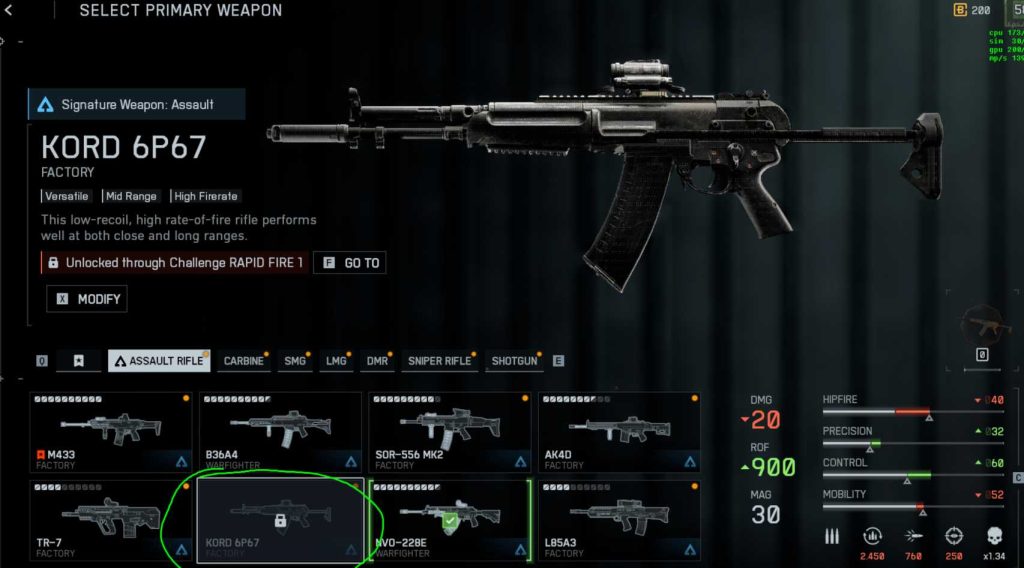
Battlefield 6 assignments and weapon unlocks rely on the game recording completion and the EA/Steam entitlement service applying that unlock to your profile. If the completion flag wasn’t written, or the unlock wasn’t applied due to a network, caching, or save-sync problem, the weapon won’t appear even though the assignment shows complete. Steam-side or EA-side cache corruption, missing local files, or a temporary backend hiccup can cause this.
What I Did
Player reports they:
- Completed Rapid Fire 1 assignment.
- Rapid Fire 2 & 3 unlocked their weapons (NVO-228E, L85A3) normally.
- KORD 6P67 did not appear despite verifying files, rebooting, and playing matches.
- Platform: Steam (Steam ID supplied).
This pattern strongly suggests a profile entitlement / sync glitch rather than a local install problem — but both must be tested.
Targeted Fixes to Recover the KORD 6P67 Unlock
Follow these in order — each step includes why it helps and what to watch for. Try the earlier, lower-risk steps first (cache/sync), then escalate (reinstall, account checks).
1. Force a Full Restart of Steam + EA App + PC
What to do:
- Exit Battlefield 6.
- Fully close Steam and EA App (use Task Manager to ensure no background processes remain).
- Reboot your PC and relaunch Steam → EA App → Battlefield 6.
Why it helps: Clears temporary process-level cache and forces a fresh connection to entitlement services.
What to watch: After relaunch, check the Soldier loadout and arms/weapon inventory.
2. Re-check “Verify integrity of game files” (Steam) and then Repair via EA App
What to do:
- In Steam: Right-click BF6 → Properties → Local Files → Verify integrity.
- In EA App: use Repair (if BF6 is installed via EA App or EA Desktop overlay).
Why it helps: Makes sure the weapon asset or unlock database files weren’t corrupted. Even if verification previously passed, running both (Steam + EA) can catch different issues.
3. Trigger the Assignment Again (If Possible)
What to do:
- If Rapid Fire 1 has repeatable tasks (or the assignment shows as complete but UI allows re-running), redo one simple requirement or replay a short match focused on the assignment steps.
Why it helps: Re-triggering the final step can re-emit the “assignment completed” event and push the unlock to the account.
4. Clear Local Save / Cloud Sync Conflict (Steam Cloud)
What to do:
- Back up any local profile settings.
- Temporarily disable Steam Cloud sync for Battlefield 6: Right-click game → Properties → General → toggle off Steam Cloud.
- Launch BF6, let it create a fresh local save, then quit and re-enable Cloud.
- Relaunch and allow Steam to sync.
Why it helps: Resolves save conflicts where Steam Cloud and local saves disagree — an old/invalid cloud save can block a new unlock flag.
5. Sign Out of EA App / Re-link Steam Account
What to do:
- Sign out of EA App in settings.
- Restart EA App, sign back in through Steam (ensure correct account).
- Confirm your Steam ID is linked with the EA account you’re using.
Why it helps: Forces account relink and re-sync of entitlements. Mismatched or partially linked accounts are frequent causes of missing unlocks.
6. Check Soldier Loadout & Arsenal Filters Thoroughly
What to do:
- Open the Arsenal / Weapons menu and use filters (weapon category, unlocked vs locked) and the search bar to find “KORD 6P67”.
- Also check weapon customization / display in Assignments → Rewards.
Why it helps: Sometimes the weapon unlock is applied but not shown where expected due to UI filter or category differences.
7. Test with a New Local Soldier/Profile
What to do:
- Create a new local soldier/profile (if BF6 supports multiple soldier profiles).
- Play one match, then check if the KORD appears in that soldier’s arsenal or in global account unlocks.
Why it helps: Distinguishes between a profile-level UI bug and an account-wide missing entitlement.
8. Check for Duplicate/Hidden Unlocks (Alternate Weapon Variants)
What to do:
- Verify you’re not confusing variants — some weapons appear under different names/variants (tactical variant, blueprint, or event skin).
- Check skins and weapon variants lists.
Why it helps: The KORD 6P67 might be present as a variant or hidden under a different grouping if the catalog indexing went wrong.
9. Reinstall Battlefield 6 (Targeted)
What to do:
- Backup any locally saved configs.
- Uninstall BF6 fully from Steam and EA App.
- Reinstall, then launch and log in.
- Verify the assignment unlocks again.
Why it helps: Reinstalls refresh local game manifests or database items that handle the unlock mapping. This is higher effort but often effective.
10. Collect Evidence & Submit an EA Support Ticket (If All Else Fails)
What to do:
- Gather: screenshots of assignment completion, screenshots of weapons missing, Steam ID (you provided it), timestamps (date/time of completion), and list of troubleshooting steps you tried.
- Open an EA Help ticket and include all evidence; request escalation to the Battlefield rewards/entitlement team.
Why it helps: If the issue is server-side entitlement or an account-specific bug, EA must manually reprocess or grant the KORD 6P67 unlock.
11. Complete One Extra Match After Finishing Rapid Fire 1
Sometimes assignment progress registers only when your next match is successfully uploaded to EA’s servers.
What to do:
After finishing Rapid Fire 1, complete one short match (even with bots) and then exit to the main menu.
Why it helps:
This forces EA’s backend to sync your most recent unlocks. In multiple Battlefield titles, final unlocks are confirmed after the next post-match upload.
12. Unequip and Re-equip Any Assignment Tracker
If your active assignment tracker (the one shown in the HUD) is stuck, the progress update may not push the “completed” flag properly.
What to do:
- Go to Assignments → Rapid Fire → deselect and reselect the tracker.
- Restart Battlefield 6.
Why it helps:
Reapplying the tracker refreshes your client’s assignment state and triggers a new sync event when you return online.
13. Manually Refresh the EA Account Entitlement Cache
What to do:
Log out from the EA App and Steam → Wait 60 seconds → Log back in.
On EA’s website, visit your Connections tab and disconnect Steam, then reconnect it.
Why it helps:
Your weapon unlocks are stored as entitlements on EA’s servers. A reconnect can pull missing rewards linked to a stale session token.
14. Rename Battlefield 6 Save Folder (Force a Clean Profile Load)
What to do:
Go to your Documents folder → Battlefield 6 → rename it to “Battlefield6_backup.”
Start the game — it’ll create a new one.
Why it helps:
Old config or profile XML files can block proper UI refresh or weapon inventory loads. This resets UI cache and saves.
15. Temporarily Disable Steam Overlay
What to do:
Right-click Battlefield 6 in Steam → Properties → disable Steam Overlay in-game.
Restart the game and check if KORD appears.
Why it helps:
Steam overlays can sometimes interfere with reward triggers or cloud save syncs during end-of-match transitions.
16. Check Battlefield 6 Server Region
What to do:
Switch server region manually (if the option is available).
Join a different regional server (e.g., switch from EU to NA).
Why it helps:
Regional assignment servers sync at different intervals — sometimes your local data hasn’t yet reached the global entitlement servers.
17. Play Another Game Mode That Uses the Same Assignment Pool
What to do:
Play a RedSec or Conquest match.
Use the same class/loadout related to Rapid Fire 1.
Why it helps:
Battlefield occasionally refreshes unlocks during loadout validation at match start. Switching modes may cause the backend to detect missing unlocks and grant them.
18. Reinstall Only the Content Pack Containing KORD 6P67
What to do:
In the game’s file management or DLC list, uninstall and reinstall the pack that includes Rapid Fire Assignments or Weapon Pack 1 (depends on platform).
Why it helps:
This ensures that the KORD’s weapon entry and reward mapping are present in your local manifest.
19. Delete Shader Cache & Temp Files
What to do:
Delete shader cache and temporary Battlefield folders (C:\Users\AppData\Local\Battlefield6\cache).
Reboot PC and restart the game.
Why it helps:
Shader or cache corruption can cause menu display issues — sometimes the weapon is unlocked but hidden behind UI bugs.
20. Disable Any Third-Party Mods or Overlays
What to do:
If you’re using visual enhancement tools or mod injectors (ReShade, FPS counters, overlays), disable them.
Why it helps:
Battlefield’s anti-cheat system can suppress reward triggers if third-party modifications are active, especially in Steam builds.
21. Verify You’re Logged Into the Correct EA Account
What to do:
If you’ve ever linked multiple EA accounts to Steam, double-check that Battlefield 6 is associated with the same EA account used for your Rapid Fire progress.
Why it helps:
Assignments may be completed on one EA profile, but you’re viewing another, causing the reward to appear missing.
22. Reset Battlefield 6 Settings to Default
What to do:
Go to Settings → Gameplay → Reset to Default.
Restart the game afterward.
Why it helps:
Resetting clears stuck UI scripts or stored assignment status values that occasionally fail to update after patches.
23. Temporarily Change In-Game Language
What to do:
Switch game language (e.g., English → French → back to English).
Why it helps:
Doing so forces the client to rebuild localization files, refreshing the unlock database. Many players report this making missing weapons appear post-language switch.
24. Sync Achievements in Steam
What to do:
Go to Steam → View → Achievements → click refresh (or restart Steam in online mode).
Why it helps:
Steam’s achievement sync sometimes re-triggers in-game milestone checks, especially if a missing reward is linked to an achievement trigger (as with Rapid Fire 1).
25. Use “Repair Game” via EA App After Steam Verification
What to do:
Run both — Steam verification and EA App repair — sequentially.
Why it helps:
Steam checks local file integrity; EA App repairs linked entitlements and registry entries. Together, they fix cross-launcher sync mismatches.
26. Change DirectX / Graphics API (DX11 ↔ DX12)
What to do:
In graphics settings, switch between DX11 and DX12, restart game.
Why it helps:
Though graphics-related, switching APIs triggers new config loads — can indirectly fix UI visibility issues for weapons in menus.
27. Delete Battlefield 6 Configuration from Steam Cloud and Re-Sync
What to do:
Disable Steam Cloud, delete configuration files, then re-enable Cloud to download fresh data.
Why it helps:
Clears broken weapon unlock sync that can be “stuck” on Steam’s cloud storage side.
28. Play as a Different Class or Faction Once
What to do:
Switch to a different class (Engineer, Recon, etc.) for a full match, then return to the Assault class where KORD belongs.
Why it helps:
For some users, switching class triggers backend weapon entitlement checks on the new class, indirectly fixing the missing unlock.
29. Check for Hidden Event Unlock Requirements
What to do:
Sometimes an update changes the internal completion requirements. Visit official Battlefield patch notes or community wikis to confirm that Rapid Fire 1’s completion threshold hasn’t shifted.
Why it helps:
You may have completed the old requirement, but EA’s latest patch might require a slightly different condition to register the unlock.
30. Wait 24 Hours and Log Back In
What to do:
Leave Battlefield 6 closed for at least a day.
Reboot your PC, start Steam and EA App, and launch BF6 fresh.
Why it helps:
EA’s entitlement systems batch process unlocks in background intervals — some players report delayed unlocks appearing after 12–24 hours.
Bonus Tip: Check EA’s Server-Side Assignment Data
If you can access Battlefield Tracker or EA Profile Stats pages (like Battlefield Tracker Network), check whether your profile lists KORD 6P67 as unlocked even if the game UI doesn’t.
If it does, it’s a client display bug, not an actual missing unlock — reinstalling or refreshing configs will fix it.
Summary Table — 30 Fixes for Rapid Fire 1 KORD 6P67 Unlock Bug
| Step | Fix Type | Works For | Key Benefit |
|---|---|---|---|
| 1–5 | Core reboots & verification | Steam/EA sync issues | Refreshes entitlements |
| 6–10 | Profile & reinstall | Cache/UI corruption | Resets data |
| 11–20 | Gameplay / session | Trigger backend sync | Forces new unlock push |
| 21–30 | Advanced fixes | Account, cloud, config | Full revalidation |
Final Advice
If you’ve completed all 30 fixes and the KORD 6P67 still hasn’t unlocked, you’re dealing with a server-side assignment flag mismatch.
In this case:
- Contact EA Help with your Steam ID, screenshots, completion timestamp, and assignment progress.
- Include your EA account email and specify that the issue is limited to Rapid Fire 1’s KORD 6P67 unlock.
EA’s support team can manually reassign the reward or reset your assignment progress to re-trigger it.