
Many PS5 players are reporting a frustrating issue where subtitles in Where Winds Meet go off the screen, appear partially cut off, or stretch beyond the display edges.
This makes cutscenes hard to follow and dialogue nearly impossible to read.
If your Where Winds Meet subtitles are off-screen on PS5, the issue is usually caused by the console’s screen area settings, the game’s UI scaling bug, or the overscan settings on your TV or monitor.
Here’s how to fix it quickly.
Why Subtitles Go Off the Screen on PS5 in Where Winds Meet
Where Winds Meet on PS5 sometimes loads incorrect display boundaries.
When the game doesn’t detect your monitor or TV’s safe zone correctly, UI elements such as subtitles, dialogue boxes, and HUD text render outside the visible area.
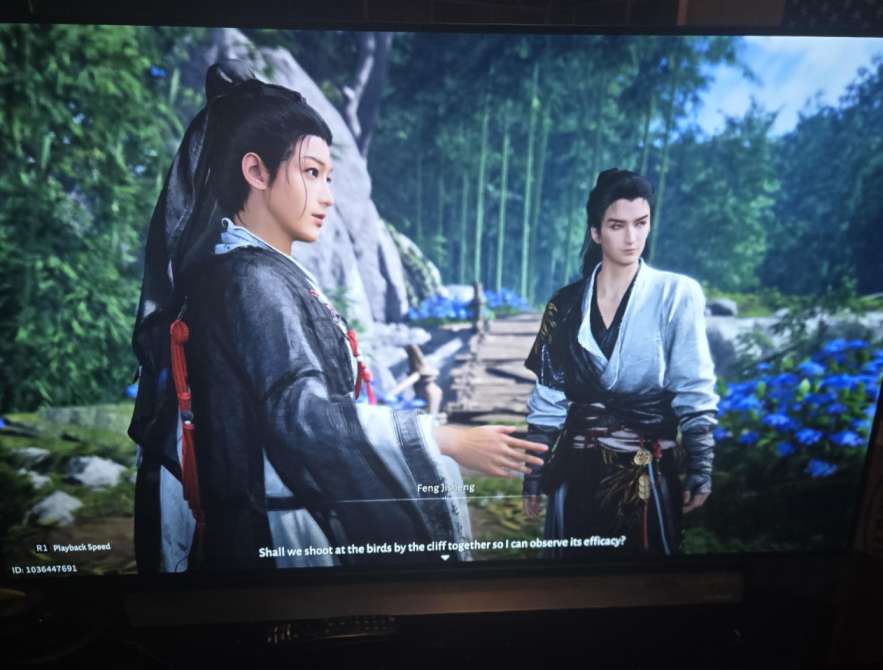
This is typically triggered by:
- Incorrect PS5 screen area calibration
- TV overscan enabled
- Game UI scaling bug after a resolution change
- HDR mode shifting display boundaries
- PS5 display zoom settings affecting subtitle placement
Because the glitch comes from a mismatch between the console’s UI size and the game’s UI size, subtitles slide outside the visible region.
???? Quick Fix
On PS5 go to Settings → Screen and Video → Adjust Display Area and shrink the screen by 1–2 steps.
Then restart the game — subtitles snap back into the safe zone.
Fix #1: Adjust the PS5 Display Area (Most Effective Fix)
This is the main fix for Where Winds Meet subtitles cut off on PS5.
Steps:
- Go to Settings
- Open Screen and Video
- Select Adjust Display Area
- Shrink the area until all corners are visible
- Restart the game
This ensures all in-game UI elements fit inside the screen.
Fix #2: Turn Off Overscan on Your TV or Monitor
Some TVs force overscan, which pushes subtitles outside the display boundary.
Look for settings like:
- Overscan
- Screen Fit
- 1:1 Pixel
- Full Pixel
- Just Scan
- Fit to Screen
Turn overscan off — subtitles immediately re-center.
Fix #3: Switch PS5 Video Output to “Automatic” or “1080p”
Sometimes Where Winds Meet misreads PS5 output resolution.
Try:
Settings → Screen and Video → Video Output → Resolution → Automatic
(or set 1080p manually)
This resets UI scaling and often fixes off-screen subtitles.
Fix #4: Disable PS5 Display Zoom
If Zoom is enabled, subtitles get pushed beyond visible space.
Go to:
Settings → Accessibility → Display → Zoom → Off
Restart the game after turning it off.
Fix #5: Change HDR Settings (HDR Can Shift UI Boundaries)
Some players report UI shifting only when HDR is on.
Try toggling:
Settings → Screen and Video → HDR → Off or On When Supported
Reload the game to reset subtitle placement.
Fix #6: Reset In-Game UI Scale (If Added in Future Patch)
Where Winds Meet may add UI scaling options in later updates.
If available, lowering UI size fixes subtitle overshoot.
Check under:
Settings → Display / Interface
Fix #7: Switch Between Fullscreen, Windowed, and Borderless Modes (If Added Later)
When future patches add display modes, switching modes can re-align subtitle bounding boxes and correct misplacement.
Fix #8: Restart the Game After Adjusting Settings
Where Winds Meet often needs a full restart to properly reload UI boundaries after any PS5 screen changes.
Always reboot the game after tweaking display settings.
Fix #9: Try a Different HDMI Input or Cable
Faulty HDMI connections can cause incorrect resolution reporting, leading to UI scaling bugs.
Use:
- HDMI 2.1 or 2.0
- A different HDMI port
- A TV input set to “Game Mode”
This forces PS5 to re-detect display boundaries.
Fix #10: Wait for an Official UI Patch (Bug Is Already Reported)
Players have already reported the subtitle overscan bug to developers.
A patch is expected to fix:
- Subtitle safe-zone boundaries
- UI scaling issues
- Overscan detection
Once updated, subtitles should auto-align without manual settings.
Fix #11: Reset PS5 Screen Calibration to Factory Defaults
If your PS5 display calibration was adjusted previously, the system may be feeding incorrect boundaries to the game.
Go to:
Settings → Screen and Video → Reset Video Settings
This forces the PS5 to rebuild safe-zone limits and can instantly fix Where Winds Meet subtitles off-screen on PS5.
Fix #12: Turn On “Game Mode” on Your TV to Reduce Overscan
Most TVs change rendering behavior in Game Mode, disabling post-processing and overscan.
When Game Mode is enabled, subtitles usually realign properly because the TV stops cropping the screen edges.
Look for:
Settings → Picture → Game Mode → On
This stabilizes subtitle positioning in Where Winds Meet.
Fix #13: Manually Change PS5 Screen Size on Samsung, Sony, LG TVs
Certain TVs override console settings.
Set your TV’s picture size to:
- Screen Fit (Samsung)
- Full Pixel (Sony)
- Just Scan (LG)
This ensures the full subtitle area is displayed without clipping.
This is one of the best fixes for Where Winds Meet subtitles leaving the screen boundaries.
Fix #14: Lower PS5 Display Output to 60 Hz Instead of 120 Hz
High refresh rate modes occasionally shift UI scaling in some games.
Switching to 60 Hz stabilizes subtitle alignment.
Go to:
Settings → Screen and Video → Video Output → Enable 120 Hz → Off
Players with subtitle issues on PS5 often report this resolves the UI overscan glitch.
Fix #15: Disable “Variable Refresh Rate (VRR)” in PS5 Settings
VRR can cause mild UI stretching in unsupported games.
Turn it off to restore proper subtitle placement.
Path:
Settings → Screen and Video → Video Output → VRR → Off
This is effective when subtitles drift outside the safe zone.
Fix #16: Change HDR Color Format to RGB Instead of YUV420
Some TVs shift screen boundaries when HDR color space changes.
Switching to RGB fixes the subtitle cutoff for several players.
Go to:
Settings → Screen and Video → Video Output → Color Format → RGB
This stabilizes text rendering in Where Winds Meet.
Fix #17: Clear PS5 Cached Display Data by Power Cycling the Console
A simple power cycle clears cached display profiles that control subtitle boundaries.
Steps:
- Turn off PS5 (not Rest Mode)
- Unplug for 1 minute
- Restart the console
This forces the PS5 to renegotiate display safe-zone values, often fixing subtitles going off-screen.
Fix #18: Use a Different PS5 Video Output Format (YUV422/YUV420)
Certain output formats behave differently on certain TVs.
Switching formats may correct off-screen subtitles.
Try:
Settings → Screen and Video → Color Format → YUV422
Testing formats helps stabilize UI layout in Where Winds Meet PS5.
Fix #19: Switch HDR Settings on Both the TV and PS5
If only one device (PS5 or TV) has HDR activated, subtitle alignment can break.
Enable HDR on both OR disable HDR on both to ensure consistent screen boundaries.
This prevents subtitle text from drifting outside the visible area.
Fix #20: Create a New PS5 User Profile and Test Subtitle Display
Rarely, PS5 user profile settings retain old calibration data.
Creating a new profile forces the PS5 to generate fresh display boundaries.
Steps:
- Add User
- Launch Where Winds Meet
- Check subtitle alignment
If subtitles appear correct, your original profile had corrupted display data.
How to fix subtitle text going off the screen in Where Winds Meet on PS5?
If subtitle text is going off the screen in Where Winds Meet on PS5, the issue is usually caused by display overscan, incorrect PS5 screen calibration, or mismatched UI boundaries after the game loads.
The fastest fix is to adjust the PS5’s display area so the system redraws safe-zone limits.
Go to:
Settings → Screen and Video → Adjust Display Area
Shrink the border by 1–3 steps until the corners fit comfortably.
Restart the game afterwards — this ensures the subtitle box recalculates its position.
If the subtitles remain off-screen, disable overscan on your TV, turn off PS5 Display Zoom, or switch the PS5 resolution from 4K to Automatic.
These changes help the game re-center dialogue text.
Most players fix the Where Winds Meet PS5 subtitle bug using a combination of display area adjustment + overscan removal.
Does changing display safe area fix subtitles in Where Winds Meet?
Yes — changing the display safe area is the most reliable fix for Where Winds Meet subtitles going off the screen on PS5.
When the safe area is too large, the game thinks it has more space to render the subtitle box, which causes the text to overflow past the screen edges.
To fix it, open:
PS5 Settings → Screen and Video → Adjust Display Area
Reduce the size until all borders are clearly visible.
This forces Where Winds Meet to recalculate UI elements, including subtitles, dialogue boxes, item prompts, and cutscene captions.
In most cases, the subtitles instantly shift back into the visible area once the safe zone is corrected.
If the issue persists, turn off TV overscan or adjust the PS5 video output format — both affect UI alignment.
Can adjusting PS5 screen size or overscan settings fix subtitle alignment?
Absolutely — adjusting the PS5 screen size or TV overscan settings is one of the most effective fixes for subtitle alignment issues in Where Winds Meet.
Overscan is a TV feature that crops the edges of the screen, which pushes subtitles outside the visible area.
To fix this, disable overscan using your TV’s picture settings:
- Just Scan (LG)
- Full Pixel (Sony)
- Screen Fit (Samsung)
- 1:1 Pixel Mode
Then, on the PS5, adjust:
Screen and Video → Adjust Display Area
Once both the TV and the console use correct screen boundaries, the subtitle box repositions correctly.
Most players who follow this dual adjustment completely fix the Where Winds Meet PS5 subtitle overscan bug.
Is there a subtitle size or scaling option in Where Winds Meet’s settings?
Currently, Where Winds Meet on PS5 does NOT include a subtitle size or subtitle scaling option, which limits how much control players have over off-screen UI issues.
If subtitles appear too large or misaligned, the issue is not caused by the subtitle size — it is caused by incorrect safe zone detection or overscan.
Since the game does not provide subtitle scaling, all adjustments must be made through:
- PS5 screen area settings
- TV overscan or display mode
- HDR format changes
- PS5 Zoom settings
- Resolution switching
Until the developers add a dedicated subtitle size, subtitle box, or UI scaling slider, subtitle alignment must be corrected at the console or TV level.
This is why so many players experience subtitles drifting out of frame even though no subtitle settings exist in-game.
Will the developers patch the subtitle screen fit issue soon?
It’s highly likely.
Many PS5 players have already reported the Where Winds Meet subtitle screen fit issue, and the developers have acknowledged needing UI adjustments for global platforms.
Because the issue comes from safe-zone mismatching and overscan misalignment, it is something the developers can fix with a patch.
Common fixes dev teams implement include:
- Auto-detecting correct safe-zone boundaries
- Adding subtitle scaling options
- Adding UI size sliders
- Adding PS5-specific display presets
- Improving resolution switching logic
Given the number of reports, a patch addressing subtitle alignment and UI boundaries is expected in a future update.
Until then, players must rely on PS5 screen calibration and TV overscan adjustments as temporary fixes.