
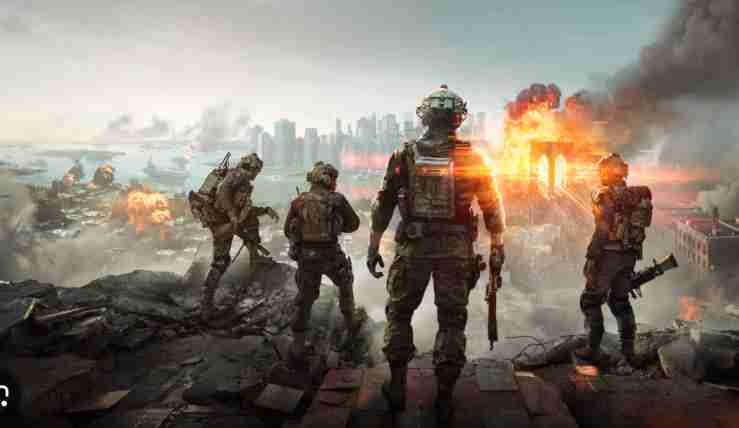
Many players encounter issues where Battlefield 6 challenges are not tracking, preventing progress in weekly, unit, class, and gun challenges. This challenge bug often occurs after updates or due to server synchronization problems.
Common Causes:
- Server Desync: EA’s servers sometimes fail to register actions, causing challenge progress not counting.
- Outdated Game Version: Playing without the latest patch can result in weekly challenges not working.
- Network Instability: Slow or intermittent connections may prevent points from being recorded.
- Corrupted Game Files: Missing or damaged local files can trigger the unit challenge glitch.
- Temporary In-Game Bugs: Specific actions, such as healing vehicles or completing multiple objectives rapidly, can cause the task progress bug.
Tips to Fix:
- Ensure your Battlefield 6 is fully updated.
- Restart the game to re-sync with servers.
- Use a stable wired connection.
- Verify or repair game files via Steam or EA App.
Addressing these causes can help restore challenge tracking and prevent losing rewards.
Common Signs Your Battlefield 6 Challenges Are Bugged
Identifying a Battlefield 6 challenge bug early can save time and frustration. Several symptoms indicate that challenges are not tracking correctly.
Indicators:
- No Points Registering: Kills, assists, or completed tasks do not add to challenge points.
- Progress Reset: Objectives such as gun or class challenges revert to 0%.
- Rewards Not Counting: Completing challenges does not grant FC points or cosmetic items.
- Inconsistent Tracking: Some challenges register partially while others fail entirely.
- HUD Issues: Challenge progress bars may appear frozen or stuck mid-match.
Additional Notes:
- Battlefield 6 weekly and class challenges not tracking properly is a common complaint.
- The bug can affect unit and gun challenges differently depending on the mode played.
- Logging out and back in or restarting the game often temporarily restores progress.
Recognizing these signs helps players apply fixes before losing rewards.
How Weekly, Unit, and Gun Challenges Fail to Register Points
In Battlefield 6, weekly, unit, and gun challenges sometimes fail to record progress due to server, game, or network issues. Players may complete objectives but notice points not adding to their total.
Causes:
- Server Lag or Downtime: EA servers may not register actions, causing objective not updating errors.
- Progress Desync: Multiplayer matches can desynchronize counters, affecting gun challenge progress not saving.
- Corrupted Configuration Files: Local game data may block challenge updates.
- Outdated Drivers: Network or graphics driver issues can indirectly trigger challenge progress bug after match.
- Mode Limitations: Certain game modes may not fully track specific objectives like healing vehicles or class kills.
Workarounds:
- Verify game files via Steam or EA App.
- Avoid switching challenges mid-match to prevent resets.
- Play in modes with stable server connections.
- Restart the game between sessions if challenges fail to update.
Understanding these mechanics ensures players can troubleshoot effectively and avoid losing Battlefield 6 challenge rewards.
Why Battlefield 6 Challenge Progress Stops Mid-Match

Many players experience situations where Battlefield 6 challenge progress stops mid-match, leaving objectives incomplete despite performing the required actions. This issue affects weekly, unit, class, and gun challenges, creating frustration and preventing players from earning rewards.
Common Causes:
- Server Synchronization Problems: EA servers may temporarily fail to record actions, causing challenge points issues or progress to freeze.
- Network Instability: A slow or unstable internet connection can interrupt communication with the game servers, resulting in weekly challenges not working or unit challenges not updating.
- Temporary In-Game Bugs: Certain modes, such as healing vehicle challenges, can trigger glitches that prevent progress from being counted mid-match.
- Corrupted Local Files: Damaged configuration or cache files may block updates to challenge tracking, leading to challenge progress stuck scenarios.
- Game Updates Not Applied: Running an outdated patch can make class challenges broken or stop other challenges from registering correctly.
Tips to Fix:
- Restart your game to re-establish a proper server connection.
- Ensure your Battlefield 6 client is updated to the latest patch.
- Use a wired or stable internet connection to reduce the risk of lost progress.
- Verify and repair game files through Steam or the EA App to fix task progress bugs.
Understanding why challenge tracking stops mid-match helps players troubleshoot efficiently and avoid losing rewards from Battlefield 6 challenge bug incidents. Consistently applying these fixes can ensure smoother tracking for all weekly, gun, and unit challenges.
Step-by-Step Fixes for Battlefield 6 Challenge Tracking Issues
Many players face Battlefield 6 challenges not tracking, including weekly challenges not working, class challenges broken, and unit challenge glitches. This can be frustrating when points fail to register or rewards are not given. The following 15 fixes cover both PC and console players to restore proper challenge progress.
Fix 1: Restart Battlefield 6
Restarting the game often resolves temporary glitches. Close the game completely, wait a few seconds, and relaunch.
- Refreshes server connection
- Clears minor challenge progress stuck issues
- Often restores weekly and class challenge tracking
Fix 2: Check Your Internet Connection
A stable connection is crucial for challenges to register.
- Use wired Ethernet instead of Wi-Fi
- Avoid downloads and streaming during matches
- Prevents unit challenge glitches and challenge points issues
Fix 3: Update Battlefield 6
Running an outdated version can cause challenge bugs.
- Ensure your game is fully patched
- Updates often fix weekly challenges not working
- Resolves errors in gun challenge progress not saving
Fix 4: Verify Game Files
Corrupted files can block progress tracking.
- On PC, use Steam or EA App to verify files
- On consoles, repair or reinstall the game
- Fixes task progress bugs and objective not updating
Fix 5: Clear Local Cache
Corrupted cache can freeze challenge progress.
- Delete or rename cache folders in Documents or AppData
- Forces the game to rebuild essential files
- Helps healing vehicle challenge not counting
Fix 6: Focus on One Challenge at a Time
Switching challenges mid-match may reset progress.
- Complete one objective per match
- Avoid toggling weekly or gun challenges frequently
- Ensures points are accurately counted
Fix 7: Monitor EA Server Status
Server issues can prevent progress registration.
- Check EA status online before playing
- Avoid starting challenges during maintenance
- Reduces unit challenge glitches and reward not counting
Fix 8: Re-Log Into EA Account
Session errors may block challenge tracking.
- Log out and log back in
- Re-syncs progress with servers
- Restores challenge points issues and fixes class challenges broken
Fix 9: Adjust Firewall and Antivirus Settings
Security programs may block the game’s data transfer.
- Allow Battlefield 6 through firewall
- Temporarily disable antivirus if needed
- Ensures task progress bug is cleared
Fix 10: Play Smaller Matches
Large maps can create server desync.
- Play smaller matches to reduce load
- Improves weekly and class challenges not tracking properly
- Helps points register consistently
Fix 11: Disable Overlay Software
Discord, Steam, or Nvidia overlays can interfere.
- Turn off overlays before starting
- Prevents gun challenge progress not saving and challenge progress stuck
Fix 12: Close Background Applications
Other programs can conflict with the game.
- Close unnecessary apps while playing
- Ensures healing vehicle challenge not counting resolves
- Improves overall game stability
Fix 13: Reset In-Game Settings
Custom HUDs or keybinds may block progress.
- Restore default settings temporarily
- Fixes class challenges broken and task progress bug
- Helps challenges update correctly
Fix 14: Avoid Alt-Tabbing During Matches
Switching windows mid-match can pause challenge updates.
- Complete challenges without leaving the game
- Prevents weekly challenges not updating
- Reduces points counted inconsistently
Fix 15: Contact EA Support
If all else fails, EA can manually fix missing progress.
- Provide match IDs, screenshots, and logs
- Report challenge progress bug after match or reward not counting
- They can restore weekly, gun, and unit challenge progress
These 15 fixes cover all types of challenge issues, including weekly, class, gun, and unit challenges, ensuring that challenge points are counted correctly and rewards are granted consistently. Following these steps reduces frustration and guarantees smoother progression in Battlefield 6.
How Healing or Support Actions Sometimes Don’t Count Toward Objectives
In Battlefield 6, many players notice that healing teammates or providing support sometimes fails to register toward unit or class challenges. This can be frustrating, especially during healing vehicle challenges or other support-focused objectives. One major reason for this issue is a delay in server-side recognition. If the game experiences high latency or temporary server lag, actions like healing, reviving, or repairing vehicles may not be counted immediately, or at all.
Another factor is game mechanics and placement rules. Certain actions only count if performed in a valid match state. For example, healing a teammate outside the objective area or immediately after respawn may not register correctly. In addition, completing challenges while switching classes or vehicles mid-action can sometimes block progress from being recorded.
- Always ensure you are performing the objective within the required zone.
- Focus on completing one support action at a time to ensure it registers.
- Avoid switching classes or vehicles mid-objective.
- Verify that your game is connected to EA servers and no high ping is affecting progress.
Players can also check the challenge tracker in the menu after completing each support action. Monitoring this helps identify if the actions are counted properly or if repeated attempts are necessary. Understanding these factors can help reduce the frustration of support challenge progress not counting and improve overall mission efficiency.
Why Server Sync Problems Affect Battlefield 6 Challenge Completion
Server synchronization plays a critical role in tracking challenge progress in Battlefield 6. When servers are unstable or experiencing high latency, the game may fail to register completed objectives properly. This often leads to challenge points issues, such as weekly or gun challenges not updating, or healing and support actions not counting.
Server sync issues can occur due to scheduled maintenance, unexpected outages, or network instability. If a player completes a challenge while the server temporarily fails to record progress, the points or rewards might appear missing after the match. Similarly, large multiplayer matches, such as those on breakthrough maps, increase the likelihood of unit challenge glitches due to data overload between client and server.
- Check EA server status before starting challenges.
- Avoid joining matches during peak server load periods.
- Re-log into your EA account if challenges fail to register.
- Prefer wired internet connections over Wi-Fi to minimize latency.
Regularly monitoring server health and understanding the influence of sync problems helps players anticipate potential challenge progress stuck issues. This reduces frustration and ensures smoother tracking of weekly, gun, and unit objectives.
Checking Challenge Requirements Before Each Match
Many Battlefield 6 challenges fail because players do not meet all requirements for objectives. Challenges such as weekly, class, or gun-specific tasks often have hidden conditions that must be fulfilled. For example, a gun challenge may only count kills using the selected weapon while the correct class is equipped, or a healing challenge may only register support within specific zones.
Before starting a match, it is recommended to carefully review the challenge descriptions in the menu. Missing a small detail, such as not using the correct vehicle or not being in the designated area, can cause points to fail to register. Additionally, some challenges reset daily or weekly, meaning that progress made outside the correct period may not count.
- Read each challenge requirement carefully.
- Equip the proper class, vehicle, or weapon before starting.
- Focus on one challenge per session for better tracking.
- Avoid switching objectives mid-match to prevent progress reset.
By following these steps, players can avoid frustration with challenge progress not counting and ensure that each completed action is properly recorded. Checking requirements before each match is a simple, effective habit for maintaining accurate challenge tracking.
How to Reset or Refresh Battlefield 6 Challenge Progress Safely
Sometimes, challenge bugs in Battlefield 6 require a reset or refresh to restore proper progress tracking. This does not involve losing rewards or points but ensures the game correctly registers new actions. Corrupted configuration files, temporary cache issues, or server desync can block challenges from updating.
To safely reset challenge progress, first exit the game and log out of your EA account. On PC, clear the cache and temporary files located in Documents → Battlefield 6. On consoles, restarting the system and ensuring no corrupted updates exist can refresh the game state. Rebuilding settings forces the game to re-sync with servers, often resolving weekly challenge not updating or objective reset issues.
- Backup any local settings before clearing cache.
- Relaunch the game and check that the challenge tracker is functional.
- Complete a small objective first to verify registration.
- Avoid making multiple changes at once; reset only the affected challenge if possible.
Performing these steps periodically, especially after patches or updates, helps maintain smooth challenge progress and prevents long-term challenge points issues. Refreshing progress safely is an effective method to deal with persistent challenge tracking bugs in Battlefield 6.
The Role of EA Servers in Updating Challenge Stats and Rewards
EA servers are crucial for recording challenge progress and distributing rewards in Battlefield 6. Every action, from completing a gun challenge to healing teammates, is logged on the server. If there’s a server outage, high latency, or maintenance, challenges may fail to update, leading to missing points or unclaimed rewards. Players often experience weekly challenge not updating or unit challenge glitches when server synchronization is delayed or fails mid-match.
Server issues can also cause inconsistencies between client-side tracking and the official leaderboard. For example, you might see challenge progress on your screen, but the EA server has not registered it, resulting in rewards not being granted.
- Always check EA server status before starting challenges.
- Avoid joining matches during peak server load or maintenance windows.
- Use a wired internet connection to minimize lag.
- Log out and back into your EA account if challenges fail to update.
By understanding the central role of servers, players can better anticipate potential challenge points issues and know when problems are likely due to EA systems rather than personal gameplay errors.
What to Do If Your Weekly Challenges Show 0 Progress
It’s common for Battlefield 6 players to find their weekly challenges stuck at 0. This often happens due to server desync, cache corruption, or bugs triggered when switching classes, weapons, or vehicles mid-match. Before panicking, check whether the challenge is properly selected and that your actions meet the objective requirements.
Clearing temporary game data or refreshing the challenge tracker can resolve many display issues. On PC, deleting the configuration folder in Documents → Battlefield 6 forces a fresh sync with the server. On consoles, restarting the system or logging out and back in often fixes this problem.
- Verify that you’re in the correct game mode for the weekly challenge.
- Complete a small, observable objective to test whether progress is recorded.
- Avoid changing loadouts or classes mid-challenge.
- Ensure your internet connection is stable during gameplay.
By following these steps, you can confirm whether your progress issue is a temporary display bug or a deeper server-related problem, and take measures to restore proper tracking for weekly challenges not working.
How Loadout or Class Bugs Can Break Battlefield 6 Challenge Tracking
Changing loadouts or classes mid-match can sometimes prevent challenges from registering properly. Challenges tied to a specific weapon, vehicle, or class require the player to remain in the correct configuration for the action to count. For example, unit challenge glitches or gun challenge progress not saving often occur if you switch classes immediately after performing the objective.
Some loadout bugs are client-side, triggered by corrupted configuration files or unsaved settings. Server desync can compound this issue, causing completed objectives to appear untracked or partially recorded.
- Always equip the correct loadout before starting a challenge.
- Avoid swapping classes or vehicles during challenge objectives.
- Clear temporary game files if loadout bugs persist.
- Test one objective at a time to ensure it registers correctly.
By being mindful of loadout requirements, players can reduce frustration from challenge progress stuck bugs and maintain consistent tracking across multiple matches.
Temporary Workarounds Until EA Releases a Fix Patch
While waiting for EA to release an official patch, players can use several temporary workarounds to maintain challenge progress. One effective method is to complete one challenge per session without switching classes or vehicles, ensuring that points register properly. Restarting the game after each match can also help synchronize progress with EA servers.
Other useful workarounds include clearing the cache, verifying game files on PC, or relaunching the game on consoles. Maintaining a stable internet connection is critical, as server desync can nullify progress if the game cannot communicate properly with EA servers.
- Focus on small objectives to test if progress counts.
- Avoid performing multiple challenges simultaneously.
- Use wired internet connections to reduce latency.
- Regularly monitor EA server status to avoid updates or downtime.
By combining these methods, players can minimize challenge points issues, maintain progress in weekly, gun, and unit challenges, and reduce frustration until a permanent fix is released.
Reporting Battlefield 6 Challenge Bugs to EA Support Effectively
When Battlefield 6 challenges fail to track or register properly, reporting the issue to EA Support is essential for getting it resolved. A well-prepared bug report increases the likelihood of a faster response and helps the support team understand the exact problem. Always include key details such as the affected challenge type, the game mode, and the platform you are playing on. For example, specify whether it’s a weekly challenge not updating, a unit challenge glitch, or a gun challenge progress not saving.
Including screenshots or video clips of the problem can be extremely helpful. Record your challenge progress before and after completing an objective to demonstrate that points are not being counted. Additionally, note the time and date of the affected match, your server region, and whether you experienced any lag or connection issues.
- Use the official EA Help website or in-game support tools to submit the report.
- Clearly state which objectives failed and any steps you took to attempt a fix.
- Provide your EA account information and platform details.
- Attach supporting evidence like screenshots or video clips.
By reporting challenges effectively, you not only increase your chances of recovering missing points or rewards, but you also contribute to EA identifying recurring bugs, which can lead to faster patch releases for widespread issues.
Tips to Ensure Your Actions Count Toward Challenges Every Match
To prevent challenge progress from failing mid-match, it’s important to follow certain best practices in Battlefield 6. Ensuring your actions count toward challenges can save time and reduce frustration caused by challenge points issues or task progress bugs. First, always verify that the challenge is selected and active in your tracker before starting a match. Objectives tied to specific classes, vehicles, or weapons will not register if you switch loadouts mid-game.
Maintaining a stable and strong internet connection is critical. Server desync or high latency can result in challenges not updating or rewards not being granted. Completing objectives in smaller, focused sessions can also help. Avoid performing multiple objectives simultaneously, as this increases the likelihood of progress not being recorded.
- Select the correct challenge and class before spawning.
- Complete one objective at a time to ensure proper registration.
- Avoid switching loadouts or vehicles during a challenge.
- Use wired internet connections when possible to minimize latency.
- Check EA server status before playing, especially during peak times.
By following these tips, players can maximize the chance that weekly, gun, and unit challenges are properly tracked, helping ensure that rewards are received and progress remains consistent across matches.