
Choosing the Best Monitors for Architects and CAD Work is more important than most people think—because your monitor is basically your main workspace. Whether you’re designing in AutoCAD, modeling in Revit, or building concepts in SketchUp, the right display can seriously improve how you work.
For architects and CAD users, it’s not just about screen size. You need sharp resolution for fine details, accurate colors for presentations, and enough screen space to handle complex drawings and multiple toolbars. A poor display can slow you down, while a good one helps you stay precise and efficient.
In this guide, we’ve picked the best monitors for architects and CAD work—focusing on resolution, color accuracy, and workspace efficiency—so you can design more comfortably and with better accuracy.
1. Dell 34″ S3425DW – Ultrawide Productivity Powerhouse
34″ | 3440×1440 (UWQHD) | 21:9 | 120Hz | USB-C | VA
If you’re serious about finding one of the Best Monitors for Architects and CAD Work, the Dell 34 Plus USB-C Curved Monitor S3425DW is honestly a top-tier choice.
The biggest advantage here is the ultrawide 21:9 screen. Instead of constantly switching between windows, you can keep your CAD workspace, toolbars, and reference materials all visible at once. It feels like having a dual-monitor setup—but without the bezel in the middle.
The 3440×1440 resolution gives you plenty of detail for precise drawings, while the 34″ size provides a massive workspace that’s perfect for architectural plans and layouts.

Color accuracy is also solid with 99% sRGB and 95% DCI-P3, which helps when you’re presenting designs or working on visual elements. The 3000:1 contrast ratio adds depth, making lines and details stand out clearly.
One underrated feature is USB-C connectivity with power delivery. If you’re using a laptop, especially something like a MacBook or Dell XPS, you can connect everything with a single cable—keeping your desk clean and efficient.
Who this is for
- You want one of the Best Monitors for Architects and CAD Work with maximum workspace
- You prefer an ultrawide instead of dual monitors
- You multitask with drawings, references, and tools side by side
Who should skip it
- If you prefer a multi-monitor setup instead of ultrawide
- If you need true 4K resolution for ultra-fine detail
My take
This is the “ultrawide productivity king”.
If you want a cleaner setup with tons of horizontal space for CAD work, this is easily one of the best options.
2. Samsung 27″ Essential S3 – Budget-Friendly CAD Starter
27″ | Full HD (1080p) | 100Hz | Curved (1800R) | VA
If you’re just getting started and looking for one of the Best Monitors for Architects and CAD Work on a budget, the Samsung 27-inch Essential S3 Curved Monitor S36GD is a simple, practical option.
The 27″ curved screen gives you a bit more workspace than smaller monitors, which helps when you’re dealing with drawings, tool panels, and layouts. The 1800R curve also makes long sessions a bit easier on the eyes by keeping everything within your natural field of view.
You also get a 100Hz refresh rate, which isn’t essential for CAD, but it does make general navigation feel smoother compared to standard 60Hz screens.

That said, the 1080p resolution is the main limitation here. It’s fine for basic drafting and student-level work, but if you’re working on detailed architectural plans, you’ll likely want to upgrade to 1440p or 4K later.
Who this is for
- You want one of the Best Monitors for Architects and CAD Work on a budget
- You’re a student or beginner
- You need a simple, comfortable display for everyday use
Who should skip it
- If you need high detail (1440p or 4K) for complex CAD work
- If you work on large or highly detailed projects daily
My take
This is the “starter monitor” for CAD work.
It’s affordable and comfortable, but more of a stepping stone than a long-term professional setup.
3. Sceptre 34″ Ultrawide – Budget Ultrawide for CAD Work
34″ | 3440×1440 (UWQHD) | 21:9 | Curved (1500R) | 165–180Hz
If you want an ultrawide without spending too much, the Sceptre 34-inch Curved Ultrawide WQHD Monitor C345B-QUT168 is a strong value pick among the Best Monitors for Architects and CAD Work.
The biggest advantage here is the 34″ ultrawide 21:9 display. For CAD work, this is a huge productivity boost—you can keep your drawing area, toolbars, and references open at the same time without constantly switching tabs. It feels very similar to a dual-monitor setup but cleaner.
The 3440×1440 resolution provides enough detail for most architectural work, making lines, measurements, and layouts easier to read compared to basic 1080p screens.

You also get 99% sRGB, which is solid for general design work and presentations. It may not be a professional color-grade display, but it’s more than good enough for most users.
The curved design (1500R) helps wrap the screen into your field of view, which is actually useful when working on wide layouts for long hours.
Who this is for
- You want one of the Best Monitors for Architects and CAD Work on a budget (ultrawide)
- You prefer a wide workspace instead of dual monitors
- You multitask with drawings, references, and tools together
Who should skip it
- If you need professional-level color accuracy
- If you prefer a flat or multi-monitor setup
My take
This is the “budget ultrawide productivity” option.
If you want more workspace without spending a lot, this is a really smart upgrade
4. Samsung 34″ ViewFinity S50GC – Clean Ultrawide for CAD Work
34″ | 3440×1440 (UWQHD) | 21:9 | 100Hz | Flat | HDR10
If you’re looking for something simple, practical, and actually useful for CAD work, the Samsung 34-inch ViewFinity S50GC Ultrawide Monitor makes a lot of sense.
The main reason is the 34″ ultrawide screen. You get a lot of horizontal space, so you can keep your drawing, toolbars, and references open at the same time. It saves you from constantly switching between windows, which honestly makes a big difference in day-to-day work.
Since it’s a flat panel, straight lines look more natural compared to curved displays. That’s something you’ll actually notice when working on architectural layouts or precise designs.
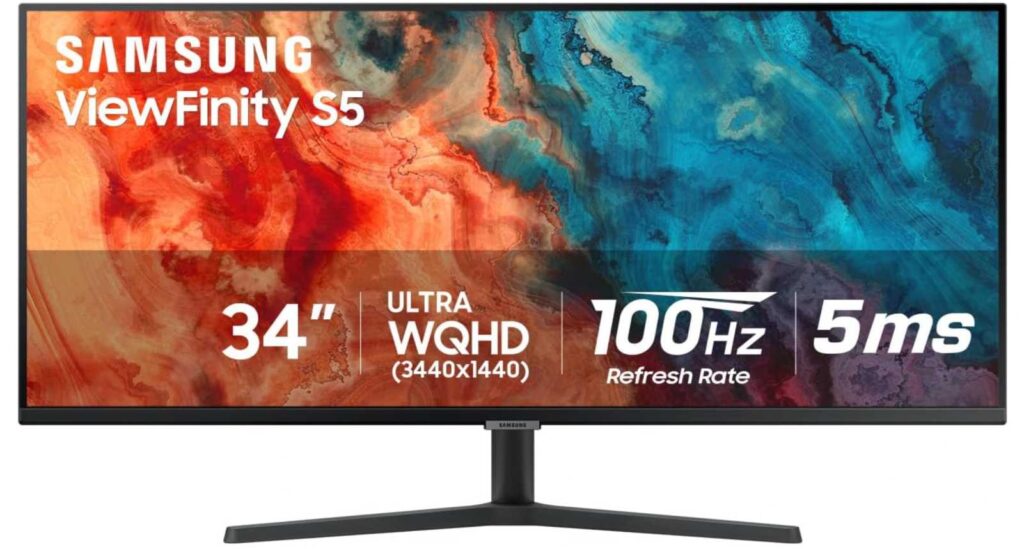
The 3440×1440 resolution is sharp enough for detailed work, and features like PBP and PIP are useful if you like working on multiple things at once. You can split the screen or even connect two sources easily.
It’s not focused on gaming performance, but that’s fine—this monitor is clearly built more for productivity and long work sessions. The eye care features also help reduce strain if you’re sitting in front of it for hours.
Who this is for
- You want one of the Best Monitors for Architects and CAD Work with a practical setup
- You prefer a flat ultrawide for accuracy
- You like having multiple windows open at once
Who should skip it
- If you want a curved or more immersive display
- If you need high refresh rates for gaming
My take
This is a no-nonsense productivity monitor.
If your focus is getting more workspace and working comfortably for long hours, this one does the job really well.
5. SANSUI 34″ Curved Ultrawide – Why This Might Be the Best Fit for You
34″ | 3440×1440 (UWQHD) | 21:9 | 165–200Hz | Curved (1500R)
If you’re trying to figure out which monitor actually makes your work easier, the SANSUI 34-inch Curved UWQHD Ultrawide Monitor stands out for one simple reason—it gives you a lot more usable space without making things complicated or expensive.
If you often feel cramped working on a single screen, this fixes that immediately. The 34″ ultrawide layout lets you keep your CAD drawing in the center, with toolbars and references on the sides. You won’t be constantly switching tabs or minimizing windows—it just feels more natural.
This is especially useful if your workflow involves multiple panels, layers, or reference images. Instead of juggling everything, you can see it all at once, which honestly saves time and keeps you focused.

The 1440p ultrawide resolution is detailed enough for most architectural work, so you’re not missing fine lines or measurements. It’s not overkill, but it’s definitely a step up from basic 1080p monitors.
And if you’ve ever thought about getting a dual-monitor setup, this is kind of a simpler version of that. You get the same wide workspace, just without the bezel in the middle breaking your view.
Why this is a good fit for you
- You feel limited by a single monitor workspace
- You want a clean setup without multiple screens
- You work with multiple windows, tools, or references at once
- You want something affordable but still practical for CAD
When this might not be for you
- You prefer a flat screen for perfectly straight visuals
- You need top-tier color accuracy for rendering work
My take
If your main goal is to work more comfortably and see more at once, this monitor does exactly that.
It’s not trying to be the most premium option—it’s just a really smart upgrade for your workflow, and for most people, that’s what actually matters.
6. LG 34″ Smart Monitor – A Different Kind of Setup
34″ | 3440×1440 (UWQHD) | 21:9 | 100Hz | Curved | webOS
Not every monitor is just a “plug it into your PC and work” type of screen. The LG 34SR60QC-W 34-inch Smart Ultrawide Monitor does things a bit differently—and that’s exactly why it might work better for some people.
You still get the usual 34-inch ultrawide space, which is great for CAD work. Having your main drawing in the center, tools on one side, and references on the other just feels way more natural than constantly switching tabs. That part is expected.
What’s different is everything else. This monitor has built-in webOS, so you’re not always tied to your computer. You can open apps, check files, or even run cloud tools directly on the screen. It’s one of those features you don’t think you need—until you start using it.
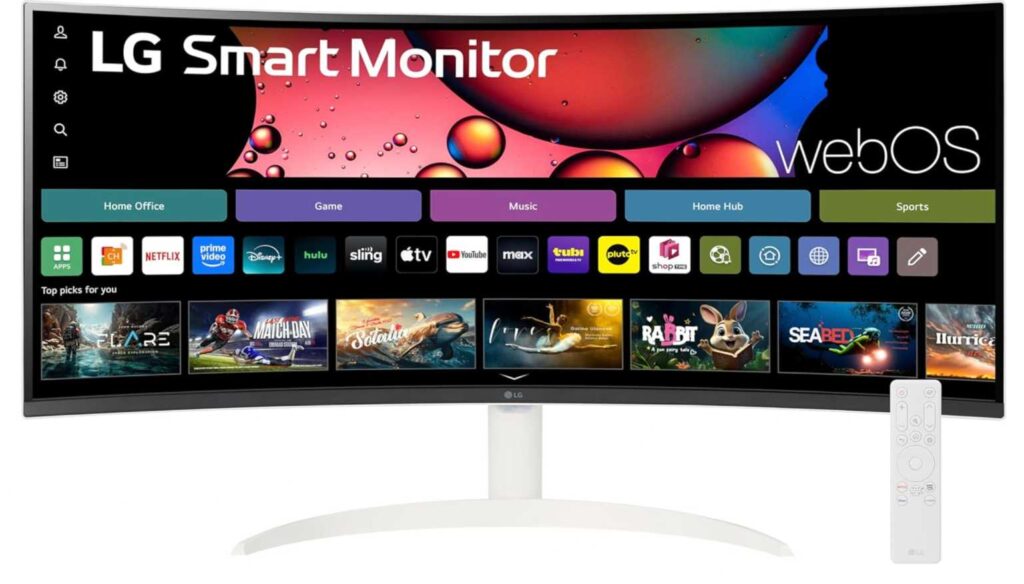
It also works well if your setup isn’t always fixed. Maybe sometimes you’re working from a laptop, sometimes reviewing stuff, sometimes just watching content—this adapts without needing extra devices.
Color and clarity are solid (not extreme, not lacking), so it handles CAD work comfortably without trying to be a “pro studio monitor.”
Why you might actually like this
- You don’t want your monitor to feel limited to just one device
- You like a setup that can adapt to different workflows
- You want fewer cables and less dependency on your PC
- You still need a wide, practical workspace for CAD
When it might not click for you
- You prefer a traditional, no-extra-features monitor
- Your work is heavily focused on precision color work
My take
This one feels less like a standard monitor and more like a flexible workstation screen.
If your workflow isn’t always the same every day, this actually makes your setup a lot easier to manage.
7. Samsung 34″ ViewFinity S50GC – If You Just Want a Clean, No-Drama Setup
34″ | 3440×1440 (UWQHD) | 21:9 | 100Hz | Flat | HDR10
Some monitors try to do too much. The Samsung 34-inch ViewFinity S50GC Ultra-WQHD Monitor is more about doing the basics really well—and for a lot of CAD users, that’s exactly what you need.
You get a wide 34″ screen, and honestly, that alone changes how you work. Instead of juggling windows, you can just lay everything out—your drawing, panels, reference images—and keep it all visible. It’s simple, but it makes your workflow feel less messy.
This one is also flat, which some people actually prefer for CAD. Straight lines look… well, straight. No subtle curve distortion, no adjustment period—just a straightforward viewing experience.
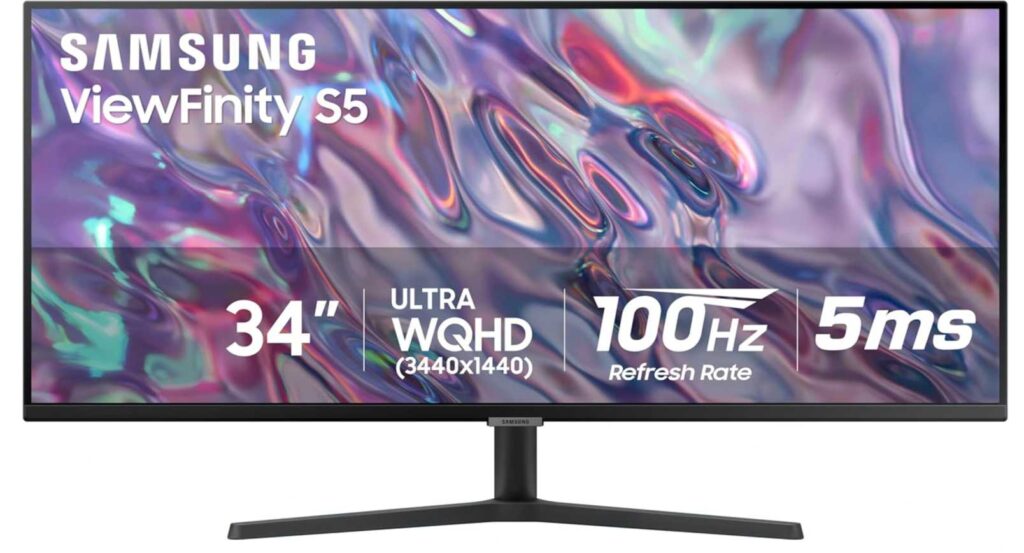
The PBP and PIP features are there if you want to go a step further. You can split the screen between two sources or keep a second input running in a corner. It’s useful if you’re comparing files or working across devices.
And the minimal bezels make it a nice option if you ever decide to run a dual setup later—it won’t look awkward side by side.
Why this might fit your setup
- You want a straightforward ultrawide without extra complexity
- You prefer a flat panel for accurate lines and layouts
- You like keeping everything visible on one screen
- You might expand to a multi-monitor setup later
When it’s not the right pick
- You want a curved or more immersive display
- You’re looking for high refresh rates or gaming-focused features
My take
This is the “keep it simple and efficient” monitor.
No gimmicks, no learning curve—just a clean, wide workspace that helps you focus on your work.
Final Thoughts
Choosing the Best Monitors for Architects and CAD Work really comes down to how you work every day. There’s no single “perfect” monitor—just the one that fits your workflow.
If you want maximum workspace, ultrawide monitors make a huge difference. If you care more about precision and clean visuals, a flat high-resolution display might feel better. And if you’re on a budget, even a simpler setup can still get the job done—you can always upgrade later.
The key thing is this:
A good monitor doesn’t just look nice—it actually reduces friction in your work. Less switching, better visibility, more comfort.
Pick the one that helps you see more, work faster, and stay comfortable for long sessions—that’s what really matters in the long run.