
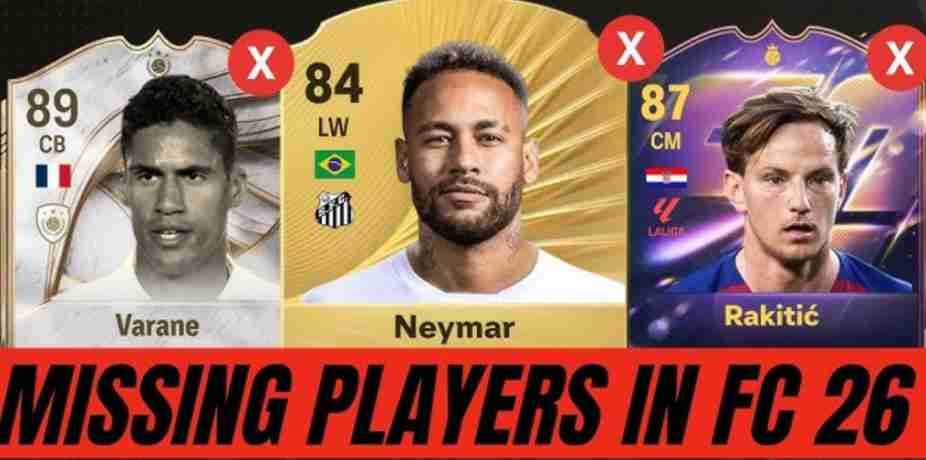
Many FC 26 Ultimate Team (UT) players have noticed that some of their squad members suddenly disappear. Players like William Saliba or Sidney Govou may appear only as concept players or vanish entirely from the club. This can be alarming, particularly if you haven’t submitted these players into SBCs (Squad Building Challenges) or shared your account with anyone.
The issue is usually linked to server sync problems, account discrepancies, or temporary glitches in the Ultimate Team database. Sometimes, EA servers may fail to recognize that certain players belong to your squad, causing them to appear as concept players instead of active members. This problem is not caused by user error and can affect even accounts that follow all safety protocols.
To troubleshoot, start by logging out and logging back into your EA account, ensuring you are on the correct platform. Restarting the game or clearing the app cache can also help the client refresh your squad data. Check that your account hasn’t been linked to multiple platforms, as this can sometimes cause confusion in player ownership.
If the missing players still do not appear, the safest step is to contact EA Support. Provide detailed information, including your account details, the names of missing players, and any recent actions you’ve taken in Ultimate Team. EA Support can verify your account, check server logs, and restore missing players where possible.
By understanding the causes and following these steps, you can minimize the risk of losing valuable Ultimate Team players and ensure that your squad remains intact. Staying patient and reaching out to EA Support promptly is key to recovering missing FC 26 UT players.
Common Causes of Missing Players in FC 26 Ultimate Team
Many FC 26 Ultimate Team (UT) users have reported situations where players suddenly disappear, appear as concept cards, or vanish from the squad entirely. Understanding the most common causes can help you troubleshoot and prevent such issues.
1. Server Sync Issues
A primary reason for missing players is server synchronization problems. EA servers occasionally fail to sync properly with your console, PC, or Companion App. When this happens, players may temporarily appear as concept cards instead of fully registered in your squad. This is a server-side issue and usually resolves after a short period once the connection stabilizes.
2. Cache or Data Corruption
Local app or console cache can sometimes interfere with squad displays. After game updates, server disconnects, or unexpected crashes, your device might show incomplete squad data. Players may exist on EA servers, but cached or corrupted local data prevents them from appearing correctly in your club. Clearing the cache or restarting the game often resolves this problem.
3. Unprocessed SBCs or FUT Events
Even if you haven’t submitted certain players into Squad Building Challenges (SBCs) or FUT events, incomplete or pending submissions can occasionally misclassify them as concept cards. This happens because the game temporarily flags the player as “in use” while processing event requirements. Waiting a few minutes or completing any pending objectives can restore the player to the squad.
4. Account Conflicts
Logging in on multiple devices—such as a console and the FUT Companion App—can cause synchronization conflicts. If both devices attempt to update squad data simultaneously, some players may fail to register correctly, appearing as missing or concept cards. Always ensure that your account is only actively used on one device at a time when making major squad changes.
5. Game Bugs
FC 26 UT is still experiencing early-year bugs, including issues where players disappear, club displays fail, or concept cards appear incorrectly. These bugs are often reported on EA forums and social channels. While some resolve with updates or server fixes, others may require contacting EA Support to restore missing players.
Understanding these common causes helps players diagnose why their FC 26 Ultimate Team players are missing and take the appropriate steps—like restarting the app, clearing cache, or contacting EA—to recover them safely.
How to Recover Missing Players in FC 26 Ultimate Team
Many FC 26 Ultimate Team (UT) players have reported that some squad members suddenly disappear or appear only as concept cards. Players like William Saliba or Sidney Govou vanishing can be stressful, especially if you haven’t submitted them into SBCs or shared your account. Fortunately, there are several ways to recover missing players. Below is a comprehensive guide with 17 detailed fixes.
1. Restart and Sync
The first step is always to restart the game on all devices: console, PC, and mobile. Make sure you are logged into the same EA account. Closing and reopening the game forces a sync with EA servers, which often restores missing players.
2. Check Companion App and Different Devices
Sometimes missing players are visible on one device but not another. Open your club on multiple devices, including the FUT Companion App, console, or PC. This can help determine whether the issue is device-specific or server-related.
3. Clear Cache / Reinstall Game
Console: Power cycle your device or reinstall FC 26 to remove corrupted data.
Mobile/Companion App: Clear the app cache or reinstall to ensure local data isn’t causing the display issue.
4. Check FUT Web App
Visit the FUT Web App (https://www.ea.com/fifa/ultimate-team/web-app) and log into your account. Sometimes console or mobile apps lag behind server data, and missing players may appear correctly on the web.
5. Look for Pending SBCs
Even if you haven’t submitted the players, check active or incomplete SBCs. Occasionally, the system temporarily flags players as concept cards while processing pending challenges. Completing or abandoning incomplete SBCs may restore the missing players.
6. Check Quick Sell Recovery / Club Storage
EA sometimes places missing players in Quick Sell Recovery or Club Storage temporarily. Monitor these sections after logging in and syncing, as server updates may restore the missing cards automatically.
7. Log Out and Back Into EA Account
Logging out and back into your EA account can refresh your server data, often restoring missing or concept players that were not appearing.
8. Avoid Multiple Devices Simultaneously
Logging into your account on multiple devices at the same time can create sync conflicts, leading to missing players. Ensure only one device is actively making changes to the squad.
9. Check for Server Status
Sometimes missing players are caused by EA server issues. Check EA’s official server status page or social media channels to confirm if server downtime or maintenance is affecting Ultimate Team.
10. Complete Small In-Game Activities
Playing a short match, completing a training session, or making minor changes to your squad can trigger server sync, helping missing players reappear in your club.
11. Verify Account Ownership
Ensure that your EA account is the primary account associated with your Ultimate Team progress. Logging into the wrong account may make it seem like players have disappeared.
12. Check Transfer Market or Loaned Players
Sometimes players sent on loan or listed incorrectly in the Transfer Market can appear missing in the club view. Verify that your players aren’t temporarily out on loan or listed for trade.
13. Avoid Using Mods or Third-Party Tools
Third-party apps or mods can interfere with Ultimate Team synchronization, causing players to appear missing. Stick to official EA platforms to avoid issues.
14. Update the Game
Running an outdated version of FC 26 can cause bugs in Ultimate Team. Always ensure your console, PC, or mobile app is fully updated to the latest version.
15. Power Cycle Your Device
Completely turn off and unplug your console or restart your mobile device. A full power cycle clears temporary glitches and may restore missing players.
16. Check Concept Player List
Go to your Concept Player section in the club. Occasionally, missing cards may appear there instead of your main squad, allowing you to manually add them back.
17. Contact EA Support
If none of the above solutions work, the final step is to contact EA Support. Provide:
- Platform (PC, Xbox, PlayStation, or mobile)
- EA account details
- Names of missing players
- Screenshots of your club and concept player screen
EA Support can verify your account, check server logs, and restore missing players where possible.
Additional Tips
- Avoid submitting major squad changes on multiple devices at the same time.
- Regularly sync with the FUT Web App to confirm your club matches server data.
- Keep a backup of club screenshots in case EA requests proof of missing players.
- Monitor EA forums and Reddit for temporary server issues affecting player visibility.
Conclusion
Missing players in FC 26 Ultimate Team are often caused by server sync issues, cache problems, pending SBCs, or account conflicts. By following these 17 detailed steps, you can recover missing players, prevent future issues, and ensure your squad remains intact. Always start with simple fixes like restarting and syncing before moving to more involved solutions like clearing cache or contacting EA Support.
1. Why Have My FIFA Players Disappeared?
FIFA players in Ultimate Team (UT) can disappear due to several common reasons. The most frequent cause is server sync issues, where EA servers temporarily fail to update your squad correctly, causing players to appear as concept cards or vanish from your club. Cache or corrupted data on your console or mobile device can also hide players, especially after updates, crashes, or network interruptions.
Other reasons include account conflicts—logging into multiple devices simultaneously can prevent proper synchronization—or pending SBCs and FUT events, which may temporarily flag players as in use. Rarely, game bugs in early releases or updates may cause players to disappear unexpectedly.
To resolve the issue, try restarting the game, clearing cache, checking the FUT Web App, or logging out and back into your EA account. If the problem persists, contacting EA Support is the most reliable way to recover missing FIFA players.
2. How to Get More Players on Ultimate Team
There are several ways to expand your squad in FIFA Ultimate Team (UT). One of the primary methods is opening packs, which can be earned through coins, FUT points, or as event rewards. Participating in Squad Building Challenges (SBCs) allows you to exchange existing cards for new players, often including high-rated or rare options.
Completing FUT objectives and weekly events is another effective method, as rewards frequently include player picks or packs. The transfer market also lets you buy players directly using in-game coins, allowing precise squad customization.
Additionally, logging in daily during limited-time events, participating in Division Rivals, FUT Champions, or seasonal competitions provides more opportunities to acquire new players. Combining these strategies ensures you steadily grow your Ultimate Team roster.
3. Did Ultimate Team Get Rid of Contracts?
No, Ultimate Team contracts still exist in FIFA, including FC 26. Contracts determine how many matches a player can participate in before requiring renewal. While some events, game modes, or updates may temporarily provide unlimited contract cards or auto-renew features, the fundamental system remains in place.
Players can extend contracts using contract cards, which are purchasable from packs or the transfer market. Managing contracts is important for maintaining squad rotation, especially for high-value players or during competitive modes like Division Rivals and FUT Champions. Running out of contracts does not delete players—it simply prevents them from being used until renewed.
Contract management remains a key part of Ultimate Team strategy, helping players optimize performance and resources across their squad.
Conclusion
Missing players in FC 26 Ultimate Team (UT) are usually the result of server sync problems, corrupted cache, or early-game bugs. Players may temporarily appear as concept cards or vanish from the club, which can be alarming but is often recoverable. By following troubleshooting steps—restarting the game, checking your account on different devices, clearing cache, and reviewing pending SBCs or FUT events—most players can restore their missing squad members.
If these steps do not work, contacting EA Support with your account details, screenshots, and a list of missing players is the most reliable method to recover cards like William Saliba or Sidney Govou. Staying patient and systematic ensures your Ultimate Team squad remains intact and playable.
FAQ
1. Why did my FC 26 Ultimate Team players disappear?
Players can disappear due to server sync issues, cache corruption, pending SBCs, or logging into multiple devices simultaneously. Rarely, early-game bugs may also cause players to vanish.
2. How do I recover missing players?
Restart the game, check the FUT Web App, clear cache, review pending SBCs, log in on one device at a time, and contact EA Support if needed.
3. Can missing players be permanently lost?
Most missing players are temporarily unregistered due to sync issues. Contacting EA Support usually restores them; they are rarely permanently lost if your account is secure.
4. Why do some players appear as concept cards?
Concept cards often indicate that the game cannot verify server data for those players. Syncing, logging in/out, or waiting for server updates usually fixes this.
5. Do EA server issues affect missing players?
Yes, server downtime or lag can temporarily hide players or cause them to appear as concept cards. Checking server status can help confirm if this is the cause.