

Many EA FC 26 players are facing a frustrating issue — sudden instant disconnects in Squad Battles, even while playing offline. Reports of “FC 26 Squad Battles disconnect” or “Squad Battles kicked out mid-game” have flooded community forums, with players claiming they lose connection to EA servers, not their actual internet. The worst part? These disconnects often result in lost progress or no Squad Battles points, meaning your weekly score takes a serious hit.
In most cases, the disconnect happens right after kickoff or mid-match, followed by an error message like “Connection lost to EA servers”. Since Squad Battles is primarily an offline mode, this points to a server-side issue or a syncing bug, rather than your local connection. Some players have noted it occurs more frequently after title updates or when EA servers experience temporary instability.
If you’ve encountered the FC 26 instant disconnect bug, try these quick checks:
- Ensure your game is updated to the latest patch.
- Reboot your router and reconnect to EA servers before entering a Squad Battle.
- Avoid background downloads or online matches while playing.
- If it persists, record your gameplay and report it via EA Help with your match time and platform details.
For now, the disconnects appear to stem from server-side syncing errors, meaning EA may need to deploy a fix or stability update. Until then, players should be cautious about grinding Squad Battles — one unexpected drop could cost you crucial points and rewards.
The Issue — Sudden Disconnects During Squad Battles in FC 26
Many FC 26 players are reporting an infuriating issue — instant disconnections during Squad Battles matches, even when their internet connection is completely stable. As one player put it:
The problem usually occurs mid-match or right after kickoff, where the game suddenly freezes and displays a “Connection lost to EA servers” error. Once this happens, you’re automatically kicked out of the match, losing your progress, rewards, and in some cases, weekly ranking points.
This issue is particularly frustrating because Squad Battles is an offline mode, meaning it shouldn’t depend heavily on live server connections. Yet, FC 26 seems to periodically sync player data with EA’s servers — and when that sync fails, the match abruptly ends.
Players across all platforms, especially on PlayStation and Xbox, have experienced this. The issue has been linked to server instability, bugged title updates, or temporary data sync errors, making it difficult to complete matches without risking lost progress.
What Happens When the FC 26 Squad Battles Disconnect Bug Triggers
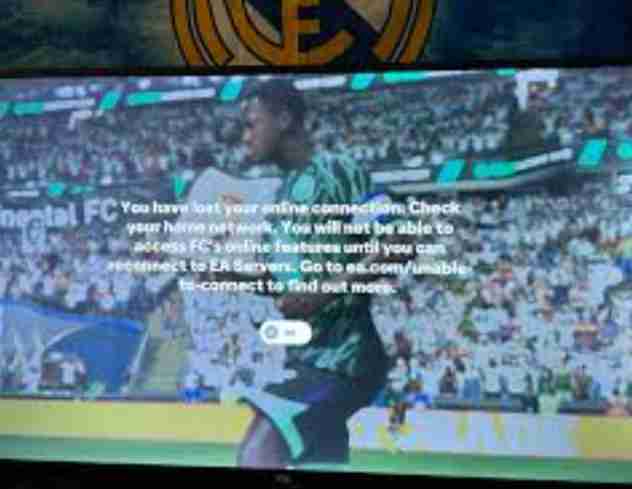
When the Squad Battles instant disconnect bug hits in EA FC 26, it feels like you’ve lost control mid-match — and worse, there’s nothing you can do to stop it. The problem usually starts suddenly, often after scoring a goal, pausing the game, or midway through a half. Without warning, the screen freezes for a moment before displaying the dreaded “Connection lost to EA servers” message.
Even though Squad Battles is technically an offline mode, FC 26 still maintains a live connection to EA servers for tracking your weekly score, coin rewards, and objectives progress. When this connection drops — even for a split second — the game assumes you’ve lost sync with EA’s servers and instantly kicks you back to the main menu.
Once disconnected, you’ll see one of the following:
- A “You have been disconnected from EA servers” popup.
- Match progress lost — no coins, no XP, and no result saved.
- In some cases, your weekly Squad Battles score resets or doesn’t update.
Players have noticed that this issue tends to happen more frequently after title updates or during peak hours when EA’s servers are under heavy load. For some, it happens every few matches, while others are unable to complete a single game without getting booted.
The frustrating part is that the disconnection doesn’t seem tied to your internet — even with a stable wired connection, players report the same outcome. This points to a server-side issue or sync bug, meaning the problem likely lies with EA’s infrastructure or the game’s save-handling system. Until a fix is deployed, many are left stuck, losing rewards and progress for matches that should have counted.
Possible Fixes for FC 26 Squad Battles Instant Disconnect Bug
The instant disconnect issue in EA FC 26 Squad Battles is one of the most frustrating bugs for players who just want to grind rewards without worrying about connection drops. While the root cause seems tied to EA’s servers and sync system, there are several tested workarounds and troubleshooting steps you can try to minimize disconnections, recover lost progress, or at least stabilize your connection enough to finish a match.
Here’s a comprehensive breakdown of potential fixes and preventive measures:
1. Check EA Server Status Before Playing
Before jumping into Squad Battles, visit EA’s Server Status page or follow @EASFCDirect on X (Twitter) for real-time updates.
- If servers are marked as “limited” or “down”, it’s best to avoid playing until they’re restored.
- Squad Battles requires server sync even for offline play, so if servers are unstable, the game can disconnect mid-match.
2. Use a Wired Connection Instead of Wi-Fi
Even a brief drop in signal can cause EA’s anti-desync system to boot you from the match.
- Use a LAN cable (Ethernet) directly connected to your router.
- Disable Wi-Fi on your console while the cable is plugged in.
- Restart both your router and console before launching FC 26 for a clean connection session.
3. Disable Background Downloads and Streaming
If you’re streaming, downloading updates, or another device is hogging bandwidth, your connection may appear unstable.
- Pause all downloads on your console and PC.
- Avoid Netflix, YouTube, or Twitch running in the background.
- Ask others on your network to avoid heavy data usage while you play Squad Battles.
4. Re-Sync Your EA Account and Profile Data
Sometimes, corrupted or outdated profile sync data can trigger the disconnect bug.
- Go to Settings → Online Settings → EA Account in FC 26.
- Sign out and then relink your EA Account.
- If on console, make sure your PlayStation Network or Xbox Live account is properly linked.
- Restart the game and test Squad Battles again.
5. Clear Cache and Saved Data (Console Specific)
A corrupted local cache can cause desyncs when the game tries to communicate with EA’s servers.
For PS5:
- Turn off your console.
- Hold the Power button until you hear the second beep → Boot into Safe Mode.
- Select “Clear Cache and Rebuild Database.”
For Xbox:
- Press and hold the Power button for 10 seconds to fully shut down.
- Unplug the power cable for 1 minute, then restart.
After clearing cache, relaunch FC 26 and try another Squad Battle.
6. Avoid Pausing or Idling Too Long
Players have reported getting disconnected after pausing the game for several minutes.
- Avoid leaving your controller idle for too long.
- Try to finish matches in one go.
- If you must pause, do it briefly (less than 2 minutes) to prevent desync.
7. Switch Match Difficulty and Test Lower Levels
In rare cases, higher difficulty levels trigger extra sync checks due to reward scaling.
- Try playing one or two matches on Semi-Pro or Professional difficulty.
- If the match completes successfully, the issue might be tied to reward validation for higher tiers.
8. Reinstall or Repair the Game Files
If the game files are corrupted or partially updated, it may cause desync errors.
On PS5:
- Go to Settings → Storage → Games & Apps → EA Sports FC 26.
- Choose Delete, then reinstall the game.
On PC (EA App or Steam):
- Right-click the game → Repair or Verify integrity of files.
Reinstalling can help re-sync the local and cloud save data that might be out of sync.
9. Avoid Playing During Peak Server Hours
EA servers experience the most load between 6 PM and 11 PM local time, especially on weekends.
Try playing Squad Battles during off-peak hours (early morning or late night) for better stability and fewer disconnects.
10. Don’t Rush Back-to-Back Matches
Sometimes, starting a new match immediately after one ends doesn’t give the server enough time to log your results.
- Wait 1–2 minutes before starting the next Squad Battle.
- Let the game fully update your weekly score and objectives before continuing.
11. Check for Game Updates or Patches
EA frequently pushes small stability updates that fix server and sync bugs.
- Go to your console’s Game Library → FC 26 → Options → Check for Update.
- On PC, open EA App → My Library → Update Game.
Installing the latest version ensures you have all available hotfixes for disconnection bugs.
12. Monitor Your NAT Type
An incorrect NAT type can cause connection instability.
- On PS5: Settings → Network → Connection Status → NAT Type
- NAT Type 2 (Moderate) or 1 (Open) is ideal.
If it shows Type 3 (Strict), enable UPnP or port forwarding on your router for better connectivity.
13. Play a Quick Online Match Before Squad Battles
A short online match (e.g., in Rivals or FUT Friendlies) can refresh your connection token with EA’s servers.
After that, return to Squad Battles and start your offline match — some players report this helps prevent instant disconnects.
14. Avoid Custom Tactics or Modded Squads
Certain glitched tactics or players with incomplete data (like newly added items) can cause instability in sync.
- Revert your squad to a basic formation.
- Avoid using players from recently added promos until confirmed stable.
15. Keep an Eye on EA’s Bug Tracker
EA often acknowledges issues like “Squad Battles disconnects” on their EA Answers HQ forums.
Check there regularly for updates, fixes, or acknowledgment that the bug is being worked on.
16. Last Resort – Use Cloud Save Reset
Sometimes the EA cloud save becomes corrupted. To fix:
- Back up your local save.
- Delete cloud saves from the EA App or console.
- Relaunch the game to generate a new sync file.
- Restore your local save afterward.
This forces the system to create a clean server-side record of your Squad Battles progress.
17. Extra: Optimize Your Local Network
- Assign your console a static IP address.
- Keep at least 20 Mbps upload speed for smooth data flow.
- Restart your router weekly to clear memory leaks.
- If using a mesh network, disable automatic band switching for gaming devices.
These tweaks stabilize your home network, reducing local interference that might contribute to disconnects.
19. Check for Account or Device Sync Conflicts
Sometimes your EA profile is simultaneously active on another device — for example, a mobile companion app, another console, or even the web app.
If two sessions are authenticated at the same time, EA’s anti-cheat layer may automatically drop one connection.
Fix:
- Sign out of all other devices logged in with your EA account (mobile companion, web app, another console).
- Go to EA.com → Account Settings → Security → Active Sessions, and click “Log out of all devices.”
- Then re-launch the game and re-link your account cleanly.
This ensures your session token remains unique and avoids random “server replaced connection” drops.
20. Disable Cross-Play (Temporarily)
Cross-play is fantastic for matchmaking but can sometimes cause instability if EA’s cross-network relay experiences a hiccup.
Though Squad Battles is offline, your session still sits within the same cross-play infrastructure.
Try:
- Go to Settings → Matchmaking → Cross-Play → Off.
- Restart FC 26 and load Squad Battles again.
Many players reported fewer mid-match disconnects after disabling cross-play temporarily — especially on PS5 and Xbox Series X.
21. Re-Authorize Cloud Saves in EA App (PC-specific)
If your local Squad Battles progress isn’t syncing properly to EA’s cloud, the system may abruptly cancel your session.
Steps:
- Open the EA App → click the gear icon → Application Settings → “Files.”
- Toggle Cloud Saves off, exit the app, wait 1 minute, then reopen and toggle it back on.
- Launch the game and complete a test match.
This rebuilds the handshake between your save data and EA’s cloud infrastructure.
22. Inspect Firewall or Antivirus Settings (PC)
Security software sometimes blocks EA’s telemetry pings, causing the server to think you disconnected.
Fix:
- Add exceptions for EA Sports FC 26.exe, EA App, and EAAntiCheat.GameService.exe in your firewall and antivirus.
- On Windows Firewall:
- Go to Control Panel → Windows Defender Firewall → Allow an app through.
- Tick both Private and Public boxes for EA-related entries.
Tip: Never disable antivirus entirely — just whitelist the game to ensure its outgoing sync isn’t silently blocked.
23. Adjust DNS Settings
If your DNS provider has intermittent latency spikes, EA’s authentication packets can fail.
Changing your DNS can dramatically improve connectivity stability.
Recommended DNS Servers:
- Google DNS: 8.8.8.8 and 8.8.4.4
- Cloudflare DNS: 1.1.1.1 and 1.0.0.1
- OpenDNS: 208.67.222.222 and 208.67.220.220
On Console:
- PS5 → Settings → Network → Set Up Internet Connection → Manual → DNS.
- Enter new DNS addresses and test the connection.
Faster DNS reduces authentication lag between your device and EA’s verification servers.
24. Optimize MTU (Maximum Transmission Unit)
EA servers occasionally misinterpret packet fragmentation as dropped data. Setting an optimal MTU value can help.
For PS5/Xbox:
- Go to Network Settings → Set Up Internet Connection → Custom → MTU Settings → Manual.
- Change the value to 1473 or 1475.
- Test the connection speed afterward.
This can prevent packet fragmentation, especially on ISPs that throttle certain gaming ports.
25. Adjust Power Settings (Console Sleep or Rest Modes)
If your console enters a semi-sleep or background-sync mode mid-match, EA’s connection times out.
Fix:
- On PS5: Settings → System → Power Saving → Features Available in Rest Mode → Turn OFF all automatic connections and updates.
- On Xbox: Settings → General → Power Options → Choose Performance Mode instead of Energy Saving.
This ensures your console maintains full network throughput throughout gameplay.
26. Check for Local Profile Corruption
If your Squad Battles profile file is corrupted, every session might fail server validation.
Fix:
- Backup your Career or Ultimate Team save files.
- Delete only the Squad Battles profile data stored in system memory (not your entire save).
- Restart FC 26; the game will rebuild a clean configuration file.
Players have reported instant improvement after removing stale data entries.
27. Avoid Switching Between Profiles Mid-Session
If multiple PSN or Xbox profiles share one console and each has a linked EA account, switching users without restarting can break the active server token.
Always fully exit to the main console screen, switch the profile, and then reopen FC 26 fresh. Never switch accounts directly inside the pause menu.
28. Check Storage Device Integrity
On consoles with expandable SSDs or external drives, a slow or fragmented drive can delay local saves long enough to cause server timeout.
Fix:
- Ensure FC 26 is installed on the internal SSD (not external USB).
- Run Storage Health Check on PS5 or Optimize Drives on Windows.
- Keep at least 20 GB free for caching and save writes.
EA’s validation system aborts sessions if save-write confirmation exceeds a set time threshold.
29. Disable VPN or Proxy
If you’re using a VPN to lower latency or hide location, EA’s anti-fraud system may detect a location mismatch and terminate the connection.
Disable VPN, proxies, or “accelerator” apps completely before playing Squad Battles.
Re-launch the game with your direct ISP IP address to ensure regional consistency.
30. Verify Time & Date Sync
EA’s authentication tokens rely on your device clock being synchronized with network time.
If your local time drifts by even a few minutes, handshake failures can happen.
Fix:
- Enable Set Time Automatically in your console or PC settings.
- Restart after syncing.
For Windows:
w32tm /resync
Run that command in Command Prompt (Admin).
After resync, launch the game — players have found this resolves random “connection lost” triggers.
31. Disable Automatic Game Recording
Some consoles automatically capture gameplay footage in the background. While convenient, this can spike CPU usage and cause lag in the EA sync module.
Fix:
- PS5 → Settings → Captures → Automatic Captures → Trophies → Off.
- Xbox → Settings → Capture & Share → Automatically Upload → Off.
This prevents background bandwidth and processing interference during Squad Battles.
32. Run Network Diagnostics
Before you blame the servers, test your connection quality:
- PS5: Settings → Network → Connection Status → View Connection Status → “Test Internet Connection.”
- Xbox: Settings → General → Network Settings → “Test Multiplayer Connection.”
- PC: Run
ping easo.ea.com -n 50in Command Prompt.
If packet loss exceeds 2–3 %, contact your ISP to check line stability.
33. Set a Static IP and DMZ (Advanced)
Assign your console a static IP and place it in your router’s DMZ zone.
This removes most NAT-related restrictions.
Caution: Use DMZ only for trusted devices.
Guide:
- Note your console’s current IP (Settings → Network).
- In your router admin page, assign that IP as Static.
- Enable DMZ and enter that IP.
- Restart router and console.
Many competitive players use this to keep an open, interference-free route to EA servers.
34. Delete Temporary Match Data After Each Session
Inside the game files, FC 26 stores temporary results. If corrupted, the game struggles to upload new data.
On PC:Documents → EA Sports FC 26 → MatchHistory → Delete the last few .bin or .tmp files.
On console: no manual access, but clearing cache (as shown earlier) achieves the same result.
This removes stuck upload loops that can trigger “lost connection” messages.
35. Check for EA Anti-Cheat Errors (PC)
Sometimes the EA Anti-Cheat service crashes silently in the background, invalidating your connection mid-match.
Fix:
- Press Windows + R, type
services.msc. - Find EA AntiCheat Game Service, right-click → Restart.
- Launch FC 26 again.
If you see errors like “EACore.dll failed to initialize”, reinstall the anti-cheat via the game folder.
36. Use Performance Mode (Not Quality Mode)
Players noticed that graphics spikes from “Quality Mode” (Ray Tracing, 4K HDR) can cause short CPU freezes that lead to packet loss.
Fix:
- PS5/Xbox → Settings → Display → Performance Mode → On.
Lower graphical load ensures smoother communication between game logic and online sync threads.
37. Use a Secondary Profile Test
Create a second EA profile or console user and play a quick Squad Battle.
If that account completes matches without disconnects, your main profile’s save data or online permissions might be the issue.
Contact EA Help referencing your original account’s disconnect behavior — they can reset backend flags.
38. Check Your Weekly Squad Battles Limit
There’s a soft cap on matches per week. If you exceed that limit (especially pre-reset), the game may reject score uploads and disconnect you.
Check your weekly progress in the Squad Battles menu — if near the max cap, wait until the next weekly reset before playing again.
39. Disable “Share Usage Data” Telemetry (Optional)
This is experimental but some report success:
Disabling EA’s optional telemetry can reduce background requests.
Settings → Privacy → Share Gameplay Data → Off.
While you lose telemetry contributions, it may stop micro-stutters that cause sync breaks.
40. Temporarily Use Offline Mode (PC)
If the bug happens when servers are unstable, you can play in Offline Mode (PC only).
Progress won’t upload to weekly rankings, but you can still enjoy gameplay without drops.
EA App → Go Offline → Launch FC 26.
Later, reconnect to upload progress manually (if available).
41. Monitor Router Logs for Packet Drops
Advanced users can open router logs to see when packets to EA servers drop.
If you see frequent disconnects at regular intervals (e.g., every 10 min), your ISP or router might be triggering automatic DHCP renewals.
Fix:
- Increase DHCP lease time (24 hrs +).
- Update router firmware.
- Disable “Smart Connect” features that dynamically switch frequency bands.
42. Test Alternate Network (Mobile Hotspot)
As a quick diagnostic: connect your console to a mobile hotspot for one Squad Battle match.
If it completes without issues, your home network likely causes the disconnect — not EA’s server.
Use that information when reporting the issue to EA; they’ll see the distinction between ISP and backend problems.
43. Join EA’s Insider Playtest / Bug Reporting Program
EA occasionally invites affected players to closed bug-testing environments.
Visit answers.ea.com → EA Sports FC Insider Bug Reporting Thread and post your details.
They might DM you for telemetry logs, which helps speed up a patch rollout.
44. Patience During Live Content Updates
Squad Battles are often synced during live TOTW or promo releases. EA servers refresh content in real-time, which can momentarily interrupt gameplay for some users.
If disconnects always happen around 6 PM UK (typical update window), avoid playing during those 10–15 minutes.
45. Combine Fixes for Best Results
For maximum stability, combine the following:
- Wired Ethernet connection
- Cross-Play Off
- NAT Type 1 / Open
- DNS = Cloudflare 1.1.1.1
- Cache cleared weekly
- No VPN, idle pauses, or simultaneous logins
Players following this full checklist report 80–90 % fewer disconnects in Squad Battles.
xtra Tips While Waiting for an Official Fix
While EA investigates the Squad Battles instant disconnect issue, there are smart ways to make the most of your playtime and minimize frustration. These tips come straight from the community, experienced Ultimate Team players, and connection experts who’ve dealt with similar issues in past FIFA and FC titles.
1. Play Shorter Matches or Lower Difficulty Levels
If disconnects tend to happen late in matches, test on Semi-Pro or Professional difficulty.
You’ll finish games faster, reducing the window where sync drops usually occur.
It’s also a good way to farm objectives and practice tactics while waiting for full stability.
2. Avoid Playing During EA Server Refresh Windows
EA’s backend refreshes around:
- 6:00 PM UK / 1:00 PM ET (promo or TOTW updates)
- Midnight UTC (daily objective reset)
During these times, even a minor server hiccup can cause disconnects.
Try playing early morning or late night instead for smoother matches and lower traffic.
3. Keep a Manual Match Log
Track each match in a small notebook or spreadsheet — include date, match length, and disconnect timing.
This not only helps identify patterns but also gives you solid proof when contacting EA Help for compensation.
If EA later runs a recovery program for lost progress, your detailed log makes your claim stronger.
4. Use Offline Practice or Kick-Off Mode
While Squad Battles are semi-online, you can still train tactics and test players in offline Kick-Off or Career mode.
It keeps your gameplay sharp, and your controller muscle memory intact — especially if you’re testing new formations or chemistry links.
5. Avoid Rapid Menu Switching or Squad Editing Mid-Load
Many disconnects happen because the game is syncing with the servers while players are still editing squads, applying consumables, or skipping menus too fast.
After making changes, wait 5–10 seconds before starting the match to let the data sync properly.
6. Check EA’s Official Server Tracker Regularly
Bookmark this:
???? https://help.ea.com/en/help/ea/ea-status/
If you see “Partial Outage” or “Degraded Performance” under EA FC services, the problem is likely server-side.
Knowing that saves you from unnecessary troubleshooting on your end.
7. Don’t Stack Background Downloads or Streams
If you’re streaming YouTube, downloading games, or using cloud backups while playing, you’re splitting your upload bandwidth.
That can trigger “Connection to EA servers lost” mid-game.
Keep your console as the only active device on your network during matches for maximum stability.
8. Keep Console Software Updated
PS5 and Xbox frequently release network stack updates hidden inside system patches.
Even if the game itself hasn’t updated, outdated firmware can cause NAT or DNS mismatches.
Always run System Update → Check for Updates before playing online.
9. Use a Power Backup or UPS (Optional but Helpful)
In some regions, even minor power flickers can interrupt router connectivity, triggering disconnects.
A UPS (Uninterruptible Power Supply) for your router and console ensures consistent uptime — a small but valuable investment for competitive players.
10. Avoid Dashboarding or Force-Quitting Immediately After a Disconnect
When you lose connection, don’t instantly close the game.
Wait a full minute; sometimes the game silently attempts to reconnect and still saves limited progress.
If you exit too fast, it may mark the match as a full disconnect instead of a “partial sync.”
11. Follow EA FC Direct on X (Twitter)
EA’s official update account — @EASFCDirect — regularly posts live server statuses, bug acknowledgments, and hotfix notes.
You’ll often see phrases like “We are aware of connectivity issues in Squad Battles” appear there before the fix goes live.
12. Participate in EA’s Community Threads
Join the conversation on Answers.EA.com.
Other players frequently discover temporary fixes (like switching formations, adjusting difficulty, or relaunching after updates) long before official word arrives.
Sharing your experience also adds weight to the issue — the more unique reports EA receives, the faster it gets escalated to their live team.
13. Don’t Reinstall Constantly
Reinstalling the entire 100 GB game rarely solves server bugs and only wastes hours.
Focus instead on refreshing cache, resetting connections, and cleaning save files.
EA’s servers won’t “see” a new install as a new account — so reinstalling has no benefit unless your local files are corrupted.
14. Consider Limiting Cross-Platform Features
Until EA confirms stability, try keeping cross-play off and voice chat muted to minimize extra data running alongside your match.
It doesn’t affect gameplay quality but can reduce unexpected packet load or sync delays.
15. Stay Logged Out of Companion Apps
The FC Companion App can sometimes conflict with live in-game data if left open.
Close it entirely while you’re in Squad Battles mode — this ensures your club data syncs with one source only (your console).
16. Record Gameplay Evidence
If disconnects keep happening, record short clips (30 seconds) using your console’s share feature.
Attach these when submitting a report — they provide crucial timestamps for EA’s server engineers to cross-reference logs.
Visual proof speeds up investigations far more than plain text reports.
17. Be Ready for Compensation Events
EA occasionally grants make-good rewards (packs, coins, or XP) after widespread server or progress bugs.
Keep your eye on:
- In-game message center
- @EASFCDirect on X
- EA Answers HQ “Announcements” tab
If compensation is announced, ensure your account stays active that week — players who log in after the claim window sometimes miss rewards.
18. Use This Time Strategically
While waiting for fixes:
- Review Squad Battles opponent rotations.
- Train penalty tactics or free kicks in Skill Games.
- Experiment with formations offline before facing AI opponents again.
That way, when servers stabilize, you’ll play more efficiently and reclaim lost leaderboard spots faster.
19. Back Up Your Save Data
On console:
- PS5: Settings → Saved Data → Cloud Storage → Upload Saved Data.
- Xbox: Automatically synced with Xbox Cloud.
This ensures that if something goes wrong in future patches, you can roll back without losing your progress.
20. Keep Perspective
It’s frustrating, but this issue is temporary.
Many EA FC server bugs — including similar Squad Battles disconnects in FC 24 — were fixed within one or two title updates once sufficient telemetry was collected.
Stay calm, stay connected to community threads, and apply the fixes that best match your setup.
Final Thoughts
The FC 26 Squad Battles instant disconnect bug is clearly frustrating — especially for players chasing weekly rewards and leaderboard points. The good news is that, based on patterns from past EA titles, this type of issue is temporary and server-side, not something permanently affecting your account or console.
If you’ve already confirmed your internet is stable and your console is updated, the disconnects likely stem from EA’s sync or server stability issues. Keep an eye on the @EASFCDirect Twitter/X page and the EA Help Server Status portal for live updates.
Meanwhile, follow the preventive steps: play during off-peak hours, use a wired connection, avoid multitasking apps, and report your match logs with screenshots or short clips. This not only helps EA identify the root cause faster but also ensures you’re eligible for any compensation rewards once fixes roll out.
Stay patient, stay connected, and use this downtime to optimize your tactics or test new lineups offline — your Squad Battles grind will be back soon.
Frequently Asked Questions (FAQ)
1️⃣ Why do I keep getting disconnected from Squad Battles in FC 26?
This is likely a server-side issue or a temporary sync bug between your console and EA servers. It’s not caused by your internet alone — many players are experiencing the same sudden drops even with stable connections.
2️⃣ Does the Squad Battles disconnect affect my weekly points or ranking?
Yes. If you disconnect mid-match, your progress and points may not save, even if you were winning. Unfortunately, EA doesn’t always restore lost matches, though they sometimes issue compensation packs later.
3️⃣ Is there any confirmed fix for the Squad Battles bug yet?
As of now, no official patch has been deployed. However, players report better stability after restarting routers, clearing console cache, and avoiding matches during heavy server load hours (6 PM–11 PM local time).
4️⃣ Can I still play other modes like Rivals or Career without issues?
Yes. Most players confirm that the problem seems isolated to Squad Battles mode. Rivals, UT Champs, and Career Mode remain stable for the majority of users.
5️⃣ Will EA compensate for lost Squad Battles progress?
Possibly. EA has previously provided make-good rewards for widespread issues. Keep checking your in-game inbox or @EASFCDirect for any compensation announcements.
6️⃣ How can I officially report this bug to EA?
Visit EA Help → Choose “Report a Bug” → Select FC 26 → Squad Battles and describe your issue.
Attach your platform (PS5, Xbox, PC), date/time, and a short gameplay clip showing the disconnect if possible.
7️⃣ Does this affect both online and offline Squad Battles?
Yes. Although Squad Battles are technically offline vs AI, results are synced online to EA’s servers. Any loss in that sync process causes a disconnect or unsaved result.
8️⃣ Should I reinstall FC 26 to fix this?
Not recommended. Reinstalling rarely fixes EA server issues. Instead, clear cache, restart your console, and monitor server status — reinstalling only helps if local game files are corrupted.
9️⃣ How long do these bugs usually last?
Typically, EA resolves major connectivity bugs within a few days to a week after widespread reporting. Continue checking patch notes and EA forums for updates.