
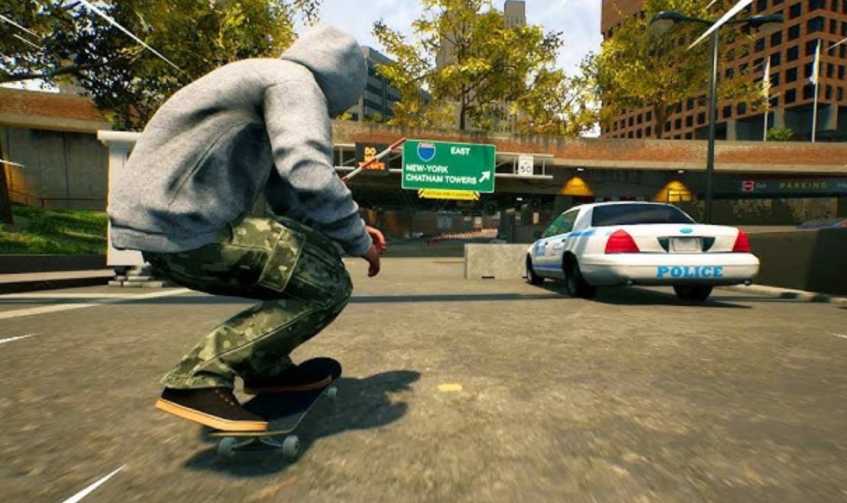
Many players in Skate have reported that their preferred camera settings keep changing unexpectedly. Even if you set the High Framing Camera as your default, the game often resets it to Low Framing after a short period of gameplay. This issue has become frustrating, especially during trick challenges, free skate sessions, and timed objectives, where you cannot access the settings menu without abandoning the challenge.
The problem, commonly referred to as the Skate camera reset bug or camera framing glitch, affects both single-player and online modes. Players notice that their default camera settings are not saving, forcing them to manually reset the camera every 20–30 minutes. This not only disrupts the flow of gameplay but also makes it harder to perform precise tricks or maintain consistency in challenges.
Several factors may contribute to this camera framing issue in Skate. It can be linked to corrupted configuration files, temporary cache conflicts, or minor game updates that overwrite custom settings. In some cases, switching between different game modes or online and offline play triggers the reset.
Why Does Skate Keep Changing My Camera Settings?
Many Skate players experience frustration when the game repeatedly changes their preferred camera settings, even after setting the High Framing Camera as default. Understanding why this happens can help you take the right steps to prevent it.
One common reason is that the game may fail to save camera preferences properly. This can occur if configuration files are corrupted or if temporary cache data conflicts with your saved settings. When this happens, Skate defaults back to Low Framing Camera, causing interruptions during gameplay, particularly in challenges, trick sessions, and timed objectives.
Another factor is mode-specific settings conflicts. Sometimes, switching between free skate, challenges, or online sessions can overwrite your preferred camera. For example, starting a challenge might trigger a default camera preset, which the game applies without notifying the player.
Game updates or patches can also play a role. Minor updates may reset certain settings to their defaults, inadvertently causing the camera framing reset bug. Players who have customized camera angles often see their preferences wiped after an update if the settings are not properly saved or backed up.
In rare cases, the bug may be influenced by cross-platform play or cloud sync issues, especially if you’re switching between different devices or accounts. Cloud saves may sometimes conflict with local configuration files, forcing the game to revert to default camera settings.
Impact of Camera Resets on Tricks, Challenges, and Free Skate
The camera framing reset bug in Skate can significantly disrupt gameplay, especially for players who rely on the High Framing Camera for precise trick execution. When the camera unexpectedly switches to Low Framing, it can interfere with timing, spatial awareness, and alignment during complex tricks and combos.
During challenges, the issue becomes even more problematic. Players may be forced to abandon a challenge to access the settings menu, losing progress and frustrating those attempting timed or high-score objectives. Even in free skate mode, repeated camera resets break immersion and make it difficult to maintain consistency while practicing tricks or exploring the skate park.
Step-by-Step Fixes for Camera Framing Reset in Skate
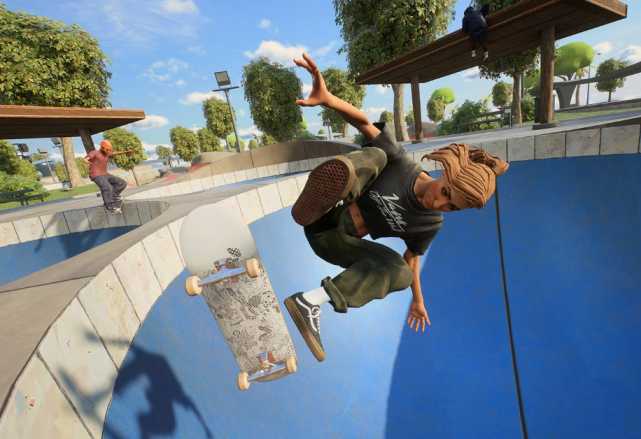
If you’ve been dealing with the Camera Framing Reset in Skate, you’re not alone. Many players have reported that their camera automatically switches from High Framing to Low Framing during gameplay — disrupting tricks, challenges, and free skate sessions.
This issue, often referred to as the “Skate camera reset bug” or “camera settings not saving” glitch, can make the game frustrating to play. Luckily, there are several proven fixes to keep your preferred camera consistent.
Here’s a detailed guide to permanently fix the Camera Framing Reset in Skate, including solutions for PC and console players.
1. Properly Save Your Camera Settings
The most common reason for the Camera Framing Reset in Skate is that settings aren’t being saved correctly. Skate occasionally fails to store new camera preferences if you exit the settings menu too quickly.
Steps:
- Open Settings → Camera Settings.
- Select your preferred High Framing Camera.
- Press Apply and confirm the changes.
- Exit to the main menu.
- Restart the game to ensure your settings remain.
???? Tip: Always confirm before leaving the settings screen. Missing this step can cause the game to revert to default camera framing.
2. Clear Cached Data or Configuration Files
Corrupted game cache or config files can prevent Skate from remembering your camera preferences.
On PC:
- Go to Documents → Skate → Config.ini (or similar file).
- Delete or rename the file.
- Restart Skate — the game will create new configuration data.
On Console:
- Hold the console’s power button for 10 seconds to clear cache.
- Relaunch Skate and reapply your preferred camera.
Clearing cache often resolves both camera reset and general performance bugs.
3. Check for Game Updates or Patches
EA regularly releases patches that fix configuration and camera-related bugs.
Steps:
- Update Skate to the latest version.
- Review patch notes for mentions of camera or save fixes.
- Relaunch and reconfigure your camera settings afterward.
Keeping your game up-to-date minimizes conflicts that cause Camera Framing Reset in Skate.
4. Test Offline vs Online Mode
Some camera reset issues appear only in online sessions or challenges due to cloud save conflicts.
Try this:
- Launch Skate in offline mode.
- Set your High Framing camera.
- Play for 20–30 minutes to see if it resets.
If offline play works fine, the issue is tied to online syncing. This helps isolate the cause of the camera reset bug.
5. Reinstall the Game
If nothing else works, a clean reinstall can eliminate corrupted data.
Steps:
- Back up your saved files if possible.
- Uninstall Skate.
- Delete leftover folders (especially configuration files).
- Reinstall the game.
After reinstalling, reapply your camera preferences. This usually fixes persistent camera framing reset issues permanently.
6. Avoid Switching Cameras Mid-Challenge
Changing your camera during a challenge or trick often triggers the reset glitch.
Tip:
- Set your preferred camera before entering a challenge.
- Avoid altering settings mid-trick or event.
This prevents Skate from reverting to default framing during gameplay.
7. Use Consistent Camera Presets Across Modes
Switching between Free Skate, Challenges, and Online modes can confuse the camera system.
Steps:
- Use the same High Framing setting across all modes.
- Always check your camera before changing activities.
Consistency avoids conflicting presets that cause Camera Framing Reset in Skate.
8. Backup Your Configuration Files
Keep a backup copy of your preferred settings to restore them quickly after crashes or patches.
Steps:
- Locate your config.ini or camera.settings file.
- Copy it to a backup folder.
- If the camera resets, replace it with your saved copy.
This safeguard helps you recover your perfect setup within seconds.
9. Check Controller and Input Settings
Sometimes the camera framing reset is caused by input conflicts, especially when multiple controllers are connected.
Steps:
- Disconnect extra controllers or remap keys to default.
- Retest your camera settings.
- Save changes and restart Skate.
This ensures the correct input device is controlling the camera system.
10. Monitor Skate Community and EA Forums
Always stay updated on community discussions for temporary fixes or known bugs.
Tips:
- Search “Camera Framing Reset in Skate” on Reddit or EA Forums.
- Follow official EA Skate Twitter or Discord announcements.
- Report your bug with screenshots or logs if needed.
Community awareness often leads to quick patches or developer acknowledgment.
11. Disable Cloud Saves Temporarily
Cloud syncing can overwrite your local camera settings with older save data.
Steps:
- Open your platform settings (Steam, PlayStation, or Xbox).
- Disable cloud save temporarily.
- Launch Skate, adjust the camera, and test for consistency.
This prevents the Camera Framing Reset in Skate caused by conflicting cloud files.
12. Adjust Auto Camera and Dynamic Framing Options
Skate’s Auto Camera or Dynamic Framing features can override your manual camera preferences.
Steps:
- Go to Settings → Camera → Advanced Options.
- Turn off Auto Camera and Dynamic Framing.
- Apply your manual settings and test.
This stops the camera from auto-adjusting during tricks or transitions.
13. Reset All Settings and Reapply Preferences
If settings are corrupted, a full reset can clear hidden bugs.
Steps:
- Open Settings → Reset All Settings.
- Confirm and restore defaults.
- Reapply your preferred High Framing camera and save.
This refresh ensures Skate saves clean configuration data, fixing camera settings not saving errors.
14. Use a Wired Controller
Wireless disconnections can cause Skate to revert default camera inputs.
Steps:
- Plug in your controller directly via USB.
- Relaunch Skate and test.
Wired input ensures stable communication and reduces the camera reset bug triggered by controller lag.
15. Avoid Alt-Tabbing or Task Switching (PC Only)
Switching applications can interrupt Skate’s background save process.
Fix:
- Stay in-game while adjusting camera options.
- Avoid alt-tabbing during challenges.
This keeps your configuration active and prevents camera framing reset during gameplay.
16. Check for Mod Conflicts (PC Players)
Camera-related mods or visual tweaks can override default camera settings.
Steps:
- Disable all mods temporarily.
- Reapply your preferred camera.
- Test the game for stability.
If the issue disappears, reintroduce mods one by one to find the conflict.
17. Adjust Graphics Settings Carefully
Some graphics changes force camera recalibration.
Tip:
- Lock resolution, FOV, and aspect ratio before playing.
- Set the camera afterward and avoid changing visual settings mid-session.
Stable graphics prevent automatic camera resets.
18. Create a New Profile or Save Slot
A corrupted profile may store bad configuration data.
Steps:
- Create a new save or user profile.
- Apply your preferred camera.
- Test for consistency.
This method isolates corrupted saves that trigger the Camera Framing Reset in Skate.
19. Avoid Changing Camera Mid-Trick or During Animation
Camera changes during tricks confuse the system’s camera logic.
Tip:
- Always adjust your camera before tricks or challenges.
- Avoid pressing camera controls during animations.
This ensures the camera remains locked to your chosen framing.
20. Keep a Screenshot of Your Camera Settings
Take a quick screenshot of your preferred setup for easy restoration.
Steps:
- Capture your camera configuration screen.
- Store it in a folder or cloud drive.
- Use it as a reference if settings reset after updates.
This helps you reapply your Skate camera fix quickly without guessing previous values.
21. Rebuild Game Database on Console
If your Camera Framing Reset in Skate keeps returning after every restart, your console’s database may have corrupted game data.
How to fix it:
- On PlayStation: Boot into Safe Mode → Select “Rebuild Database.”
- On Xbox: Clear Persistent Storage and reboot the system.
Rebuilding the database refreshes configuration indexing, helping Skate store your camera preferences properly again.
22. Disable Cross-Play Temporarily
Some players found that cross-play sync causes inconsistencies between settings files across platforms.
Try this:
- Go to Settings → Gameplay → Cross-Play → Off.
- Restart the game and set your preferred High Framing camera.
This forces Skate to load settings locally instead of syncing between online profiles, fixing random camera resets for many users.
23. Verify File Integrity (PC Only)
If you play Skate on PC, missing or damaged configuration files could cause your camera framing to reset.
Steps:
- Open Steam or EA App → Library → Skate → Properties.
- Select Verify integrity of game files.
This process repairs missing files that may be corrupting saved camera configurations, often resolving the Skate camera reset bug.
24. Check for Conflicts with Third-Party Overlays
Apps like Discord, Nvidia ShadowPlay, or Xbox Game Bar can interfere with camera settings by interrupting save commands.
Fix:
- Disable overlays temporarily before launching Skate.
- Save camera settings and restart.
Removing overlays ensures smooth input saving, preventing camera framing resets during gameplay or challenge transitions.
25. Turn Off Auto Save Overwrite (PC & Console)
Skate may overwrite local preferences with server defaults if Auto Save Sync runs too frequently.
Steps:
- Navigate to Settings → Storage → Auto Save Sync → Off (temporarily).
- Adjust your camera to High Framing.
- Save, restart, and re-enable sync afterward.
Turning off auto sync ensures that Skate respects your local camera configuration instead of overwriting it mid-session.
26. Keep Resolution and Aspect Ratio Consistent
Changing your screen resolution can trigger automatic camera re-centering, which sometimes reverts to default framing.
Fix:
- Set resolution and aspect ratio before adjusting camera settings.
- Avoid changing display modes during play sessions.
Consistent graphics settings help the game maintain your preferred camera framing across all modes.
27. Use Stable Internet or Play Offline to Save Settings
Unstable network connections can cause the game to mis-sync save data when uploading preferences to the cloud.
Try this:
- Disable Wi-Fi briefly or play in offline mode.
- Set your preferred camera framing.
- Save and test for stability.
If the camera remains stable offline, the Camera Framing Reset in Skate is likely a server sync problem, not a local issue.
28. Adjust Field of View (FOV) Before Camera Settings
Some players discovered that adjusting FOV first prevents camera conflicts.
Steps:
- Open Settings → Graphics → Field of View.
- Set your preferred FOV.
- Then select Camera Settings → High Framing and apply.
Why it works: FOV and camera framing share similar configuration data — setting FOV first locks visual scaling, keeping your chosen framing intact.
29. Create a Secondary Backup Save Profile
If your main save is corrupted, Skate might fail to store camera changes correctly.
Steps:
- Create a new save slot or profile.
- Set your preferred camera.
- Test for several sessions.
If the reset issue disappears, your original save likely had corrupted configuration data. Using a clean save keeps your Skate camera settings stable.
30. Report the Bug Directly to EA Support
If you’ve tried every fix and your Camera Framing Reset in Skate persists, submit a detailed bug report.
Provide EA Help with:
- Platform (PC, PS5, Xbox).
- Your game version.
- Steps to reproduce the reset bug.
- Screenshot of your camera settings.
Community reports help EA identify recurring problems and release targeted patches faster — especially for high-impact gameplay bugs like this.
31. Re-Link Your EA Account
Sometimes the Camera Framing Reset in Skate bug occurs because your game settings don’t sync correctly with your EA account profile.
Fix:
- Go to EA.com → Account Settings → Connections.
- Unlink and then re-link your platform account (Xbox, PlayStation, or Steam).
- Restart Skate and set your preferred camera again.
Re-linking resets corrupted cloud sync tokens and ensures that your in-game settings properly save to your EA profile.
32. Turn Off HDR or Dynamic Contrast
Some players have found that enabling HDR or Dynamic Contrast settings can trigger unexpected visual resets, which also affect camera framing in Skate.
Steps:
- Go to your console or PC display settings.
- Turn off HDR or any “auto-contrast” features.
- Relaunch Skate and reapply your preferred High Framing camera.
Disabling these features ensures the camera remains visually consistent and prevents camera reset triggers tied to lighting recalibration.
33. Reinstall Only the Settings Folder (PC Fix)
If you don’t want to reinstall the entire game, you can simply delete and reinstall Skate’s configuration folder.
Steps:
- Navigate to Documents → EA → Skate → Settings.
- Delete only that folder.
- Launch the game — it will rebuild a clean configuration file automatically.
This resolves persistent Skate camera reset bugs caused by partial file corruption.
34. Set Custom Launch Parameters (PC Advanced Fix)
On PC, you can force the game to lock settings at launch using command-line parameters.
Example (EA App or Steam):
- Right-click Skate → Properties → Launch Options.
- Add:
-nosync -fullscreen -norestore - Save and restart the game.
This disables certain auto-sync features that overwrite saved preferences, fixing the Camera Framing Reset in Skate during startup.
35. Check for Controller Firmware Conflicts
If you use modern controllers like DualSense or Xbox Elite, outdated firmware can create intermittent save issues that affect gameplay settings.
To fix:
- Connect the controller via USB.
- Update firmware through the manufacturer’s app (PlayStation App, Xbox Accessories).
- Reboot and test Skate again.
This ensures proper device handshake, preventing camera resets linked to input miscommunication.
36. Disable Auto Profile Switching on Consoles
On consoles, automatic user profile switching can interrupt game saves mid-session.
Steps:
- Go to System → Login Settings → Disable Auto Sign-In or Profile Switch.
- Restart Skate and test camera settings.
When Skate always runs under one profile, the camera framing stays consistent between sessions.
37. Lock Frame Rate or V-Sync
Variable frame rates can trigger visual resets during dynamic rendering.
Fix:
- Enable V-Sync or lock FPS (60 or 120 depending on your display).
- Apply your camera settings afterward.
Stable frame rates reduce the chance that visual rendering resets your camera position, stabilizing your Skate camera framing setup.
38. Run Skate in Compatibility Mode (PC Fix)
If you’ve recently updated your OS, Skate may experience conflicts with modern DirectX or Windows profiles.
To fix:
- Right-click Skate → Properties → Compatibility.
- Enable Run this program in compatibility mode for Windows 10.
- Check Run as Administrator.
- Apply changes and restart.
Compatibility mode prevents memory write errors that sometimes erase saved settings — including camera framing preferences.
39. Reboot Console in Safe Mode and Reinstall Only Core Files
Instead of deleting the whole game, you can reinstall system data related to the app itself.
PlayStation:
- Start in Safe Mode → Reinstall System Software → Reinstall Game Data Only.
Xbox:
- Clear “Alternate MAC Address” and restart.
This ensures clean system data without deleting saves, helping stop Camera Framing Reset in Skate from recurring.
40. Wait for EA Patch and Track Bug ID
EA usually acknowledges widespread bugs like camera framing resets in their community hub or patch notes.
Steps:
- Visit answers.ea.com → Search “Camera Framing Reset in Skate.”
- Find your thread or start a new report.
- Note the bug ID and follow updates.
Once EA pushes an official fix, your settings should stay permanent after the next update. Reporting helps accelerate that patch.
41. Re-Sign Into Your Platform Account
Sometimes, when your console or PC session token expires, Skate loses permission to save settings properly. This can directly cause the Camera Framing Reset in Skate issue.
Fix:
- Sign out of your PlayStation, Xbox, or EA App account.
- Restart your system.
- Sign back in and launch Skate again.
- Reapply your camera preferences.
Re-signing refreshes your credentials and ensures that settings save correctly to your active session.
42. Restore Default Video Settings Before Camera Adjustment
If you’ve been tweaking graphics or FOV too often, your camera settings may conflict with outdated visual profiles.
Steps:
- Go to Settings → Graphics/Video.
- Select Restore Defaults.
- Then navigate to Camera Settings → High Framing → Apply.
This ensures the game saves camera settings cleanly on top of stable graphics parameters.
43. Disable Game DVR or Recording Overlays
Recording overlays like Xbox DVR, Nvidia ShadowPlay, or PlayStation’s “Share” system sometimes block Skate from saving configuration updates in real time.
Fix:
- Temporarily disable in-game recording features.
- Reopen Skate and set your camera.
- Save and exit the settings menu.
Turning off recording tools prevents background hooks from disrupting configuration saves.
44. Avoid Rest Mode or Quick Resume
Rest Mode (PlayStation) and Quick Resume (Xbox) can interrupt the game’s ability to write settings properly to memory.
Tip:
- Always quit Skate completely instead of suspending it.
- Reopen it from a clean start after changing settings.
A full restart ensures your camera framing settings are committed to local save files instead of stuck in temporary cache.
45. Set Manual Save After Adjusting Camera
Even though Skate autosaves regularly, the camera configuration might not always be captured by automatic saves.
Fix:
- After changing your camera, perform a manual save if the option exists.
- Wait 5–10 seconds before closing menus.
- Then restart the game to confirm.
Manually saving helps lock in changes, avoiding unwanted camera framing resets on relaunch.
46. Limit Background Apps on PC
Heavy background programs like browsers, Discord, or screen recorders can cause save delays or minor freezes when Skate tries to update configuration files.
Steps:
- Close unused apps via Task Manager.
- Launch Skate in clean mode (no overlays, no heavy multitasking).
- Adjust your camera and save.
Reducing background processes allows smoother data writes and prevents Skate camera reset bugs linked to memory lag.
47. Use a Different Storage Drive (Advanced PC Fix)
If your game or documents folder is installed on a failing or slow drive, save data may corrupt.
Try this:
- Move Skate’s save or config folder to another drive (SSD recommended).
- Launch the game and test camera settings.
A healthier drive ensures save consistency and eliminates file-write errors that cause Camera Framing Reset in Skate.
48. Set Permissions for Configuration Files
If your config files are set to “read-only,” Skate can’t write updates — resulting in recurring resets.
Steps:
- Navigate to Documents → Skate → Config.ini.
- Right-click → Properties → Uncheck “Read-only.”
- Save and close.
- Restart Skate and apply your camera settings.
This allows Skate to write and update configuration files properly each time.
49. Turn Off Dynamic Lighting and Camera Shake
Some visual effects like camera shake or dynamic lighting indirectly alter the framing values during transitions.
Fix:
- Go to Settings → Camera → Advanced Options.
- Disable Camera Shake and Dynamic Lighting Adjustments.
- Save and exit.
This keeps your preferred High Framing Camera locked without interference from gameplay effects.
50. Keep an Eye on Future Updates and Hotfix Notes
Lastly, the Camera Framing Reset in Skate bug is a known and evolving issue that may be patched officially by EA.
What to do:
- Follow the EA Skate Twitter/X account and community patch notes.
- Check the Bug Reports section on EA Answers HQ.
- Apply hotfixes immediately when released.
New patches often contain permanent fixes that stabilize camera settings and prevent resets altogether.
51. Use Offline Mode to Lock Local Save Priority
Sometimes, online sessions overwrite your local save every time you connect, causing your Camera Framing Reset in Skate issue to reappear.
Fix:
- Disconnect your internet connection.
- Launch Skate in offline mode.
- Set your camera to High Framing and play for a few minutes.
- Reconnect online after saving.
This forces the game to prioritize local configuration files first, preventing server sync conflicts.
52. Disable GPU Overlays or Monitoring Software
GPU overlay tools like MSI Afterburner, Rivatuner, and GeForce Experience can interfere with Skate’s memory writes.
Fix:
- Disable all hardware monitoring or FPS counter overlays.
- Restart your PC or console and re-launch Skate.
Disabling overlays removes external processes that can trigger camera configuration resets during gameplay or loading screens.
53. Avoid Quick Restarts After Saving
When you adjust settings, Skate writes data to disk over a few seconds. Restarting immediately can interrupt this process.
Steps:
- After saving camera settings, wait at least 10–15 seconds.
- Then exit to the main menu or quit the game.
This ensures the camera configuration file finishes saving properly, preventing partial saves that cause resets.
54. Limit Refresh Rate in Display Settings
High refresh rates (120–240Hz) can cause input or visual sync issues in some game engines.
Fix:
- Set your monitor or console display to 60Hz temporarily.
- Launch Skate and adjust your camera.
A stable refresh rate prevents dynamic readjustments to camera FOV or framing mid-session — a subtle cause of resets in many players’ reports.
55. Rebuild Cloud Sync by Forcing a Fresh Upload
If your online saves are corrupted, forcing a new sync can fix mismatched camera data.
Steps:
- Disable cloud saves temporarily.
- Delete your old online save from your EA account dashboard.
- Re-enable cloud sync and start Skate.
- Save your new camera settings.
This rebuilds your sync profile and helps fix Skate camera reset problems caused by outdated cloud data.
56. Reset Controller Dead Zones and Sensitivity
Sometimes, controller input bugs trigger the game to interpret incorrect camera movement data.
Fix:
- Open Settings → Controller → Calibration.
- Reset stick dead zones and sensitivity to default.
- Reapply your camera framing preference.
Stable input calibration ensures no micro-adjustments force automatic resets during gameplay.
57. Test Alternate Save Slots for Consistency
Different save slots may behave differently if the first slot is corrupted or partially synced.
Try this:
- Create a new save slot (Profile 2).
- Set your High Framing camera.
- Play for 30 minutes and restart.
If your settings hold, the issue was linked to your original save file — an easy way to isolate corrupted data.
58. Prevent Sleep Mode on PC or Console During Gameplay
If your device enters sleep mode mid-session, Skate may fail to preserve runtime changes like camera adjustments.
Fix:
- Turn off Auto Sleep or Power Saving features temporarily.
- Exit the game manually after saving.
This keeps your camera framing configuration active until Skate finishes writing the updated settings file.
59. Update DirectX or System Graphics API
Outdated DirectX, Vulkan, or GPU drivers can disrupt certain configuration saves tied to rendering.
Steps:
- On PC, install the latest DirectX Runtime and GPU drivers.
- Restart your computer and Skate.
Updated APIs improve configuration stability and fix Skate camera settings not saving bugs tied to rendering errors.
60. Contact EA Support with Config Log File
If nothing else works, sending your configuration log directly to EA developers helps them identify your unique setup issue.
To do this:
- Locate config.log or settings.ini under Documents → Skate.
- Attach it to your EA Help case with a description:
“Persistent Camera Framing Reset in Skate – unable to save High Framing Camera.” - Include your platform and version.
This allows EA to verify save-state issues on their end and provide personalized support or patch feedback.
Temporary Workarounds for Camera Reset During Challenges
Many Skate players have reported that camera resets are particularly frustrating during challenges. While permanent fixes may take time, several temporary workarounds can help maintain control of your preferred High Framing Camera.
First, always set your camera before starting a challenge. Changing camera settings mid-challenge often triggers the bug, forcing the game to revert to default angles. Players should avoid adjusting the camera during a trick or timed objective. Instead, pause or exit the menu, set the camera, and then resume the challenge.
Second, consider playing offline if possible. Online syncing can sometimes overwrite your local camera settings, especially if cloud saves are enabled. By temporarily disabling online connectivity, the game relies solely on local files, which can prevent sudden resets.
Another workaround is to stick with a single camera preset across all game modes. Switching between free skate, challenges, or online sessions may confuse the game, leading to resets. By using the same High Framing Camera in every mode, the game is less likely to override your preferences.
For PC players, avoid alt-tabbing or switching applications mid-challenge. Exiting the game window can interfere with the saving process and cause the camera to revert. On consoles, ensure the controller is fully connected and avoid input fluctuations during gameplay.
Finally, keep a screenshot of your preferred camera settings. If the camera does reset, you can quickly reference the screenshot to restore your settings without guesswork. Many players use this trick to minimize downtime and maintain a smooth experience.
By applying these temporary fixes, you can continue to enjoy Skate challenges without frequent disruptions from the camera framing reset bug. These solutions are especially useful until permanent patches or updates from developers are available.
Checking Game Updates and Patches to Fix Camera Resets
One of the most effective ways to address the camera framing reset bug in Skate is ensuring the game is fully updated. Developers often release patches and hotfixes targeting bugs like camera resets, controller issues, and gameplay inconsistencies.
Start by checking for official game updates. On PC, verify updates through Steam, Epic Games Launcher, or your respective platform. On consoles, check for updates in the game library or system menu. Installing the latest patches ensures you have all camera bug fixes applied, which can prevent repeated resets during challenges or free skate.
Some patches specifically address settings conflicts. Minor updates can overwrite camera preferences, but subsequent hotfixes often restore the ability to save custom configurations. Developers track player reports from forums, Reddit, and support tickets, so frequent updates aim to resolve widespread issues like the default camera reset.
Additionally, check the patch notes for each update. Notes may mention camera or configuration fixes, letting players know if the bug has been officially addressed. Applying these updates promptly reduces the likelihood of encountering repeated camera resets.
For players experiencing ongoing issues, even after updating, it may be worth reinstalling the game. Sometimes, residual data from older versions causes conflicts, and a fresh install ensures the latest fixes are applied correctly.
Keeping your game up to date is a simple yet essential step for maintaining stable camera settings, avoiding interruptions, and ensuring a smoother overall experience. Combined with other fixes, this method provides a more consistent High Framing Camera experience in Skate.
Clearing Cache and Configuration Files to Solve Camera Issues
Persistent camera framing resets in Skate are often caused by corrupted cache or configuration files. Clearing these files can restore the ability to save your preferred camera permanently.
On PC, locate the Skate game folder in Documents or AppData. Look for files such as config.ini or camera settings files. Renaming or deleting these files forces the game to regenerate clean configurations upon the next launch. This often resolves camera save problems that persist despite changing settings in-game.
Console players can clear the system cache to achieve a similar effect. On Xbox, hold the power button for 10 seconds to fully power down the console, then restart. On PlayStation, restarting the console or clearing saved system cache can help reset any corrupted settings.
After clearing cache, relaunch the game and set your preferred High Framing Camera. Test in both free skate and challenges to ensure the camera stays consistent. This method eliminates hidden conflicts that may prevent the game from saving camera preferences properly.
Clearing cache is especially effective when paired with disabling cloud saves temporarily, as this ensures the game relies solely on the newly generated local configuration files. This reduces the likelihood of the camera reverting mid-session.
For ongoing issues, players should repeat this process periodically, especially after patches or minor updates, which can sometimes reintroduce configuration conflicts.
Reporting the Camera Bug to EA / Game Support
Reporting persistent camera resets to game support helps developers address the issue more effectively.
Steps:
- Go to the official EA Help or Skate support page.
- Select the category for camera bug or settings issues.
- Include detailed information:
- Platform (PC, Xbox, PlayStation)
- Description of the bug (camera resets from High to Low Framing)
- Screenshots of settings or error messages
- Frequency and situations where the bug occurs (challenges, free skate, online play)
Tracking your support ticket allows you to follow updates, while submitting detailed reports helps developers prioritize camera framing reset fixes in future patches.
Community forums, such as Reddit and EA Answers HQ, are also useful for sharing the issue and finding temporary fixes from other players experiencing the same bug.
Preventing Camera Resets in Future Sessions
Prevention is often better than troubleshooting. Several steps can minimize the chances of camera framing resets in Skate:
- Always update your game to the latest patch.
- Use wired controllers for consistent input.
- Avoid switching between game modes mid-session.
- Backup configuration files regularly.
- Disable auto-camera options in advanced settings.
By maintaining stable camera settings and applying consistent habits, players can enjoy uninterrupted challenges and free skate sessions without frequent resets.
Community Discussions and Player-Shared Fixes
Players have shared effective solutions on Skate Reddit, forums, and Discord groups:
- Some suggest creating a temporary offline session to lock the camera.
- Others recommend keeping a screenshot of preferred camera settings for quick restoration.
- Many report clearing cache and disabling auto-camera options as consistently effective.
Engaging in the community helps you stay updated on fixes and workarounds while developers prepare official patches.
FAQ – Common Questions About Camera Resets in Skate
Q1: Why does my camera keep resetting in Skate?
A1: Usually due to corrupted settings, auto-camera features, or online/cloud sync conflicts.
Q2: Can I permanently save my preferred camera?
A2: Yes, by clearing cache, disabling auto-camera, and backing up configuration files.
Q3: Does this happen more in challenges than free skate?
A3: Often yes, because the game may override local settings to ensure uniform camera angles in challenge modes.
Q4: Will updates or patches fix it?
A4: Developers frequently release hotfixes targeting camera or configuration bugs. Keeping your game updated reduces resets.
Conclusion – How to Deal with Camera Framing Resets in Skate
The camera framing reset bug in Skate can be disruptive, but with proper fixes, workarounds, and preventive measures, players can maintain their preferred High Framing Camera.
Key strategies include saving settings properly, clearing cache, testing offline, disabling auto-camera, and staying updated with patches. Reporting issues to support and participating in community discussions ensures developers are aware of widespread problems.
Combining these methods ensures a smoother, more consistent gameplay experience, whether you’re performing complex tricks, completing challenges, or exploring free skate sessions. By taking proactive steps, players can enjoy Skate without constant interruptions from camera resets.