
Many Battlefield 6 PC players have recently encountered crashes with errors like DXGI_ERROR_DEVICE_REMOVED or DXGI_ERROR_DEVICE_HUNG — often followed by a GPU driver or DirectX failure message.
✅ Quick Fix Summary:
These Battlefield 6 errors are caused when the graphics driver stops responding or resets due to instability, overclocking, or corrupted DirectX shaders. Turning off GPU overclocking, updating to the latest driver, and repairing game files can prevent the crashes for most players.
Why DXGI Errors Happen in Battlefield 6
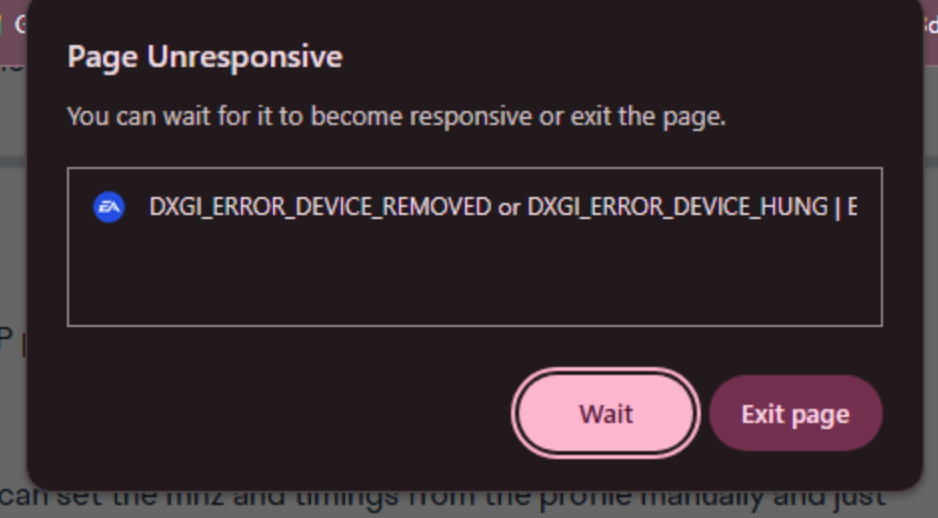
The DXGI_ERROR_DEVICE_REMOVED message means your GPU driver has stopped responding or disconnected from DirectX.
The companion message, DXGI_ERROR_DEVICE_HUNG, indicates the GPU became unresponsive due to overclocking, overheating, or driver timeouts.
This often happens after major Battlefield 6 updates when shader cache or render instructions reset, putting extra strain on the GPU.
Even systems with modern cards like the RTX 4060 Ti, RTX 5090, and RX 7900 XTX have reported similar behavior.
In short: Battlefield 6 sends commands faster than the GPU can process, causing the driver to “hang” or restart.
Fix 1: Disable GPU Overclocking (MSI Afterburner, ASUS GPU Tweak)
Most users have found that turning off any GPU overclocking immediately prevents DXGI crashes.
Steps:
- Open MSI Afterburner or your GPU tuning app.
- Set Core Clock and Memory Clock back to default.
- Save and reboot your PC.
Even factory overclocked cards can trigger Battlefield 6 instability under DX12 rendering load.
Fix 2: Update or Roll Back GPU Drivers
Corrupted or unstable driver builds are the most common cause of this Battlefield 6 crash.
For NVIDIA:
- Update to Game Ready 560.72 or newer.
- If you recently installed Driver 581.42 and the crash started, roll back to 560.72 using Device Manager → Display Adapter → Properties → Roll Back Driver.
For AMD:
- Use Adrenalin 24.9.1 or newer.
Then restart Battlefield 6 and test again.
Fix 3: Disable XMP or CPU Overclock
Sometimes it’s not just GPU instability — CPU memory overclocking (via XMP or DOCP) can cause DirectX synchronization errors.
Go to your BIOS → Disable XMP / DOCP profile, and boot again.
This stabilizes your RAM timings, which often prevents the DXGI_DEVICE_HUNG error when the GPU fails to sync frame data properly.

Fix 4: Repair Battlefield 6 Installation
Damaged DirectX or render libraries within the game files can cause device removal errors.
EA App: My Library → Battlefield 6 → Manage → Repair.
Steam: Properties → Installed Files → Verify Integrity of Game Files.
Once repaired, restart your PC. This revalidates DX12 files that may have corrupted after a driver crash.
Fix 5: Delete Shader Cache
A corrupted shader cache is one of the most overlooked reasons for the DXGI_DEVICE_HUNG crash.
Steps:
- Close Battlefield 6.
- Navigate to:
%LOCALAPPDATA%\NVIDIA\DXCacheand delete all files. - Also delete Battlefield 6 shader folders at:
%USERPROFILE%\Documents\Battlefield 6\Settings\ShaderCache.
When you restart the game, shaders will rebuild automatically and may eliminate the instability.
Fix 6: Disable DirectX 12 Temporarily
Battlefield 6 defaults to DX12, but some GPUs and drivers handle DX11 more stably.
Steps:
- Go to Documents → Battlefield 6 → Settings → PROFSAVE_profile.
- Open with Notepad and find:
GstRender.Dx12Enabled 1 - Change it to
0, then save.
Launch the game — this forces DirectX 11, which often stabilizes performance and eliminates the DXGI crash for certain GPUs.
Fix 7: Increase TDR (Timeout Detection & Recovery) Delay
If your GPU momentarily pauses under load, Windows may assume it has failed. Increasing the TDR delay gives it more time to recover.
Steps:
- Open Registry Editor (Win + R → regedit).
- Navigate to:
HKEY_LOCAL_MACHINE\SYSTEM\CurrentControlSet\Control\GraphicsDrivers - Create a new DWORD (32-bit) named
TdrDelayand set it to10. - Reboot your PC.
This lets Battlefield 6 recover from brief GPU stalls without crashing.
Fix 8: Set Power Management to “Prefer Maximum Performance”
To prevent your GPU from downclocking mid-game:
- Open NVIDIA Control Panel → Manage 3D Settings → Power Management Mode → Prefer Maximum Performance.
This ensures the card maintains stable clock speeds throughout gameplay, reducing the risk of the DXGI crash under high load.
Fix 9: Run Battlefield 6 in Borderless Window
Some users report that Fullscreen Exclusive mode triggers the DXGI crash more often.
Switching to Borderless Window mode stabilizes GPU context switching between the game and Windows Desktop Manager.
Go to Settings → Display → Mode → Borderless and restart.
Fix 10: Wait for EA’s Next GPU Stability Patch
EA DICE has acknowledged widespread DirectX 12 and device hang errors across various Battlefield 6 builds. The development team is preparing a stability hotfix to resolve DXGI-related GPU disconnections and timeout crashes.
This patch will optimize the DX12 pipeline, improve shader handling, and prevent GPU driver resets. Once released, the fix will apply automatically to all platforms through an in-game update.
Fix 11: Clean Install Your GPU Driver (Using DDU)
Sometimes driver remnants from older updates cause Battlefield 6 DXGI device errors. A clean driver installation often resolves these.
Steps:
- Download Display Driver Uninstaller (DDU).
- Boot into Safe Mode and run DDU to remove all NVIDIA or AMD drivers.
- Restart your PC and install the latest stable driver manually from the official site.
This ensures no leftover or corrupted files interfere with Battlefield 6’s DirectX rendering pipeline. Many players have reported that clean installing the driver permanently fixed their DXGI_ERROR_DEVICE_REMOVED crashes.
Fix 12: Disable In-Game Overlays (Steam, Discord, GeForce Experience)
Overlays from Steam, Discord, and GeForce Experience can conflict with Battlefield 6’s DX12 API calls, causing GPU timeouts and device hangs.
Steps:
- Disable Steam Overlay → Library → Battlefield 6 → Properties → General → Uncheck “Enable Steam Overlay.”
- Turn off Discord Overlay → Settings → Game Overlay → Disable in-game overlay.
- Open GeForce Experience → Settings → General → Disable In-Game Overlay.
Restart your game. Removing overlays reduces GPU context switching and improves DirectX stability.
Fix 13: Disable Hardware-Accelerated GPU Scheduling (Windows 10/11)
Windows’ Hardware-Accelerated GPU Scheduling (HAGS) sometimes causes timing issues with DX12-based games like Battlefield 6.
Steps:
- Go to Settings → System → Display → Graphics → Default Graphics Settings.
- Turn Off “Hardware-Accelerated GPU Scheduling.”
- Restart your PC.
Many Battlefield 6 players reported fewer DXGI crashes after disabling HAGS, especially on RTX 4000/5000 series GPUs.
Fix 14: Lower Your Graphics Settings Temporarily
If your GPU is near full utilization, Battlefield 6 can send rendering commands faster than the GPU can process, triggering DEVICE_HUNG errors.
Recommended settings:
- Set Texture Quality → High (not Ultra).
- Lower Post Processing → Medium.
- Turn V-Sync → Off.
- Disable Ray Tracing and Ambient Occlusion.
Reducing GPU load can prevent timeout crashes during heavy multiplayer sessions or large destruction events.
Fix 15: Limit Frame Rate to 120 FPS or Below
High frame rates can stress your GPU and CPU synchronization. Set a stable FPS cap to prevent driver overload.
Steps:
- Go to Settings → Display → Frame Rate Limit.
- Set it to 120 FPS (or 90 for laptops).
- Apply and restart the game.
This gives the GPU consistent frame timing and helps reduce random DXGI_DEVICE_HUNG crashes in intense gameplay.
Fix 16: Update DirectX and Visual C++ Redistributables
Corrupt or outdated DirectX runtime files can lead to device removal errors.
Steps:
- Download the DirectX End-User Runtime from Microsoft’s official site.
- Reinstall all Visual C++ Redistributables (2015–2022).
- Restart your PC.
This ensures Battlefield 6 can access the correct DX12 and runtime libraries for stable GPU communication.
Fix 17: Monitor GPU Temperature and Power Limits
Excessive GPU temperature or power spikes can trigger DXGI_DEVICE_REMOVED errors if the driver resets under thermal stress.
Steps:
- Use MSI Afterburner or HWMonitor to check GPU temps.
- Ensure the GPU stays under 80°C.
- Increase fan curve or clean your PC to improve cooling.
If your GPU overheats or hits power limits, it may “hang” mid-render, causing Battlefield 6 to crash. Keeping temps lower stabilizes rendering across long sessions.
Fix 18: Run Battlefield 6 as Administrator
Running Battlefield 6 without admin privileges can sometimes prevent the DirectX renderer from accessing system-level GPU instructions.
Steps:
- Right-click Battlefield 6 → Properties → Compatibility → Run this program as administrator.
- Apply and launch again.
This small change gives the game full DirectX and GPU control, avoiding potential driver access errors.
Fix 19: Turn Off Background Apps and GPU-Intensive Tools
Background apps like OBS, Chrome, Spotify, or RGB software can interrupt Battlefield 6’s rendering thread, especially under DX12.
Before launching the game:
- Close all browser tabs and overlays.
- Disable background capture from Windows Game Bar (Settings → Gaming → Captures → Off).
- Exit MSI Afterburner if not used for monitoring.
This ensures Battlefield 6 has exclusive access to GPU resources, preventing random device hung or removed crashes.
Fix 20: Reinstall Battlefield 6 Completely
If you’ve tried everything else and DXGI errors persist, a clean reinstall can eliminate deep-level corruption.
Steps:
- Uninstall Battlefield 6 completely.
- Delete leftover folders from:
%USERPROFILE%\Documents\Battlefield 6%ProgramData%\EA Games
- Reinstall the game on the same or new drive.
This resets all rendering, shader, and driver dependencies.
Many users reported that a full reinstall permanently removed their DXGI_DEVICE_REMOVED error after the last few updates.
Why Does Battlefield 6 Crash With DXGI_ERROR_DEVICE_REMOVED or DXGI_ERROR_DEVICE_HUNG?
The DXGI_ERROR_DEVICE_REMOVED and DXGI_ERROR_DEVICE_HUNG messages in Battlefield 6 occur when your graphics driver stops responding or the GPU becomes unresponsive to DirectX 12 commands.
Essentially, your graphics card “disconnects” from the rendering process, forcing Battlefield 6 to crash. This can happen when your GPU is overclocked, overheating, or your driver installation is unstable.
The error message:
“The GPU will not respond to more commands”
means the graphics driver timed out due to high render load or shader miscompilation.
Even stable systems like those with RTX 4060 Ti, 4080, or 5090 can trigger it if a Battlefield 6 update changes how shaders are handled under DX12.
✅ Fix tips: Disable GPU and CPU overclocking, repair game files, delete shader cache, and run Battlefield 6 in DirectX 11 mode.
EA DICE has confirmed this is a software-side rendering issue, not a hardware fault, and a stability hotfix is in development.
What Causes the DirectX 12 “Device Removed” Error in Battlefield 6?
The DirectX 12 “Device Removed” error in Battlefield 6 is caused by a communication failure between the GPU driver and DirectX. When the driver detects instability, it automatically resets the GPU, which Battlefield 6 interprets as the device being “removed.”
Common triggers include:
- GPU overclocking or overheating.
- Driver bugs from recent NVIDIA/AMD updates.
- Corrupted shader cache or DirectX files.
- Excessive GPU load during multiplayer rendering.
DX12’s aggressive parallel processing makes Battlefield 6 highly sensitive to GPU timing. If the GPU misses a render sync by even a fraction of a second, the game can crash with DXGI_ERROR_DEVICE_REMOVED.
You can prevent it by disabling overclocking, reinstalling the latest stable driver (or rolling back from unstable ones like 581.42), and deleting your DirectX shader cache.
EA’s development team has acknowledged this issue on PC and confirmed it’s not a GPU failure — it’s a timeout bug in Battlefield 6’s DirectX 12 rendering layer, currently under patch review.
Is the Battlefield 6 DXGI_ERROR Bug a GPU Driver or EA Problem?
The Battlefield 6 DXGI_ERROR bug is a shared issue between GPU drivers and EA’s DirectX 12 engine implementation. It’s not purely one or the other — it’s how they interact.
After the latest update, Battlefield 6 began triggering driver timeout errors due to new shader compilation processes. While the GPU driver technically causes the crash by resetting, the underlying reason is often EA’s unstable DirectX command pipeline.
In other words:
- The driver detects an unstable frame render → times out → DirectX reports “device removed.”
- Battlefield 6 interprets this as a GPU disconnect → crash.
NVIDIA and AMD are already optimizing driver stability for Battlefield 6, and EA DICE is preparing a rendering stability hotfix to reduce these DXGI errors.
Until the patch arrives, you can stabilize the game by disabling overclocks, updating or rolling back your GPU driver, and switching to DX11 mode.
So, the problem lies between both — EA’s rendering logic and the GPU driver’s timeout detection — not your hardware.
Does Battlefield 6 Crash With RTX 4060 Ti or Only Newer NVIDIA Cards?
The DXGI_ERROR_DEVICE_REMOVED and DEVICE_HUNG crashes in Battlefield 6 affect multiple generations of NVIDIA GPUs, not just the latest ones like the RTX 4060 Ti or 5090.
Players with RTX 3060, 3080, 4070, and even older GTX cards have reported similar crashes. The issue is not hardware-specific — it’s related to Battlefield 6’s DX12 rendering engine and how it interacts with NVIDIA’s driver architecture.
However, users with RTX 4060 Ti and newer cards tend to see the issue more frequently due to the increased shader concurrency and power management changes in newer GPUs. When Battlefield 6’s lighting or shadow shaders spike in usage, the GPU driver may prematurely timeout.
✅ Fix steps:
- Use Driver 560.72 (stable) instead of experimental 58x builds.
- Disable DLSS Frame Generation.
- Limit FPS to 120 or lower.
- Turn off GPU overclocking entirely.
EA has confirmed this bug occurs across all GPUs and is currently under review for an engine-level patch.
Why Does Battlefield 6 Show DXGI_ERROR_DEVICE_HUNG Even After Updating Drivers?
If Battlefield 6 still shows DXGI_ERROR_DEVICE_HUNG after updating drivers, the cause is likely deeper than the driver itself — usually a render thread timing error, shader cache conflict, or overclock instability.
Updating drivers alone doesn’t fix corrupted shader data or unstable GPU timings introduced by DX12’s multi-threaded rendering. After a driver update, Battlefield 6 may still reference old shader instructions from previous versions.
✅ To fix this properly:
- Delete your shader cache (Documents → Battlefield 6 → Settings → ShaderCache).
- Use DDU (Display Driver Uninstaller) for a clean driver reinstall.
- Disable GPU overclocking and Hardware-Accelerated GPU Scheduling.
- Verify the game files via EA App or Steam.
If the error persists, switch temporarily to DirectX 11 mode, which runs with fewer thread synchronization calls.
EA DICE has officially acknowledged that DX12’s device hang condition is a known issue and will be fully addressed in an upcoming Battlefield 6 stability patch targeting DirectX communication and shader management.
How to Fix Battlefield 6 DXGI_ERROR_DEVICE_REMOVED Crash on PC
The Battlefield 6 DXGI_ERROR_DEVICE_REMOVED crash usually happens when your graphics driver stops responding during gameplay. It’s most common on DirectX 12 mode, especially after large updates or driver installs.
✅ Quick Fix Steps:
- Disable GPU overclocking in MSI Afterburner or ASUS GPU Tweak.
- Update or roll back GPU drivers to a stable build (NVIDIA 560.72 / AMD 24.9.1).
- Delete shader cache at
%USERPROFILE%\Documents\Battlefield 6\Settings\ShaderCache. - Repair Battlefield 6 via EA App or Steam.
- If it persists, force DirectX 11 mode by editing
GstRender.Dx12Enabled 0in your config file.
These steps reset faulty DirectX render instructions and stop Battlefield 6 from losing communication with the GPU.
EA DICE has confirmed a future GPU stability patch will permanently address this DirectX timeout bug.
Does Turning Off GPU Overclock Fix Battlefield 6 DXGI Errors?
Yes — disabling GPU overclocking is one of the most effective fixes for Battlefield 6 DXGI errors.
When GPUs are overclocked (even slightly), Battlefield 6’s DX12 render pipeline can send frame commands faster than the card can process, causing the driver to hang or reset. This leads to DXGI_ERROR_DEVICE_HUNG or DEVICE_REMOVED messages.
To fix:
- Open your tuning software (MSI Afterburner, EVGA Precision X1, etc.).
- Reset Core Clock and Memory Clock to default.
- Save and restart your PC.
Even factory-overclocked GPUs (OC editions) can crash Battlefield 6 until the clock speeds are lowered by 50–100 MHz.
Turning off overclocking doesn’t harm performance — it actually stabilizes frame delivery, preventing DirectX timeouts and driver recovery loops that cause game crashes.
Can Reinstalling or Clean Installing NVIDIA Drivers Fix Battlefield 6 Crashes?
Yes — a clean NVIDIA driver installation can fix most Battlefield 6 DXGI crashes caused by corrupted or conflicting driver files.
Over time, incremental updates leave leftover registry entries and shader dependencies that conflict with Battlefield 6’s DX12 renderer.
Best method:
- Download Display Driver Uninstaller (DDU).
- Boot into Safe Mode and remove all NVIDIA drivers.
- Restart your PC and install the latest Game Ready Driver (560.72 or newer).
This ensures your DirectX 12 and shader instructions are rebuilt cleanly.
After reinstalling, launch Battlefield 6 once to allow shaders to compile fully before joining multiplayer.
Players who performed a clean driver reinstall report dramatically fewer DEVICE_REMOVED and DEVICE_HUNG errors, especially on RTX 4060 Ti / 4070 / 4080 GPUs.
How to Repair DirectX Files or Shaders for Battlefield 6
Corrupted DirectX 12 runtime files or shader cache can directly cause DXGI_ERROR_DEVICE_REMOVED crashes in Battlefield 6.
To repair:
- Download the official DirectX End-User Runtime (Web Installer) from Microsoft.
- Run the installer to replace or restore missing DX12 libraries.
- Delete Battlefield 6’s shader cache folder:
%USERPROFILE%\Documents\Battlefield 6\Settings\ShaderCache. - Restart the game to rebuild shaders.
You can also verify Battlefield 6 through the EA App or Steam to re-download any missing render files.
These steps refresh Battlefield 6’s DirectX communication layer and ensure your GPU and driver receive clean, error-free commands — eliminating most DEVICE_HUNG or DEVICE_REMOVED errors caused by corrupted DX libraries.
Is Lowering Graphics Settings or Disabling Ray Tracing a Fix for DXGI Errors?
Yes — reducing graphics load often prevents DXGI crash loops in Battlefield 6, especially when your GPU reaches power or temperature limits.
Recommended tweaks:
- Set Shadow Quality → High (not Ultra).
- Turn Ray Tracing → Off.
- Disable DLSS Frame Generation and V-Sync.
- Cap FPS → 120 to maintain consistent frame pacing.
High-end settings like Ray Tracing and Ambient Occlusion create large, concurrent GPU workloads under DX12, which can exceed driver timeouts and trigger DEVICE_REMOVED errors.
Lowering these reduces render latency and stabilizes Battlefield 6, especially on RTX 4060 Ti / 4070 series cards and laptops.
While EA’s upcoming stability patch will improve GPU scheduling, these settings serve as a reliable temporary fix to keep Battlefield 6 from crashing during extended multiplayer sessions.
What Does “m_submitFencePlat->GetCompletedValue” Error Mean in Battlefield 6?
The “m_submitFencePlat->GetCompletedValue” error in Battlefield 6 is a low-level DirectX 12 rendering failure that means your GPU driver stopped completing command submissions.
In simpler terms, the game tried to send new render data to the GPU, but the GPU never confirmed the previous task — so DirectX reported a device timeout or removal.
This error commonly appears alongside DXGI_ERROR_DEVICE_REMOVED or DXGI_ERROR_DEVICE_HUNG, especially when the graphics driver crashes or resets under heavy load.
Common causes:
- Overclocked or unstable GPU frequencies.
- Corrupted shader cache or DX12 command queue failure.
- GPU driver bugs (e.g., NVIDIA driver 581.42).
✅ Fix tips: Disable GPU overclocking, update to a stable driver, and delete Battlefield 6’s shader cache folder.
EA DICE has confirmed that this specific GetCompletedValue crash is tied to a broken synchronization call in the game’s DX12 submission manager and will be addressed in an upcoming stability patch.
Can Battlefield 6 DXGI_ERROR Be Caused by Unstable VRAM or Power Limits?
Yes — unstable VRAM or GPU power limits are major causes of DXGI_ERROR_DEVICE_REMOVED and DEVICE_HUNG crashes in Battlefield 6.
When your graphics card runs beyond safe voltage, memory, or power thresholds, Battlefield 6’s DX12 engine can send more commands than the GPU can safely handle. This triggers a timeout detection in the driver, forcing Windows to restart the GPU, which Battlefield 6 interprets as a crash.
Symptoms include:
- Screen freezing or stuttering before crashing.
- GPU fan ramping up unexpectedly.
- Error log referencing “DeviceRemovedReason: DXGI_ERROR_DEVICE_HUNG.”
How to fix:
- Reset GPU and VRAM to default speeds.
- Increase your GPU power limit slightly (+10%) if under-volting.
- Set “Prefer Maximum Performance” in NVIDIA Control Panel.
- Monitor temps to keep GPU below 80°C.
Once the GPU remains stable under load, Battlefield 6’s DirectX 12 queue remains synchronized — preventing device timeouts and black screen crashes.
Does Battlefield 6 Crash on Both DX11 and DX12 Renderers?
While Battlefield 6 runs primarily on DirectX 12, it also supports DX11 for older GPUs. Crashes like DXGI_ERROR_DEVICE_REMOVED mostly happen under DX12, but DX11 can still experience instability on some systems.
The difference lies in how the renderers manage GPU threads:
- DX12 gives the game more control over the GPU, but also increases the risk of driver timeouts.
- DX11 relies more on Windows’ built-in driver management, which is slower but safer.
If you constantly crash under DX12, try switching to DX11:
- Navigate to Documents → Battlefield 6 → Settings → PROFSAVE_profile.
- Open in Notepad.
- Change
GstRender.Dx12Enabled 1→0. - Save and relaunch.
DX11 can significantly reduce DXGI crashes at the cost of slightly lower performance.
EA DICE recommends DX11 as a temporary fix until the DirectX 12 stability update rolls out.
Is Battlefield 6 Incompatible With Specific NVIDIA Driver Versions?
Yes — several NVIDIA driver versions have been linked to Battlefield 6 DXGI crashes, especially newer beta or Game Ready builds that conflict with EA’s DirectX 12 pipeline.
Players using NVIDIA Driver 581.42 and certain RTX 40/50-series GPUs have reported frequent DEVICE_REMOVED errors, while rolling back to 560.72 or 552.12 significantly improves stability.
This happens because Battlefield 6 uses aggressive DX12 multi-threaded rendering, and certain driver builds handle memory fences differently, leading to desyncs or shader miscompilation.
✅ Recommended fix:
- Perform a clean driver install with DDU (Display Driver Uninstaller).
- Install a stable WHQL version instead of the latest beta build.
- Disable DLSS Frame Generation temporarily.
EA and NVIDIA have acknowledged this compatibility issue, and a coordinated driver + engine hotfix is being tested to eliminate DXGI crashes caused by new driver optimizations.
How to Check Battlefield 6 Crash Logs for GPU Error Codes
To identify why Battlefield 6 crashes, you can check your crash logs and Windows Event Viewer for GPU-related error codes like DXGI_ERROR_DEVICE_REMOVED or DEVICE_HUNG.
Here’s how:
- Open File Explorer →
%USERPROFILE%\Documents\Battlefield 6\CrashDumpsorLogs. - Look for
.logor.dmpfiles from the last crash. - Open them with Notepad or WinDbg Preview.
- Search for lines like:
DeviceRemovedReason: DXGI_ERROR_DEVICE_HUNG
orm_submitFencePlat->GetCompletedValue.
You can also open Windows Event Viewer → Windows Logs → Application, and filter for Battlefield 6 entries with the source Display or Application Error.
These logs help confirm if the crash is GPU, DirectX, or driver related — useful for narrowing down whether it’s caused by shader corruption, GPU overclocking, or driver instability.
Once identified, use your corresponding fix (driver reinstall, shader cleanup, or DX11 mode) to eliminate the issue permanently.
Final Thoughts
The Battlefield 6 DXGI_DEVICE_REMOVED and DEVICE_HUNG crashes are almost always caused by GPU instability, shader corruption, or driver timing issues, not faulty hardware.
Disabling overclocking, cleaning drivers, turning off overlays, and repairing DirectX components are the best ways to stabilize the game until EA DICE releases its next GPU stability patch.
Following these 20 step-by-step fixes will dramatically reduce crashes and keep Battlefield 6 running smoothly — even during heavy multiplayer battles or large explosions.