
Many Battlefield 6 players on PC have reported that Dolby Atmos for Headphones is not being detected properly. Instead, the game automatically switches back to “3D Headphones” in the audio settings, preventing proper spatial sound or Dolby Atmos surround effects from working.
✅ Quick Fix Summary:
This is a known spatial audio detection bug where Battlefield 6 fails to correctly identify external HRTF-based systems like Dolby Atmos, DTS:X, or Windows Sonic. The game defaults to its own 3D audio system instead of using the system-level spatial renderer.
Why Battlefield 6 Doesn’t Detect Dolby Atmos Properly
After the latest Battlefield 6 update, the audio engine incorrectly prioritizes its internal “3D Headphones” profile over Windows’ default spatial audio settings.
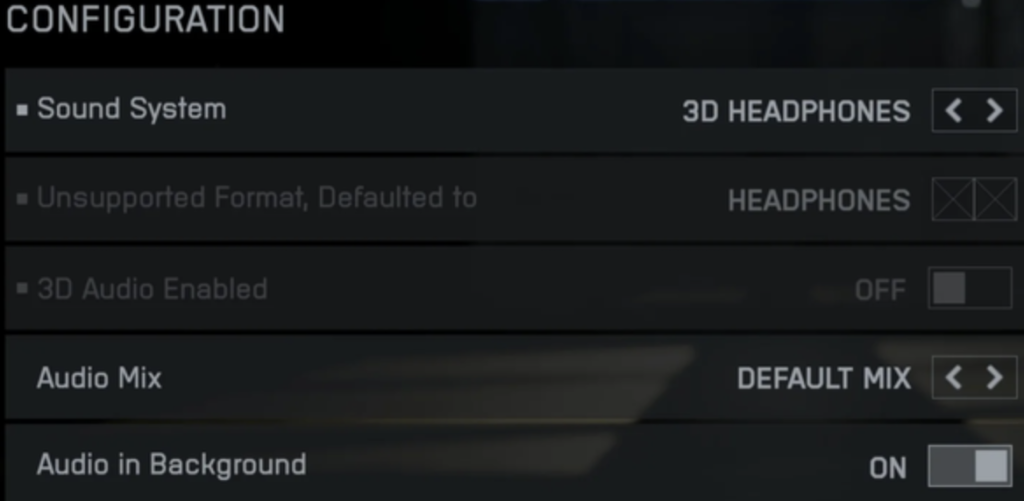
When Dolby Atmos or DTS:X is enabled through Windows Sound Settings or Xbox Game Bar, the game should detect this automatically. However, Battlefield 6’s internal audio configuration currently overrides external APIs and forces 3D Headphones mode.
In short:
- Battlefield 6 ignores Windows spatial audio hooks.
- Dolby Atmos and DTS:X revert to 3D mode, causing loss of directional accuracy.
- This affects both Dolby Access and DTS Sound Unbound users.
EA DICE is aware of this detection issue and may release a fix in an upcoming audio engine patch.
Fix 1: Enable Dolby Atmos Before Launching Battlefield 6
Battlefield 6 often fails to detect Dolby Atmos if you enable it after launching the game.
Steps:
- Close Battlefield 6.
- Right-click the Volume icon → Spatial Sound → Dolby Atmos for Headphones.
- Ensure Dolby Access app is open and licensed.
- Relaunch Battlefield 6.
This ensures Windows initializes the Dolby API before Battlefield 6 loads its internal 3D engine.
Fix 2: Disable “3D Headphones” in Battlefield 6 Audio Settings
Once inside the game:
- Go to Settings → Audio → Sound System.
- Select “Stereo” or “Off” for 3D Headphones.
- Restart the game.
By turning off Battlefield 6’s own 3D system, you allow Dolby Atmos or DTS:X to take control of audio processing through Windows Spatial Sound.
Fix 3: Force Spatial Audio via Windows Registry
If Dolby Atmos keeps reverting:
- Press Win + R → regedit.
- Navigate to:
HKEY_CURRENT_USER\Software\Microsoft\Windows\CurrentVersion\Audio - Ensure the value for
SpatialAudioFormatis set to Dolby Atmos GUID:{B4DD0E80-80A6-4F84-8F9E-3C0B0A9B54BF} - Restart Windows.
This forces your system to use Dolby Atmos as the global spatial format, ensuring Battlefield 6 recognizes it on startup.
Fix 4: Run Dolby Access and Xbox Game Bar as Administrator
Sometimes Battlefield 6 can’t detect Dolby Atmos because the Dolby Access app doesn’t have proper elevation rights.
Steps:
- Right-click Dolby Access → Run as Administrator.
- Do the same for Xbox Game Bar (GameBar.exe).
Then launch Battlefield 6. This ensures proper communication between Windows Spatial Sound APIs and the game’s audio driver.
Fix 5: Reinstall Dolby Access or DTS Sound Unbound
Corrupt audio libraries from Dolby Access or DTS Sound Unbound can cause Battlefield 6 to misdetect spatial sound devices.
Steps:
- Uninstall Dolby Access from Microsoft Store.
- Restart your PC.
- Reinstall Dolby Access → Re-enable Dolby Atmos for Headphones.
This refreshes all audio registry hooks used by Battlefield 6’s sound engine.
Fix 6: Update Windows Audio Drivers
Outdated or mismatched audio drivers may cause Battlefield 6 to ignore spatial sound devices.
- Open Device Manager → Sound, Video, and Game Controllers.
- Right-click your device (e.g., Realtek, SteelSeries, Corsair).
- Choose Update Driver → Search Automatically.
Once done, restart your PC and Battlefield 6.
Fix 7: Set Dolby Atmos as Default Output Device
Make sure Dolby Atmos is selected as your main output device before launching the game:
- Go to Control Panel → Sound → Playback Devices.
- Right-click Dolby Atmos for Headphones → Set as Default Device.
- Apply and restart Battlefield 6.
This ensures the system-level audio renderer initializes before the game applies its sound profile.
Fix 8: Disable Other Spatial Audio Extensions
Having multiple spatial audio apps (Dolby, DTS, SteelSeries Sonar, etc.) can confuse Battlefield 6’s audio engine.
Steps:
- Uninstall or disable any extra sound extensions.
- Keep only Dolby Access active.
- Restart your PC.
This prevents API conflicts between multiple virtual surround drivers.
Fix 9: Switch Between SPATIAL 3D and 3D HEADPHONES Modes
In Battlefield 6’s Audio Settings → Sound System, try manually switching between SPATIAL 3D and 3D HEADPHONES after launching with Dolby enabled.
For some users, toggling between these settings forces Battlefield 6 to re-detect the Dolby driver.
Fix 10: Wait for EA’s Upcoming Audio Engine Patch
EA DICE developers have acknowledged that Battlefield 6’s audio engine currently fails to properly identify Dolby Atmos and DTS Spatial Sound systems.
The issue lies in how the game handles Windows’ IAudioClient3 API, which is responsible for passing HRTF (Head-Related Transfer Function) data from external apps.
A fix is expected in an upcoming audio optimization patch, which will improve sound system detection and properly distinguish between 3D Headphones and Spatial 3D.
Fix 11: Use Windows Sonic as a Bridge, Then Switch Back to Dolby Atmos
Some Battlefield 6 players have found success by briefly using Windows Sonic to “reset” the system’s spatial audio routing.
Steps:
- Close Battlefield 6.
- Right-click the Volume icon → Spatial Sound → Windows Sonic for Headphones.
- Launch Battlefield 6 and enter the Audio Settings menu.
- Close the game again, switch back to Dolby Atmos for Headphones, then relaunch.
This process forces Windows to rebuild its spatial audio chain, allowing Battlefield 6 to correctly detect Dolby Atmos afterward.
Fix 12: Turn Off Exclusive Mode in Sound Properties
Exclusive audio control can cause Battlefield 6 to bypass system-level spatial audio.
Steps:
- Go to Control Panel → Sound → Playback → Dolby Atmos → Properties → Advanced.
- Uncheck both:
- “Allow applications to take exclusive control of this device.”
- “Give exclusive mode applications priority.”
- Apply and restart the game.
This ensures that Battlefield 6 uses the global spatial renderer (Dolby or DTS) instead of locking to its internal 3D driver.
Fix 13: Verify Windows Audio Services Are Running
If Battlefield 6 can’t communicate with Windows Spatial Sound, its Audio Services might be inactive.
Steps:
- Press Win + R, type
services.msc, and hit Enter. - Make sure these services are Running and Automatic:
- Windows Audio
- Windows Audio Endpoint Builder
- Spatial Sound Service
- Restart your PC and open Battlefield 6 again.
Ensuring these services are active guarantees that external spatial APIs like Dolby Atmos or DTS:X can initialize properly.
Fix 14: Change Audio Bitrate to Match Dolby Atmos Requirements
Incorrect bitrates can interfere with Dolby’s encoding handshake.
Steps:
- Right-click Dolby Atmos device → Properties → Advanced.
- Set Default Format → 48,000 Hz, 24-bit.
- Apply and restart your system.
Battlefield 6’s sound engine expects 48kHz output; mismatched frequencies can force the game back into 3D Headphones mode.
Fix 15: Use the Dolby Atmos HDMI or Optical Output (If Available)
If you’re using a headset that supports Dolby Atmos via HDMI or optical, connect directly to your sound card or GPU audio output instead of USB.
Steps:
- Plug your headset into HDMI or optical.
- Set it as the default playback device.
- Launch Battlefield 6.
This bypasses Windows’ virtual surround routing and ensures the Dolby metadata is properly recognized by the game.
Fix 16: Reinstall Battlefield 6 Audio Configuration Files
A corrupted PROFSAVE_profile file may store broken sound system preferences.
Steps:
- Navigate to:
%USERPROFILE%\Documents\Battlefield 6\Settings\ - Delete
PROFSAVE_profile. - Launch Battlefield 6 — it will generate a new clean file.
- Reapply your audio and video preferences.
This can restore Dolby Atmos or Spatial 3D detection that was lost after a patch or driver change.
Fix 17: Disable Nahimic, Sonic Studio, or Realtek 3D Enhancements
Third-party sound enhancers like Nahimic, ASUS Sonic Studio, and Realtek Audio Console often override Windows Spatial Audio APIs.
Steps:
- Open Task Manager → Startup tab.
- Disable all audio enhancement apps.
- Restart your PC and relaunch Battlefield 6.
Removing these conflicts helps the game correctly detect Dolby Atmos instead of falling back to “3D Headphones.”
Fix 18: Clear Battlefield 6 Cache and Config from AppData
Temporary audio configuration files can persist after updates and interfere with sound detection.
Steps:
- Press Win + R, type
%AppData%, and hit Enter. - Delete the folder:
Battlefield 6(found under both Roaming and Local). - Relaunch the game to regenerate settings.
This resets all cached audio profiles and driver calls, allowing Battlefield 6 to reinitialize Dolby Atmos correctly.
Fix 19: Ensure Dolby Access Is Running in the Background
Even if Dolby Atmos is enabled, Battlefield 6 may revert to 3D mode if Dolby Access isn’t running actively.
Steps:
- Open Dolby Access before launching Battlefield 6.
- Keep it minimized instead of closed.
- Verify it displays “Dolby Atmos for Headphones is active.”
Some users found that keeping the Dolby app open ensures Battlefield 6 retains Atmos as the default spatial driver during gameplay.
Fix 20: Reinstall or Reset Windows Spatial Sound Feature
If none of the above works, you can reset the entire Windows Spatial Sound system.
Steps:
- Open PowerShell as Administrator.
- Run:
Get-AppxPackage *SpatialAudio* | Remove-AppxPackage - Restart your PC, then reinstall from Microsoft Store:
“Windows Spatial Sound” and “Dolby Access.”
Once reinstalled, set Dolby Atmos as default and launch Battlefield 6. This method completely resets all broken spatial audio APIs and usually resolves the detection issue permanently.
Why Isn’t Dolby Atmos for Headphones Working in Battlefield 6 on PC?
If Dolby Atmos for Headphones isn’t working in Battlefield 6 on PC, it’s because the game’s audio engine isn’t detecting external spatial audio software correctly.
Battlefield 6’s latest update introduced a configuration bug that causes the engine to prioritize its internal “3D Headphones” system over Windows Spatial Audio, even when Dolby Atmos or DTS:X is already active in your Windows settings.
In other words, Battlefield 6 defaults to its own simulated surround sound and ignores the Dolby Access API, making the audio sound flatter and less positional.
✅ Fix:
- Enable Dolby Atmos before launching Battlefield 6.
- Disable 3D Headphones in the in-game sound menu.
- Run both Dolby Access and Xbox Game Bar as Administrator.
This ensures the Dolby Atmos driver loads before Battlefield 6’s sound engine starts. EA DICE has acknowledged this issue, and a patch is being developed to correctly integrate Dolby and DTS detection within the game’s audio pipeline.
What’s the Difference Between 3D Headphones and Spatial 3D in Battlefield 6 Settings?
In Battlefield 6, the difference between 3D Headphones and Spatial 3D lies in how audio positioning is processed.
- 3D Headphones is the game’s internal surround sound simulation, using EA DICE’s proprietary HRTF (Head-Related Transfer Function) system. It creates a 3D effect without external software, ideal for players without Dolby Atmos or DTS:X installed.
- Spatial 3D, on the other hand, is designed to integrate with Windows Spatial Sound, allowing external technologies like Dolby Atmos, DTS:X, or Windows Sonic to take control of sound processing.
However, due to the current Battlefield 6 audio bug, the game often fails to correctly switch to Spatial 3D, instead reverting to 3D Headphones.
✅ Recommendation:
If you use Dolby Atmos or DTS:X, always choose Spatial 3D, disable in-game 3D audio, and ensure your Windows Sound Settings show Dolby Atmos for Headphones as active before launching Battlefield 6.
This guarantees that the external spatial renderer — not the game’s internal one — processes your surround sound.
Is Battlefield 6 Not Detecting Dolby Atmos or DTS:X Properly?
Yes — currently, Battlefield 6 is not detecting Dolby Atmos or DTS:X properly due to a faulty audio configuration layer within the game’s sound system.
Players have confirmed that even when Dolby Atmos or DTS:X is active in Windows, Battlefield 6 reverts to its internal 3D Headphones mode. This happens because the game’s audio initialization logic ignores Windows Spatial Sound API calls, preventing Dolby or DTS from attaching their spatial rendering modules.
This affects both Dolby Access and DTS Sound Unbound users on Windows 10 and 11. The issue is the same across Steam, EA App, and Xbox Game Bar versions.
✅ Temporary Fix:
- Start Dolby Access or DTS Sound Unbound before launching the game.
- Disable Battlefield 6’s internal 3D audio.
- Verify that the Windows Sound Output device is set to Dolby Atmos.
EA DICE has confirmed that the spatial sound detection bug will be addressed in a future update, ensuring proper handoff between Battlefield 6’s internal audio engine and external sound software.
Does Battlefield 6 Support Dolby Atmos or Only 3D Audio Simulation?
Battlefield 6 does support Dolby Atmos, but currently, the implementation is inconsistent due to a detection bug.
The game is fully capable of outputting Dolby Atmos or DTS:X positional sound through Windows Spatial Audio, but its audio configuration system often overrides external spatial sound with the built-in 3D Headphones mode.
Here’s the distinction:
- 3D Headphones uses Battlefield 6’s own HRTF-based surround engine.
- Dolby Atmos or DTS:X uses Windows’ system-level spatial processing, offering true 360° sound precision and height perception (above/below).
Right now, most players experience fallback to 3D Headphones due to the Spatial 3D detection issue.
✅ To enable full Dolby Atmos:
- Enable it globally in Windows before starting the game.
- Disable in-game 3D audio and choose Spatial 3D.
- Keep the Dolby Access app open during gameplay.
Once DICE patches this, Battlefield 6 will fully utilize Dolby’s 3D object-based audio system — the same tech used in movies and next-gen titles.
Why Does Battlefield 6 Revert from Dolby Atmos to 3D Headphones Automatically?
Battlefield 6 reverts from Dolby Atmos to 3D Headphones automatically because the game’s audio initialization logic overrides external spatial audio settings.
When you launch Battlefield 6, the sound engine checks for supported modes — but instead of deferring to Windows Spatial Sound (Dolby, DTS, or Sonic), it prioritizes its internal “3D Headphones” option by default.
This results in Dolby Atmos being active at the system level (as shown in Xbox Game Bar) but not actually used in-game, as Battlefield 6 reverts to 3D mode once the menu loads.
Common triggers:
- Launching Battlefield 6 before enabling Dolby Atmos.
- Exclusive audio mode enabled in device properties.
- Conflicts with apps like Nahimic or Sonic Studio.
✅ Fix:
- Set Dolby Atmos as default before launching.
- Disable “Allow applications to take exclusive control” in your sound settings.
- Run Dolby Access and Battlefield 6 as Administrator.
These steps prevent Battlefield 6 from hijacking Windows’ spatial sound path and ensure Dolby Atmos remains active during gameplay.
EA has acknowledged this issue and confirmed it will be fixed in a future audio engine patch.
How to Fix Battlefield 6 Dolby Atmos Not Being Recognized
If Battlefield 6 isn’t recognizing Dolby Atmos, it’s due to the game’s audio engine incorrectly prioritizing its internal “3D Headphones” mode instead of Windows Spatial Audio.
After recent patches, Battlefield 6 sometimes fails to detect Dolby Atmos or DTS:X even when they’re active in Windows. The system-level spatial audio remains enabled, but the game defaults to its own 3D profile, reducing positional accuracy and immersion.
✅ Fix Steps:
- Close Battlefield 6 completely.
- Right-click the volume icon → Spatial Sound → Dolby Atmos for Headphones.
- Open the Dolby Access app and keep it running.
- Launch Battlefield 6 → Audio Settings → Sound System → Select Spatial 3D.
- Disable 3D Headphones inside the game.
This ensures that Dolby Atmos initializes before Battlefield 6 loads its internal audio profile. EA DICE has confirmed they are working on a hotfix to permanently resolve Dolby Atmos detection issues on PC.
Does Turning Off Xbox Game Bar Help Fix Audio Switching in Battlefield 6?
Yes — turning off the Xbox Game Bar can sometimes stop Battlefield 6 from automatically switching between Dolby Atmos and 3D Headphones.
Here’s why: the Xbox Game Bar acts as a system-level spatial audio controller, and when Battlefield 6 launches, both applications compete for control over the Windows Sound API. This causes the game to ignore Dolby Atmos and fall back to 3D Headphones mode.
✅ To Fix:
- Open Windows Settings → Gaming → Xbox Game Bar.
- Toggle Xbox Game Bar → Off.
- Reboot your PC and relaunch Battlefield 6.
Alternatively, if you want to keep Game Bar enabled for screenshots or clips, disable only its audio widget via the overlay.
Disabling Game Bar ensures Dolby Atmos stays active during gameplay and prevents Battlefield 6 from misreading your active sound device.
Can You Force Battlefield 6 to Use Dolby Atmos Through Windows Spatial Sound Settings?
Yes — you can force Battlefield 6 to use Dolby Atmos by setting it as the system default spatial sound format before launching the game.
By default, Battlefield 6 tries to auto-detect your output configuration. However, due to an internal audio initialization bug, the game often misses the Windows spatial signal and switches to 3D Headphones.
✅ Steps to Force Dolby Atmos:
- Right-click the Volume icon → Sound Settings → More Sound Settings.
- Select your active playback device → Properties → Spatial Sound.
- Choose Dolby Atmos for Headphones and click Apply.
- Keep Dolby Access open while launching Battlefield 6.
- Inside the game, go to Audio → Sound System → Spatial 3D.
This process ensures that Windows initializes Dolby’s spatial audio renderer first, forcing Battlefield 6 to use true object-based 3D sound instead of its internal simulation.
Is There a Way to Manually Enable Dolby Atmos or DTS in Battlefield 6?
Yes — while Battlefield 6 doesn’t offer a direct toggle for Dolby Atmos or DTS:X, you can manually enable them using Windows settings and app-level configuration.
Here’s how to enable Dolby Atmos manually:
- Install Dolby Access (or DTS Sound Unbound) from the Microsoft Store.
- Open the app and activate your preferred spatial format (Dolby Atmos or DTS:X).
- Right-click your sound output → Spatial Sound → Select Dolby Atmos for Headphones.
- Launch Battlefield 6 and go to Audio Settings → Select Spatial 3D.
- Turn off 3D Headphones to avoid conflicts.
If done correctly, you’ll notice immediate improvements — clearer directional footsteps, more defined ambient sounds, and full 360° positional awareness.
⚙️ Tip: If Battlefield 6 still reverts to 3D mode, delete your PROFSAVE_profile file inDocuments → Battlefield 6 → Settings
to reset all sound preferences.
How to Get Full Surround Sound or Spatial Audio Working in BF6 on PC
To get full surround sound or spatial audio working in Battlefield 6 on PC, you need to align Windows’ audio configuration with the game’s internal settings.
By default, Battlefield 6 supports stereo, 3D Headphones, and Spatial 3D modes. The last one connects directly to Windows Spatial Audio, which is where Dolby Atmos, DTS:X, or Windows Sonic process directional sound.
✅ Best Configuration for True Surround Sound:
- In Windows → Enable Dolby Atmos for Headphones or DTS:X.
- Launch Battlefield 6 → Settings → Audio → Sound System → Select Spatial 3D.
- Disable 3D Headphones mode.
- Ensure your playback device bitrate is 48,000 Hz, 24-bit (important for Dolby decoding).
- Keep Dolby Access or DTS Sound Unbound open in the background.
This setup ensures Battlefield 6 delivers accurate positional surround sound and properly uses the object-based spatial data for gunfire, explosions, and movement cues — giving you a competitive edge and richer immersion.
Final Thoughts
The Battlefield 6 Dolby Atmos not detected issue is not user error — it’s a compatibility flaw in the game’s sound system hierarchy. The engine mistakenly prioritizes its own 3D rendering instead of system-level Dolby Atmos or DTS:X pipelines.
Until DICE releases the official patch, players can manually fix detection by enabling Dolby before launching, disabling 3D Headphones in-game, and ensuring their spatial audio software runs as Administrator.
This restores accurate directional sound, enemy positioning, and immersion — especially for PC players using high-end headsets like SteelSeries Arctis Nova Pro, HyperX Cloud Alpha Wireless, and Audeze Maxwell.