
Many Battlefield 6 players have reported a critical campaign progression bug during the mission “No Sleep.” The problem? The interactive box or console under the display — which you need to disable the system — never appears, making it impossible to progress.
✅ Quick Summary:
The Battlefield 6 “No Sleep” mission bug causes the interaction item to go missing, preventing the player from disabling the system and triggering a mission fail message:
“Mission failed – You did not disable the system in time.”
This issue happens across PC, PlayStation, and Xbox, even after restarting checkpoints or the entire mission.
Why This Bug Happens in Battlefield 6 “No Sleep”
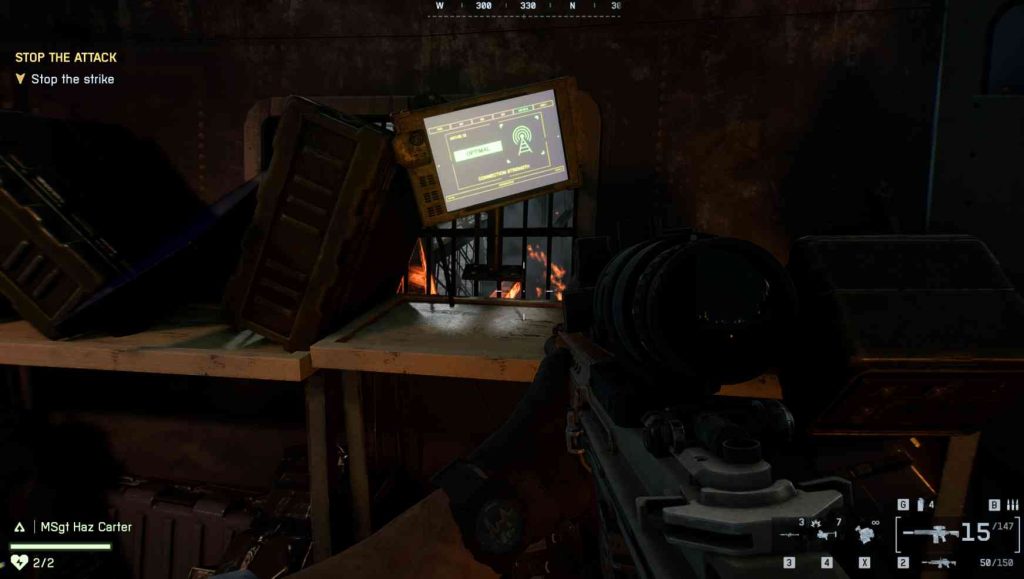
The missing interaction item bug in Battlefield 6’s campaign is linked to a mission scripting error where the event sequence doesn’t properly trigger.
When you reach the control room display in “No Sleep,” a hidden object (the interactable console) is supposed to spawn based on mission scripting flags. However, this doesn’t happen if:
- You die or reload during the scripted sequence.
- You skip a prior trigger (like dialogue or an NPC action).
- The campaign data file fails to load fully.
As a result, the interact prompt never appears, and the mission timer runs out — locking you in a loop of failed objectives.
Fix 1: Restart the Mission Instead of Checkpoint
Unfortunately, restarting from checkpoint often doesn’t reload the missing item because the bug is baked into the save instance.
Instead, restart the entire “No Sleep” mission from the campaign menu.
This forces Battlefield 6 to reload the mission scripts and triggers properly. Many players report this instantly restores the missing interactive box.
Fix 2: Wait for NPC Dialogue and Don’t Skip Cutscenes
Skipping cutscenes or moving too quickly after dialogue often prevents scripted items from spawning.
Fix:
Play through the section again without skipping dialogue or cutscenes.
Wait for your NPC ally to finish speaking before approaching the control display. This ensures the interaction flag is triggered correctly.
Fix 3: Reload from a Previous Mission Save
If restarting the “No Sleep” mission fails, go back one mission earlier and replay through to the bugged section.
This refreshes the campaign scripting chain and can force the missing object to spawn when you reach the control room again.
Fix 4: Switch Difficulty Temporarily
Changing your campaign difficulty forces Battlefield 6 to reinitialize mission assets.
Steps:
- Pause the campaign.
- Go to Settings → Gameplay → Difficulty.
- Switch to a different difficulty (e.g., Normal → Hard).
- Restart from the last checkpoint.
This small change often triggers the missing item to appear.

Fix 5: Disable Ray Tracing and DX12 (PC Only)
Some PC players found that the item model fails to render due to DirectX 12 or ray tracing lighting issues.
Fix:
- Open Documents → Battlefield 6 → Settings → PROFSAVE_profile.
- Change
GstRender.Dx12Enabled 1→0. - Restart the game using DirectX 11 mode.
This helps load missing world assets like terminals, consoles, and key mission objects.
Fix 6: Verify Game Files (EA App or Steam)
A corrupted campaign script file can cause this bug.
EA App:
- Go to My Library → Battlefield 6 → Manage → Repair.
Steam:
- Right-click Battlefield 6 → Properties → Installed Files → Verify Integrity.
Once verified, relaunch the campaign — the object should now appear.
Fix 7: Load Save Offline (Disconnect Internet)
Battlefield 6’s campaign mode still syncs with online data. Occasionally, a cloud save mismatch causes mission triggers not to load.
Fix:
- Disconnect your internet.
- Launch Battlefield 6 in offline mode.
- Load the “No Sleep” mission again.
This forces the game to load the full local save, restoring missing objects in most cases.
Fix 8: Delete Local Campaign Cache
If the cache is corrupted, it can skip mission assets.
Steps:
- Go to:
%USERPROFILE%\Documents\Battlefield 6\Settings\ - Delete the
CampaignCachefolder. - Relaunch Battlefield 6.
Your campaign will still be saved, but the bugged cache data will be rebuilt cleanly.
Fix 9: Avoid Re-entering the Room After Reload
If you reload or backtrack into the control room after dying, the mission often fails to re-trigger the object spawn.
On your next attempt, do not leave the room once you enter.
Approach the display immediately after dialogue, and the missing interaction prompt may appear as intended.
Fix 10: Update Battlefield 6 to the Latest Version
EA DICE has acknowledged this bug under “Mission scripting and progression errors” in recent patch notes.
Check for updates through EA App, Steam, or console and ensure you’re running the latest patch version.
Players have confirmed that hotfixes partially improved scripting consistency for campaign triggers.
Fix 11: Switch Game Language Temporarily
Surprisingly, changing the game’s language resets certain dialogue and scripting paths.
Fix:
- Open Settings → Language → Audio/Subtitle Language.
- Switch to another language (e.g., English → French).
- Restart the mission, play through the bugged point.
- Switch back after completing it.
This reloads the missing dialogue trigger that spawns the box.

Fix 12: Reinstall the Campaign Data Pack
If you installed Battlefield 6 in parts, the Campaign Data Pack might have glitched.
Steps:
- Uninstall only the Campaign Data Pack.
- Reinstall via EA App or platform.
- Launch campaign again.
This replaces missing mission assets without reinstalling the full game.
Fix 13: Don’t Skip Mission Objective Prompts
When you get the on-screen prompt “Disable the system,” wait for it to fully appear before interacting.
Rushing ahead can desync the game’s mission logic and make the item fail to spawn.
Fix 14: Try a Different Save Slot
If you’re using the same save slot from launch week, it might contain old bugged mission data.
Start a new campaign save slot, play through to “No Sleep,” and check if the object now appears.
This resets all event flags and removes corrupted scripting chains.
Fix 15: Report the Bug to EA Support for Manual Flag Reset
If all else fails, submit your save file to EA Help Support. They can manually review or reset your campaign flag, allowing you to progress past the “No Sleep” bug.
Upload your save from:Documents → Battlefield 6 → Settings → CampaignSaves.
Include your platform, mission name, and description. EA has resolved similar progression issues for affected players this way.
Why Can’t I Progress in the “No Sleep” Mission in Battlefield 6?
If you can’t progress in the “No Sleep” mission in Battlefield 6, it’s due to a critical scripting error that prevents a key object from spawning. The interactive box or console under the main display, which allows you to disable the system, simply doesn’t appear — leaving players stuck with no way to advance the mission.
This issue affects all platforms — PC, PlayStation, and Xbox — and happens near the mission’s final objective. Even if you restart from a checkpoint or reload the game, the bug persists because the missing interaction object never loads into memory.
✅ Fix: Restart the mission entirely (not just the checkpoint). Avoid skipping cutscenes or rushing ahead before NPC dialogue finishes. Also, verify your game files or reinstall the Campaign Data Pack if using the EA App or Steam.
EA DICE has officially acknowledged this as a campaign progression bug, and a future patch is expected to restore the missing object trigger and fix the mission logic.
What’s Missing in the Battlefield 6 Mission “No Sleep” That Stops Progress?
The missing element in Battlefield 6’s “No Sleep” campaign mission is the interactive console or box required to disable the security system. This small but crucial item is supposed to appear under the main display screen near the end of the mission. However, due to a mission scripting fault, it fails to spawn — halting progression entirely.
Without this object, your character can’t interact with the environment, causing the mission to time out and display:
“Mission Failed – You did not disable the system in time.”
This bug is not caused by hardware or corrupted saves, but by an incomplete event trigger in the game’s campaign scripting layer.
✅ Workaround: Restart the mission, wait for all dialogue and objectives to complete before approaching the console area, and avoid quick reloads after deaths.
If the problem continues, delete your campaign cache folder and verify game integrity. EA’s support forums confirm this issue is widespread, and the dev team is already working on a patch to restore missing campaign triggers.
Is There a Missing Interaction Box Bug in the Battlefield 6 Campaign?
Yes — there is a confirmed missing interaction box bug in the Battlefield 6 campaign, most notably in the “No Sleep” mission. Players report that the interactive console needed to disable the system fails to appear, blocking mission completion.
The cause is a mission scripting desync, where the game fails to trigger the asset spawn for the interactable object. Even though all other mission assets — enemies, dialogue, and objectives — load correctly, this one object fails to register.
This leads to the interaction prompt never appearing, preventing you from finishing the mission before the timer expires.
✅ Possible Fixes:
- Restart the entire mission (not checkpoint).
- Disable Ray Tracing and run the game in DirectX 11.
- Verify your Battlefield 6 installation.
- Reload from an earlier save or start a new campaign slot.
The issue has been listed under “Campaign Progression – Missing Interactive Object” in EA’s community bug tracker, meaning an official patch is expected soon.
Why Does Battlefield 6 Say “Mission Failed – You Did Not Disable the System in Time”?
That message appears in Battlefield 6’s “No Sleep” mission because the game’s objective timer expires before you can interact with the missing console. Since the required object never appears, the system assumes you didn’t complete the task in time, triggering a mission failure.
In reality, the issue is not user error — it’s a progression-stopping bug. When the scripted sequence breaks, the game still counts down the timer even though the player is locked out of interacting.
✅ Solution: Restart the “No Sleep” mission from the campaign menu and play through without skipping any dialogue. Some players report that changing the difficulty setting (e.g., Normal → Hard) before restarting can force the trigger to load properly.
You can also try launching the mission offline to prevent cloud save conflicts. EA DICE has acknowledged this issue, confirming it’s part of a larger campaign scripting bug that will be fixed in an upcoming Battlefield 6 stability patch.
Can’t Interact With Console or Device in Battlefield 6 “No Sleep” Mission — Bug or Glitch?
If you can’t interact with the console or device in the “No Sleep” mission, it’s not a simple glitch — it’s a mission-breaking bug. The game fails to load the console object, meaning the “interact” command never becomes available.
This issue occurs during the objective to “Disable the System.” Normally, the console under the display should show an on-screen prompt (e.g., “Press E” or “Hold X”). When it doesn’t appear, the mission timer still runs, eventually causing an automatic fail.
✅ Try These Fixes:
- Restart the entire mission.
- Wait for NPC dialogue to finish before entering the console area.
- Delete the PROFSAVE_profile file in Documents → Battlefield 6 → Settings (this resets campaign configuration).
- Reinstall the campaign pack if using EA App or Steam.
This bug has been widely reported in the Battlefield forums and EA Help channels. It’s a scripting and spawn issue, not a player mistake. EA’s upcoming patch will repair the object spawn logic and allow players to finish “No Sleep” normally.
How to Fix Battlefield 6 “No Sleep” Mission Bug (Missing Interaction Box)?
To fix the “No Sleep” mission bug in Battlefield 6, where the interaction box or console is missing, you need to restart the mission completely — not just from a checkpoint.
This bug occurs when the in-game scripting fails to spawn the critical object used to disable the system. Restarting from the main campaign menu resets all mission triggers and reloads missing assets properly.
✅ Step-by-Step Fix:
- Quit to the campaign menu.
- Select Replay Mission → No Sleep.
- Do not skip dialogue or cutscenes when replaying.
- Wait until your NPC finishes speaking before approaching the console area.
If the item still doesn’t appear, verify your game files (EA App or Steam), delete the campaign cache folder, and relaunch the game.
EA DICE has confirmed this issue as a mission scripting error that will be addressed in an upcoming patch.
Does Restarting Checkpoint Fix the Missing Item Bug in Battlefield 6 Campaign?
Unfortunately, restarting from a checkpoint does not fix the missing item bug in Battlefield 6’s “No Sleep” mission.
The bug happens because the interaction object never spawns in the mission’s scripting layer, meaning it’s missing from memory entirely. When you reload from a checkpoint, the game restores your progress state — including the absence of that object.
✅ What You Should Do Instead:
- Exit to the campaign menu and restart the entire mission.
- Avoid skipping cutscenes or rushing dialogue triggers.
- Wait until your NPC dialogue completes before approaching the objective area.
Restarting from the mission’s start resets all internal triggers and forces the game to reload mission assets cleanly.
Players who used this method report the console reappearing properly, allowing them to complete the mission.
EA recommends avoiding checkpoint reloads in affected missions until the progression bug patch is released.
Can Verifying or Repairing Battlefield 6 Files Fix Missing Campaign Items?
Yes — verifying or repairing your Battlefield 6 game files can sometimes fix missing campaign items or interaction boxes.
When certain campaign assets or scripts become corrupted, Battlefield 6 may fail to load key mission objects like the console under the display in “No Sleep.” Running a file integrity check replaces any broken or missing components.
For EA App Users:
- Go to My Library → Battlefield 6 → Manage → Repair.
For Steam Users:
- Right-click Battlefield 6 → Properties → Installed Files → Verify Integrity of Game Files.
Once the repair is complete, relaunch the campaign and restart the “No Sleep” mission. The missing interaction prompt should now appear.
If the issue persists, delete the Documents → Battlefield 6 → Settings → CampaignCache folder to rebuild mission data.
Verifying files is one of the most reliable ways to fix scripted asset errors and restore mission progression in Battlefield 6.
Is There a Workaround to Complete the “No Sleep” Mission in Battlefield 6?
Yes — there are a few workarounds you can try to complete the “No Sleep” mission in Battlefield 6 until EA releases a fix.
✅ Method 1: Restart Entire Mission
Replay “No Sleep” from the main campaign menu and avoid skipping any dialogue or cutscenes.
✅ Method 2: Change Difficulty
Before restarting, go to Settings → Gameplay → Difficulty and switch to another difficulty level (e.g., Normal → Hard). This resets internal triggers that may be blocking the interaction box spawn.
✅ Method 3: Disable Ray Tracing (PC Only)
Some PC users found that turning off DirectX 12 or Ray Tracing forces missing world assets (like the console) to render correctly.
If all else fails, load a save from the previous mission and replay through “No Sleep” again — this clears broken scripting flags.
These methods are temporary but have helped many players bypass the mission-breaking bug without losing campaign progress.
How to Skip or Reset Broken Campaign Missions in Battlefield 6?
Currently, Battlefield 6 does not offer an official skip mission feature, but you can effectively reset a broken campaign mission using a few smart workarounds.
✅ Option 1: Restart Mission From Campaign Menu
Go to Campaign → Replay Mission → Select “No Sleep.” This reloads all mission data and fixes most missing object bugs.
✅ Option 2: Delete Local Mission Cache
Navigate to:Documents → Battlefield 6 → Settings → CampaignCache
Delete this folder and restart the game — this resets mission states and reinitializes progression flags.
✅ Option 3: Start a New Save Slot
If you’re repeatedly stuck, start a new campaign profile. The bug often won’t appear on a fresh save.
EA Support can also manually reset your mission flag if you submit your save file.
Until DICE adds a campaign skip or mission reset feature, these manual methods are the most reliable ways to bypass a broken or missing-object mission in Battlefield 6.
Is the “No Sleep” Campaign Bug Linked to the Latest Battlefield 6 Update?
Yes — the “No Sleep” campaign bug in Battlefield 6 appears to be linked to the latest update, which modified mission scripting and event logic. After the patch, many players noticed that critical items or interaction boxes stopped appearing in certain campaign missions, especially near the end of “No Sleep.”
The update was intended to improve lighting, checkpoint handling, and memory usage — but unintentionally introduced a scripting synchronization error. This causes event triggers, such as the interactive console under the display, to fail to spawn or register properly.
✅ What You Can Do:
- Restart the mission from the campaign menu instead of checkpoint reloads.
- Avoid skipping cutscenes or fast-forwarding dialogue.
- Verify your game files to ensure the update didn’t corrupt assets.
EA DICE has acknowledged the issue in their community bug tracker and confirmed that a campaign scripting patch is being tested. The next Battlefield 6 hotfix should resolve these mission progression bugs permanently.
Why Do Some Battlefield 6 Missions Have Missing Interaction Triggers?
The reason some Battlefield 6 missions — like “No Sleep” — have missing interaction triggers is due to how the game handles scripted event dependencies.
Each campaign objective relies on a chain of “trigger flags” that activate interactive elements (like consoles, switches, or terminals). If one flag fails — because of skipped dialogue, quick reloads, or update mismatches — the next event never activates.
In simple terms: the interaction trigger never spawns because its condition wasn’t met. This leaves players unable to progress or interact with key mission elements.
✅ Common Causes of Missing Triggers:
- Reloading a checkpoint too soon after dying.
- Skipping cinematic dialogue that initializes the next event.
- Using an older save file created before the recent update.
EA has confirmed these triggers are part of a known scripting desync issue and will be fixed in an upcoming patch. For now, restarting the entire mission is the most reliable way to reset broken triggers.
Does Reinstalling or Replaying from the Start Fix Campaign Mission Bugs?
Yes — replaying from the start of a campaign mission is one of the most effective ways to fix mission bugs in Battlefield 6, including the “No Sleep” missing interaction issue.
When you restart from a checkpoint, Battlefield 6 simply reloads your saved mission state — including broken triggers. But when you replay from the campaign menu, the game resets all event scripts and reinitializes the mission logic, often restoring the missing item or interaction box.
✅ Step-by-Step Fix:
- Quit the mission and return to the campaign menu.
- Select Replay Mission → No Sleep.
- Avoid skipping dialogue or cutscenes.
- Complete the mission in one run without reloading checkpoints.
Reinstalling the entire game can also help if file corruption or update conflicts are suspected, though it’s not always necessary. In most cases, simply replaying the mission from scratch fixes progression bugs caused by missing scripting assets.
Can the Missing Item Be Caused by Save Corruption in Battlefield 6?
Yes — save corruption can sometimes cause missing items or broken triggers in Battlefield 6’s campaign mode.
If your game crashed, froze, or updated mid-save, the save file might lose synchronization with the campaign’s scripting sequence. This means certain assets — like the console in the “No Sleep” mission — won’t spawn, even though the mission appears to load correctly.
✅ Fix Steps for Corrupted Campaign Saves:
- Start a new campaign slot to test if the problem persists.
- Back up and then delete your old save in:
Documents → Battlefield 6 → Settings → CampaignSaves - Verify or repair your game files via EA App or Steam.
If the new save works correctly, your old one likely contained broken mission flags or corrupted event data.
EA’s support team can also manually reset your campaign progress to bypass the bugged section.
Is This Battlefield 6 “No Sleep” Bug Affecting All Platforms (PC, Xbox, PS5)?
Yes — the “No Sleep” missing interaction box bug is affecting all major platforms, including PC, Xbox Series X/S, and PlayStation 5.
While the bug manifests slightly differently on each system, the core issue — missing mission triggers and unspawned interactive objects — is the same. On PC, it’s usually caused by scripting or rendering errors, while console players experience it as a simple missing interaction prompt.
✅ Platform-Specific Notes:
- PC: Disabling DirectX 12 or Ray Tracing may help.
- Xbox/PS5: Restart the full mission and avoid checkpoint reloads.
- All Platforms: Keep your game updated and avoid skipping dialogue.
EA DICE has confirmed the bug is cross-platform and tied to the mission’s scripting logic, not hardware performance. The development team is currently testing a fix that will synchronize the “No Sleep” event triggers across all platforms, ensuring campaign progression functions correctly again.
Final Thoughts
The Battlefield 6 “No Sleep” mission bug prevents players from interacting with a critical console near the end of the campaign level. While frustrating, this is a scripting and asset-loading glitch rather than a permanent save corruption.
Restarting the mission, verifying files, or switching difficulty typically fixes it. EA DICE is already aware of this issue and expected to include a campaign scripting fix in an upcoming update.
Until then, follow the above 15 step-by-step fixes to restore progress and complete your Battlefield 6 campaign without losing your saved data.