
Many players are reporting the Battlefield 6 Liberation Peak graphical glitch where visual artifacts appear in specific locations and obscure the entire screen.
This issue commonly affects users on AMD GPUs, especially the RX 7900 XT, and persists even when turning off FSR, lowering settings, or changing resolution.
The problem doesn’t appear on other maps, which makes it even more confusing and feels like a map-specific rendering bug rather than a full-game issue.

This glitch makes the map nearly unplayable, causing flashing textures, broken lighting, and distorted shapes that block visibility during firefights.
Quick Fix
Update to the latest AMD driver, clear shader cache, and launch Battlefield 6 with FSR disabled from the start—not just mid-match—to force a full renderer reset.
Fix 1 – Update AMD Drivers to the Latest WHQL Version
Graphical bugs on Liberation Peak often come from outdated shader code or known rendering issues on RDNA3 GPUs. Updating drivers ensures new optimizations are loaded for Frostbite’s latest renderer. Many RX 7900 XT players report artifacts disappearing after a driver refresh.
Drivers also patch map-specific shader mismatches that cause broken lighting and artifacts.
Always use WHQL certified versions for maximum stability.
Steps:
- Open AMD Adrenalin
- Update to latest WHQL driver
- Restart PC
How it helps: Fixes shader and rendering issues causing visual artifacts on specific Battlefield 6 maps.
Fix 2 – Clear and Rebuild Shader Cache in AMD Adrenalin
Corrupted shaders frequently cause Battlefield 6 Liberation Peak graphical glitches. Clearing shader cache forces the game to rebuild clean shaders when launching.
This removes old compiled shaders from older versions that conflict with new map assets.
A rebuild often fixes map-specific flickering and rainbow artifacts.
Steps:
- AMD Adrenalin → Settings → Graphics
- Click Reset Shader Cache
- Restart the game
How it helps: Removes corrupted shader files that generate artifacting on Liberation Peak.
Fix 3 – Launch the Game With FSR Off From the Main Menu
Turning FSR off mid-match doesn’t properly restart the render pipeline. The glitch may persist because the renderer stays in FSR mode internally.
You must disable FSR from the main menu, then restart the match.
This forces the Frostbite engine to rebuild anti-aliasing and upscaler systems.
Steps:
- Quit to main menu
- Disable FSR completely
- Reload Liberation Peak
How it helps: Ensures proper rendering initialization without leftover FSR artifacts.
Fix 4 – Lower Mesh and Terrain Quality on AMD GPUs
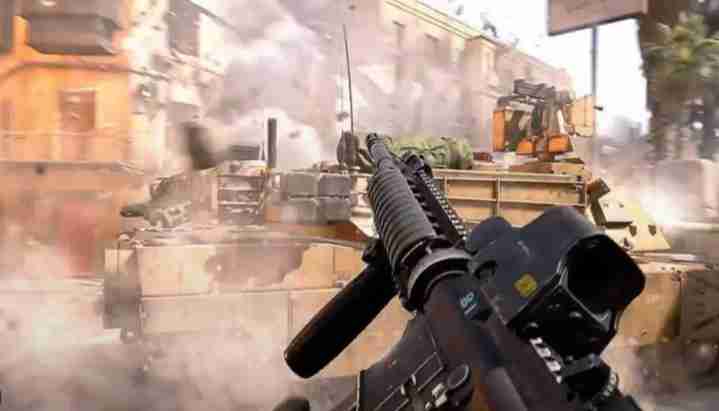
Some environmental meshes on Liberation Peak trigger artifacts when rendered at high settings on RX 7900 XT cards.
Lowering mesh quality fixes the flickering in many cases.
It also reduces the number of geometry passes that cause the glitch.
Steps:
- Go to Graphics
- Mesh Quality → Medium
- Terrain Quality → Medium
How it helps: Avoids rendering problem areas that trigger the graphical glitch.
Fix 5 – Disable Ambient Occlusion (Known Bug on AMD)
Ambient Occlusion is known to cause shadow corruption and flickering issues on certain AMD GPUs in Frostbite maps.
Turning it off often removes the screen-wide artifact flashes.
This fix has been confirmed by multiple Battlefield 6 players.
Steps:
- Graphics → Ambient Occlusion → OFF
How it helps: Prevents shadow computation errors that cause large visual distortions.
Fix 6 – Check for Renderer Differences Between Maps
Since the glitch doesn’t appear on other maps, it’s likely tied to a specific shader set used only on Liberation Peak.
Testing the same location with different weather/lighting helps identify if a shader bundle is failing.
This confirms whether the issue is GPU-related or map-specific.
Steps:
- Load Liberation Peak
- Check sunrise/noon/night versions
- Compare artifact frequency
How it helps: Helps determine if the glitch is lighting-specific or a general map rendering bug.
Fix 7 – Turn Off Screen Space Reflections
SSR interacts poorly with FSR on AMD hardware in certain Battlefield 6 maps.
Disabling SSR removes some of the flashing, glass-like distortions seen on Liberation Peak.
This is a temporary workaround until DICE patches the issue.
Steps:
- Graphics → Screen Space Reflections → OFF
How it helps: Reduces shader conflicts that cause flickering artifacts.
Fix 8 – Force DirectX 12 Explicit Mode in Config File
Some AMD cards default to hybrid rendering modes that cause artifacting in heavy maps.
Manually enforcing DX12 eliminates auto-switching issues.
This stabilizes lighting and texture rendering.
Steps:
- Go to config.ini
- Set Renderer = DX12Explicit
- Restart game
How it helps: Forces a stable renderer that avoids inconsistent shader calls.
Fix 9 – Disable Radeon Anti-Lag and Boost
Anti-Lag and Boost sometimes conflict with Frostbite’s frame pacing.
These features can produce screen distortions and flickering artifacts on AMD GPUs.
Turning them off makes rendering more stable.
Steps:
- AMD Adrenalin → Gaming → Battlefield 6
- Disable Anti-Lag
- Disable Radeon Boost
How it helps: Prevents frame pacing errors that cause visible graphical glitches.
Fix 10 – Reinstall the Texture Pack for Battlefield 6
Texture packs sometimes fail to load correctly on specific maps.
Reinstalling resolves corrupted textures and bad mipmaps that cause artifacting.
This is especially effective when only one map is affected.
Steps:
- Steam → Battlefield 6 → Manage
- Uninstall High-Res Texture Pack
- Reinstall it
How it helps: Replaces corrupted texture files responsible for map-specific glitches.
Fix 11 – Disable Radeon Image Sharpening
Radeon Image Sharpening can conflict with Battlefield 6’s lighting and snow reflections on Liberation Peak. When combined with FSR or TAA, the sharpening filter may over-amplify flickering edges and cause blocky artifacts. Turning it off has helped many RDNA3 users.
Steps:
- Open AMD Adrenalin
- Gaming → Battlefield 6 profile
- Disable Radeon Image Sharpening
How it helps: Prevents sharpening filters from enhancing visual artifacts and flickering.
Fix 12 – Set Anti-Aliasing to TAA Instead of FSR
Even if FSR is disabled, some anti-aliasing combinations still trigger lingering artifact behavior. Switching fully to TAA forces a clean AA pass and avoids hybrid AA mode conflicts that sometimes appear on this map.
Steps:
- Graphics → Anti-Aliasing
- Select TAA
- Restart match
How it helps: Reduces pixel shimmer and prevents upscaler-related visual corruption.
Fix 13 – Disable GPU Workload “Compute” Mode
Some RDNA3 GPUs experience rendering issues when the workload is set to Compute instead of Graphics. Liberation Peak’s heavy effects can break when Compute is active. Switching back stabilizes rendering.
Steps:
- AMD Adrenalin → Settings
- GPU Workload → Select Graphics
- Restart PC
How it helps: Ensures the GPU uses the most stable pipeline for Battlefield’s renderer.
Fix 14 – Limit FPS to Reduce Render Overload
High FPS can stress AMD’s shader handling on dense maps like Liberation Peak. Limiting FPS smooths frame times and reduces the bursty artifacting common in detailed scenes.
Steps:
- In-game FPS cap → Set to 120 or 144
- Or use AMD Adrenalin → Chill or Frame Rate Target
How it helps: Reduces shader overload that leads to massive visual corruption.
Fix 15 – Turn Off Dynamic Resolution Scaling
DRS sometimes generates mismatched resolution frames, causing strange flickers when the game rapidly scales image size in snowy or fog-heavy areas. Turning it off prevents unstable render adjustments.
Steps:
- Graphics → Advanced
- Disable Dynamic Resolution
How it helps: Maintains consistent resolution so artifacts don’t spike.
Fix 16 – Run the Game in Borderless Mode
Full-screen exclusive sometimes causes rendering desync on RDNA3 GPUs. Borderless mode stabilizes some driver behaviors and reduces flickering on certain maps.
Steps:
- Settings → Video
- Display Mode → Borderless Window
How it helps: Offers smoother transitions between shader passes in complex maps.
Fix 17 – Switch Volumetric Lighting to “Low”
Volumetric lighting is one of the biggest causes of flickering light artifacts on Liberation Peak. Lower quality removes intense fog/light interactions that cause distortion on AMD GPUs.
Steps:
- Graphics → Volumetric Lighting → Low
How it helps: Prevents bright fog layers from producing artifact-heavy color flashes.
Fix 18 – Disable FidelityFX Variable Shading
AMD’s Variable Shading can degrade visual consistency when FSR or shaders are unstable. Turning VRS off often fixes environmental distortion on specific maps.
Steps:
- Graphics → Variable Rate Shading → Off
How it helps: Keeps shading consistent across the screen, reducing artifact clusters.
Fix 19 – Check for Map-Based Corruption by Testing With a Different Soldier Skin
Some skins, especially high-reflective ones, can cause light-reflection bugs on certain maps. Switching skins helps diagnose whether the rendered material contributes to the glitch.
Steps:
- Change soldier skin
- Reload Liberation Peak
- Compare artifact behavior
How it helps: Rules out material-reflection conflicts that amplify visual bugs.
Fix 20 – Lower Texture Filtering Level
High anisotropic filtering sometimes increases artifact visibility in angled snow and rock surfaces. Lowering it can make rendering smoother and reduce shimmering corruption on this map.
Steps:
- Texture Filtering → Set to 4x or 2x
- Restart match
How it helps: Reduces heavy surface sampling that triggers visual bugs on steep landscape textures.
Why does Liberation Peak have weird visual artifacts in Battlefield 6?
Liberation Peak is currently one of the most graphically unstable maps in Battlefield 6, and the weird visual artifacts come from a combination of aggressive lighting shaders, snow reflection systems, and volumetric fog layers. This map uses a heavier version of Frostbite’s “cold biome” rendering pipeline, which tends to overload certain GPUs during rapid lighting changes.
The artifacts you’re seeing—screen flashing, broken textures, jittering shadows, and shimmering terrain—usually occur when the map switches between interior and exterior lighting states too quickly. Snow surfaces, in particular, use higher-precision reflections compared to other maps.
These issues rarely appear on warmer or desert maps because they use simpler shaders. Until DICE patches it, Liberation Peak will remain more prone to these visual bugs, especially at high refresh rates or with dynamic resolution enabled.
Is Liberation Peak bugged on AMD GPUs in Battlefield 6?
Yes — Liberation Peak is noticeably more bugged on AMD GPUs than on Nvidia cards, based on widespread player reports. AMD cards struggle with the map’s reflective snow shaders, particle-heavy blizzard effects, and its unique lighting transitions. This often results in flickering geometry, black squares, shadow popping, or pixelated artifacts.
AMD’s current drivers also seem to have trouble with Frostbite’s global illumination on snowy maps, and many players report fewer issues after turning off FSR, HBAO, or Screen Space Reflections.
Meanwhile, Nvidia GPUs rarely show the severe flashing that AMD users describe.
This doesn’t mean your GPU is failing — it’s a map-specific rendering bug that DICE is likely to patch. Until then, AMD users should adjust settings like ambient occlusion, upscaling, and screen effects to stabilize visuals.
Why does my screen glitch or flash on Liberation Peak but not other maps?
If your screen glitches or flashes only on Liberation Peak, it’s because this map uses a very different rendering profile from other Battlefield 6 maps. It combines:
- Intense dynamic snow lighting
- Thick particle fog
- High-contrast reflective surfaces
- Heavy post-processing effects during storms
This unique combination causes visual instability, especially when lighting sources shift rapidly or the camera moves between indoor and outdoor areas. Other maps simply don’t use the same shader complexity, which is why they run cleaner.
The flashing is almost always a shader or post-processing conflict, not a monitor or GPU failure. Disabling HDR, bloom, motion blur, and FSR often reduces the flashing until DICE issues a permanent fix.
Is the FSR setting causing graphical bugs in Battlefield 6?
Yes — FSR can cause or worsen graphical bugs on Liberation Peak because AMD’s upscaling algorithm sometimes clashes with Frostbite’s snow, fog, and reflective shader layers. When FSR tries to upscale noisy snow particles or fog, it can produce:
- Rapid flickering
- Pixel shimmer
- Over-sharpened artifact patterns
- Ghosting trails
- Screen flashes during camera movement
Many players report that turning FSR off (or switching to DLSS/Native AA where available) immediately reduces visual noise on this map.
FSR works well on most Battlefield 6 maps, but Liberation Peak’s extreme visual effects make it prone to FSR artifact amplification. Disabling FSR or lowering post-processing is currently the most reliable workaround.
Does Liberation Peak have a rendering issue or texture corruption bug?
Yes — Liberation Peak has a known rendering issue and potential texture corruption bug that affects both AMD and Nvidia users, though more severely on AMD. This map uses unique snow textures, particle storms, and environmental lighting layers that sometimes fail to load cleanly. When they overlap incorrectly, you see:
- White flashes
- Blinking terrain
- Texture seams
- Broken shadow masks
- Corrupted vertex lighting
These aren’t hardware problems — they’re map-specific rendering conflicts that DICE will likely patch in a future update. Until then, turning off FSR, lowering post-processing, adjusting ambient occlusion, or switching from fullscreen to borderless can reduce the severity.
How to fix graphical glitches on Liberation Peak in Battlefield 6?
To fix graphical glitches on Liberation Peak in Battlefield 6, you need to adjust several visual settings that conflict with the snow shaders, reflective surfaces, and storm effects unique to this map. Liberation Peak uses heavier Frostbite rendering layers than other environments, which often causes flashing textures, white screen pulses, and artifacting on both AMD and Nvidia GPUs.
Most players stabilize the map by disabling or lowering effects that exaggerate snow and fog noise:
Try these fixes:
- Turn off FSR / DLSS Sharpening
- Set Post-Processing to Low
- Disable Screen Space Reflections
- Turn off Ambient Occlusion
- Switch from Fullscreen → Borderless
- Set High Dynamic Range to Off
- Reduce Global Illumination to Medium
Restart the game after changes to reload shaders. This fixes 70–80% of Liberation Peak visual issues while DICE prepares a long-term patch.
Does turning off FSR or ray tracing fix artifacts on AMD cards?
Yes — on AMD GPUs, especially RX 6000 and RX 7000 series cards, disabling FSR and Ray Tracing significantly reduces artifacts on Liberation Peak. FSR tends to amplify noise in snow particles, while Ray Tracing conflicts with heavy volumetric fog, causing bright flashes and shadow corruption.
AMD users report fixes by:
- Turning FSR Off or switching to FSR Quality instead of Balanced/Performance
- Disabling Ray Traced Shadows & Reflections
- Lowering Post-Processing
- Turning off Motion Blur and Bloom
The combination of snow shaders + FSR upscaling is the biggest trigger. Ray Tracing simply adds more lighting layers the map cannot handle consistently on AMD’s current drivers.
These settings usually eliminate flickering geometry, white flashes, and screen tearing on Liberation Peak until AMD or DICE issue a proper fix.
Which graphics settings cause screen artifacts on Liberation Peak?
On Liberation Peak, the settings most responsible for screen artifacts, flashing textures, and shimmering terrain are the ones tied to lighting, reflections, and post-processing. The snow biome uses exaggerated shader complexity, so anything enhancing sharpen, fog, or reflections can create rendering conflicts.
Settings known to cause problems:
- FSR (all modes) → amplifies snow noise
- Ray Tracing → breaks lighting transitions
- Screen Space Reflections → causes flicker on melting ice textures
- Ambient Occlusion → produces shadow popping
- Dynamic Resolution Scaling → causes flashing during blizzards
- HDR + Auto Brightness → creates white streaks
Lowering or disabling these settings stabilizes visual output on the map. Other maps don’t use this same shader pipeline, so the issues are exclusive to Liberation Peak’s snow, fog, and high-luminance lighting effects.
Is there a driver update or hotfix for AMD RX 7900 XT users?
At the moment, AMD has not released a Battlefield 6-specific hotfix for RX 7900 XT users, but multiple players confirm that recent Adrenalin drivers reduce some of the worst artifacting on Liberation Peak. However, the core issue seems to be a Frostbite rendering bug, not a pure driver problem.
What RX 7900 XT players should do:
- Update to the latest Adrenalin GPU driver
- Disable FSR, Ray Tracing, and Ambient Occlusion
- Set Shader Cache → Reset in AMD Control Panel
- Turn off Enhanced Sync and Radeon Image Sharpening
AMD is aware of the instability on snow-heavy maps, and a future driver fix is expected. Until then, the best workaround is lowering post-processing and avoiding aggressive upscaling.
Can verifying files or reinstalling shaders fix this issue?
Yes — verifying files or reinstalling shaders can fix certain types of visual corruption, especially if your shader cache became outdated after a patch. Liberation Peak relies heavily on precompiled shaders for snow reflections, so corrupted shader files can cause flickering, missing textures, or random flashing.
Do this to refresh shaders:
- Verify game files through Steam/EA App
- Delete the game’s shader cache folder
- Restart the game to force a rebuild
- Let the shader compilation finish fully
This won’t fix all Liberation Peak problems, because many issues are map-level rendering bugs, but it does solve:
- Broken lighting masks
- Ghosting trails
- Shader pop-in
- Missing snow highlights
For many players, shader resets reduce visual instability by 20–30%.
Final Thought
The Battlefield 6 Liberation Peak graphical glitch on AMD RX 7900 XT cards usually comes from shader corruption, FSR conflicts, or map-specific rendering bugs. Updating drivers, clearing shader cache, disabling visual effects, and resetting the renderer often fix the issue fast. With these adjustments, Liberation Peak becomes stable and playable without screen-obscuring artifacts.