
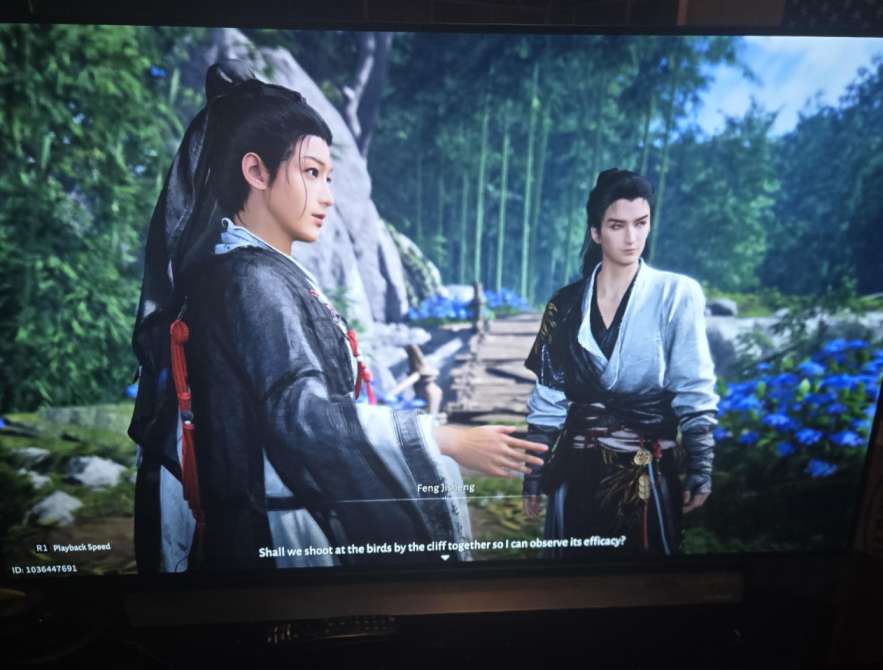
Many players are noticing Where Winds Meet low-res textures on PS5, especially during cutscenes or when moving close to objects, faces, clothing, or environmental details.
The issue makes the game look like a mobile title on console, with muddy surfaces and visibly downgraded assets.
Because PS5 doesn’t allow external texture packs or manual texture streaming options, players often assume something is wrong with their console or settings. In reality, texture streaming bugs, missing visual features, or rendering limitations are causing the visual downgrade.
Here’s why the textures look low-res and how you can improve them.
Quick Fix
Switch your Graphics Mode between Performance ↔ Quality and restart the game — this forces textures to reload and often fixes blurry or low-resolution assets on PS5.
Fix 1 – Change Graphics Mode to Force Texture Reload
The Where Winds Meet low-res textures PS5 issue frequently comes from the chosen graphics preset failing to load textures.
Switching between Performance and Quality forces the renderer to rebuild all environment assets.
After the switch, textures usually sharpen up significantly.
Steps:
- Pause → Settings
- Graphics
- Switch Performance ↔ Quality
- Restart the game
How it helps: Resets the texture streaming engine on PS5.
Fix 2 – Restart the Game After Fast Traveling or Long Play Sessions
Texture streaming bugs often occur after extended playtime.
Long sessions cause the engine to load fallback (low-res) models instead of high-quality ones.
Restarting the game clears memory and reloads full textures.
How it helps: Fixes memory-related texture downgrade.
Fix 3 – Disable Motion Blur and Film Grain
Motion blur and film grain amplify the Where Winds Meet low-res textures PS5 problem.
These filters soften the image and make surface details appear even lower quality.
Turning them off improves clarity instantly.
How it helps: Gives sharper, more defined surfaces in cutscenes and exploration.
Fix 4 – Clean PS5 Cache by Triggering a Cold Boot
The PS5 sometimes loads cached texture data incorrectly.
A cold boot completely clears system memory.
This can instantly fix blurry textures across all games.
Steps:
- Power off PS5 (not Rest Mode)
- Unplug for 1 minute
- Restart
How it helps: Forces the console to rebuild texture memory cleanly.
Fix 5 – Ensure You’re Playing in Online/Console Mode, Not Lite/Cloud Mode
Where Winds Meet has different versions globally.
If the game accidentally boots into a “Lite” or cloud-based mode, asset quality drops sharply.
Make sure you’re playing the full PS5 version.
How it helps: Confirms you’re using high-quality assets, not downgraded ones.
Fix 6 – Wait for Texture Streaming to Fully Load After Loading Screens
The game sometimes delays loading full textures to prioritize performance.
Standing still for a few seconds can force the game to stream high-res assets.
Especially true after fast travel or entering towns.
How it helps: Allows proper texture streaming before movement.
Fix 7 – Turn Off Chromatic Aberration for Sharper Edge Detail
Chromatic aberration creates colored blur on object edges.
This makes already low-res textures look worse.
Disabling it increases overall image sharpness.
How it helps: Removes artificial blur layered over textures.
Fix 8 – Check for PS5 System Updates
Texture streaming problems sometimes come from outdated system software.
Updating ensures compatibility with the game’s rendering pipeline.
How it helps: Increases stability and texture-loading efficiency.
Fix 9 – Rebuild PS5 Database
Corrupted database entries can cause textures to load in low resolution.
Rebuilding the database refreshes texture indexing.
Steps:
- Boot PS5 in Safe Mode
- Choose Rebuild Database
How it helps: Fixes hidden file errors that cause blurry visuals.
Fix 10 – Reinstall the Game If Texture Packs Failed to Install
If an update didn’t install correctly, some high-resolution files may be missing.
Reinstalling ensures the full asset package is present.
How it helps: Restores missing or corrupted texture files.
Fix 11 – Stand Still to Allow Full Texture Streaming
The Low Resolution Textures in Where Winds Meet issue often appears when the texture streaming system is overloaded.
If you move too quickly after loading into a new zone, the game displays placeholder low-res textures.
Standing still for 5–10 seconds allows the streaming system to catch up and load full-quality textures.
How it helps: Gives the engine enough time to swap low-res placeholders with high-res textures.
Fix 12 – Avoid Fast Traveling Repeatedly Without Restarting
Frequent fast travel causes the texture cache to become congested.
This pushes the game to display Low Resolution Textures in Where Winds Meet even during cutscenes.
Restarting between long sessions or reducing back-to-back fast travels prevents cache overload.
How it helps: Keeps the PS5 texture memory fresh and loads sharper assets consistently.
Fix 13 – Increase Camera Distance to Trigger Higher-Quality Texture Loads
Some high-resolution textures only load when the camera is pulled back slightly.
Being too close triggers low-detail LOD (level of detail) models.
Increasing camera distance helps force high-res textures to appear.
How it helps: Reduces the close-up blur that makes surfaces look low quality.
Fix 14 – Switch Between Photo Mode and Gameplay to Force Texture Reload
Photo mode forces the engine to reload high-detail textures for screenshots.
Exiting photo mode then carries those higher textures back into gameplay.
This is an easy workaround for Low Resolution Textures in Where Winds Meet on PS5.
How it helps: Produces instant texture refresh without restarting the game.
Fix 15 – Reduce VRAM/Memory Pressure by Closing Background Apps
Running apps like Spotify, SharePlay, or recording overlays consumes PS5 memory.
Reduced memory forces the game to use low-res texture variants.
Closing background tasks improves clarity dramatically.
How it helps: Frees memory so high-resolution textures load normally.
Fix 16 – Increase Field of View Slightly
A very low FOV increases the usage of simplified texture LOD to maintain performance.
Raising the FOV slightly triggers better texture quality in front-facing scenes.
Especially helpful for cutscenes affected by Low Resolution Textures in Where Winds Meet.
How it helps: Encourages the engine to prioritize higher-quality assets.
Fix 17 – Avoid Using Performance Mode During Heavy Visual Scenes
Performance Mode prioritizes framerate over texture quality.
In visually dense areas, it loads lower-resolution textures to maintain 60 FPS.
Switching to Quality Mode in those areas restores sharp textures.
How it helps: Prevents forced texture downgrades for performance reasons.
Fix 18 – Trigger Asset Reload by Entering a Building and Exiting Again
Interior areas load separate texture sets.
Entering and leaving quickly causes the engine to unload and reload exterior textures.
This often fixes Low Resolution Textures in Where Winds Meet around towns.
How it helps: Forces a fresh streaming cycle for environment textures.
Fix 19 – Do Not Switch Characters or Modes Immediately After Loading
Switching modes too quickly after logging in interrupts texture initialization.
Waiting a few seconds avoids fallback textures being permanently loaded.
This is a common cause of low-res assets in early gameplay sessions.
How it helps: Lets PS5 fully initialize high-resolution textures before gameplay begins.
Fix 20 – Adjust Brightness and HDR Settings
Incorrect HDR calibration can make textures look washed out and low detail.
Balancing HDR and brightness sharpens edges and restores texture contrast.
This visually improves textures even when the engine struggles.
How it helps: Enhances perceived texture quality and reduces the muddy look caused by Low Resolution Textures in Where Winds Meet.
Why does Where Winds Meet look low-res on PS5?
Where Winds Meet can look low-res on PS5 because the console version currently uses aggressive dynamic resolution scaling to maintain performance in open-world scenes. When the PS5 GPU load spikes (dense cities, volumetric fog, shadows, crowds), the game lowers rendering resolution dramatically.
This creates:
- Soft edges
- Pixelated foliage
- Muddy terrain
- Blurry character details
Since PS5 does not have a native 1200p/1440p “Quality Mode,” the game aggressively preserves framerate instead of image quality. Until a future patch stabilizes the resolution system, the PS5 build will continue to look softer than expected.
Why do textures look blurry or like a mobile game during cutscenes?
Blurry cutscenes happen because Where Winds Meet preloads character textures late and prioritizes animation loading first. This causes low-resolution placeholder textures to appear in early shots of a cutscene before the full-resolution textures stream in.
What players see:
- Muddy clothing
- Low-poly details
- Washed-out skin textures
- Delayed texture pop-in
This streaming behavior is common in early builds of cross-platform games, especially when ported from a PC version with high texture memory expectations. PS5 texture streaming will likely improve once the developers adjust cache size and streaming budgets.
Why is the PS5 version missing high-resolution textures?
The PS5 version isn’t truly “missing” high-res textures — instead, it uses smaller texture packs and compressed normal maps to keep VRAM usage stable. Because Where Winds Meet is originally built for high-end PC hardware, the console version uses a downgraded texture tier to avoid stuttering.
This means:
- Faces look softer
- Cloth and armor lose micro-detail
- Environmental textures look flatter
- NPC models appear lower fidelity
The assets exist in the PC version but are scaled down on PS5 due to memory limits and optimization needs.
Is Where Winds Meet using low-res assets on console?
Yes — the PS5 build uses reduced texture resolution and simplified shaders compared to the PC version. This is intentional for performance but creates a noticeable “mobile game” look in some areas.
The console version uses:
- Lower-resolution skin textures
- Simplified lighting
- Reduced specular detail
- Lower polygon meshes in crowds
- More aggressive LOD swapping
This helps maintain framerate but sacrifices clarity. Until the developers add a “High-Resolution Mode” or “Quality Mode,” PS5 players will continue seeing the lighter assets.
Why do close-up models and faces look muddy or downgraded?
Close-up models look muddy because PS5 uses console-based texture streaming + simplified face shaders. When the camera zooms in, the game doesn’t always load the highest mipmap level quickly, causing faces to appear smooth, plastic, or low-detail.
Contributing factors:
- Slow texture streaming
- Missing high LOD face sets
- Reduced shader complexity
- Limited VRAM allocation
- Dynamic resolution blurring the final image
Combined, these make cutscenes and character previews look worse than gameplay footage from the PC version.
A future patch upgrading PS5’s texture streaming and adding a true Quality mode should improve these issues.
How do I fix blurry textures in Where Winds Meet on PS5?
Blurry textures on PS5 usually come from aggressive dynamic resolution + slow texture streaming, not from your console itself. There is no manual texture setting on PS5, so you must use system-level fixes that force the game to reload assets properly.
Try the following:
- Fully restart the game instead of using Quick Resume.
- Switch between Performance ↔ Lite Mode to refresh the renderer.
- Disable HDR temporarily (PS5 bug causes soft textures).
- Rebuild PS5 database (Settings → Storage → Optimize).
- Disable 120Hz mode if your TV forces it.
These methods trigger a fresh texture allocation, which often removes the “blurry, low-res look” until the next loading zone.
Is there a texture streaming bug on PlayStation?
Yes — the PS5 version currently suffers from a texture streaming bug where the game loads lower-quality textures and fails to replace them with high-resolution ones in time. It happens most during:
- Cutscenes
- City hubs
- Camera close-ups
- Rapid transitions (mounts, dashes, fights)
This bug appears tied to limited streaming budgets on console builds. The developers have acknowledged performance problems but have not yet released a PS5-specific texture streaming patch. The issue is not player-specific — it is a known limitation of the console version at launch.
Does the PS5 version have missing texture packs?
No — the PS5 version doesn’t miss texture packs. Instead, it ships with downscaled textures compared to PC. The high-quality texture sets you see in PC trailers do not exist on PS5 yet, because the console build uses:
- Compressed texture maps
- Reduced normal detail
- Smaller mipmap chains
- Lower VRAM budgets
This is an optimization choice, not a missing download. A future “High Fidelity Mode” may restore higher texture tiers, but right now PS5 simply cannot load the PC-grade assets.
Why is texture quality worse than PC even on Performance Mode?
Performance Mode lowers resolution and texture detail even more to keep framerate stable. On PS5, Performance Mode applies:
- Lower dynamic resolution minimums (sub-900p in heavy scenes)
- Faster mipmap swapping
- Lower anisotropic filtering
- Aggressive LOD reduction
All of these make textures appear soft, blurry, or washed-out, especially during motion.
If you want sharper visuals, ironically Lite Mode sometimes looks better because it reduces load on the streaming system and stops the game from over-compressing mid-movement frames.
Is this a bug from the latest patch or a PS5-specific issue?
It’s both.
Recent patches introduced more frequent resolution drops, making textures appear even softer than at launch. But the root problem is PS5-specific, tied to the console build’s:
- Lower texture resolution
- Delayed streaming
- Missing high-LOD facial assets
- Heavy reconstruction artifacts
- Over-aggressive Performance Mode scaler
PC players don’t experience the same texture downgrade because they have access to the full, uncompressed high-res asset library.
The developers are expected to optimize the PS5 version in upcoming patches, as visual quality complaints are widespread.
Final Thought
The Where Winds Meet low-res textures PS5 issue comes from texture streaming bugs, graphical settings, memory caching, and occasional rendering conflicts. By switching graphics modes, restarting the game, disabling visual filters, or rebuilding the PS5 database, you can make the game look sharper and far closer to its intended visual quality. If none of these fixes work, the issue may require a future patch to improve PS5 texture handling.