
So you finally unlocked a new helm transmog in Diablo IV, head to the Wardrobe to check it out… and instead of a cool piece of armor, you’re greeted by a bright pink square with “PH” on it.
Yeah — not exactly the drip you were hoping for, especially after grinding dungeons or chasing cosmetics you actually wanted to show off. Seeing that placeholder where your helm should be can instantly kill the vibe and make it feel like something is seriously broken.
If your Diablo 4 helm isn’t showing, or you’re seeing the pink PH square in the Wardrobe, you’re definitely not alone. This is a fairly common Diablo 4 wardrobe error missing files, and a lot of players run into it after patches or updates.
The good news? While it looks scary, it’s usually fixable — or at the very least harmless.
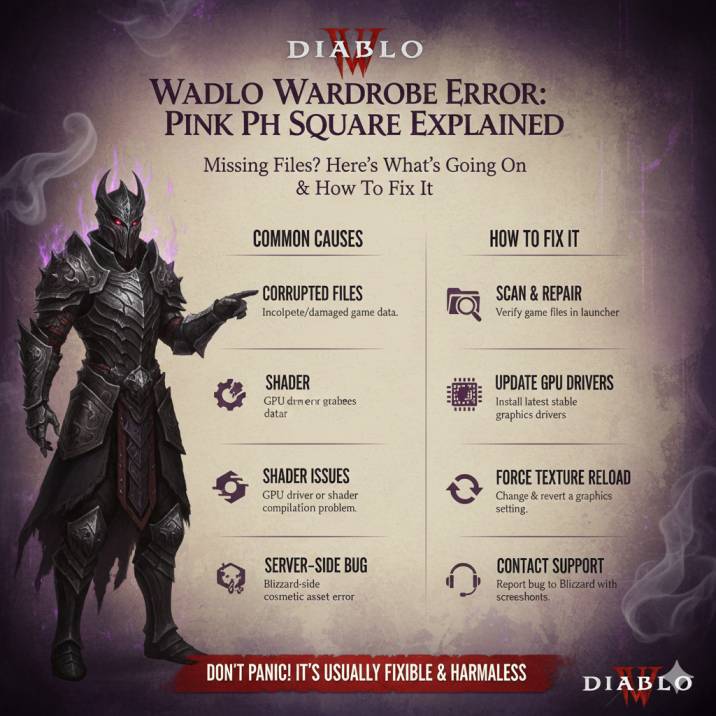
Quick Fixes First (Try These Before Anything Else)
Before we get technical, try these quick fixes. For a lot of players, one of these does the trick, especially if the issue just started showing up after a recent patch or update. These steps are quick, safe, and won’t mess with your settings or progress, so they’re always worth trying first.
Fully restart Diablo 4 and your launcher — make sure the game is completely closed and not running in the background.
Run Scan and Repair from the launcher to check for missing or corrupted files.
Update your GPU drivers, as outdated drivers can cause textures and shaders to fail loading properly.
Change a graphics setting (Textures or Shadows), apply it, then change it back to force the game to reload visual assets.
Switch to another character and reopen the Wardrobe to see if the issue is character-specific.
Log out and back in to force a cosmetic sync with the servers.
Still seeing the pink PH square? Let’s explain what it actually means.
Read also: Where to Find Purified Essence in Diablo 4 Season 11
What Is the Pink “PH” Square in Diablo 4?
The pink PH square is a placeholder texture.
Basically, when Diablo IV can’t load the correct cosmetic file, it shows a temporary “PH” asset instead. “PH” literally stands for placeholder, which developers use when the real texture or model isn’t available. You’ll usually see this pop up in the Wardrobe or transmog menu, not during actual gameplay, which is why the game still runs fine even though the cosmetic looks broken.
This usually means the game knows a helm should be there, but something went wrong when loading the visual data. That’s why players often describe the issue in different ways, such as:
- Diablo 4 helm missing texture
- Diablo 4 wardrobe not loading
- Diablo 4 cosmetic bug
- Diablo 4 missing files error
In short, nothing is “gone” from your account. The game just can’t display the cosmetic properly right now, so it falls back to the pink PH square as a visual placeholder.
Why This Wardrobe Error Happens
There are a few common reasons this bug pops up, and in most cases it has nothing to do with your character or account being permanently broken. It’s usually a technical hiccup tied to how cosmetic assets are loaded in Diablo IV, especially after updates or patches.
1. Corrupted or Incomplete Game Files
Sometimes a cosmetic file doesn’t download correctly, even if the rest of the game seems to work fine. This can happen after a patch, a connection issue during an update, or an interrupted download. It’s the most common reason Scan and Repair helps, as it checks for missing or damaged files and re-downloads them if needed.
2. Graphics Driver or Shader Issues
If your GPU drivers are outdated — or even freshly updated — Diablo 4 might fail to compile shaders for certain cosmetics. When that happens, textures can fail to load properly, leading to the pink PH placeholder showing up instead of the helm.
3. Server-Side Cosmetic Bugs (Very Common)
In some cases, the Wardrobe is pointing to a cosmetic asset that Blizzard hasn’t fully deployed or fixed yet. When this happens, no amount of repairing will help — you just have to wait for a hotfix.
How to Fix Diablo 4 Wardrobe Error Missing Files
Run Scan and Repair (Properly)
This should always be your first real troubleshooting step if you’re dealing with the wardrobe error missing files issue in Diablo IV. Even if the game launches and plays normally, cosmetic files can still be missing or corrupted in the background.
First, close the game completely and make sure it isn’t still running in the background. Then open your launcher and select the Scan and Repair option. Let the process finish without interrupting it, even if it seems to take a while. Once it’s done, restart your PC before launching the game again. This helps clear any cached data and ensures repaired files load correctly.
Pro tip: Run Scan and Repair twice. It sounds silly, but it’s helped more than a few players catch files that didn’t fix properly on the first pass.
Read also: Tormented Echo of Urivar Location in Diablo 4 – Where to Find Him & Why He’s Not Spawning
Update Your GPU Drivers
Head straight to NVIDIA or AMD and install the latest stable driver.
Skip beta drivers unless you know what you’re doing. Outdated or unstable GPU drivers are one of the most common reasons cosmetic textures fail to load correctly, especially after a new patch or seasonal update.
When Diablo 4 tries to render a helm or transmog and the driver can’t properly compile the required shaders, the game falls back to the pink PH placeholder instead.
Even if your drivers aren’t that old, it’s still worth checking for updates, as newer drivers often include fixes specifically for newly released or recently updated games.
Make sure to fully install the driver and restart your system afterward so the changes take effect. A clean, up-to-date driver setup can resolve visual issues that repairs alone won’t fix.
Force the Game to Reload Textures
This works surprisingly often, especially if the issue is caused by shaders or textures failing to load correctly after launching the game or returning from a patch.
Sometimes Diablo 4 doesn’t fully refresh certain visual assets, which is why the pink PH placeholder can appear in the Wardrobe even though everything else looks fine.
To do this, open the Graphics Settings menu and change Texture Quality or Shadow Quality to a different setting. Apply the change, exit the settings menu, then go back and switch the option to its original value and apply again.
This simple process forces Diablo 4 to reload textures and recompile shaders in the background. It won’t affect your progress and usually only takes a minute, making it an easy fix worth trying before moving on to more drastic steps.
Test Another Character
If the issue only happens on one character, it could be a wardrobe sync issue tied to that specific character rather than a problem with the game files themselves. Logging into another character and opening the Wardrobe can quickly help narrow this down. If the pink PH square doesn’t appear on your other characters, that’s a strong sign the issue is linked to how cosmetics are syncing for that specific character.
This is especially useful information if you decide to report the bug, as it helps developers identify whether the problem is account-wide or character-specific. Make a quick note of which characters are affected and which aren’t, since that kind of detail can speed up troubleshooting and potential fixes.
Reinstall Diablo 4 (Last Resort)
If nothing else works, a full reinstall can fix genuine missing file issues that repairs and driver updates couldn’t catch. This is especially useful if multiple cosmetics are affected or if the pink PH square keeps appearing no matter what you try.
Uninstall Diablo 4 completely, then reinstall it fresh to make sure every cosmetic file is downloaded correctly.
That said, this step takes time and uses a lot of bandwidth, so it should really be treated as a last resort. Also keep in mind that reinstalling won’t help if the problem is server-side.
If the Wardrobe is pointing to a cosmetic asset Blizzard hasn’t fully fixed or deployed yet, you’ll still see the issue until a hotfix rolls out.
Temporary Workaround (If You’re Sick of Looking at It)
While waiting for a proper fix or a Blizzard hotfix, there are a couple of simple workarounds that let you avoid staring at the pink PH square every time you open the Wardrobe.
The easiest option is to equip a different helm transmog that displays correctly. In many cases, only a specific cosmetic is affected, so swapping to another helm immediately solves the visual issue.
If that’s not an option, you can also choose to hide your helm entirely. It’s not ideal if you care about fashion, but it keeps the placeholder texture out of sight. The good news is that gameplay isn’t affected at all — this bug is purely visual and won’t impact your stats, abilities, or performance.
Read also: Diablo 4 “Speak to Sihek” Bug – Why Deeds of a Champion Is Stuck (Season 11)
Is This a Known Diablo 4 Bug?
Yes.
Multiple players have reported the Diablo 4 wardrobe error missing files and the pink PH square helm appearing around the same patch windows. When an issue shows up for a lot of players at the same time, it usually points to a backend or cosmetic deployment problem rather than something broken on your specific system.
In these cases, Blizzard typically fixes the issue through a server-side hotfix, which means there’s nothing players need to download or update manually. That’s also why repairs and reinstalls don’t always help — the game client is working as intended, but the cosmetic data it’s trying to load isn’t. Once the hotfix rolls out, the affected helms usually start displaying correctly on their own.
Should You Report It?
Definitely — especially if Scan and Repair didn’t help, the issue affects multiple characters, or you’re seeing item names that look like test or placeholder cosmetics. Reporting the bug helps Blizzard identify whether the problem is widespread or tied to specific platforms, patches, or cosmetic items, which can speed up a fix.
When you submit a report, try to include as much useful detail as possible. Mention your platform (PC, Steam, or console), when the bug first started happening, and whether repairing or reinstalling the game made any difference. It’s also a good idea to attach a screenshot of the pink PH square, since visual bugs are much easier to diagnose when developers can see exactly what’s going wrong.
Using a clear, descriptive title like
“Diablo 4 Wardrobe Error – Helm Showing Pink PH Square”
also makes your report easier to find and track.
Final Thoughts
Seeing a pink PH square instead of your helm in Diablo IV is definitely annoying, especially if you care about how your character looks. The good news is that it’s not game-breaking and won’t affect your stats, abilities, or overall gameplay. In most cases, it’s either something you can fix quickly with repairs or driver updates, or it’s a backend issue that Blizzard needs to patch on their end.
Until that happens, your best move is to swap your transmog, hide the helm if needed, and submit a bug report so it’s on Blizzard’s radar. Then you can get back to what really matters — slaying demons, chasing loot, and saving Sanctuary, fashion emergencies aside.