
So you finally hop on your ikran, take off into the sky… and suddenly your Na’vi’s hair starts levitating like it’s possessed. One second you’re soaring through Pandora, the next your character looks like they’ve been hit with some kind of anti-gravity spell.
Yep — you’re not imagining it. The hair clipping or floating bug in Avatar: Frontiers of Pandora is very real, and a lot of players are running into it, especially during ikran flight. It usually shows up when you’re moving fast, diving, or banking through the air, and it can completely break immersion if you notice it once.
The good news?
You’re not doing anything wrong, and your game isn’t broken. This is a known cosmetic issue tied to animations and hair physics, not a gameplay problem. Even better, there are a few simple ways to reduce it or make it far less noticeable while you play.
Read also: Missing Colossus Quest Not Starting in Avatar: Frontiers of Pandora
What’s Actually Causing the Hair Bug?
This one’s purely a cosmetic animation issue — nothing gameplay-breaking, and nothing you’re doing wrong.
When you mount your ikran, the game switches your character into a completely different animation rig designed for flying. Most of the time it works fine, but sometimes the hair physics don’t fully “lock” onto the head during that transition. When that happens, the hair can lift, stretch, or float slightly behind your character instead of staying naturally in place.
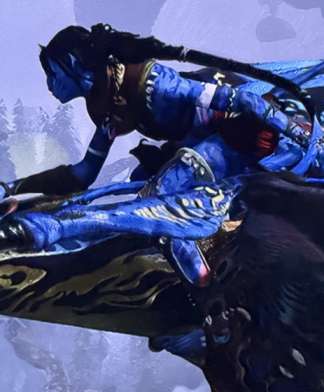
You’ll usually notice it more in specific situations:
- When flying at high speed
- During sharp turns, dives, or quick directional changes
- When using longer or looser hairstyles
- When certain headgear is equipped
The game is basically struggling to smoothly blend character movement, physics, and flight animations all at once. Nothing is actually broken — it’s just a visual hiccup where the animation system doesn’t sync perfectly for a moment. It looks strange, but it’s harmless and purely visual.
The Quick Fixes That Actually Work AFOP Hair Clipping Bug
✅ 1. Take Off Your Headgear (Seriously)
This one sounds almost too simple, but it’s easily the biggest trigger for the hair bug.
Certain helmets, headbands, and cosmetic headpieces just don’t get along with specific hairstyles — especially once you’re in the air. Everything might look totally fine while you’re walking around, but the moment you mount your ikran and the flight animations kick in, the hair physics can freak out and start floating or clipping through the back of your head.
If you want to test it properly, do this:
- Unequip all headgear
- Save your game or reload to the main menu
- Hop back in and mount your ikran
For a lot of players, this instantly fixes the issue. The hair snaps back into place and stays put during flight. It’s not the most stylish solution if you love your headgear, but it’s easily the most reliable workaround right now — and a good way to confirm whether your issue is cosmetic-related or something else entirely.
✅ 2. Reload After Changing Hairstyles
If you change your hairstyle and immediately jump back into the air, the game doesn’t always refresh the hair mesh properly. The result? Floating strands, stretched textures, or hair lagging behind your character mid-flight.
Instead, try this:
- Change your hairstyle
- Exit to the main menu
- Reload your save
- Then take off on your ikran
It’s a small extra step, but it forces the game to fully reload the character model and re-apply the hair physics correctly. It might sound basic, but surprisingly, this fix works far more often than you’d expect.
✅ 3. Use Shorter or Tighter Hairstyles
Long, loose hairstyles are the biggest troublemakers when it comes to this bug. The more movement and length a style has, the more likely it is to break during flight animations.
If you want the least amount of clipping, stick with:
- Tight braids
- Short cuts
- Styles that sit closer to the scalp
They’re far more stable during ikran flight and much less likely to float or stretch unnaturally. It’s not ideal if you prefer longer hair, but for now it’s the most reliable way to keep everything looking normal while you’re in the air.
✅ 4. Make Sure You’re Updated
Ubisoft has already patched several hair-clipping and cosmetic issues in previous updates, even if this specific one still manages to sneak through from time to time.
Before trying anything else, make sure you’re running the latest version of the game on your platform:
- PC (Steam / Ubisoft Connect)
- PlayStation 5
- Xbox Series X|S
Sometimes a small hotfix quietly improves animation behavior or stability, so staying up to date can reduce how often the issue appears — even if it doesn’t eliminate it completely.
❌ What Doesn’t Fix It
Just so you don’t end up wasting time trying every setting under the sun, here’s what won’t fix the issue:
- Changing graphics settings ❌
Ultra, High, Low — it doesn’t matter. This isn’t a performance or rendering problem. - Reinstalling the game ❌
Unless your files are genuinely corrupted, a full reinstall won’t change anything. - Verifying game files ❌
This can help with crashes or missing data, but it won’t fix animation or hair physics issues.
If the problem only shows up while flying, it’s almost certainly tied to animation blending — not your hardware, not your settings, and not your system performance.
Is Ubisoft Aware of This?
Yes — Ubisoft is aware of hair clipping issues in Avatar: Frontiers of Pandora. Similar problems have been acknowledged and partially fixed in past updates, and this appears to be another variation of that same cosmetic bug.
If you want to help push a proper fix, the best thing you can do is submit a report with clear details, including:
- The exact hairstyle you’re using
- Any headgear or cosmetic items equipped
- Confirmation that it happens specifically during ikran flight
The more precise the report, the easier it is for the dev team to reproduce the issue and address it in a future patch.
The Bottom Line
At the end of the day, this is a known cosmetic bug in Avatar: Frontiers of Pandora, and you’re definitely not alone in running into it.
✔ It’s tied to how hair physics interact with ikran flight animations
✔ It shows up most often with longer hairstyles and certain headgear
✔ You can reduce or avoid it with the right setup
❌ There’s currently no permanent, 100% fix
Until Ubisoft rolls out a patch that fully addresses it, the most reliable workaround is keeping things simple: use shorter or tighter hairstyles and avoid headgear while flying. It’s not ideal, especially if you care about customization, but it keeps your character looking normal in the air and avoids immersion-breaking moments.
Hopefully a future update smooths this out completely — but for now, this setup gives you the cleanest flying experience possible.
Read also: