
Let’s be real for a second — Hytale is great right out of the gate, but the default settings aren’t doing you any favors.
They’re perfectly fine for a first launch, sure, but if you leave everything untouched, you’re quietly making combat messier than it needs to be, inventory management more annoying than it should be, and exploration less smooth overall.
None of this is game-breaking, but over time it adds up and can make the experience feel clunkier than it actually is.
The good news? You don’t need mods, deep system tweaks, or hours of testing to fix this. A few quick setting changes can massively improve how the game feels almost immediately.
If you want cleaner combat feedback, better control over your character, and fewer “why is this like this?” moments while playing, here’s exactly what you should tweak to get the best experience from the start.
1. Change Where Picked-Up Items Go (Seriously, Do This First)
By default, Hytale dumps newly picked-up items straight into empty hotbar slots. On paper, that sounds helpful. In practice, it’s pure chaos. Your hotbar fills up with random blocks, mob drops, and loot you didn’t plan to use, your tools keep shifting positions, and any muscle memory you were building disappears almost instantly. It’s especially frustrating during combat or fast building sessions when you instinctively reach for a tool that suddenly isn’t where it was a second ago.
Fix it:
Set Preferred Pickup Locations to send items to your inventory first.
Why it matters:
- Your hotbar stays clean and predictable
- Tools and weapons stay exactly where you expect them
- Combat, mining, and building feel noticeably smoother
This is hands-down one of the best quality-of-life changes you can make early on, and it improves the game immediately.
2. Turn On Damage Numbers / Health Feedback
If you’ve ever wondered whether that shiny new weapon upgrade is actually doing anything, this setting is for you. By default, Hytale keeps combat feedback fairly subtle, which can make fights feel a bit vague, especially early on when you’re still learning how different weapons behave.
Enabling damage numbers or entity health feedback lets you see exactly how effective you are in fights. No guessing, no vibes, no “I think that did more damage” moments — just clear, readable feedback every time you land a hit. This makes combat feel more responsive and helps you understand what’s actually working.
Why you want this on:
- Easier to judge weapons and gear upgrades
- Better combat awareness in fast fights
- Faster learning curve, especially in the early game
Once you turn this on, it’s honestly hard to imagine playing without it.
3. Use the Camera & UI Shortcuts (They’re Not Just for Screenshots)
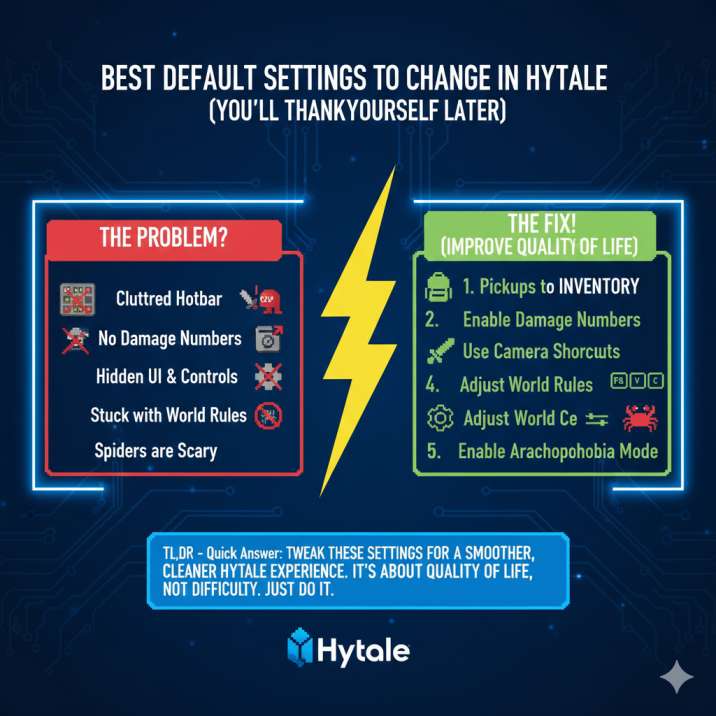
Hytale quietly gives you some genuinely useful camera and UI tools that a lot of players completely overlook. Most people assume these shortcuts are just there for taking pretty screenshots, but they actually have real gameplay value once you start using them regularly.
Useful shortcuts to remember:
- F8 – Toggle the entire UI on or off
- V – Switch between first-person and third-person view
- C – Rotate the camera around your character
Third-person view can seriously help with spatial awareness in tight fights, crowded areas, or tricky platforming sections. Being able to hide the UI also boosts immersion and helps you focus on what’s happening on screen. And yes, it’s perfect for clean screenshots too — but the gameplay benefits are the real win here.
4. Adjust World Rules Instead of Restarting Your Save
One of the best (and most underrated) features in Hytale is just how flexible its worlds are. If something about your playthrough starts to feel off, you don’t have to scrap the save and start over from scratch. The game actually lets you fine-tune things as you go.
You can change:
- Item drop rates
- Durability loss on death
- Overall difficulty balance
If the game starts feeling too punishing, or swings the other way and becomes too easy, you can simply tweak the rules and keep playing. No restart required, no progress lost. It’s a great way to tailor the experience to your playstyle without breaking immersion or wasting hours.
5. Enable Arachnophobia Mode If You Need It
Not everyone enjoys dealing with spider enemies, and that’s completely fair. Thankfully, Hytale handles this the right way with a genuinely thoughtful accessibility option.
Arachnophobia Mode swaps spider models for crabs without changing gameplay at all. The mechanics stay the same, enemy behavior doesn’t change, and the difficulty remains intact. You get the exact same experience, just without the stress that spider enemies can cause for some players.
It’s fully optional, easy to enable, and shows real attention to accessibility. If spiders aren’t your thing, turning this on is a no-brainer.
Why These Settings Make Such a Big Difference
Most early frustration in Hytale doesn’t come from difficulty — it comes from default settings that simply aren’t optimized for real play. A cluttered hotbar makes simple actions slower, unclear combat feedback leaves you guessing instead of improving, and rigid world rules can make the game feel unfair or oddly paced.
None of these issues are obvious at first, which is why so many players push through them without realizing there’s a better way. Tweak these settings once, and everything clicks into place. Combat feels clearer, controls feel more consistent, and the overall experience becomes smoother and more enjoyable from start to finish.
Quick Wrapping up
- Send pickups to your inventory, not your hotbar
- Enable damage numbers / health feedback for clearer combat
- Use F8, V, and C for UI toggles and camera control
- Adjust world rules instead of restarting your save
- Turn on Arachnophobia Mode if spiders aren’t your thing
Small changes, big difference — these tweaks make Hytale feel smoother, clearer, and way more enjoyable right from the start.