
The Battlefield 6 RedSec black screen issue has recently frustrated thousands of Xbox and PC players who can’t start a match without getting stuck at the BF6 logo.
You’re not alone — players across regions are reporting that after pressing Start, the screen fades to black, briefly shows the Battlefield 6 logo, and then loops back to the lobby screen without any error code.
Whether you’re trying to play Battlefield 6 BR Duos, Initiation Battle Royale, or other RedSec modes, this bug prevents gameplay entirely. Let’s dive into what’s causing the issue, possible reasons behind it, and proven fixes you can try right now.
Understanding the Battlefield 6 RedSec Black Screen Bug
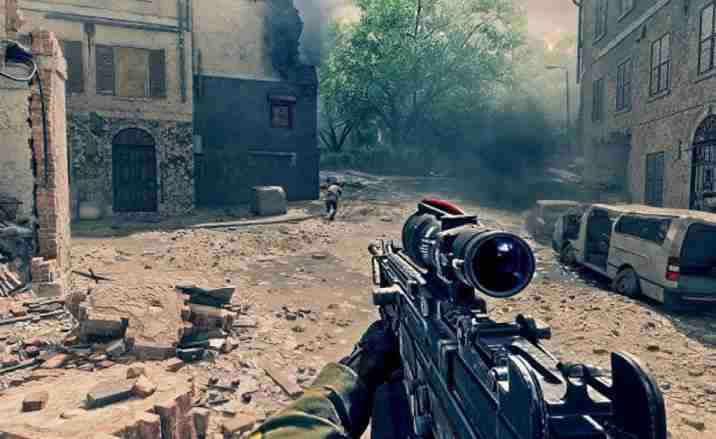
Players have described the same pattern:
When you start a RedSec match, the character animation begins as if the game is loading, but instead of entering the match, the menu reappears. No crash, no error — just an endless loop of black screen and BF6 logo.
This indicates the issue is likely related to session initialization, EA account sync, or RedSec matchmaking servers — not your console or local files.
Is It a Server Issue or Local Problem?
Most reports suggest this may be a server-side issue in the RedSec matchmaking layer or an EA account entitlement sync failure. However, in some cases, corrupted local data or outdated cache can also cause the game to fail to authenticate your session properly.
If it’s not a global server outage, the following 10 fixes have helped many players resolve it.
Fixes for Battlefield 6 RedSec Black Screen & Match Not Starting Issue
1. Restart Your Xbox or PC and Router
A simple restart can refresh your connection with EA servers. Power cycle your console and router, then relaunch Battlefield 6 RedSec.
- Turn off your console completely (not standby mode).
- Unplug your router for 60 seconds.
- Restart both, then launch the game.
2. Clear Local Saved Data & Reserved Space
Corrupted cache files can stop matchmaking from initializing correctly.
- On Xbox: Go to Manage Game → Saved Data → Delete Local Saved Data.
- Restart the console and try RedSec again.
This often resolves invisible entitlement or session token errors.
3. Reinstall Battlefield 6 and RedSec Components
Sometimes reinstalling the full game plus RedSec add-on resets any corrupted install files.
- Uninstall both Battlefield 6 and RedSec module.
- Reboot your device.
- Reinstall from your EA or Xbox Game Library.
- Avoid using quick resume before your first login.
4. Turn Crossplay On or Off
Some players found that toggling crossplay fixed matchmaking handshake errors.
- Navigate to Settings → Gameplay → Crossplay.
- Switch it off, restart the game, and try again.
- If already off, turn it back on.
This forces a new matchmaking configuration.
5. Unlink and Relink Your EA Account
A broken EA-Xbox session link can cause the black screen loop.
- Visit ea.com.
- Go to Account Settings → Connections.
- Unlink your Xbox or PlayStation account.
- Log out, then relink and restart Battlefield 6.
This refreshes your account’s RedSec entitlement and token.
6. Change Your Region or Use a Different Network
If RedSec servers in your region are unstable, connecting from another location might help.
- Switch your Xbox region to a nearby country (like UK or Germany).
- Alternatively, try a mobile hotspot with a stable LTE connection.
- Avoid VPNs that slow matchmaking or cause timeout loops.
7. Check for Battlefield 6 and System Updates
Ensure both your console and the game are fully updated.
- Go to My Games & Apps → Updates.
- Install all pending Battlefield 6 and system updates.
- Restart and test again.
Outdated patches sometimes prevent new matchmaking protocols from loading.
8. Log Out of All Other Devices
If your EA account is logged into multiple devices simultaneously, it can confuse RedSec authentication.
- Log out everywhere except your main console.
- Reboot and launch Battlefield 6.
- Start a new RedSec session cleanly.
9. Reset Network Settings
A corrupted NAT or DNS cache can break server communication.
- Go to Settings → Network → Advanced Settings → Alternate MAC Address → Clear.
- Restart console.
- Try matchmaking again.
If still failing, manually set DNS to Google (8.8.8.8 / 8.8.4.4).
10. Contact EA Support or Wait for a Server Patch
If none of the above works, it’s likely a server-side or entitlement issue that EA must fix.
Contact EA Help or check @BattlefieldComm on X (Twitter) for live server updates.
11. Test with a Different EA Account / Create a Throwaway Account
What to do: Create a second EA account (or borrow a friend’s), link it to your Xbox/PS/PC, and try starting RedSec.
Why it helps: If the second account can start matches, the problem is likely an EA entitlement/session token tied to your main account rather than your console or internet. This isolates EA account error causes.
Risk / Follow-up: If the alternate account works, contact EA Support with evidence (screenshots, timestamps) so they can investigate your main account’s RedSec entitlements.
12. Verify Game Files (PC — Steam/EA App)
What to do: In Steam or EA App, right-click Battlefield 6 → Properties → Local Files → Verify integrity / Repair game.
Why it helps: Corrupted game files or missing assets can cause the BF6 logo loop during matchmaking initialization.
Risk / Follow-up: This is low-risk. Reinstall if verification reports errors you can’t fix.
13. Run the Game as Administrator (PC)
What to do: Right-click the BF6 executable → Run as administrator or set the executable to always run as admin (Properties → Compatibility).
Why it helps: Administrative permissions avoid permission errors when accessing network services or local temp files used during matchmaking.
Risk / Follow-up: Only use for troubleshooting — running as admin all the time isn’t necessary long-term.
14. Disable Overlays and Background Recorders
What to do: Turn off Xbox Game Bar, Discord overlay, Nvidia/AMD overlays, and any capture utilities before launching BF6.
Why it helps: Overlays can conflict with full-screen initialization and session handshakes, causing the game to hang at the loading logo.
Risk / Follow-up: Re-enable one overlay at a time later to identify if a specific one was causing the loop.
15. Try Wired Ethernet Instead of Wi-Fi
What to do: Connect your console/PC via a wired Ethernet cable directly to the router.
Why it helps: Wired connections eliminate packet loss, unstable latency, and switching between network bands — all of which can break RedSec matchmaking.
Risk / Follow-up: If wired works, investigate Wi-Fi interference or replace a failing wireless adapter.
16. Check and Change NAT Type — Open NAT Required
What to do: Ensure your console/PC NAT is Open (Type 1/Type A) rather than Strict. In Xbox: Settings → Network → NAT type. On PC, check router settings or enable UPnP.
Why it helps: Strict NAT prevents direct peer and server connections required by RedSec matchmaking and can cause match start failures.
How to fix: Enable UPnP in router admin, or set up port forwarding for EA/BF6 ports (see your platform’s EA support for exact ports). Alternatively place the console in DMZ (less secure — use only as a test).
Risk / Follow-up: DMZ exposes device to internet; prefer UPnP or port forwarding for specific ports. After change, reboot network and console.
17. Flush DNS and Renew IP (PC & Router)
What to do (PC): Open Command Prompt as admin:
ipconfig /flushdnsipconfig /releaseipconfig /renew
What to do (router): Reboot router or choose Release/Renew WAN if available.
Why it helps: Old DNS entries or stale leases can route you to a wrong or throttled EA server, causing session failures and the BF6 logo loop.
Risk / Follow-up: No major risk. If the issue persists, try changing DNS to Google (8.8.8.8 / 8.8.4.4) or Cloudflare (1.1.1.1).
18. Temporarily Disable Antivirus / Firewall (PC)
What to do: Disable third-party antivirus and Windows Defender firewall temporarily, then try launching RedSec.
Why it helps: Aggressive firewalls can block outbound ports or authentication requests needed for RedSec; disabling helps test whether security software is interfering.
Risk / Follow-up: Re-enable protections immediately after the test. If it fixes the issue, add BF6/EA apps to firewall/antivirus exceptions.
19. Check EA Server Status & Regional Outages
What to do: Visit EA Help status page or the Battlefield/X account’s official server status feed. Also check community trackers and Twitter/X for outage reports.
Why it helps: If RedSec matchmaking servers are degraded in your region, many users will experience the BF6 logo loop. This confirms if the problem is global, regional, or personal.
Risk / Follow-up: If servers are down, document the timestamps and wait for EA to deploy server-side fixes or rollbacks.
20. Clear Reserved Space & Rebuild Local Cache (Xbox Specific Deep Clear)
What to do: Besides deleting saved data, go to Settings → System → Storage → Clear reserved space / clear cache (or perform a full power cycle holding the power button for 10 seconds).
Why it helps: Xbox uses a reserved space for frequently used files; if that gets corrupted, matchmaking can fail to initialize.
Risk / Follow-up: This is safe but can take a few minutes. Avoid factory resets unless necessary.
21. Disable VPNs and Proxy Services Completely
What to do: Turn off VPNs and proxy settings on your router/PC/hotspot before trying RedSec.
Why it helps: VPNs change routing and can introduce latency, packet loss, or cause EA servers to reject sessions due to geolocation mismatches.
Risk / Follow-up: Some VPNs also drop UDP packets required for matchmaking; if you must use VPN, try one optimized for gaming.
22. Test with a Different Console / PC on Your Network
What to do: Try launching RedSec from another Xbox/PC connected to your network (friend’s console, second PC, etc.).
Why it helps: If another device on the same network can join matches, the issue is local to your hardware or profile. If not, suspect router/ISP or regional server problems.
Risk / Follow-up: This narrows the failure domain quickly.
23. Free Up Disk Space & Run Disk Health Checks
What to do: Ensure at least 10-20% free space on the drive where BF6 is installed. Run chkdsk (PC) or check console storage health.
Why it helps: Low disk space or bad sectors can prevent temporary files or patches from applying correctly, breaking session initialization.
Risk / Follow-up: Move games or delete unused apps to free space — then reinstall BF6 if needed.
24. Update Network Adapter / Console Firmware Drivers
What to do (PC): Update network card drivers via Device Manager or manufacturer site.
What to do (Console): Check for console firmware updates beyond game patches.
Why it helps: Old or buggy drivers can mishandle packets or a NAT traversal, causing timeouts during RedSec matchmaking.
Risk / Follow-up: Driver updates are generally safe; create a restore point on PC before major driver changes.
25. Check System Date & Time Accuracy
What to do: Ensure your console/PC clock is set to automatic network time and correct timezone.
Why it helps: Authentication tokens often depend on accurate timestamps. If your device time is skewed, EA token validation may fail silently and drop you back to the lobby.
Risk / Follow-up: Sync time and retry immediately.
26. Disable Network QoS / Bandwidth Limiting Features
What to do: Turn off router-level QoS or bandwidth throttling temporarily.
Why it helps: Misconfigured QoS could prioritize other traffic over BF6 or throttle the UDP ports used by RedSec, causing session failures.
Risk / Follow-up: If disabling QoS fixes the issue, reconfigure rules to prioritize gaming without throttling critical EA ports.
27. Reduce MTU Size on Router (If High Packet Loss)
What to do: Lower the MTU slightly (e.g., from 1500 to 1472 or 1400) on your router.
Why it helps: If your ISP has path MTU issues, large packets can be dropped and cause handshake failures during the match start sequence.
Risk / Follow-up: Changing MTU affects all devices — note previous settings so you can revert if it creates other problems.
28. Test Different DNS Providers & Disable DNS over HTTPS
What to do: Change DNS to Google (8.8.8.8), Cloudflare (1.1.1.1), or your ISP’s recommended DNS. If your PC uses DNS over HTTPS, try disabling it temporarily.
Why it helps: Slow or corrupted DNS resolution can route you to faulty EA endpoints or delay token validation.
Risk / Follow-up: No major risk. If a specific DNS helps, keep it or configure it at router level.
29. Rebuild Xbox/PlayStation Network Cache (Console Account Cache)
What to do (Xbox): Sign out of Xbox profile, perform a full power cycle, then sign in. On PlayStation, rebuild database from Safe Mode.
Why it helps: Network and profile caches can hold bad session tokens. Rebuilding clears them and forces fresh authentication with Xbox Live / PSN → EA servers.
Risk / Follow-up: Safe Mode rebuilds can take time; follow console instructions carefully.
30. Capture Logs and Provide Evidence to EA / Community
What to do: Use network logging tools (e.g., Wireshark on PC — advanced), or take video/screenshots of the loop with timestamps. Note server region, time, and modes tried.
Why it helps: Detailed logs help EA and community developers reproduce the issue. If it’s an entitlement or matchmaking bug, evidence speeds investigation and a fix.
Risk / Follow-up: Don’t share private tokens or personal data publicly. When contacting EA Support, include logs and steps you tried (1–30) so they don’t ask you to repeat work.
Temporary Workaround: Offline Modes Still Work
Until EA officially patches the Battlefield 6 RedSec black screen issue, players can still enjoy:
- Training mode
- Non-RedSec single-player battles
- Local co-op with bots
These modes work normally since they bypass online matchmaking.
Conclusion: Battlefield 6 RedSec Black Screen Fix Summary
The Battlefield 6 RedSec match not starting problem is likely a temporary server or entitlement issue rather than a hardware problem. Still, clearing cache, relinking EA accounts, reinstalling the game, or resetting your network often resolves it.
If you’re seeing the black screen and Battlefield 6 logo loop, try the above 10 fixes step-by-step before assuming it’s your console’s fault. Keep an eye on EA’s official support channels for upcoming hotfixes.