
You drop into a match, ready to play… and then someone in your squad won’t stop breathing into their mic, blasting music, or narrating their entire life like it’s a podcast no one asked for.
You try to focus on the objective, but the noise just keeps coming.
So you go to mute them — and nothing happens. No icon change, no silence, no relief. You click again. Still nothing. At this point, it feels like the game is actively testing your patience.
If you’re wondering why muting squadmates feels completely broken in Battlefield 6, you’re not imagining things. This is a real issue, and a lot of players are running into it right now across different platforms and modes.
It’s not your headset, your settings, or anything you messed up.
Let’s break down what’s going on and, more importantly, how to actually silence that mic so you can get back to playing the game in peace.
Read also: Matchmaking Not Working in BF6: Solved
Why muting squadmates isn’t working
Normally, muting someone should be simple. You open the squad menu, click the mic icon next to the player causing the noise, and that should be the end of it. Problem solved, right? That’s how it works in most games, and it’s exactly what Battlefield 6 seems to suggest you should do.
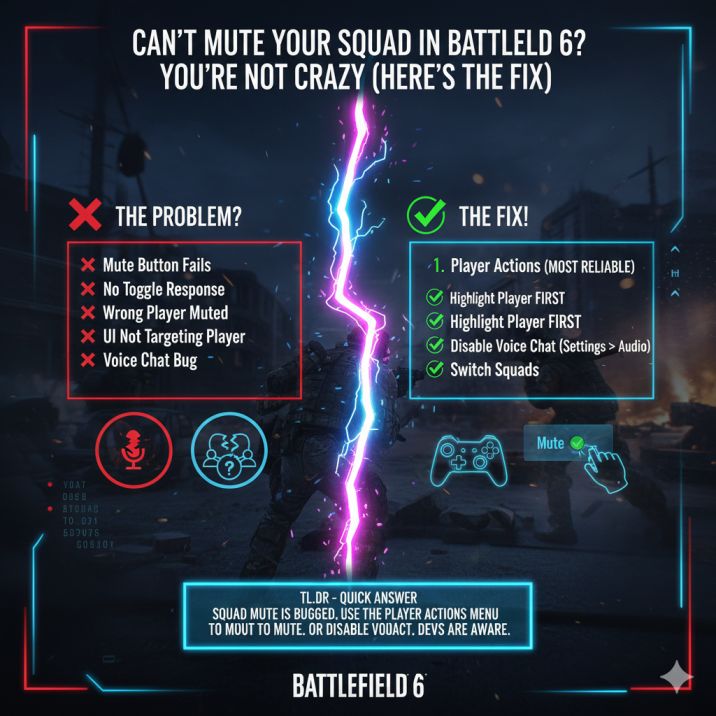
Except… in Battlefield 6, it often does absolutely nothing. You can click the mic icon multiple times and see no response at all. For many players, the icon doesn’t toggle, muting from the player profile doesn’t stick, and in some cases the game even mutes the wrong squadmate entirely. Sometimes, nothing happens no matter how many times you try.
This isn’t a headset issue, a settings mistake, or something you’re doing wrong. It’s a voice chat UI bug that’s affecting players across PC and console, making a basic feature feel frustratingly unreliable.
First things first: this is a bug ?
Before you start digging through audio settings or reinstalling drivers — don’t. It’s an understandable reaction when something basic stops working, but in this case, none of that will help. This isn’t caused by a misconfigured option, outdated drivers, or a faulty headset on your end.
This problem happens with default settings, affects multiple platforms, and occurs in different game modes. It also shows up even when everything else works fine, including team chat, game audio, and other voice features. That consistency is a big clue that the issue isn’t user error.
In short, the squad mute feature itself is broken, at least in certain menus. The mute command either doesn’t register or doesn’t apply to the correct player, which is why it feels so unreliable. Until it’s patched, you’ll need to rely on workarounds rather than traditional fixes.
Read also: Manhattan Bridge Map Visual Glitch BF6 : Solved
How to mute squadmates in Battlefield 6 (what actually works)
While the main mute button is unreliable, there are a few workarounds that players have had success with, and they’re worth trying before you give up on voice chat entirely. The standard squad menu mute option is clearly inconsistent, but these alternative methods tap into different parts of the game’s UI, which is why they can still work.
Method 1: Mute through the player actions / report menu (best fix)
This is currently the most reliable way to mute someone and the one most players report success with.
Try this:
Open the scoreboard or player list during a match.
Select the squadmate you want muted so their profile is properly highlighted.
Open their player actions or report menu.
Choose Mute from the available options.
It sounds roundabout, but this menu uses a different system than the squad screen — and that’s why it often works when the mic icon doesn’t.
Method 2: Select the player first (don’t just click the mic)
If you’re using the squad menu, make sure you take an extra second to properly select the player before trying to mute them. Click on the player’s name so they’re clearly highlighted, then open their profile or options menu, and only then select Mute. This step matters more than it should, because the UI often fails to recognize who you’re targeting if you only tap the mic icon. Just clicking the mic by itself frequently does nothing, which is why this method can sometimes succeed where the faster approach fails.
Read also: Phantom Edition Tier Skips Not Working Bf6 : Solved
Method 3: Disable voice chat entirely (temporary but effective)
If someone is driving you insane and nothing else works, disabling voice chat is the quickest way to restore your sanity. Go to Settings → Audio → Voice Chat, then set voice chat volume to 0 or turn voice chat off completely. It’s not ideal since you’ll lose all comms, but it will give you peace and quiet for the match.
Method 4: Switch or leave the squad (last resort)
Some players report that changing squads stops the noise, though it’s inconsistent and obviously not a great solution. Still, when the mute options completely fail and voice chat becomes unbearable, this can sometimes be the only practical move. Leaving the squad or joining a different one forces the game to reset your squad voice channel, which can occasionally cut off the problematic audio entirely.
That said, this method comes with clear downsides. You might lose squad coordination, end up in a less active group, or be placed with another squad that has the same issue. It’s also not something you want to do repeatedly during a match. Consider this a fallback option when all other muting methods fail and you just need the noise to stop so you can actually focus on playing.
Why this keeps happening (quick technical explanation)
Based on how the bug behaves, it looks like a UI targeting issue rather than a problem with audio systems themselves. The mute command doesn’t always attach to the correct player, which suggests the game sometimes loses track of who you’re actually selecting in the squad or player menu. In other cases, the UI may show a mute option and even respond to your input, but the backend never applies the mute properly.
That’s why muting can do nothing at all, affect the wrong person, or randomly work once and fail the next time. The behavior feels inconsistent because it is. Until the UI and backend are properly synced, the mute feature remains unreliable, even though it appears to function on the surface.
Read also: Liberation Peak Graphical Glitch in BF6: Solved
Is this being fixed?
There’s no confirmed permanent fix yet, but the issue is widely reported and clearly reproducible, which at least puts it on the radar. Players across different platforms are experiencing the same problem, and the steps to trigger it are consistent, making it easier for the developers to identify what’s going wrong. That said, there hasn’t been an official update or patch note specifically confirming a fix for the squad mute issue so far.
If you want to help get it addressed faster, reporting it with clear steps does help. Including details like your platform, game mode, whether it’s squad chat or team chat, and exactly how the mute fails can make reports more useful. The more consistent data they receive, the better the chances of a proper fix.
The short version (if you just want silence)
If the squad mic icon isn’t working, you’re not crazy — it really is bugged, and a lot of players are running into the same issue. Clicking it over and over won’t magically fix things, and it’s not a problem with your headset or settings. Right now, the most reliable solution is to use the player actions or report menu to mute squadmates instead, since that method tends to work even when the squad menu fails.
If that still doesn’t solve it and you just want some peace and quiet, disabling voice chat entirely is the fastest fallback. It’s not ideal, but it will immediately stop the noise. Until an update fixes the squad menu, these are your best options for dealing with broken squad muting.
Read more articles: